 Sidify Tidal Music Converter


How to Convert Tidal Music to MP3
Convert Tidal music to MP3 format with 320kbps high-quality output on web, desktops and phones.

If you are looking for ways to convert music on Tidal to MP3 files , this article provides a full walkthrough across desktop, online, and mobile solutions. You will find step-by-step methods to convert Tidal playlists, albums, and individual songs into MP3 format quickly and efficiently.
1. Convert Tidal Music to MP3 on Desktop
If you have lots of Tidal playlists and songs and avoid quality loss during conversion, desktop software is usually the most practical choice for its high speed and batch downloads.
1.1. Sidify: Convert MP3 Tidal Music without Quality Loss
Sidify Tidal Music Converter supports Tidal playlist MP3 conversion on both Windows and macOS. Using Sidify, you can export Tidal playlist tracks as 320kbps MP3 files locally. Bulk downloads are supported, and ID3 tags, album covers, and lyrics are kept as they are.
- Convert Tidal Music to popular formats, including MP3, AAC, ALAC, AIFF, WAV, and FLAC.
- Download multiple Tidal Music playlists and songs simultaneously.
- Retain Tidal Music 320kbps, HiFi and HiRes FLAC best quality.
- Output Tidal Music downloads with full ID3 tags (Title, Artist, Album, Track Number, Year, Lyrics, Artwork).
- Burn Tidal MP3 Music to CD or transfer Tidal Music to DJ software (Traktor Pro, Mixxx, Serato, VirtualDJ, etc.).
-
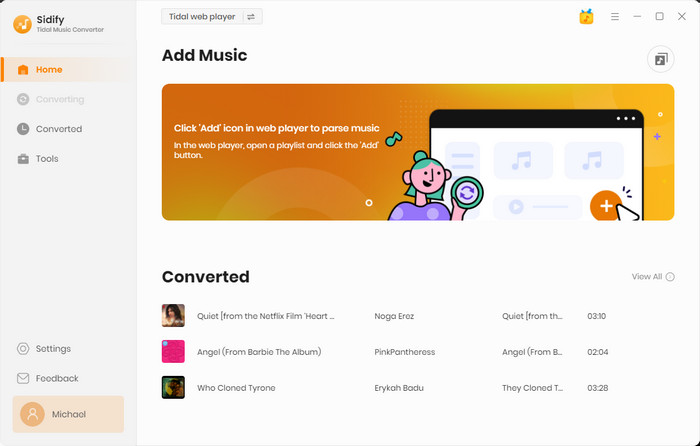
Step 1Launch Sidify Tidal Music Converter
Launch Sidify Music Converter on the computer and log into your Tidal account within the Tidal desktop app.
-
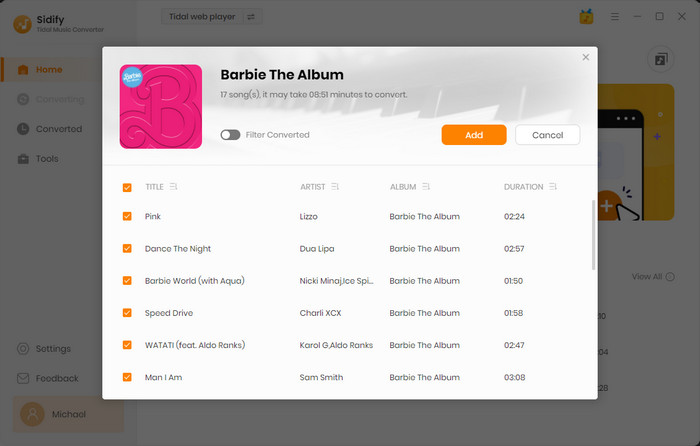
Step 2Add Tidal Playlists to the Converter
Once logged in, open your library and select the Tidal playlist you want to convert. You can add multiple playlists at once, which is useful if you want to batch convert Tidal playlists in a single session.
-
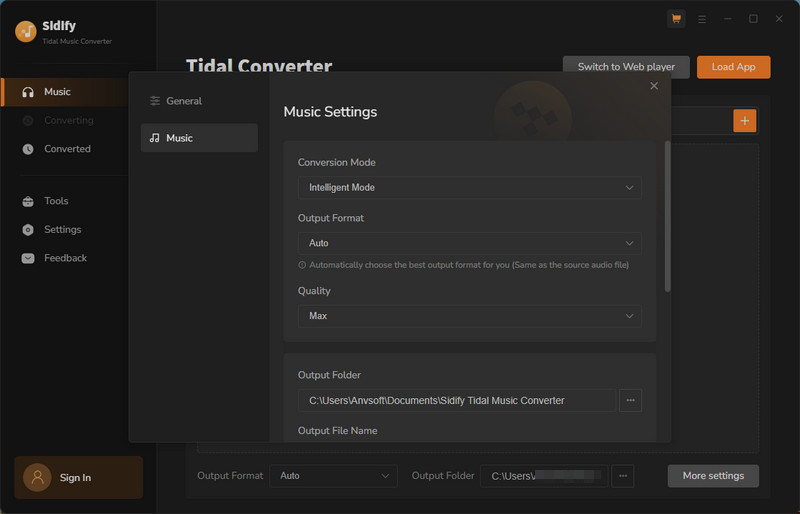
Step 3Configure Tidal to MP3 Output Settings
Open the Settings menu, choose MP3 as the output format, adjust the audio quality to 320kbps, and select a destination folder on the PC or Mac for the downloaded Tidal music.
-
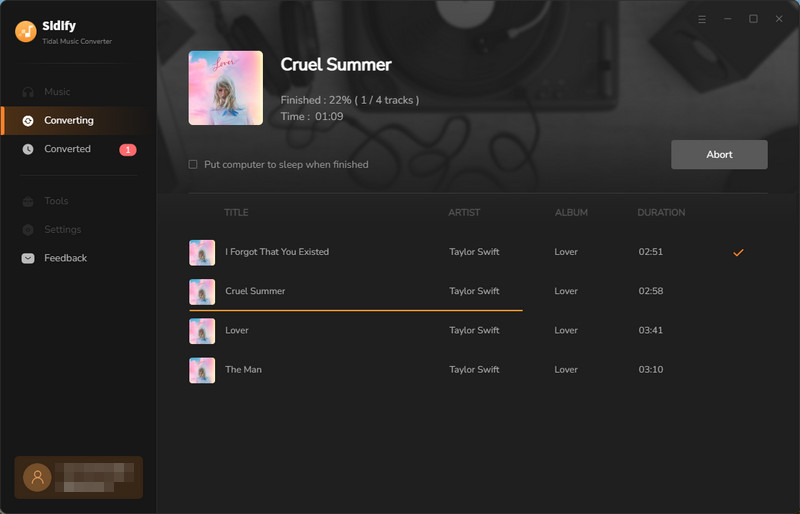
Step 4Get MP3s from Tidal
Click the Convert button to start the Tidal music MP3 conversion task. Sidify will process the entire playlist in batch mode. That means you can download multiple tracks or full playlists from Tidal without manual intervention.
-
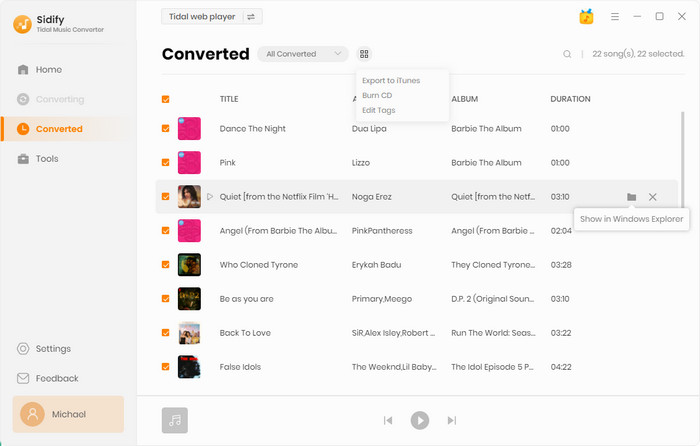
Step 5Find Tidal MP3s Saved on PC Locally
After completion, all Tidal tracks will be exported in standard MP3 formats and stored in your selected folder.
1.2. Tidabie: Download MP3 Music from Tidal to PC
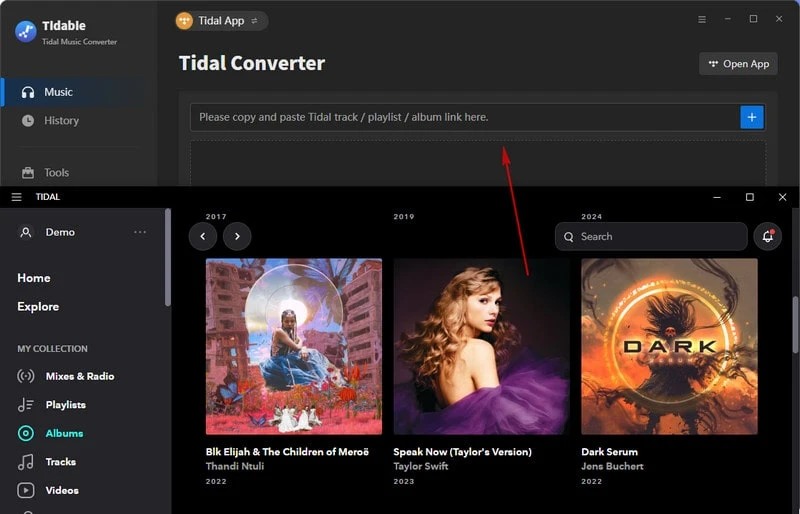
Tidabie is another desktop method you can use to extract music from Tidal. With Tidabie's built-in conversion workflow, you can select full albums from Tidal library and export Tidal album songs as standard MP3 files. Tidabie operates via the Tidal web player, so the Tidal app isn't needed. Better to help reduce system load.
- Export Tidal Music to MP3, AAC, FLAC, WAV, AIFF, and ALAC.
- One-click add Tidal music and convert MP3 without Tidal app.
- Convert Tidal music and playlists at 10x speed.
-
Step 1Start Tidabie Music Converter
Open Tidabie Tidal Music Converter on the computer and log into a Tidal account within inside the converter.
-
Step 2Add Tidal Music Songs to Converter
From the Tidal web player, open one playlist and click the "Add" button to put all playlist songs on the converter. To convert only selected songs, tick the desired tracks and add them to the conversion list.
-
Step 3Select MP3 as the Output Format
Go to the Settings section, choose MP3 from the available download options. Customize the Tidal music file name, organized ways and destination location for the music downloads.
-
Step 4Start the online conversion
Click the Convert button to start the Tidal Music conversion process. And the program will work at a 10x faster speed.
-
Step 5Save MP3 Files to Computer Internal Folder
When the process bar reaches 100%, go to the History part and check all Tidal downloads. Tap the folder icon to view the MP3 files in the local pathway. From there, you can migrate the Tidal MP3 songs to external players or software without a problem.
2. Convert Tidal Music to MP3 Online
If you only need to convert several Tidal songs to MP3, try an online Tidal music to MP3 converter which is good to access for smaller Tidal music downloads and quick MP3 track exports directly from a browser.
2.1. DoubleDouble: Convert Tidal Songs to MP3 for Free
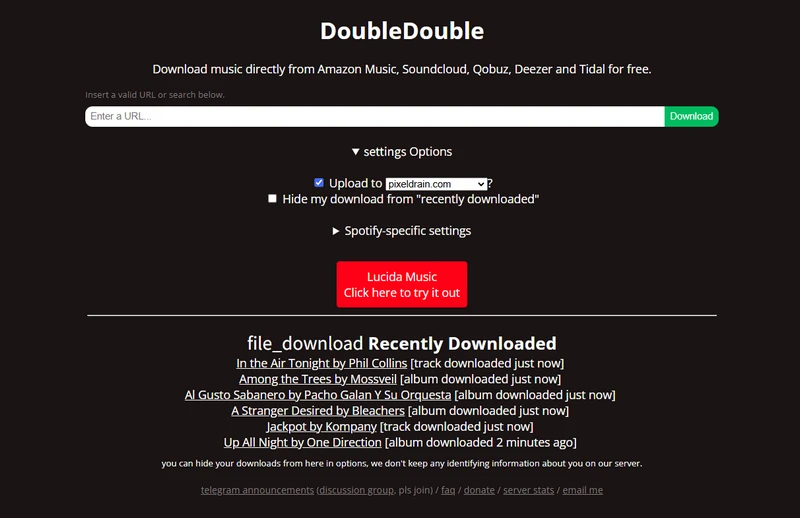
DoubleDouble (http://doubledouble.top/) is a free online downloader that can be used to rip Tidal songs in MP3 files from the web. It is so straightforward that you can just paste Tidal track links and download individual MP3 songs without installing any software. But download speeds and sound quality can jump around. You can't grab too many Tidal tracks at once. Ads appear now and then.
- Copy and paste the Tidal link and download MP3 files.
- Download Tidal single songs.
-
Step 1Open DoubleDouble on Browser
Go to the DoubleDouble website from your desktop or mobile browser. Since the tool works online, there is no installation process required before starting the conversion.
-
Step 2Copy and paste the Tidal track link
Open Tidal, find the song you want to convert, and copy its share link. Paste the URL into DoubleDouble’s input field so the tool can detect the track information automatically.
-
Step 3Select MP3 as the output format
Choose MP3 from the available download options before starting the process. Depending on the source track, the converter may provide different audio quality settings for the exported file.
-
Step 4Start the Tidal MP3 online conversion
Click the download or convert button to begin processing the track. DoubleDouble will generate a downloadable MP3 version directly from the browser without requiring additional software installation.
-
Step 5Download and save the MP3 file locally
After processing is complete, download the converted track onto your device. The MP3 file can then be stored locally for offline playback or transferred to other devices and media players.
2.2. Lucida.to: Export Tidal MP3 Music Online
Lucida.to (https://lucida.to/) is an online MP3 downloader for Tidal, Qobuz, SoundCloud, Deezer, Amazon Music, and Yandex Music. For Tidal, it lets you grab a single track from album and playlist and convert music to MP3 up to 320kbps. If a Tidal track can't be found, the server will try other music platforms to get the same song instead of stopping there.
- Convert Tidal (and other music platforms) to MP3, FLAC, OGG Vorbis, Opus, M4A AAC and WAV formats.
- Smart source matching Tidal music to avoid dead ends.
-
Step 1Enter Tidal Song URL
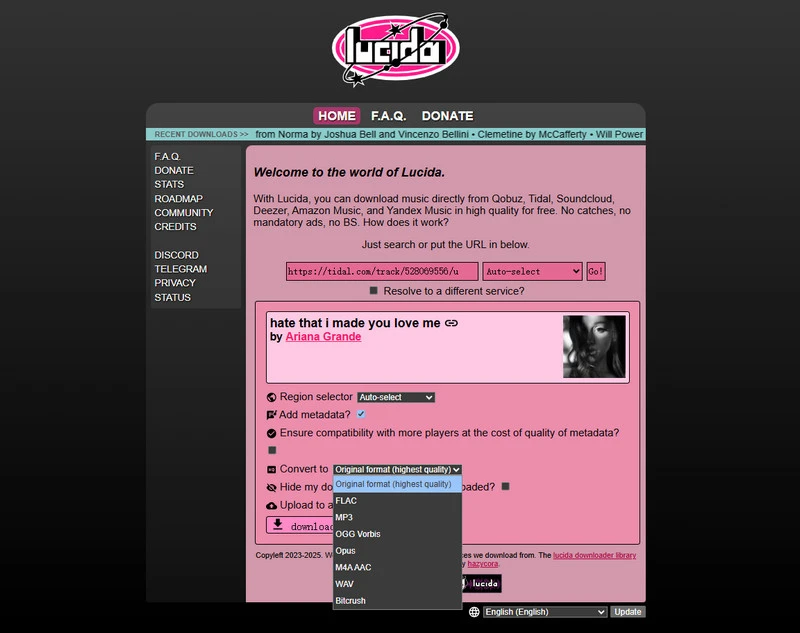
Go to Lucida.to and put a Tidal song link into the input box. Select "Auto-select".
-
Step 2Enable Music Source Matching
Tick "Resolve to a different service" and choose a fallback source (SoundCloud, Deezer, Amazon Music, or Yandex Music). Click Go to process.
-
Step 3Choose MP3 Format to Convert
From the results, select MP3 next to the "Convert to" dropdown menu, enable adding metadata, and set the bitrate to 320 kbps.
-
Step 4Download MP3 File
Click "Download track", choose a save location when prompted, and save the Tidal MP3 file to PC.
3. Convert Tidal Music to MP3 on Mobile
But if you are right on an iPhone or Android, don't worry. Have a go at DoubleDouble or Lucida.to we talked above. Or, you can try the Telegram app to extract MP3s from Tidal on mobile.
Telegram has some bots featuring MP3 files encoding. We tested TidalMusicBot and Tidal DL which work perfectly as free Tidal to MP3 converter. Send the Tidal track links inside the bot chat interface. The bot converts Tidal into MP3 files for direct saving on the phone. However, most of these bots only download one track at a time. High-fidelity audio is hard to obtain since the source is not 100% from Tidal.
- Free to download Tidal MP3 files on iPhone and Android.
- Send Tidal links and get downloadable MP3 replies.
-
Step 1Install Telegram App
Download and install the Telegram app onto the iPhone or Android. And search out Tidal DL bot within Telegram.
-
Step 2Adjust Tidal download settings.
Tap "Start" or send /start to activate the bot. Send the command /settings, choose Tidal, and select your preferred audio quality (e.g., 320kbps AAC, 16bit FLAC, or 24bit FLAC).
-
Step 3Send Tidal copied link to Bot
Copy a Tidal song or playlist link and paste it into the Telegram chat. The bot will process it and give you a download button. Tap it to save the Tidal music to the phone.
4. Tidal to MP3 Desktop vs Online vs Mobile
| Best for | Tidal to MP3 on Desktop | Tidal to MP3 Online | Tidal to MP3 on Android or iOS |
|---|---|---|---|
| Tidal Conversion | Playlists, albums, or tracks | Single tracks or small playlists | One track per request |
| Tidal MP3 Quality | 320kbps | 128kbps to 320kbps | 128kbps |
| Batch Convert | ✔ | × | × |
| Metadata & ID3 Tags | Title, Year, Artist, Album, Cover, Lyrics | Title, Artist, Year, Artwork | Title, Artist |
| Steps | Drag and Drop | Copy and Paste | Send and Reply |
| Efficiency | 100% | 70% | 80% |
5. Frequently Asked Questions
Can Sidify Tidal MP3 downloads go to MP3 players or USB?
Yep. Any Tidal tracks downloaded with Sidify are stored right on the computer, just like normal music files. You can transfer them anywhere you like and listen offline.
Can converted Tidal MP3 Music keep HiFi quality?
No. MP3 is a compressed format (up to 320 kbps), so it cannot preserve HiFi or Hi-Res quality. However, converting Tidal music to FLAC can retain CD-quality and Hi-Res audio.
Which format keeps the best audio quality when converting Tidal music?
FLAC is the best choice. Since Tidal streams in lossless Hi-Res FLAC, keeping the original format helps preserve the full audio quality. MP3 320kbps is good enough for MP3 files are lighter, faster to load in Serato and Rekordbox DJ software.
Will Tidal to MP3 conversion keep album artwork and metadata?
Yes. Album artwork and metadata can be preserved. Sidify and Lucida.to both preserve most ID3 tags, like title, artist, album, year, and artwork.

Sidify TIDAL Music Converter
Download Tidal to MP3, AAC, WAV, FLAC, AIFF, or ALAC while keeping the source audio quality, up to 10X faster, and preserving all ID3 tags for lifetime offline listening on any device.