S I D I F Y

FAQs of Sidify Music Converter for Mac

Find clear answers to common questions about registration, conversion modes, audio quality, macOS permissions, error codes, and technical support.

Yes. Sidify Music Converter is available on Android.

The Android version is included at no additional cost with your Mac license. Simply activate it using the same registration information.

Follow these steps:

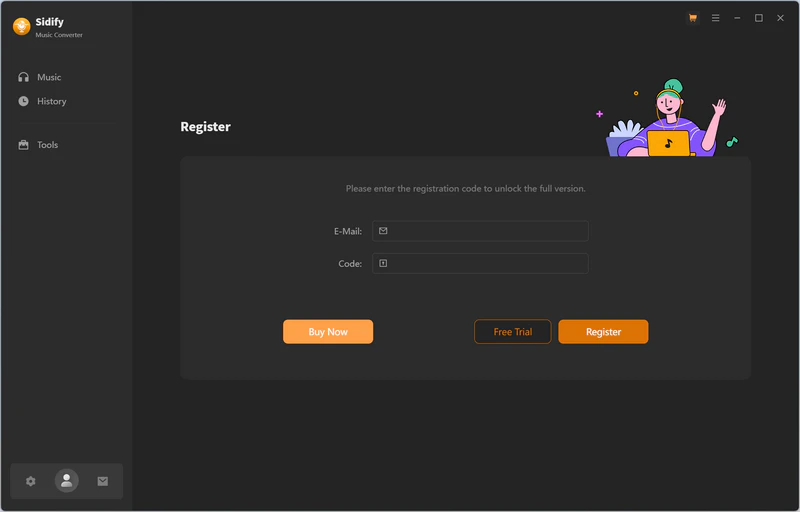
  1. Launch Sidify Music Converter.
  2. From the menu bar, select Sidify Music Converter > Registration. You can also click the Unregistered icon in Sidify.
  3. Enter the email address and registration code included in your order confirmation email.
  4. Click OK to activate the program.

We recommend copying and pasting the registration information directly from the email.
Please check the following:

  1. Make sure you have downloaded and installed the correct Sidify product.
  2. Make sure there are no extra spaces before or after your registration email or code.
  3. Copy and paste the registration information instead of entering it manually.
  4. Confirm that you are using the email address associated with your order.

If the code is still not accepted, contact our support team at support@sidify.com.
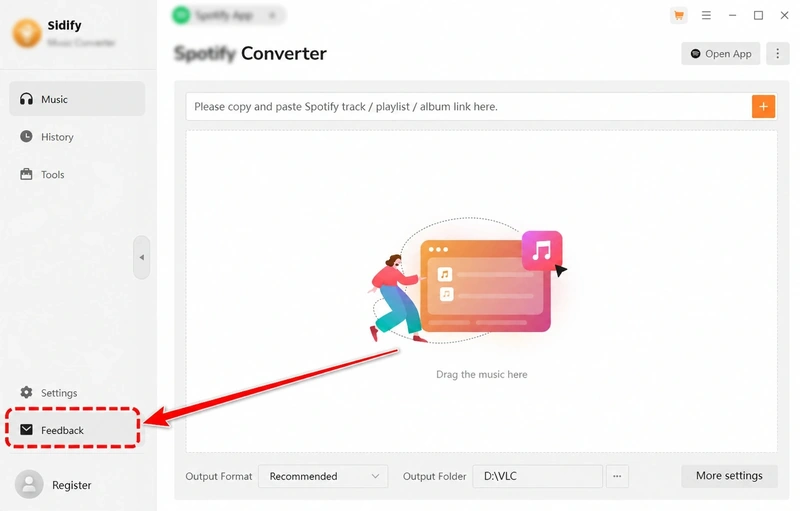
Please include your order information and a screenshot of the error message.

This is a limitation of the free trial version.

The trial version allows you to convert the first minute of each track so that you can test the program before purchasing.

To remove this limitation and convert complete tracks, purchase a license and register Sidify using your registration email and code.

Sidify Music Converter for Mac supports converting Spotify music to the following formats:

  • MP3
  • AAC
  • WAV
  • FLAC
  • AIFF
  • ALAC

The available audio quality may vary depending on the selected conversion mode, output format, and source quality.

Intelligent Mode

Intelligent Mode combines WebPlayer Download Mode or Spotify Record Mode with YouTube Download Mode. It is designed to improve conversion efficiency and automatically select a suitable conversion method.

Spotify Record Mode

Spotify Record Mode records audio through the Spotify desktop application. Use this mode when audio quality and conversion stability are your main priorities.

WebPlayer Mode

WebPlayer Mode downloads music through the Spotify Web Player. It provides a balance between conversion speed and output audio quality.

YouTube Mode

YouTube Mode searches for and downloads matching audio from YouTube. It generally provides the fastest conversion speed, but the result depends on whether a suitable match is available.

Yes. Sidify Music Converter for Mac supports downloading Spotify Lossless audio as lossless FLAC while retaining available ID3 tags.

To download Spotify Lossless audio:

  1. Sign in to a Spotify Premium account.
  2. In Spotify, click your profile picture and open Settings.
  3. Find Streaming Quality and select Lossless.
  4. Launch Sidify Music Converter.
  5. Select Spotify App Mode.
  6. Add the Spotify music you want to convert.
  7. Select Recommended as the output format.
  8. Click Convert.

The final output quality depends on the quality provided by Spotify and the settings selected in Sidify.

Yes. You can add and convert an entire Spotify playlist in one batch.

Open the playlist in Spotify, and then drag and drop it into Sidify. Sidify will load the available tracks and allow you to select the songs you want to convert.

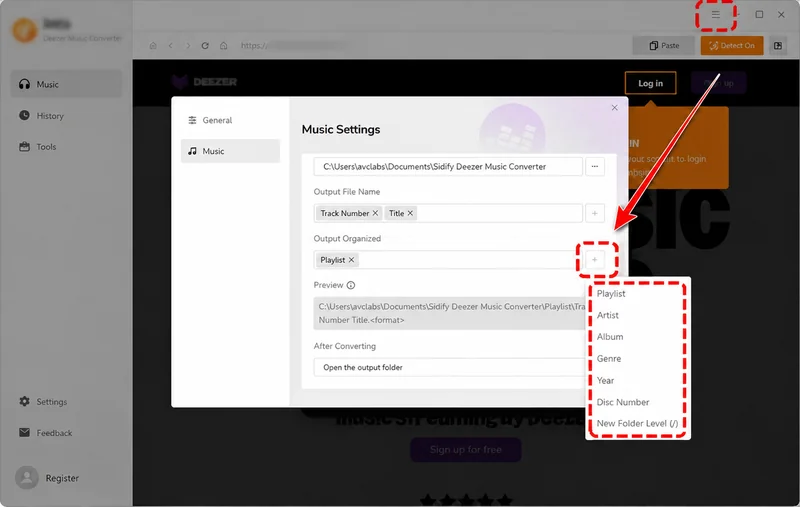
Launch Sidify and click Settings in the upper-right corner.

Under Output Organized, select one of the following folder structures:

  • Artist/Album
  • Artist
  • Album
  • Album/Artist
  • None

For example, selecting Artist/Album will save each track inside its artist and album folders.

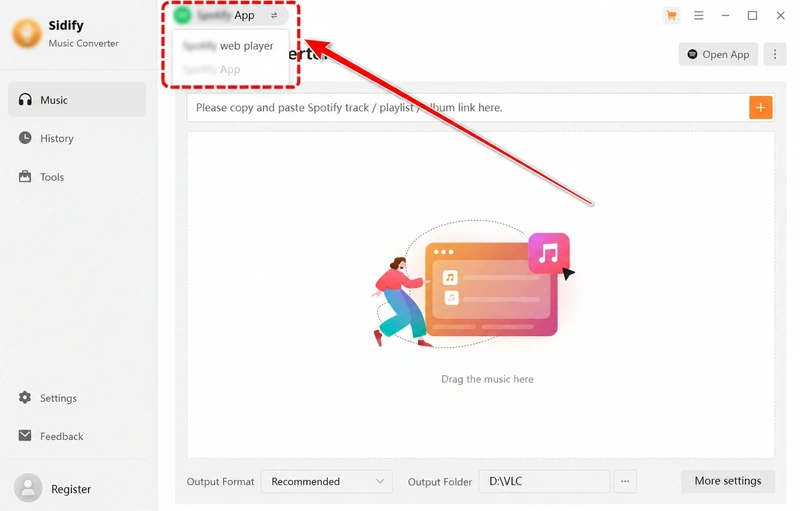
If the conversion speed is slow, switch from Spotify App Mode to WebPlayer Mode.

On the main Sidify interface, locate the double-arrow mode-switching icon at the top. Click it and select WebPlayer Mode.

WebPlayer Mode generally provides a better balance between conversion speed and output quality.

First, open Spotify and confirm that the original tracks can be played normally.

Then follow the instructions that match your situation.

The track plays for about 20 seconds and then skips

  1. Check whether your Mac is connected to an external audio device.
  2. Temporarily disconnect Bluetooth speakers, headphones, USB audio devices, HDMI devices, and other external audio equipment.
  3. Restart your Mac.
  4. Open Sidify and try the conversion again.

The conversion progresses normally but fails near completion

Sidify may not have permission to access the Documents folder.

Open Terminal and run the following command:

tccutil reset SystemPolicyDocumentsFolder "com.sidify.spotifyconverter"

Restart Sidify after running the command. When macOS displays a permission request, allow Sidify to access the Documents folder.

You can also review the permission under:

System Settings > Privacy & Security > Files & Folders

The conversion fails in another situation

Remove Sidify’s recording driver from the following location:

/Library/Audio/Plug-Ins/HAL/MJRecorderDevice.driver

After removing the driver, restart your Mac and try the conversion again.

If the problem continues, contact support@sidify.com and include:

  • Your macOS version
  • Your Spotify version
  • A description of the problem
  • The affected Spotify track or playlist link
  • Sidify’s log files

To locate the log files, open the menu bar and select:

File > Show Log File

Attach the following files:

  • Sidify Music Converter.log
  • Spotify.log

If your Mac speakers stop producing sound after using Sidify, remove the Sidify virtual audio driver and restart your Mac.

  1. Open Finder.
  2. Go to Applications > Utilities.
  3. Open Terminal.
  4. Copy and paste the following command exactly:

sudo rm -rf /Library/Audio/Plug-Ins/HAL/MJRecorderDevice.driver

  1. Press Return.
  2. Enter your Mac login password when prompted, and then press Return again.
  3. Close Terminal.
  4. Restart your Mac.

This command removes only the specified Sidify virtual audio driver. After restarting your Mac, test the speakers again.

If there is still no sound, contact support@sidify.com.

Cause: Sidify encountered an unknown error.

Solution:

  1. Open Sidify’s settings.
  2. Select YouTube Download Mode.
  3. Add the failed track again.
  4. Restart the conversion.

Cause: Sidify failed to open the audio encoder.

Solution:

  1. Close Sidify completely.
  2. Relaunch the program.
  3. Add the music again.
  4. Restart the conversion.

Cause: Your Spotify account is playing audio on another device.

Solution:

  1. Open Spotify.
  2. Open the device selection menu.
  3. Select This Computer as the active playback device.
  4. Make sure Spotify is not playing through another phone, tablet, speaker, or computer.
  5. Return to Sidify and retry the conversion.

Cause: The selected conversion process failed.

Solution:

Try one of the following:

  • Select a different output format.
  • Change the conversion mode to Spotify Record Mode.
  • Remove the failed track, add it again, and restart the conversion.

Cause: Sidify failed to start or connect to the Spotify Application.

Solution:

  1. Close Sidify and Spotify.
  2. Relaunch Sidify.
  3. If the error continues, uninstall Spotify.
  4. Download and reinstall Spotify from its official website.
  5. Open Spotify and confirm that it works normally.
  6. Restart Sidify and try again.

Cause: Spotify failed to play the selected track during conversion.

Solution:

  1. Make sure you are using the latest versions of Sidify and Spotify.
  2. Open Spotify and confirm that the original track plays normally.
  3. Check whether the issue affects only one track or multiple tracks.
  4. Temporarily disconnect external speakers, Bluetooth devices, headphones, USB audio devices, and HDMI audio devices.
  5. Restart Sidify and retry the conversion.

Cause: The actual track duration is shorter than the duration detected by Sidify.

Solution:

  1. Remove the failed track from the conversion list.
  2. Confirm that the original track plays normally in Spotify.
  3. Add the track again.
  4. Retry the conversion later.

Cause: The conversion was completed, but the converted output file is empty.

Solution:

  1. Open Sidify.
  2. From the menu bar, select Help.
  3. Click Uninstall Recording Driver.
  4. Close Sidify.
  5. Relaunch the program.
  6. Add the track again and restart the conversion.

Cause: Sidify could not find a suitable matching result while using YouTube Download Mode.

Solution:

  1. Open Sidify’s settings.
  2. Change the conversion mode to Spotify Record Mode.
  3. Add the failed track again.
  4. Restart the conversion.

These errors may occur when no suitable audio match is available in YouTube Download Mode.

Cause: Spotify account login is required before the selected content can be downloaded.

Solution:

  1. Sign in to your Spotify account in the Spotify window used by Sidify.
  2. Confirm that the selected track can be played normally.
  3. Return to Sidify and retry the conversion.

If the error continues, restart Sidify and sign in again.

Cause: The virtual audio device does not have the required Automation permission.

Solution:

  1. Open the Apple menu.
  2. Go to System Settings > Privacy & Security > Automation.
  3. Locate Sidify Music Converter.
  4. Allow Sidify Music Converter to control Spotify.
  5. Close and relaunch Sidify.
  6. Retry the conversion.

On older versions of macOS, go to:

System Preferences > Security & Privacy > Privacy > Automation

Cause: Sidify does not have permission to export converted files to the Music app.

Solution:

  1. Open the Apple menu.
  2. Go to System Settings > Privacy & Security > Automation.
  3. Locate Sidify Music Converter.
  4. Enable Music under Sidify Music Converter.
  5. Close and relaunch Sidify.
  6. Try exporting the converted files again.

On older versions of macOS, go to:

System Preferences > Security & Privacy > Privacy > Automation

Cause: The required file does not exist or cannot be found.

Solution:

  1. Open Sidify’s settings.
  2. Select a different local output folder.
  3. Set Output Organized to None.
  4. Make sure the selected drive or folder is currently available.
  5. Restart the conversion.

Avoid selecting a disconnected external drive or an unavailable network folder.

Cause: Sidify does not have permission to read from or write to the selected folder.

Solution:

  1. Open Sidify’s settings and select a different local output folder.
  2. Choose a folder that your Mac user account can access, such as a folder inside Music or Downloads.
  3. Open System Settings > Privacy & Security > Files & Folders.
  4. Locate Sidify Music Converter and enable access to the required folder.
  5. Close and relaunch Sidify.
  6. Retry the conversion.

On older versions of macOS, go to:

System Preferences > Security & Privacy > Privacy > Files and Folders

Cause: There is not enough free disk space in the selected output location.

Solution:

Free up disk space or select another output folder with sufficient available storage, and then restart the conversion.

Cause: The output file path is too long.

Solution:

  1. Open Sidify’s settings.
  2. Select a folder with a shorter path.
  3. Set Output Organized to None.
  4. Restart the conversion.

Avoid deeply nested folders and excessively long file names.

Cause: The output path may contain unsupported special characters, a trailing space, or a trailing period.

Solution:

  1. Select a simple local output folder.
  2. Set Output Organized to None.
  3. Retry the conversion.

If a song title, artist name, or album name contains unusual characters, include the Spotify track link when contacting Sidify Support.

Cause: The output file is too large for the file-size limit of a FAT-formatted drive.

Solution:

Select an output folder on a drive that uses a file system such as APFS, Mac OS Extended, or exFAT instead of FAT.

Then add the track again and restart the conversion.

Cause: Damaged or outdated cache files may be preventing Sidify from working correctly.

Solution:

Step 1: Update Sidify

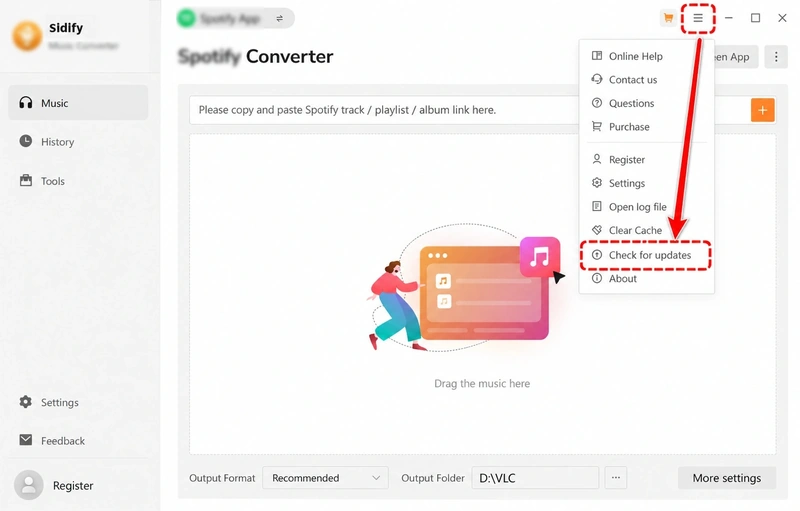
From the Sidify menu bar, select Check for Updates and install the latest available version.

You can also download the latest version from the Sidify Download Center.

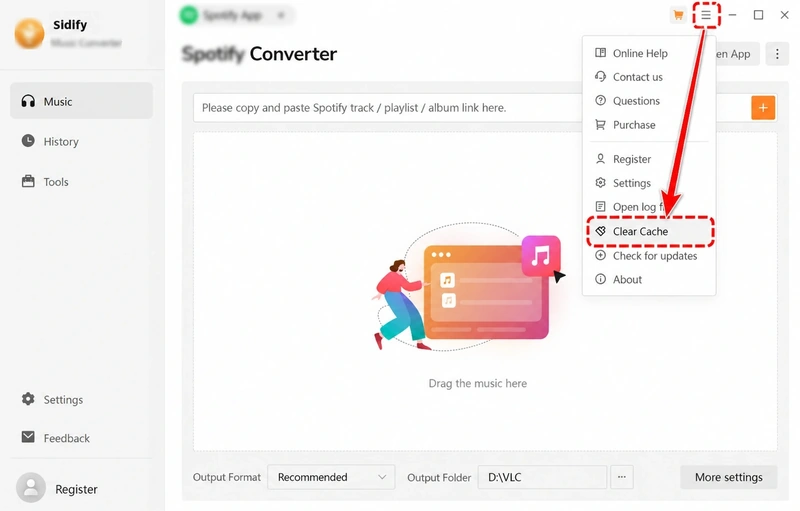
Step 2: Clear the cache files

  1. Close Sidify.
  2. Open Finder.
  3. Select Go > Go to Folder from the menu bar.
  4. Enter the following path:

~/Library/Application Support/Sidify Music Converter/

  1. Delete the files in this folder, but keep the following items:
  • config.json
  • ConvertHistory.list
  • Logs

Step 3: Restart Sidify

Relaunch Sidify and retry the conversion.

If Failed 6001 continues, open Sidify’s settings and change the conversion mode to Spotify Record Mode.

Cause: Sidify timed out while waiting for the Spotify player.

Solution:

  1. Close Sidify and Spotify.
  2. Relaunch Sidify.
  3. Confirm that Spotify can play music normally.
  4. Add the track again.
  5. Restart the conversion.

The current version of Sidify Music Converter requires macOS 11 or later.

If you are using macOS 10.15, download and install the last compatible version of Sidify Music Converter.

Please note:

  • The macOS 10.15 version will not receive further updates.
  • It will not display new-version upgrade notifications.
  • New features and fixes may not be available in the legacy version.

If your Mac cannot be upgraded to macOS 11 or later, contact support@sidify.com for available options.

Paid users who cannot upgrade their Mac may be eligible to request a Windows license.

Yes. This prompt is expected when Sidify runs on a Mac with Apple silicon.

nativeBridgeHelper requests authorization from macOS so that the required Sidify component can run correctly.

Enter your Mac username and login password when prompted.

This authorization is normally required only once. Your password is processed by macOS for system authorization and is not stored or transmitted by Sidify.

Contact the Sidify Support team at support@sidify.com.

To help us diagnose the issue efficiently, include the following information:

  1. Your Mac model.
  2. Your macOS version.
  3. Whether your Mac uses an Intel processor or Apple silicon.
  4. Your Spotify version.
  5. Your Sidify version.
  6. The conversion mode you selected.
  7. Your output format and quality settings.
  8. The name or Spotify link of the affected track, album, or playlist.
  9. A screenshot of the error message.
  10. Sidify’s log files.

To locate the log files, open Sidify and select:

File > Show Log File

Please attach the following files:

  • Sidify Music Converter.log
  • Spotify.log

Our support team will review the information and provide further assistance.

Still Need Help?

Our support team is here for you.
We’ll help you solve your problem as quickly as possible.

Fast Response Expert Support 24/7 Available
Contact Support Team support@sidify.com
Average response time: within 24h