
How to Use Sidify All-In-One Music Converter on Mac
Follow these steps to convert streaming music and use Sidify's built-in audio tools on your Mac.
 MP3
AAC · FLAC
WAV · ALAC · AIFF
MP3
AAC · FLAC
WAV · ALAC · AIFF
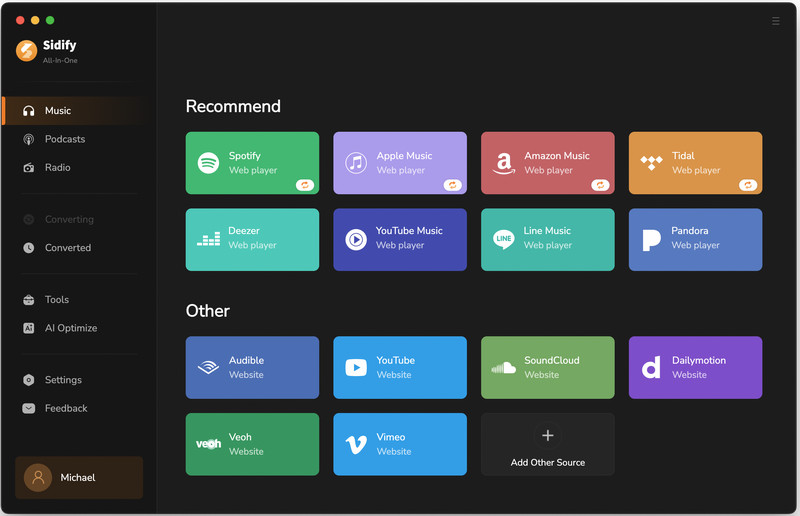
Sidify All-In-One Music Converter lets you download songs, albums, playlists, and other audio from Spotify, Apple Music, Amazon Music, YouTube Music, Tidal, Deezer, SoundCloud, Qobuz, and more. Save music in MP3, AAC, WAV, FLAC, AIFF, or ALAC format, and use the built-in tools to download podcasts, record radio, edit audio, and manage local files.
Download the PDF User Manual for Sidify All-In-One for Mac Trial Limitation:
The free trial converts only the first minute of each track. Purchase and register a license to convert full-length tracks.
01How to Register Sidify All-In-One on Mac
After purchasing Sidify All-In-One, you will receive a registration email address and license code.
Step 1 Open the Registration Window
Launch Sidify and click Register in the lower-left corner.
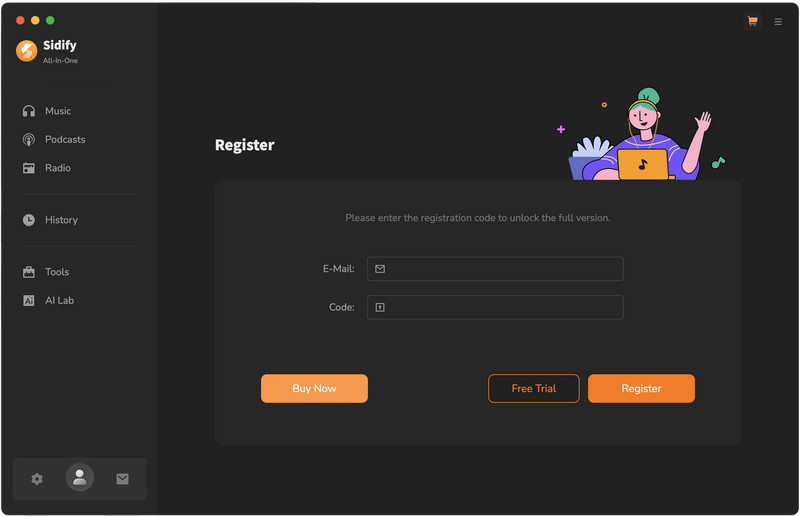
Step 2 Enter Your Registration Information
Copy the registration email address and license code from your order confirmation email. Paste them into the corresponding fields and click Register. On Mac, use Command + C to copy and Command + V to paste.
- Enter the registration information exactly as provided.
- Remove any spaces before or after the registration information.
- Make sure your license is valid for Sidify All-In-One on Mac.
02Video Guide — Quick Start
03How to Convert Streaming Music on Mac
The process is similar across supported services. The following steps use Spotify as an example.
Step 1 Select a Streaming Music Service
Download, install, and launch Sidify All-In-One on your Mac. Select a streaming service, then choose App Mode or Web Player Mode when available. Here we will select Spotify web player mode as an example to show you how it works. (App Mode Vs. Webplayer Mode)
Step 2 Add Spotify Songs to Sidify
Open the song, album, artist, or playlist you want to download, then click Click to Add in Sidify.
Select the tracks you want and click Add.
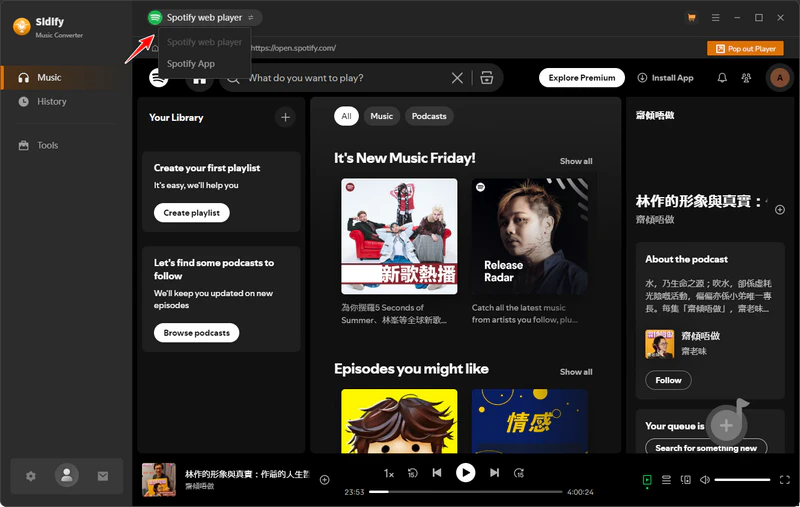

- In App Mode, you can also drag a playlist into Sidify or copy and paste its link.
- Can't find the Click to Add button?
- App Mode: Open Settings and enable Enable One-click in Spotify Desktop if needed.
- Web Player Mode: Go to Menu > Clear Cache, then reopen the album or playlist.
Step 3 Set the Output Format and Quality
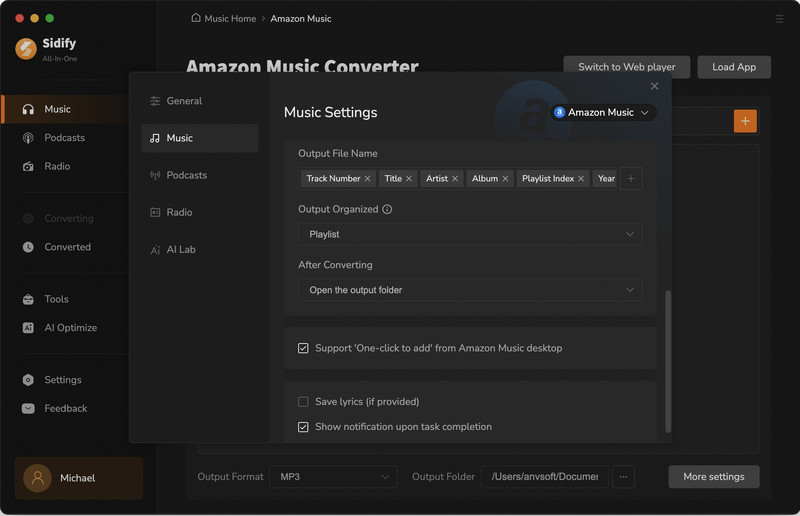
Open Settings and choose the output format, audio quality, conversion speed, and output folder. Available formats include MP3, AAC, WAV, FLAC, AIFF, and ALAC.
Optional: Customize the file name, folder organization, sample rate, and lyric settings when available.
Step 4 Start Converting the Music
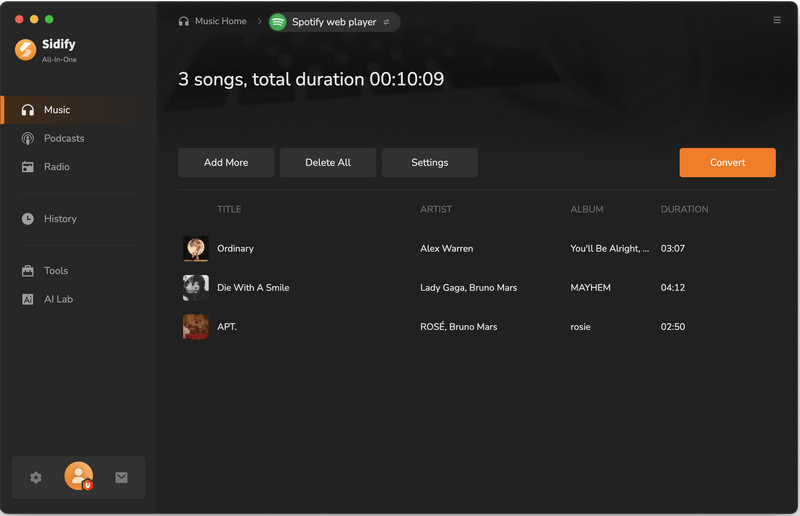
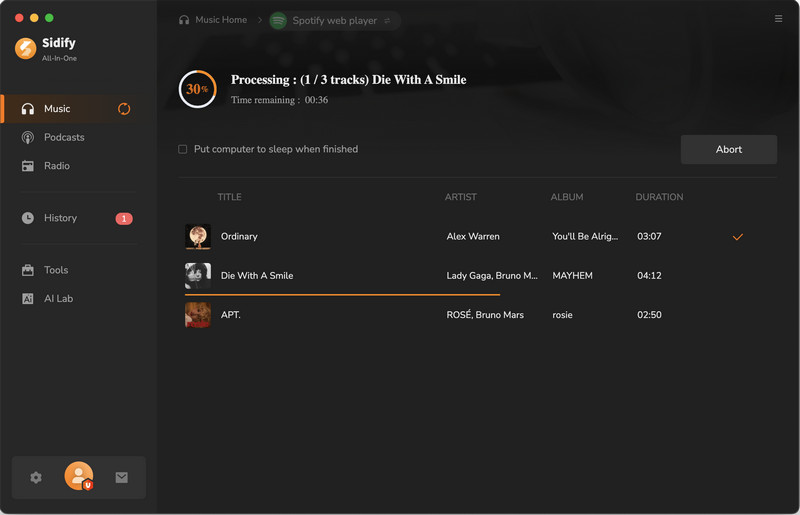
Review the selected tracks and click Convert. Keep Sidify open until the conversion is complete.
Step 5 Find the Converted Music
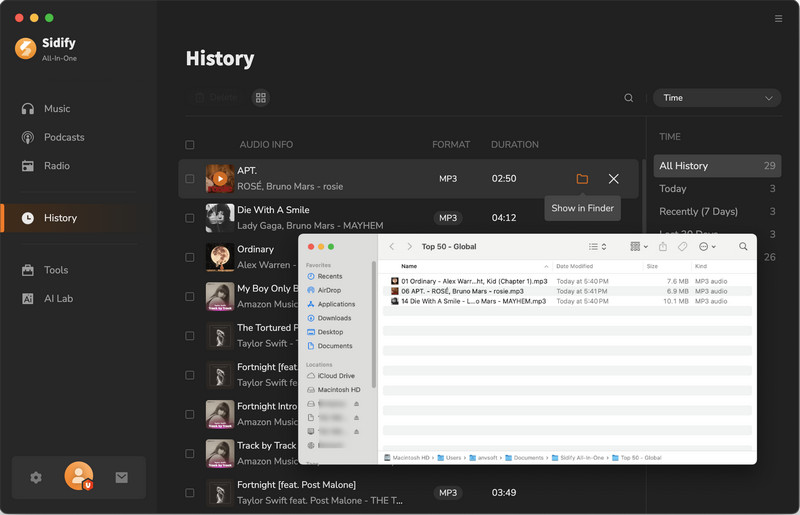
Open History after the conversion finishes. Click the folder icon beside a track to view the file in Finder. You can then copy it to a USB drive or transfer it to a supported device.
04How to Download Podcasts to MP3 for Free
Use the built-in podcast downloader to save episodes as MP3 files.
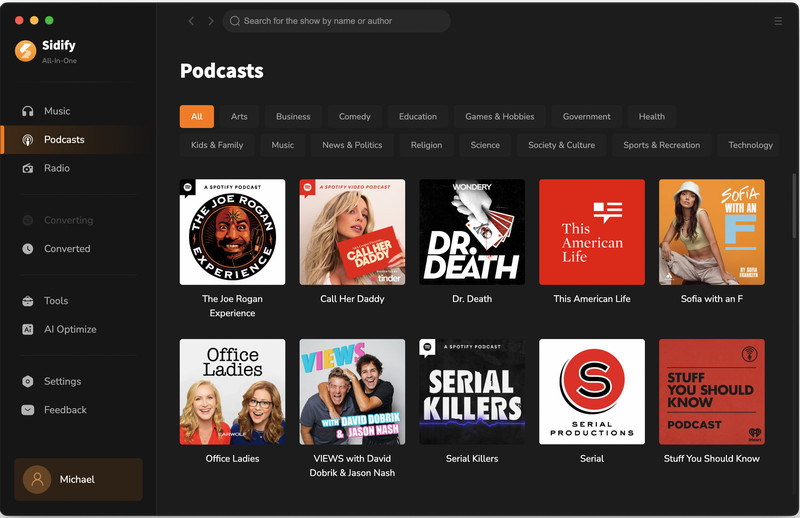
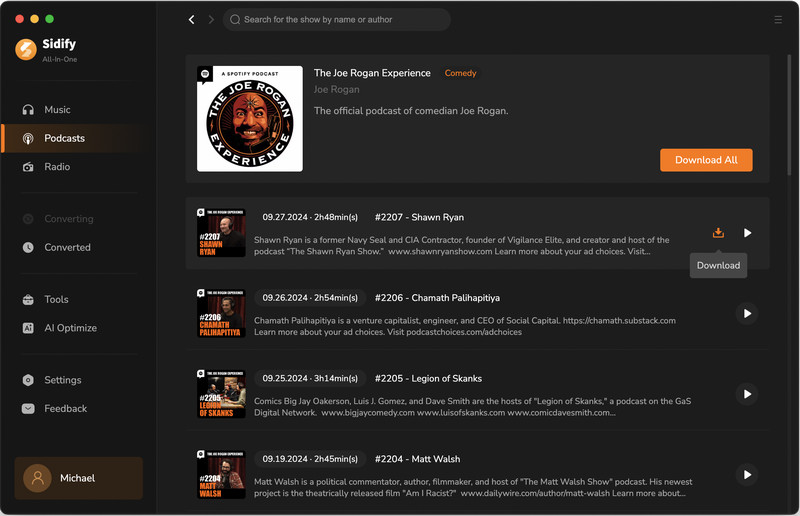
- Select Podcasts from the left panel and find a podcast.
- Open the podcast page and find the episodes you want to download.
- Click Download for one episode, choose Download All, or use Download Selected. Confirm the list and click Add.
- Click Download to start downloading.
05How to Record Online Radio to MP3 For Free
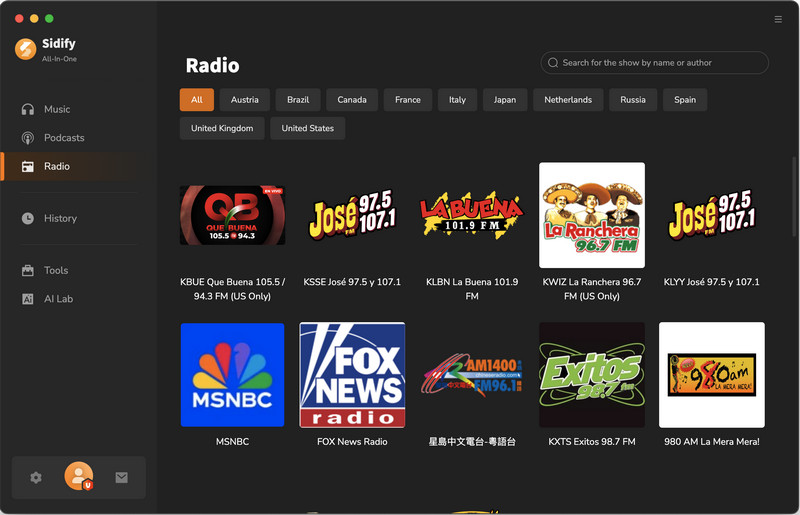
Use the built-in radio recorder to save online radio programs.
- Select Radio from the left panel and find a station.
- Under Record Settings, choose the output format, audio quality, and output folder.
- Play the station and click Click to Record. Stop the recording when finished.
06How to Separate Vocals and Instrumentals
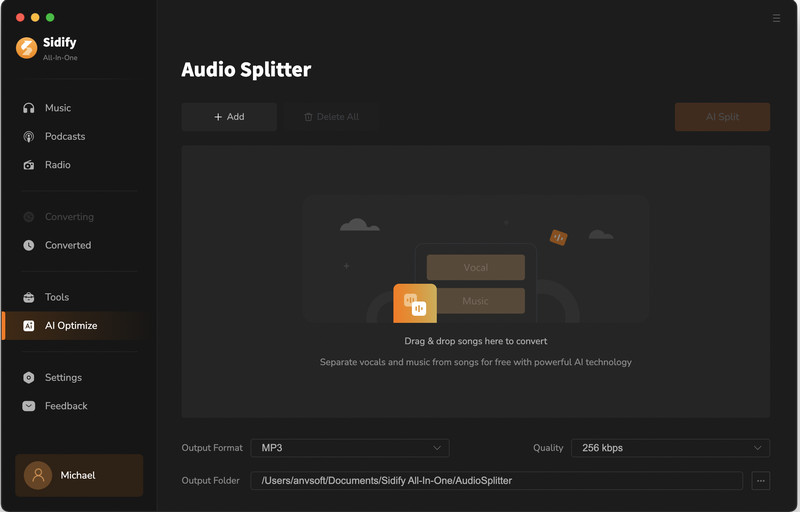
Use AI Audio Splitter to separate a local audio file into vocal and instrumental tracks.
- Select AI Optimize > AI Audio Splitter from the left panel.
- Add an audio file, then choose the output format and folder.
- Click AI Split to begin processing.
- When complete, open the output folder to find the separated files.
07More Tools and Features
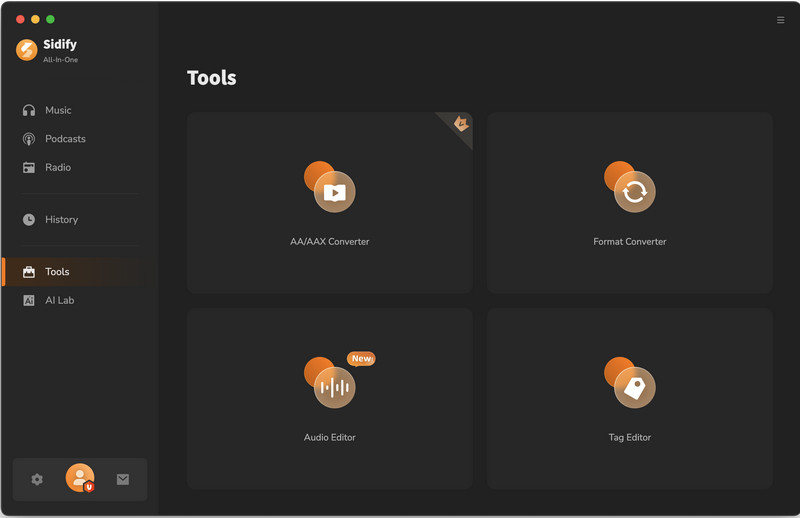
Select Tools from the left panel to manage local audio files.
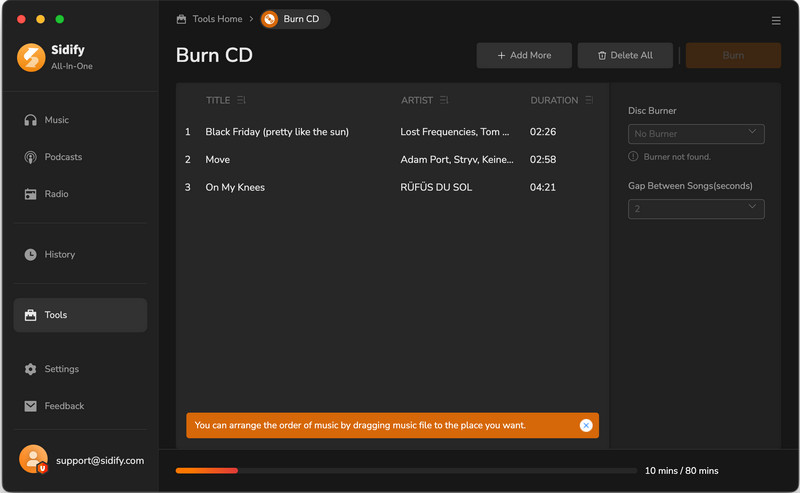
How to Burn a CD
To burn a CD, open Tools > Burn CD, add your files, and click Burn. A compatible disc drive and blank CD are required.
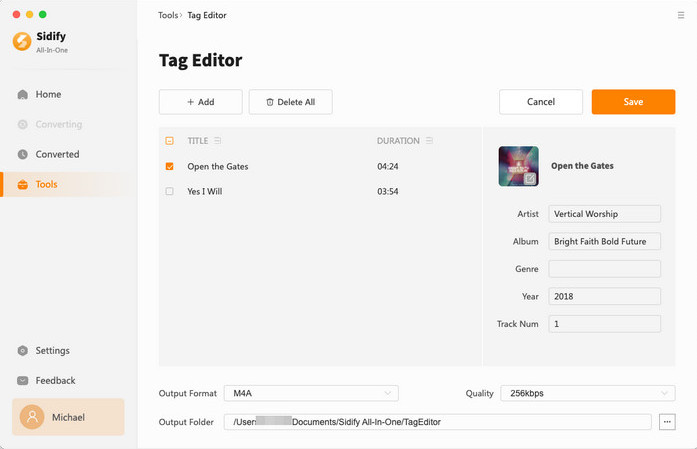
How to Edit ID3 Tags
Open Tools > Tag Editor, add an audio file, edit its metadata or cover artwork, and save the changes.
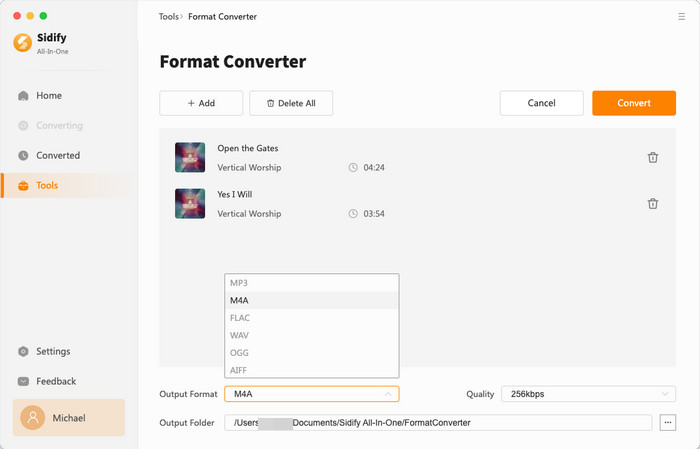
How to Convert Local Audio Files in Bulk
Open Tools > Format Converter, add your files, choose an output format and folder, and click Convert.
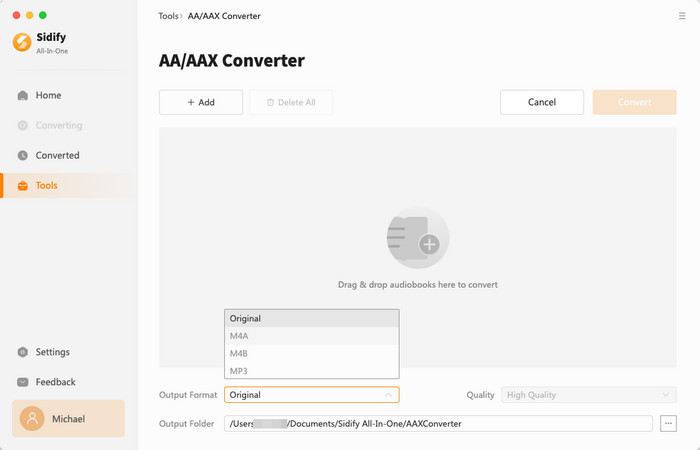
How to Convert AA/AAX Audiobooks
Open Tools > AA/AAX Converter, add local AA or AAX files, choose MP3, M4A, or M4B, and start the conversion. This tool does not download audiobooks from Audible.
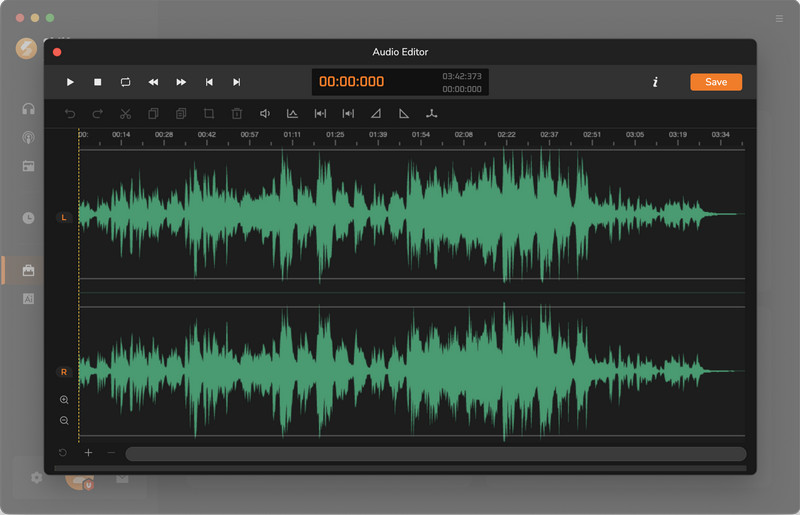
How to Edit Music Files
Open Tools > Audio Editor, add an audio file, make the required edits, and save the result.
How to Play Output Audio in Sidify
Open History, select a converted track, and click Play.