
Find clear answers to common questions about registration, supported platforms, macOS installation, error codes, and technical support.
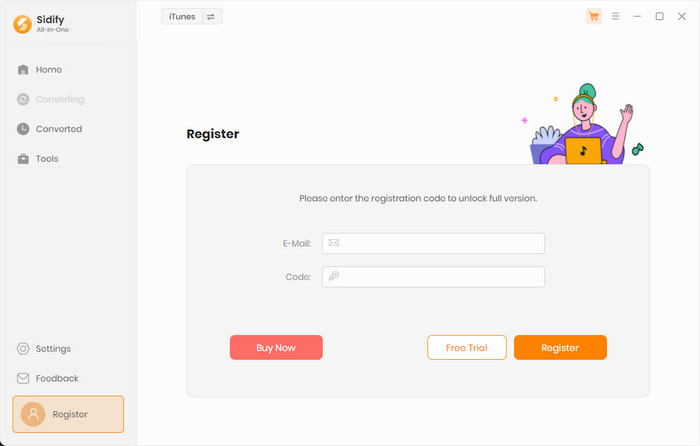
After purchasing a license, you will receive an email from Sidify with your registration information. Follow these steps to register:
[1] Launch Sidify All-In-One and click the Sign In button in the lower-left corner.
[2] Copy and paste the registration email and code into the registration dialog, then click Register to confirm.
No. A Windows license cannot be registered on a Mac, and a Mac license cannot be registered on Windows.
If you accidentally purchase a license for the wrong operating system, place a new order for the correct one, then contact us within five days to arrange a refund for the original order.
Yes. You can download the free trial from our Download Center. The trial version lets you convert the first minute of each song for testing.
If you're satisfied with the program, you can purchase a license to unlock full-length conversion.
[1] Make sure you've registered the correct program version — the Windows and Mac versions do not share registration codes.
[2] The registration code is case-sensitive. Make sure there are no spaces before or after the registration information.
[3] Each license is limited to one computer. Using the code on more than one computer will result in an invalid status.
If the error persists, contact our support team at support@sidify.com for further assistance.
[1] Make sure your license is still valid; if it is, register it again.
[2] Each license is valid for a single computer only — using your code on more than one computer will cause the program to show as a trial version.
[3] If you've recently updated your operating system, your registration information may have been cleared. Register your license again in this case.
If the issue persists, contact our support team at support@sidify.com for further assistance.
No. Each license is valid for one computer only. Using it on more than one device at the same time will invalidate the license.
To transfer your license to a new computer, contact our support team at support@sidify.com. If you need to use Sidify All-In-One on multiple devices at once, we recommend purchasing an additional license — returning customers are eligible for exclusive discounts, so feel free to reach out.
Contact our support team at support@sidify.com and provide your order information, such as your email address, receipt, order number, or any other details you remember.
Yes. We take the security of your information seriously. Sidify All-In-One has a privacy policy in place and does not share your information with third-party advertisers without your consent.
Sidify All-In-One supports multiple streaming platforms, including:
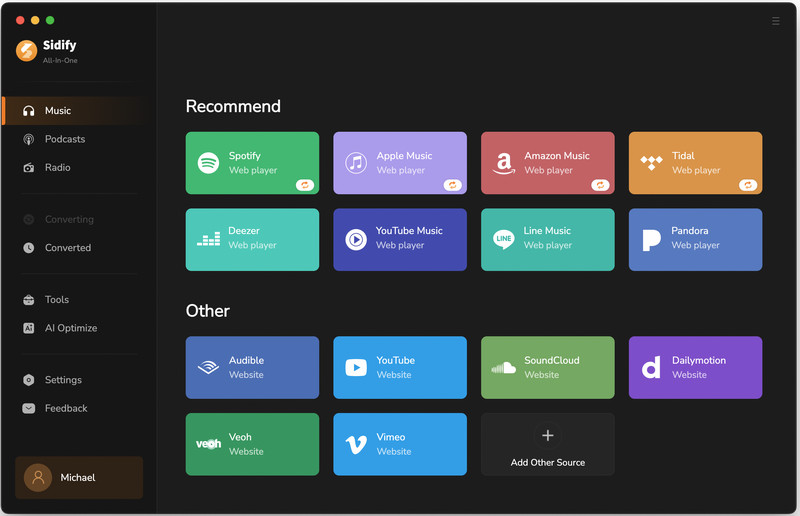
Yes. On Apple silicon Macs, the nativeBridgeHelper prompt requests authorization from macOS so Sidify can run correctly.
Enter your Mac username and password when prompted. This request appears only once, and your credentials are handled entirely by macOS — they are not stored or transmitted by Sidify.
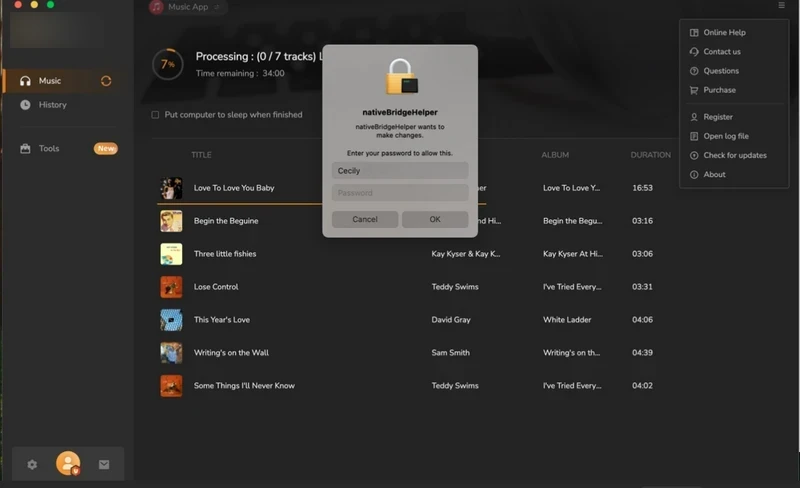
Sidify All-In-One supports over 48 languages, including Arabic, Armenian, Azerbaijani, Basque, Bosnian, Bulgarian, Brazilian Portuguese, Catalan, Chinese, Croatian, Czech, Danish, Dutch, English, Filipino, Finnish, French, Galician, Georgian, German, Greek, Hebrew, Hindi, Hungarian, Indonesian, Italian, Japanese, Javanese, Korean, Macedonian, Malay, Maltese, Norwegian, Persian, Polish, Portuguese, Romanian, Russian, Slovak, Spanish, Swedish, Tamil, Thai, Turkish, Ukrainian, Vietnamese, and Zulu.
If you encounter a problem that cannot be solved using the solutions above, please try the following steps first:
[1] Update or reinstall the latest version
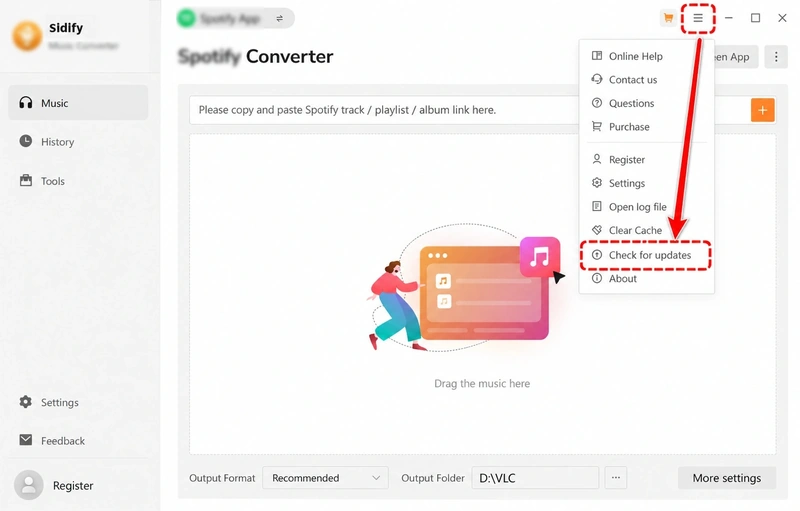
In the program, go to Menu > Check for updates to check for the latest version. You can also download the latest version from the Download page on our website: https://www.sidify.com/download-center.html.
[2] Switch the conversion mode
Try switching between the available conversion modes and then try the conversion again.
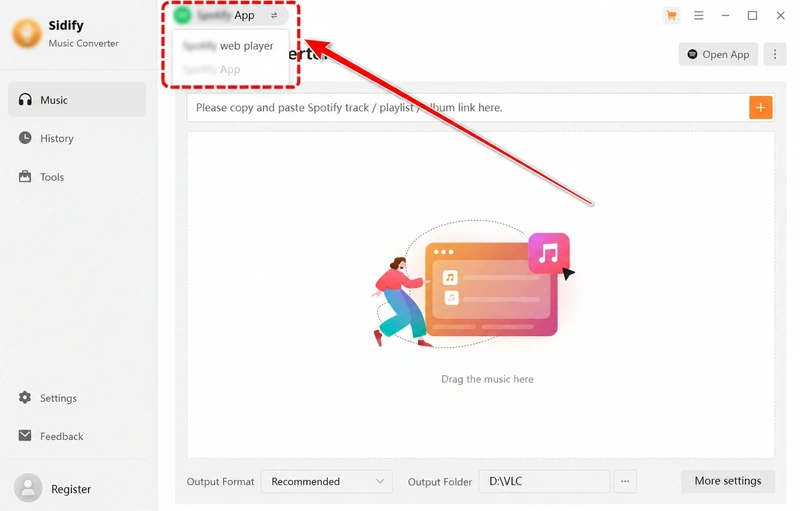
[3] Clear the program cache
For a basic cache cleanup, go to Menu > Clear Caches in the program.
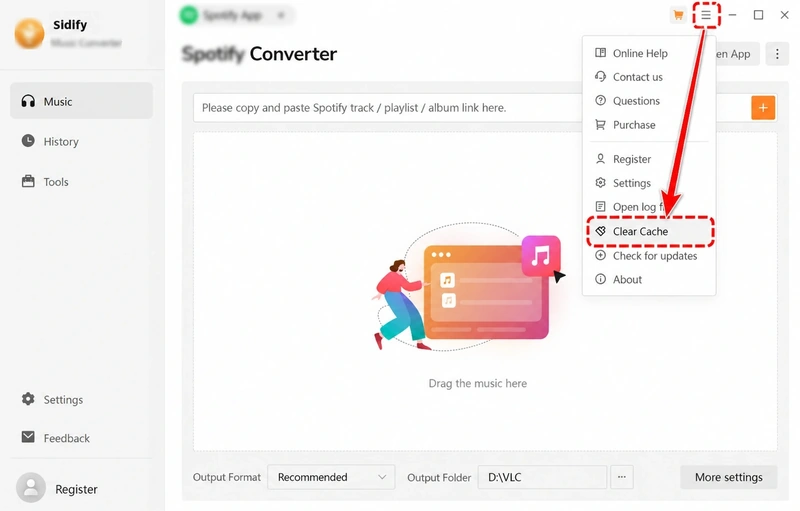
If the problem persists, open Finder and select Go > Go to Folder, enter ~/Library/Application Support/, find the corresponding Sidify program folder, delete it, restart the program, and try again.
[4] Check your account status
Make sure that you can log in to the relevant music streaming account normally through an external web browser and that any required subscription is active.
[5] Check your IP address and regional restrictions
If you are using a VPN, try turning it off or switching to another server, and then try again.
[6] Contact our technical support team
If the problem still cannot be resolved, click Feedback in the lower-left corner of the program to contact our support team at support@sidify.com. Provide a clear description of the issue, the troubleshooting steps you tried and their results, screenshots or videos, and the program log files.
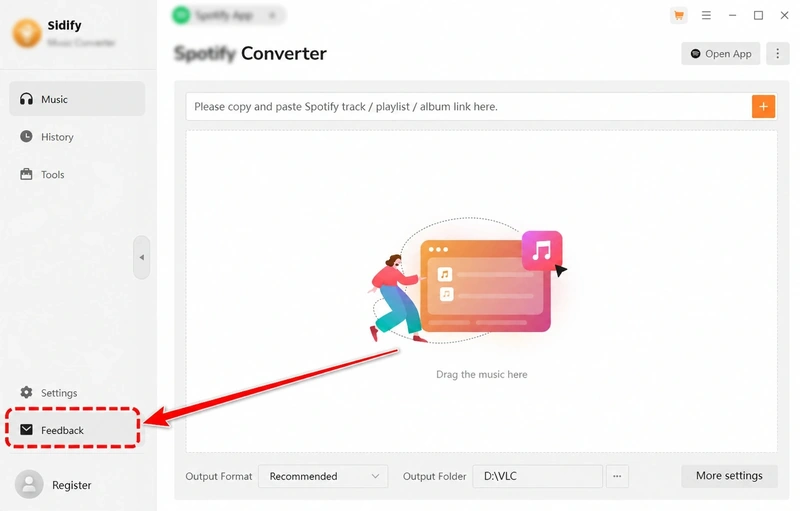
Our support team is here for you.
We’ll help you solve your problem as quickly as possible.