
Launch Sidify Apple Music Converter for Windows. Click the "Key" icon or click the "Menu" icon on the upper right and then select "Sign In". There will be a registration pop-up dialog where you can copy and paste your registration e-mail and license code to get the program registered.
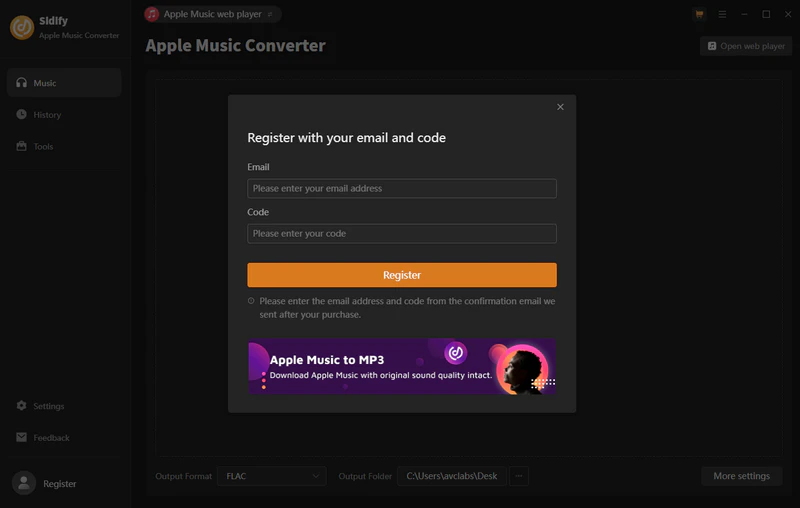
There are several possible causes for the invalid code message.
[1]Please make sure you are running the correct Sidify program and version for your purchase.
[2]Please make sure the registration e-mail address and code match the purchase information. Check that there are no extra spaces or characters before or after the registration information.
[3]One registration code can only be activated on one device. If the code has been activated on another device, please sign out of or deactivate the old device first.
If the problem persists, please contact our support team via support@sidify.com for help.
It's the limitation of free trial version. To unlock the restriction, please purchase a license.
[1]Please make sure the music has been downloaded to your computer and can be played normally in iTunes. Also make sure your computer is authorized with the same Apple ID used to download the music.
[2]If Sidify still cannot read the complete library, please recreate the iTunes Music Library.xml file:
a. Uninstall Sidify from your computer.
b. Go to C:\Users\username\Music\iTunes and delete iTunes Music Library.xml.
c. Download and install Sidify from the Download Center. Do not launch Sidify.
d. Start iTunes and play a song to generate a new XML file.
Close iTunes, launch Sidify, and check whether the issue has been resolved.
Yes, Sidify Apple Music Converter is fully compatible with the iTunes downloaded from Microsoft store. To convert Apple Music smoothly, please make sure you are running the latest version of Sidify.
[1]Please make sure you are running the latest version of Sidify program, otherwise, please directly download the latest version of Sidify Apple Music Converter from Sidify Download Center.
[2]Please make sure your original audios can be played normally on iTunes. -- If it is a purchased M4P music from iTunes, please make sure your computer is well authorized with the same Apple ID that you used when downloading the iTunes music.
[3]Please check whether the problem happen to certain music files or not. If yes, please re-convert the music for a try.
[4]Please check whether there is any external audio device connected to your computer including USB, Wi-Fi, Airplay, Bluetooth and HDMI, etc. If yes,please disconnect them and retry.
[5]After clicking "Convert", please check whether is there any pop-up blocking message (such as download, authorization, update...) in your iTunes. If yes, please resolve them and retry.
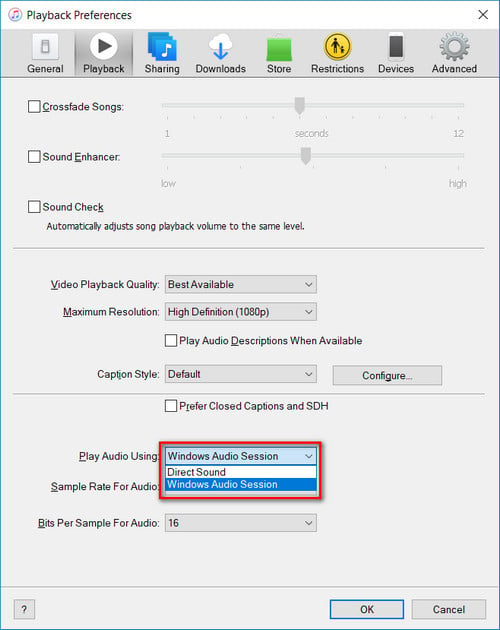
Please open iTunes Preferences by going to "Edit > Preferences", choose "Playback", and then select "Windows Audio Session" from the drop-down list of "Play Audio Using" and click "OK". After that, close iTunes and launch Sidify program to convert those songs again.
At present, Sidify does not support the Apple Music app for Windows. Instead, Sidify currently works with iTunes.
If you have both iTunes and the Apple Music app installed on your Windows computer, Sidify may not be able to read your music library correctly. To resolve this issue, please uninstall the Apple Music app and use iTunes instead. Alternatively, you can use Sidify to download songs from the Apple Music web player instead.
Note: We are working on adding support for the Apple Music app in the future.
If the solutions above do not resolve the issue, please try the following troubleshooting steps:
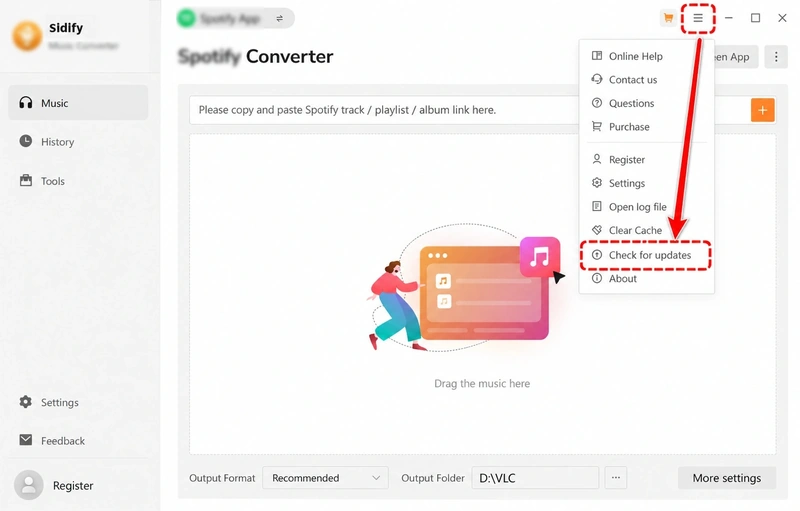
[1] Update to the latest version
Go to Menu > Check for Updates in the program to check whether a newer version is available.
You can also download the latest version from our Download Center or the download page for your product:
https://www.sidify.com/download-center.html
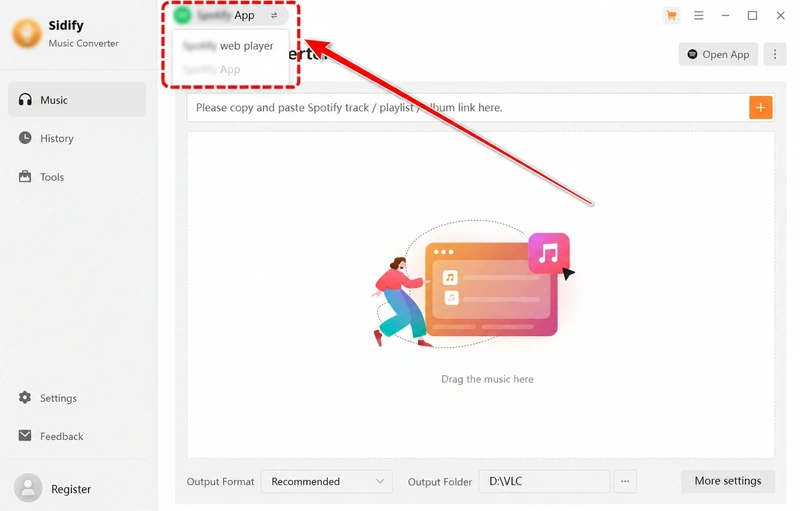
[2] Switch the App/Web conversion mode
Try switching between the available App Mode and Web Mode, then add the content again and retry the conversion.
[3] Clear the program cache
Go to Menu > Clear Caches, restart the program, and try again.
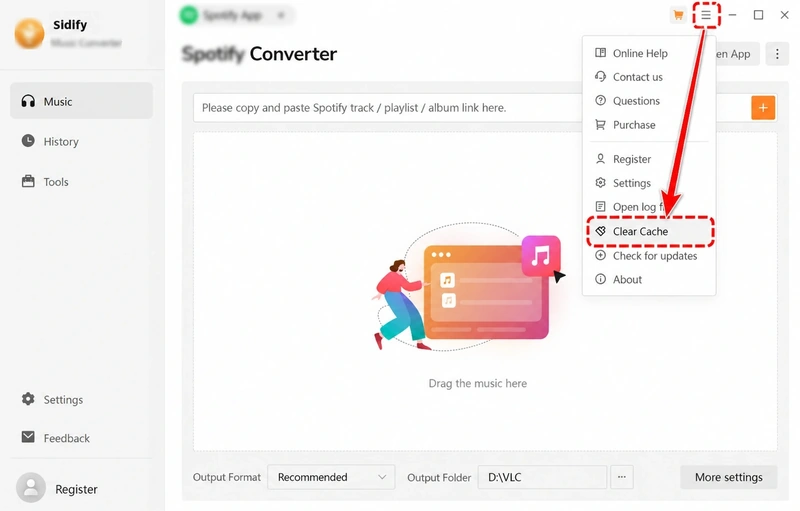
For complete cache cleanup, open C:\Users\USERNAME\AppData\Roaming\, find the corresponding Sidify program folder, such as Sidify Apple Music Converter, delete it, and restart the program.
[4] Check your account status
Make sure you can sign in to your music streaming account normally in an external web browser. If the service requires a paid subscription, also make sure your subscription is still active.
[5] Check your IP address and regional restrictions
If you are using a VPN, try turning it off or switching to another server, then retry the conversion.
[6] Contact our technical support team
If the problem still cannot be resolved, click Feedback in the lower-left corner of the program to contact our technical support team at support@sidify.com.
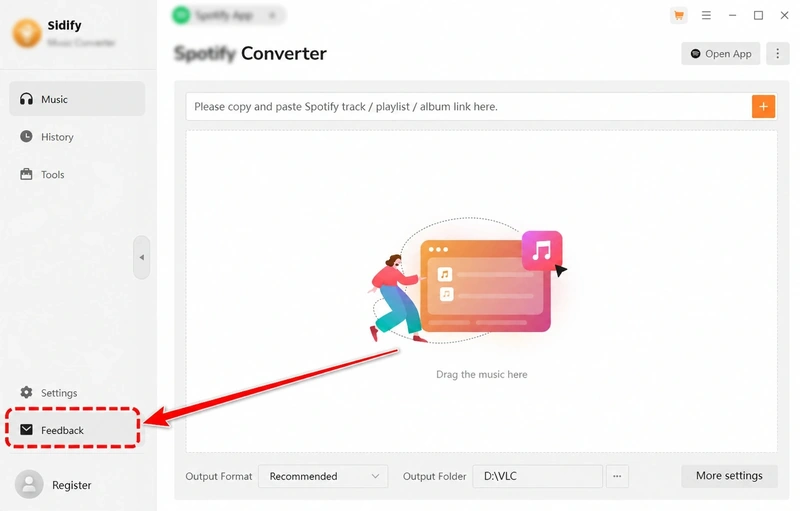
When submitting the issue, please clearly describe the problem, the troubleshooting steps you have already tried, and the results.
Please also provide a screenshot or screen recording showing the problem and the program log files.


