
 Sidify is not an agency nor affiliated program of Deezer. If the problem you are encountering cannot be solved by the solution(s) below, please contact our technical support team at support@sidify.com via e-mail for further help.
Launch Sidify Deezer Music Converter. Click the "Sign in" button or click the "Menu" icon on the upper right and then select "Register". There will be a registration pop-up dialog where you can copy and paste your registration e-mail and license code to get the program registered.
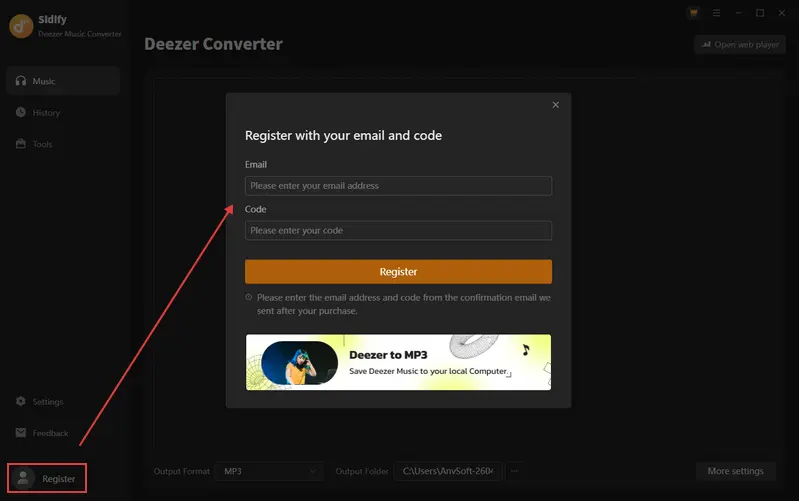
[1] Please make sure that the program you have installed matches the product and version you purchased.
[2] Please check that the registration code is exactly the same as the one you received in your purchase email. Make sure there are no extra spaces or incorrect characters.
[3] Each registration code can only be used on one device. If it has already been activated on another device, please sign out or deactivate it on the previous device before trying to activate it on the current device.
If the above methods do not resolve the issue, please contact our support team at support@sidify.com via e-mail for further assistance.
It's the limitation of free trial version. To unlock the restriction, please purchase a license.
Currently Sidify Deezer Music Converter is specially designed for converting Deezer songs, playlists and podcasts to MP3, AAC, WAV, FLAC, AIFF or ALAC format.
Definitely. You can export all the songs in your Deezer playlist in a single go by clicking "Add" icon to import songs from Deezer to Sidify.
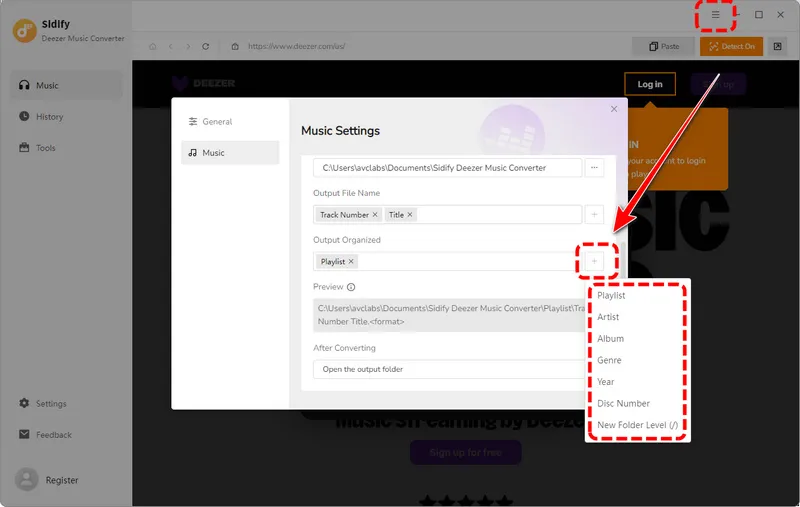
Launch Sidify and click "Settings" in the left sidebar. You can choose how to organize your output files by Artist, Album, Playlist, Genre, Year, Disc Number, or select "None" if you prefer not to organize them into separate folders.
Yes. Sidify Deezer Music Downloader supports Deezer HiFi audio quality, allowing you to download and save Deezer music in high-quality audio.
Sidify Deezer Music Converter supports macOS 11 and later versions. The software is designed specifically for macOS 11 or above and has been verified to work properly up to macOS 26 (Tahoe).
Please note that macOS versions earlier than 11 are not supported. We recommend upgrading to macOS 11 or newer to use the program smoothly. If you’re a paid user who cannot upgrade your system, we offer a free Windows license as an alternative. Please reach out to our support team for assistance with this option.
Yes, this is completely normal. On ARM systems, the nativeBridgeHelper prompt appears to request authorization from your operating system. Please enter your computer’s username and password to allow the program to run properly.
This step is required only once to grant the necessary system permissions. Your credentials are not stored or transmitted anywhere—they are used solely by your system to authorize the application.
If you encounter a problem that cannot be solved using the solutions above, please try the following steps first:
[1] Update or reinstall the latest version
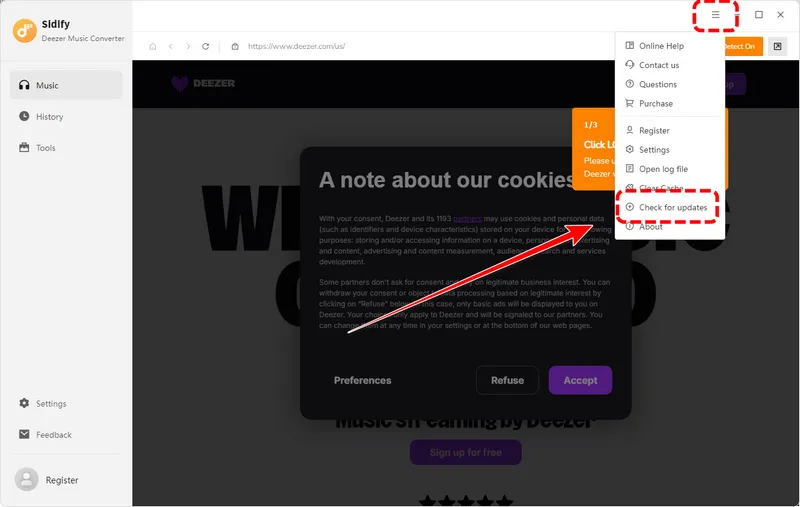
In the program, go to Menu > Check for updates to check for the latest version. You can also download the latest version from the Download page on our website: https://www.sidify.com/download-center.html.
[2] Clear the program cache
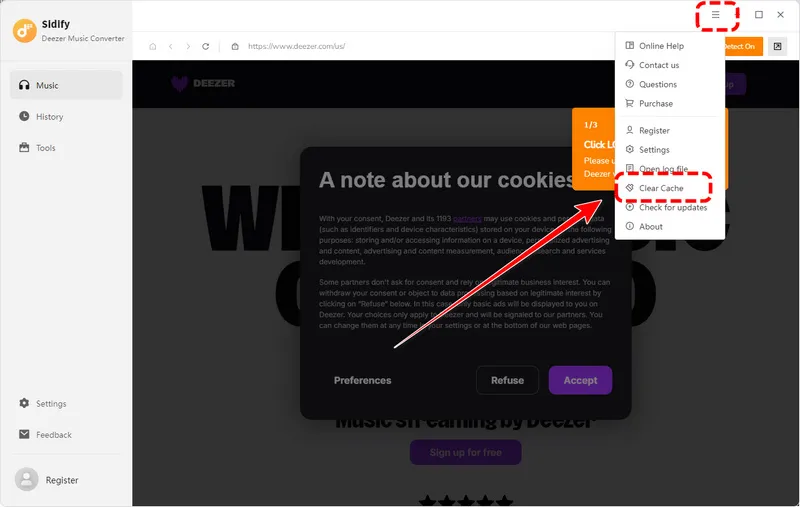
For a basic cache cleanup, go to Menu > Clear Caches in the program.
If the problem persists, you can perform a complete cache cleanup on Windows:
[3] Check your account status
Make sure that you can log in to your Deezer music account normally through an external web browser. If you are using Deezer music, please also make sure that your subscription is active.
[4] Check your IP address and regional restrictions
If you are using a VPN, try turning it off or switching to another server, and then try again.
[5] Contact our technical support team
If the problem still cannot be resolved, click Feedback in the lower-left corner of the program to contact our support team at support@sidify.com.
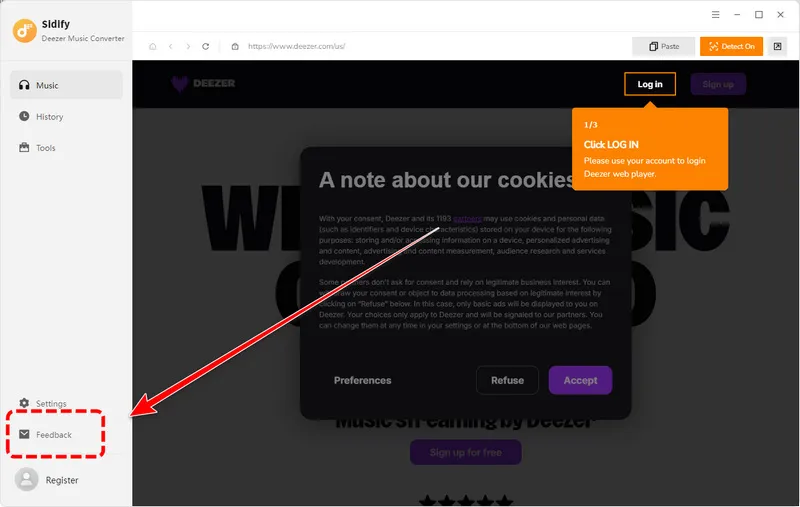
To help us identify the problem more quickly, please describe the issue clearly and include the troubleshooting steps you have already tried and their results. If possible, please also provide:


