

Spotify downloads are stored in Spotify-managed folders on your device. On Windows and Mac, you can locate the storage folder, but its contents are not normal music files. Android gives you limited access to the app folder, while iPhone and iPad do not show a user-accessible Spotify download folder.
| Device | Spotify downloads location | Can you access the files? |
|---|---|---|
| Windows | C:\Users\[Username]\AppData\Local\Spotify\Storage* |
Yes, but the files are app-managed |
| Mac | ~/Library/Application Support/Spotify/PersistentCache/Storage* |
Yes, but they are not normal music files |
| Android | Android/data/com.spotify.music/files/spotifycache/Storage* |
Restricted on newer Android versions |
| iPhone/iPad | Spotify app storage in the iOS sandbox | No direct access in the Files app |
*The exact location can vary by Spotify version, installation method, and whether you changed the storage location. The most reliable method is to check Spotify's Storage settings.
Where Are Spotify Downloads Stored on Different Devices?
Spotify Downloads Location on Windows
Your Spotify download location on Windows depends on how you installed the desktop app.
Standard desktop installation:
C:\Users\[Username]\AppData\Local\Spotify\Storage
Paste %LOCALAPPDATA%\Spotify\Storage into File Explorer's address bar to open it without typing your username. The AppData folder is hidden by default.
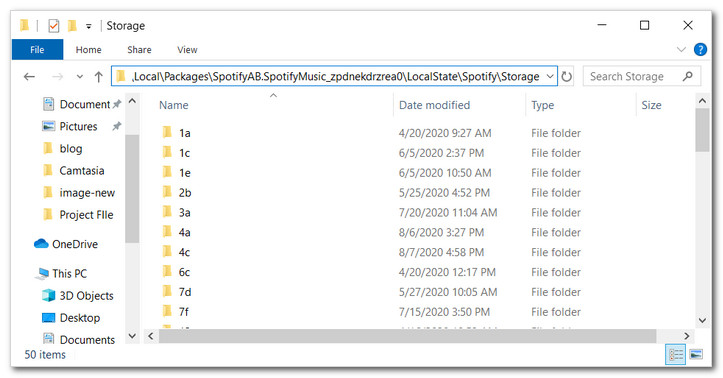
Microsoft Store installation:
The app data may instead be under Spotify's Windows package directory:
C:\Users\[Username]\AppData\Local\Packages\SpotifyAB.SpotifyMusic_*. The package suffix and folder layout can vary, so do not rely on one fixed Store path.
To confirm the location used by your current installation, open Spotify, click your profile picture → Settings, scroll to Storage, and check Offline storage location. You can also click Change location. This in-app value is more reliable than a path copied from another PC.
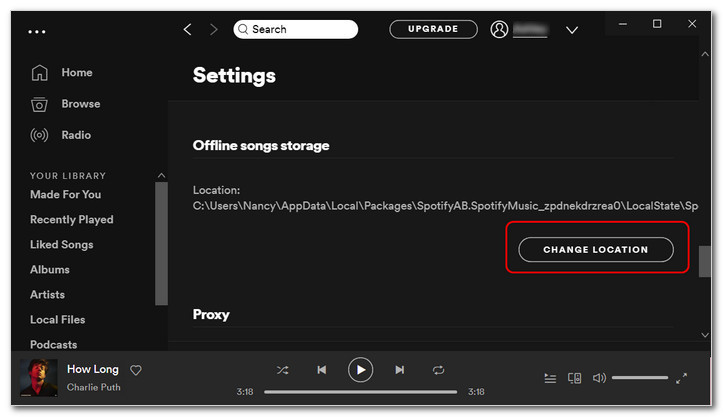
Note: You should avoid modifying or deleting files directly in this Spotify's folder, as it can impact song availability in Spotify. These downloaded files are specifically designed to be used with the Spotify App. It is suggested you make changes through the Spotify Application for a safer approach. You can directly access the downloaded songs or playlists on the Spotify Windows app.
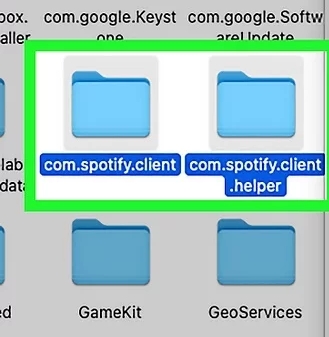
Spotify Downloads Location on Mac (macOS 27)
The usual Spotify download location on Mac is:
~/Library/Application Support/Spotify/PersistentCache/Storage
In Finder, choose Go → Go to Folder, paste the path, and press Return. These are Spotify-managed offline files, not ordinary audio files you can rename, open, or transfer. Do not describe them as a folder of playable OGG files; Spotify manages the format and access inside the app.
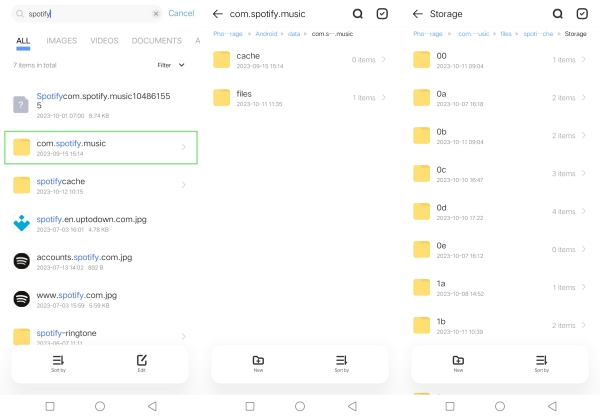
Spotify Downloads Location on Android
The usual Spotify download location on Android is:
Android/data/com.spotify.music/files/spotifycache/Storage
The folder name is spotifycache with no space. If you selected an SD card, look for the same Spotify app data on that card. Android 11 and later restrict access to Android/data, so many file managers cannot open this folder even though the files are on your phone.
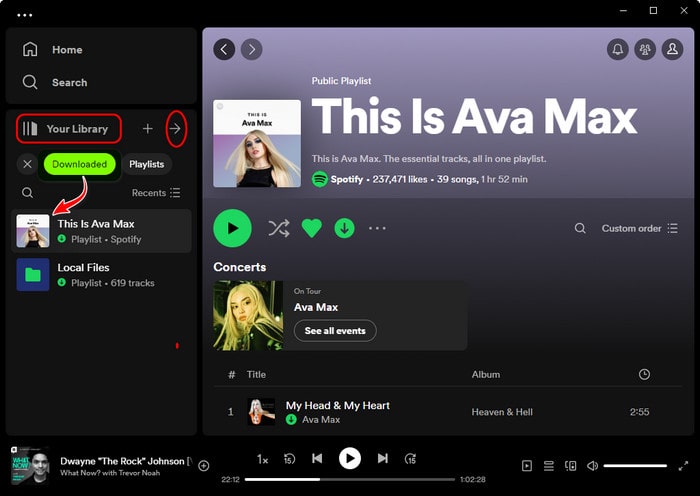
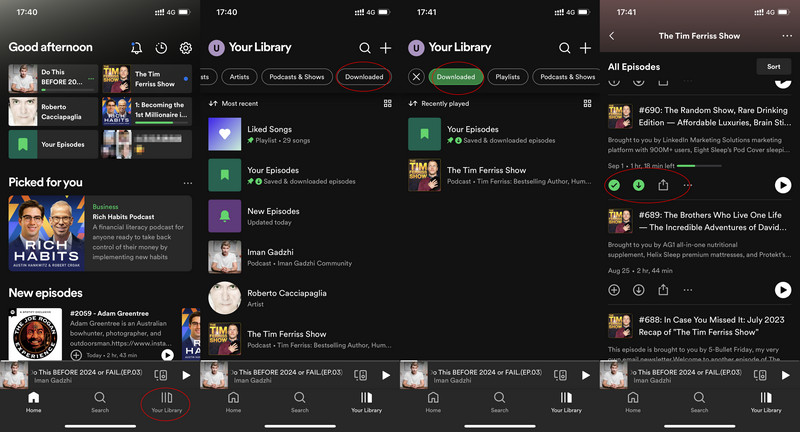
To find the music or podcasts you can play offline, open Spotify and tap Your Library → Downloaded. To move future downloads between internal storage and an SD card, use Spotify's Storage setting instead of moving this folder by hand. See our guide to save Spotify music to an SD card for more help.
Spotify Downloads Location on iPhone and iPad
There is no user-accessible Spotify download folder on iPhone or iPad. Spotify stores downloads in encrypted, app-managed storage inside the iOS sandbox. You cannot find normal song files in the Files app or choose a custom download folder.
Open Your Library → Downloaded to see your offline Spotify content. This is a library filter, not a file location. If you want more help using offline mode, see how to listen to Spotify offline on iPhone.
Spotify Cache vs. Spotify Downloads: What's the Difference?
| Spotify cache | Spotify downloads | |
|---|---|---|
| Purpose | Keeps parts of Spotify music and podcasts ready so playback starts with less lag | Keeps selected Spotify music and podcasts available for offline playback |
| Created when | You stream Spotify content | You tap the Download button on Spotify |
| How to remove it | Use Clear cache in Spotify settings | Turn off Download for an item or use Remove all downloads |
Spotify provides separate controls for cache and downloads. Clearing the cache normally does not remove the Spotify music you deliberately downloaded for offline use. Read more on Spotify's current storage information. To free space safely, follow our guide on how to clear Spotify cache rather than deleting app folders yourself.
How to Change Spotify Download Location
On Windows or Mac: Click your profile picture, choose Settings, scroll to Storage, then click Change location. Select a folder and let Spotify move or recreate its app-managed storage.
On Android: Tap your profile picture, then Settings and privacy → Data-saving and offline → Storage. Choose internal storage or an available SD card and tap Continue. Spotify restarts after the transfer. The SD card option appears only when the card is available, accessible, and has enough free space.
On iPhone or iPad: You cannot choose a folder. iOS manages Spotify's sandbox storage for you.
 Tip:
Tip:The labels can change slightly between Spotify versions. If a path in File Explorer or Finder does not match this guide, trust the location shown under Spotify → Settings → Storage.
Can You Open Spotify Downloaded Files?
No. They are not standalone music files. Finding the Spotify downloads folder does not give you playable MP3, FLAC, or OGG tracks. Spotify encrypts and manages the offline data, ties it to the app and your account, and rebuilds or removes it when needed. Renaming a stored file or opening it in VLC will not turn it into a normal song.
Why Did My Spotify Downloads Disappear?
Your downloads can disappear for any of these reasons:
- You did not go online with Spotify for at least 30 days.
- You reinstalled Spotify. A reinstall removes app data, so you must download the content again.
- You downloaded content on more than 5 devices. Spotify removes downloads from the device used least recently.
- Your Spotify app is not up to date.
- Your SD card is missing, unavailable, damaged, or not working correctly.
- A phone cleaner, cache cleaner, or battery-saving app removed or blocked Spotify data.
Spotify currently allows up to 10,000 downloaded tracks per device on up to 5 devices. You must connect to the internet at least once every 30 days to keep them. Premium users can download albums, playlists, and podcasts; Spotify Free users can download podcasts only. These limits come from Spotify's current offline listening guide.
Can You Move Spotify Downloads to Another Device?
You cannot copy Spotify's offline storage folder to another device and use it as a music library. The copied data remains app-managed and will not work like normal audio files.
If you need standalone Spotify audio files for your own permitted personal use, Sidify Music Converter for Spotify lets you save Spotify music to MP3, AAC, FLAC, WAV, ALAC, or AIFF on your computer. You can then play the output with compatible apps or transfer Spotify music to a USB drive. Respect copyright and the terms that apply to the content you use.
Sidify Music Converter
- Download Spotify songs as MP3, AAC, FLAC, WAV, ALAC or AIFF.
- Keep original Spotify Lossless quality with no quality loss.
- Download Spotify playlists at up to 40X speed.
- Preserve ID3 tags and metadata after conversion.
- Save Spotify lyrics as TXT or LRC files.
- Free updates and technical support.


 Note:
Note:If you also use Apple Music, Amazon Music, Tidal, Deezer, YouTube Music, or SoundCloud, you can use Sidify All-In-One to keep the supported services in one app.
You can save supported Spotify content to your chosen computer folder in five steps. If you use macOS, see how to download Spotify playlists on Mac.
Step 1 Open Sidify Music Converter
Start Sidify and choose the Spotify conversion mode you want to use.
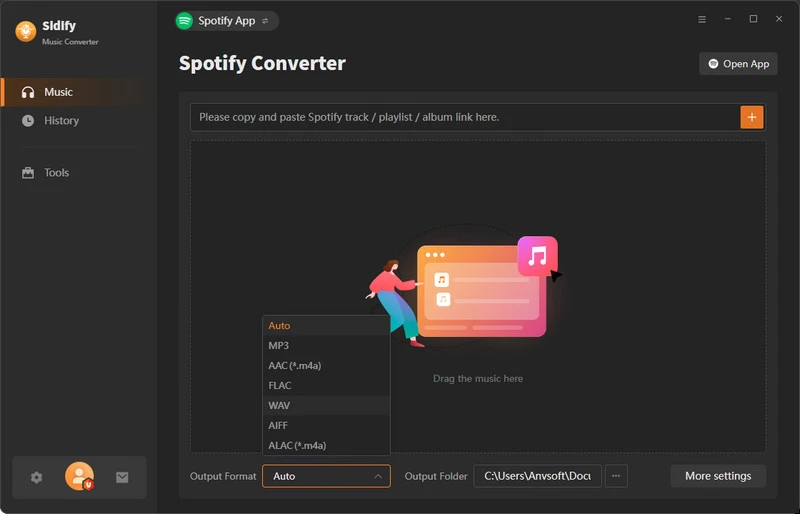
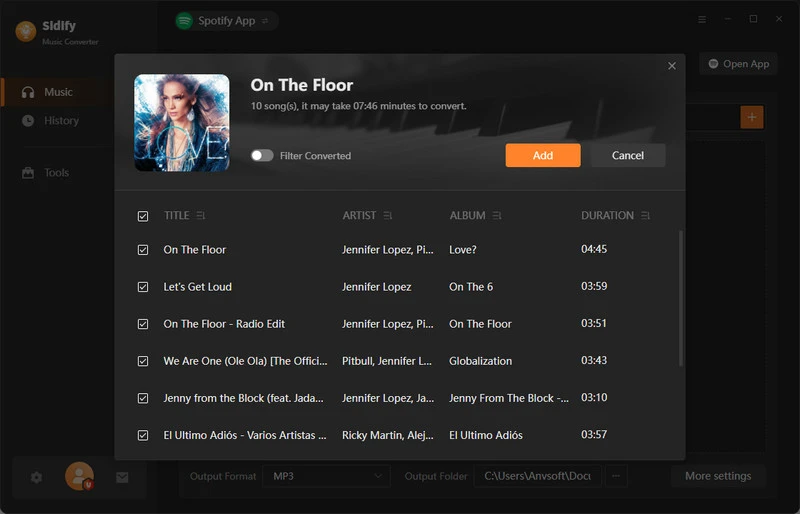
Step 2 Add Spotify songs
Drag songs or playlists from Spotify into Sidify, or copy and paste a Spotify song, album, or playlist link.
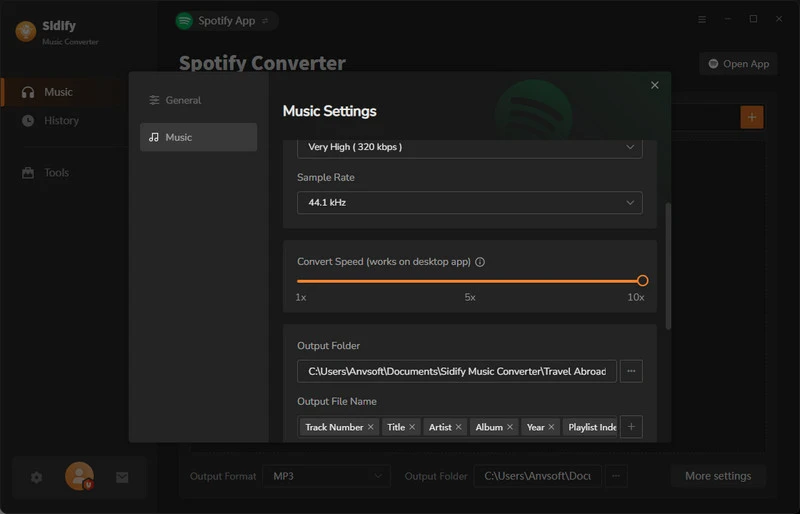
Step 3 Choose your output settings
Open Settings. Choose MP3, AAC, WAV, FLAC, AIFF, or ALAC, then select the audio quality and output folder.
You can also name and organize files by track number, title, artist, or album.
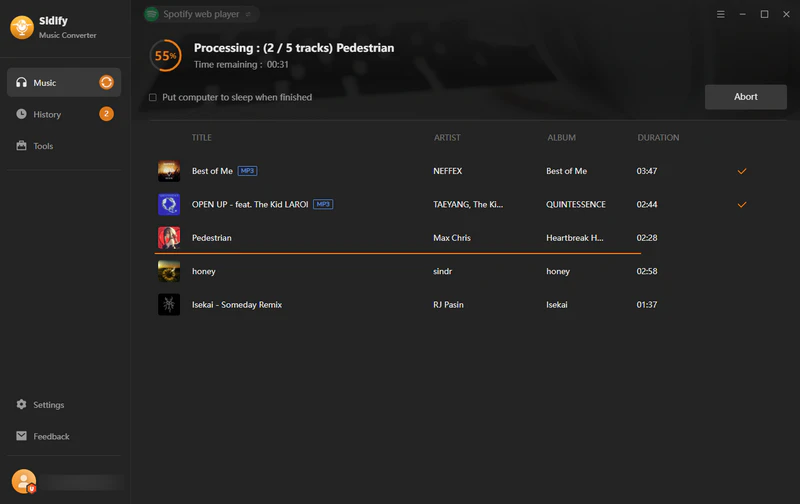
Step 4 Start the conversion
Click Convert and wait for Sidify to process downloading selected Spotify music tracks.
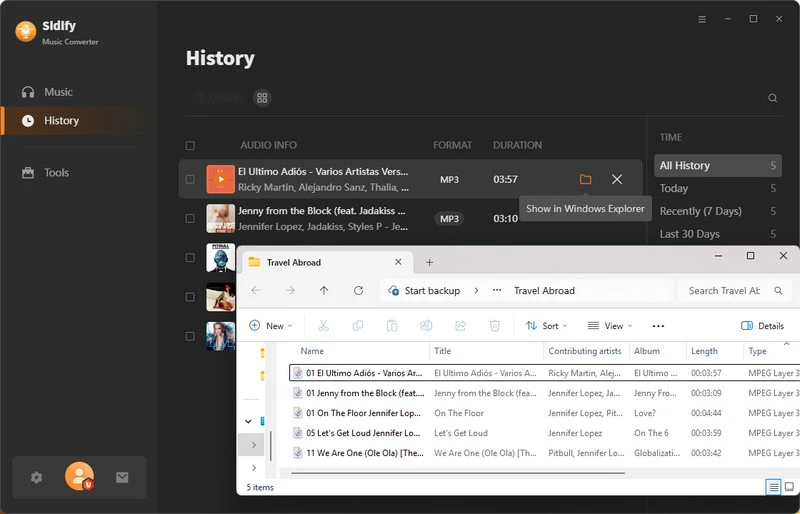
Step 5 Find Downloaded Spotify Music on Computer, Save Them Forever
Open History in Sidify or go to the output folder you selected. These output files are separate from Spotify's encrypted offline storage.
 Note:
Note:The trial version of Sidify converts the first minute of each audio track. The full version removes this time limit.
 Sidify Spotify Music Converter
Download Spotify songs as MP3, AAC, FLAC, WAV, ALAC or AIFF with original quality kept.
Frequently Asked Questions
1. Where are Spotify downloads stored on Windows 11?
With Spotify's standard desktop installer, the usual path is C:\Users\[Username]\AppData\Local\Spotify\Storage. If you installed Spotify from the Microsoft Store, its data is stored under the Spotify package directory in AppData\Local\Packages. Check Spotify → Settings → Storage for the exact location used on your PC.
2. Where are Spotify downloads stored on Android?
They are usually under Android/data/com.spotify.music/files/spotifycache/Storage on your internal storage or selected SD card. On newer Android versions, your file manager may not be allowed to open Android/data.
3. Can I find Spotify downloads in the Files app on iPhone?
No. Spotify keeps downloads in encrypted storage inside its iOS app sandbox. The Files app does not show them as normal songs. Use Your Library → Downloaded in Spotify to view them.
4. Can I change where Spotify stores downloads?
Yes, on desktop and supported Android devices. Use Settings → Storage → Change location on Windows or Mac. On Android, use Settings and privacy → Data-saving and offline → Storage to choose internal storage or an available SD card. You cannot choose a folder on iPhone or iPad.
5. Does clearing Spotify cache delete downloaded songs?
Normally, no. Cache and offline downloads are separate types of stored data, and Spotify gives you separate Clear cache and Remove all downloads controls. Use these controls instead of deleting the Spotify folder manually.
6. Why can't I open Spotify downloaded files?
Spotify downloads are encrypted, app-managed data, not standalone MP3, FLAC, or OGG files. They are designed to play through Spotify while your account and download authorization are valid.
7. Where are Spotify podcasts stored?
Downloaded podcasts use the same Spotify-managed storage area as downloaded music on your device. They do not appear as normal audio files. If you need a separate podcast file for a supported use, see how to download Spotify podcasts to MP3.
Sidify Music Converter
Batch download Spotify Music to MP3 and other popular formats for offline listening on any device.