Sidify now supports backup and restore for your Spotify music library directly within the app. In response to user requests, Sidify has introduced a new feature that allows you to back up and restore your Spotify songs. Whether you're switching accounts, migrating to another platform, or simply want to keep a safe copy of your carefully curated playlists and favorite tracks, Sidify ensures that your Spotify collections can be preserved forever. Follow the step-by-step guide below to easily back up and restore your music library.
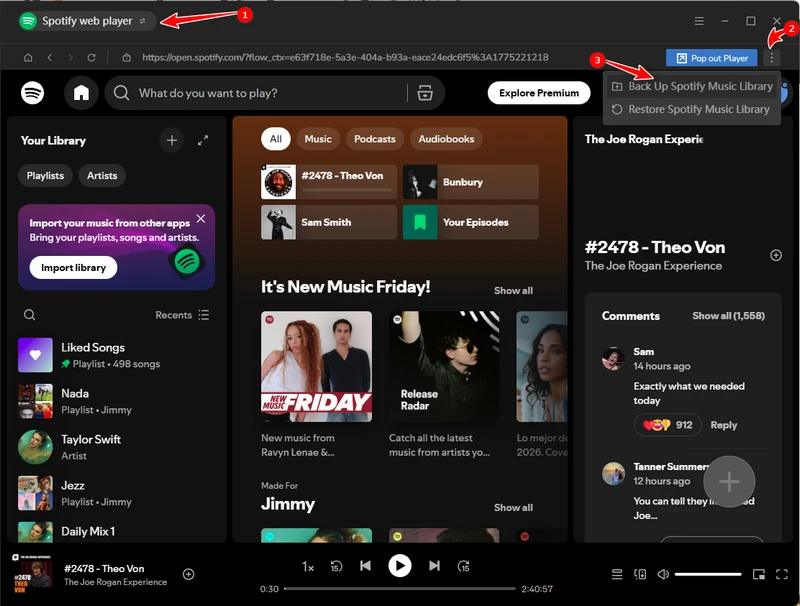
Step 1 Launch Sidify Music Converter and select the Spotify web player Mode.
Step 2 Log in to your Spotify account to access your music library.
Step 3 Click the 3 dots next to "Open web player" or "Pop out Player".
Step 4 Select "Back Up Spotify Music Library."
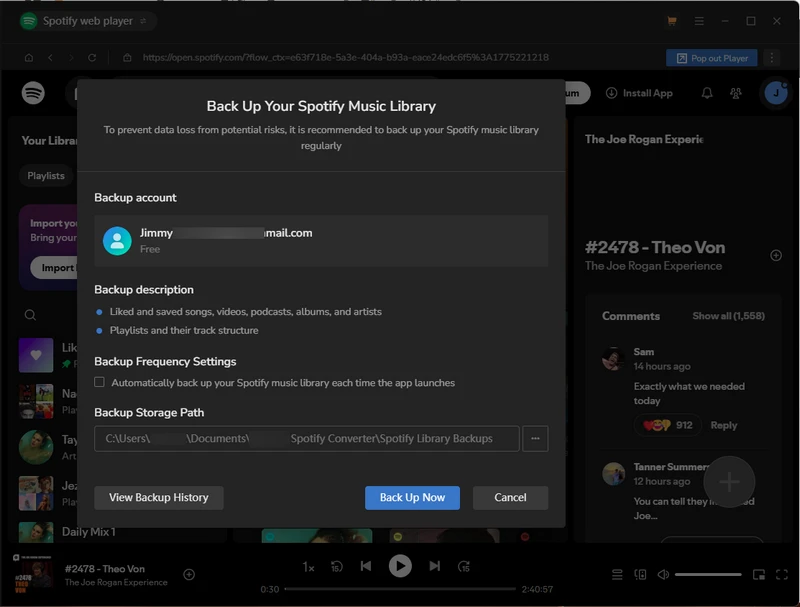
Step 5 Click the "Back Up Now" button to save the backup file as a .json file to your computer.
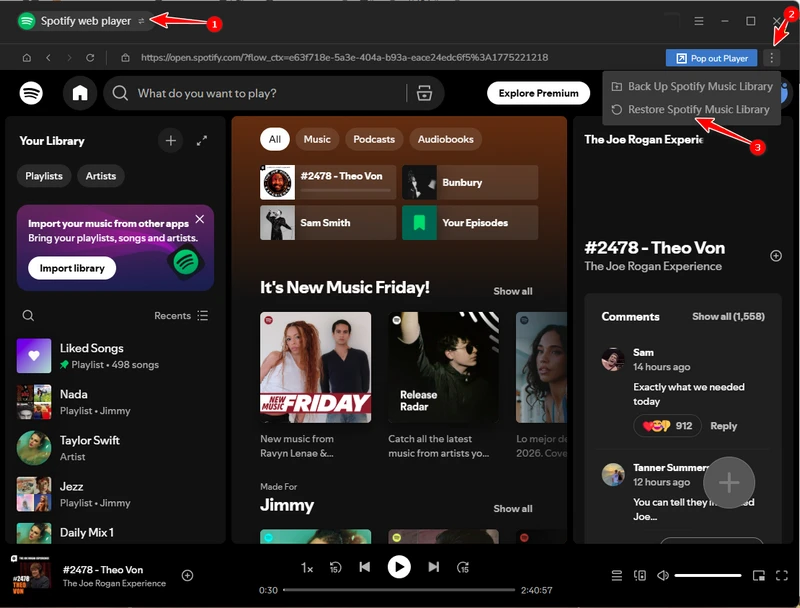
Step 1 Launch Sidify Music Converter and select the Spotify web player Mode.
Step 2 Log in to your Spotify account to access your music library.
Step 3 Click the 3 dots next to "Open web player" or "Pop out Player".
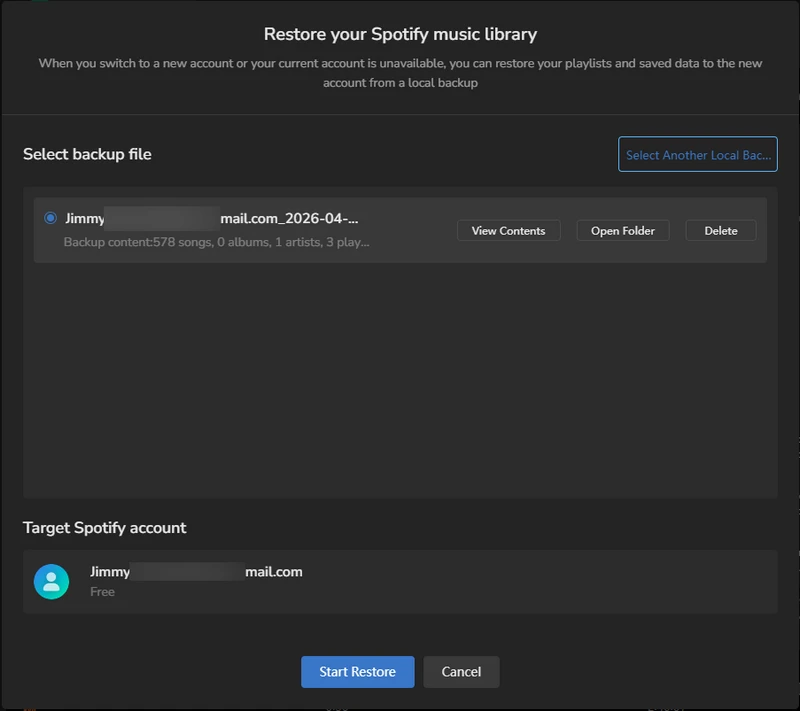
Step 4 Choose "Restore Spotify Music Library".
Step 5 Select the previously backed-up .json file and click the "Start Restore" button to restore your Spotify library to your currently active account.