
The biggest hurdle in switching from YouTube Music to Apple Music is not the subscription fee, but it is the thought of rebuilding entire music library from scratch. Yet there is no direct, native method to migrate music from YouTube Music to Apple Music between these competing platforms. What's worse, favorite playlists can get lost, and songs need to be manually added again, creating frustration. Nevertheless, this guide walks through how to move YouTube Music to Apple Music without losing essential tracks. Read it now.
To download songs from YouTube Music to PC, you can use Sidify YouTube Music Converter or YouTube Video Downloader Free in very easy steps.
Option 1: Sidify YouTube Music Converter
This is a professionally designed program to export and convert YouTube Music to plain audio files in the format of MP3, AAC, WAV, FLAC, AIFF, or ALAC. This great assistant lets your YouTube Music be widely compatible on multiple different hardwork devices and software like Spotify, iTunes and more!
Let’s take a look at how to use Sidify YouTube Music Converter to download songs from YouTube Music to PC for free.
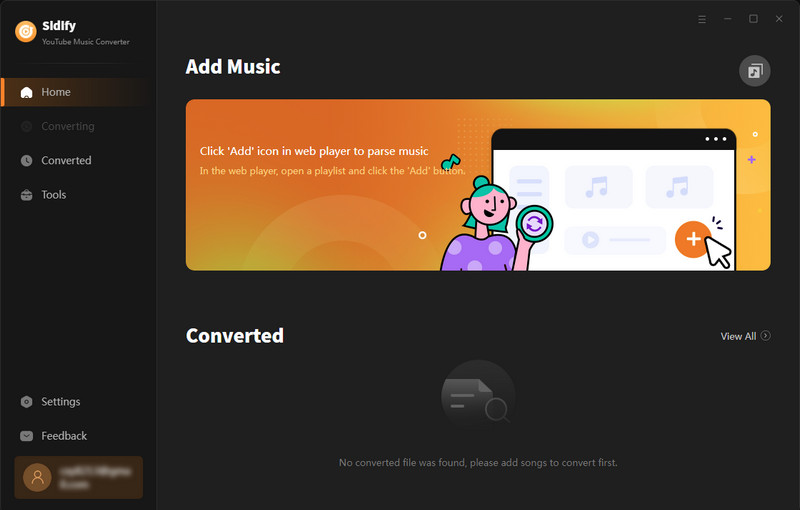
Step 1Run Sidify YouTube Music Converter from your computer.
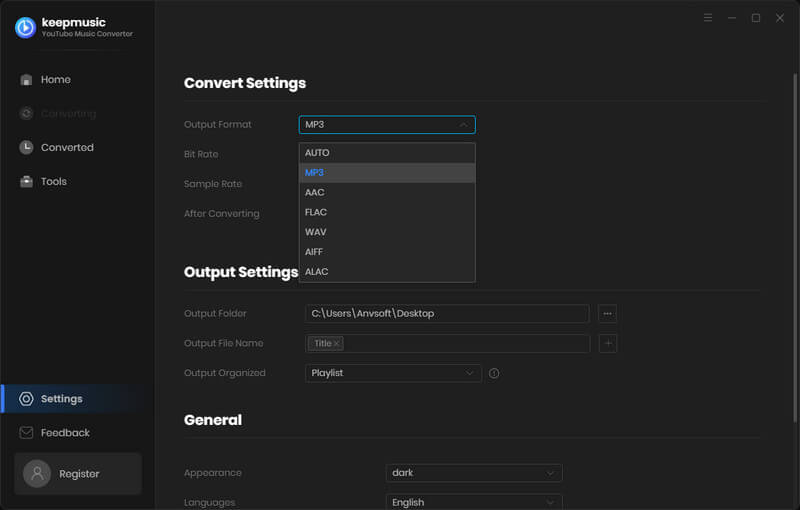
Step 2 Go to the Settings module to set up YouTube Music's output format to MP3, which is fully compatible with Spotify. The bit rate, sample rate, output folder can also be customized accordingly.
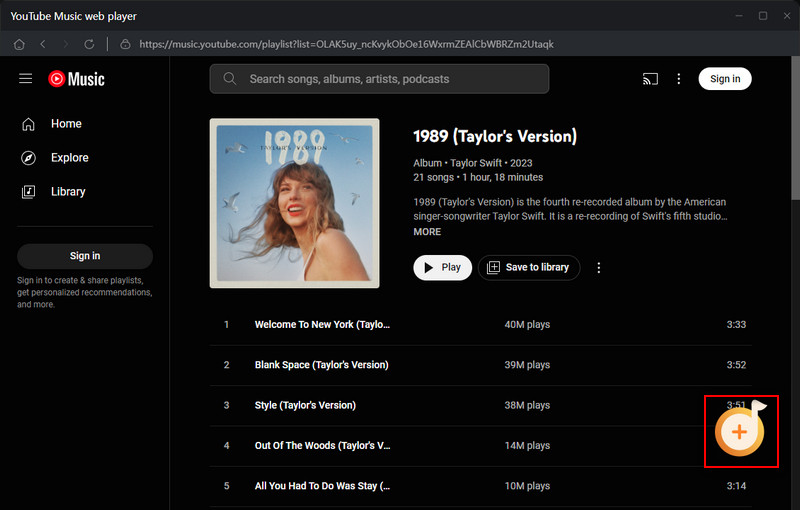
Step 3 Then, sign in to your YouTube Music (Free or Premium or Family) account to visit the YouTube Music library contents. Find the YouTube songs in the music library and tap Click to Add button.
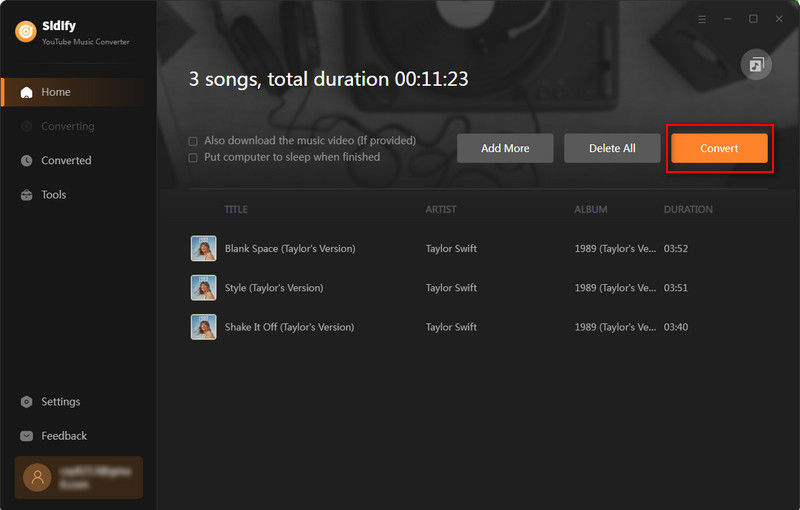
Step 4 Following is to tick off the music files you want to convert on the list. In the end, click on Convert to start the process.
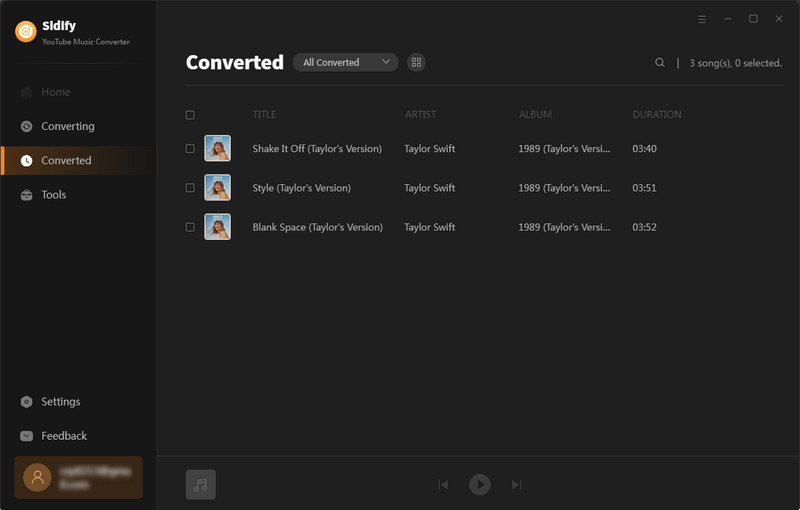
Step 5 As long as the conversion is finished, go to Converted menu to find out all the completed files. Tap the folder icon after the completed songs, you can easily reach to the files stored on your computer.
Option 2: YouTube Video Downloader Free
The program is a user-friendly YouTube Downloader with a sleek and easy-to-use interface. With only a few clicks, you are able to download YouTube Music to your PC straightforwardly.
Let’s take a look at how to use YouTube Video Downloader Free to download songs from YouTube Music to PC.
Step 1 Download and install YouTube Video Downloader Free on your Windows PC and launch it.
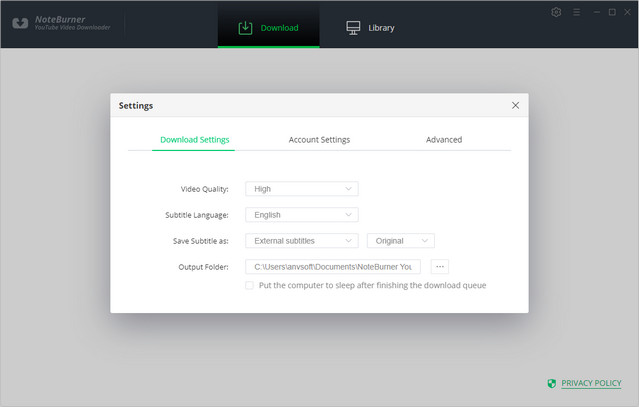
Step 2 Click the "Settings" button in the upper right corner to customize the video quality (High, Medium, Low) and output path.
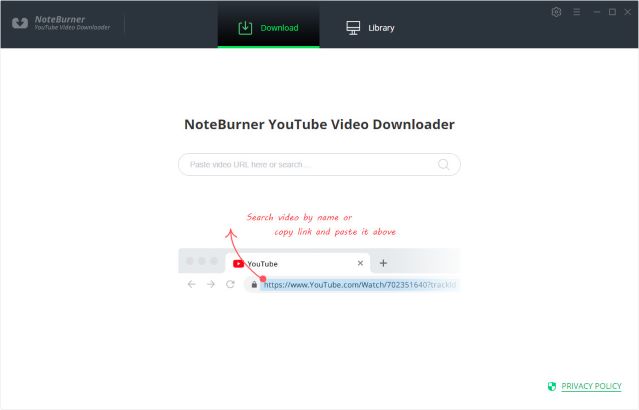
Step 3 Enter the name of the music or just directly copy and paste the link of the music to YouTube Video Downloader Free, and then press "Enter" button on your keyboard.
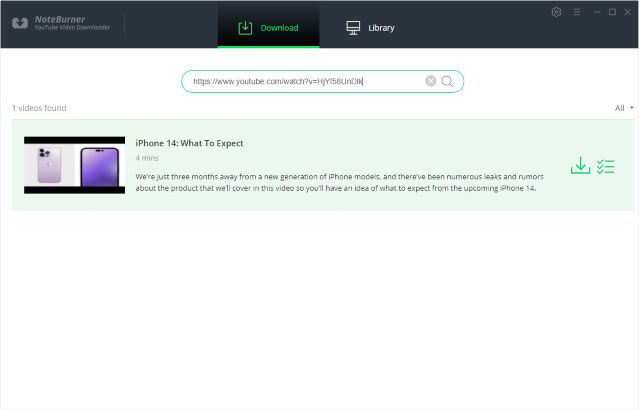
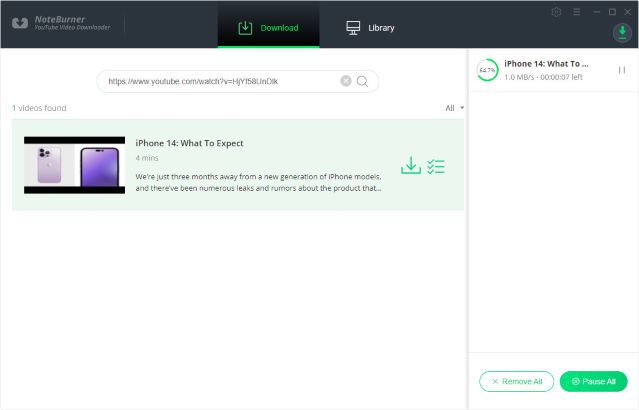
Step 4 Click the download icon to start downloading the YouTube music to the output folder you've chosen in the previous step.
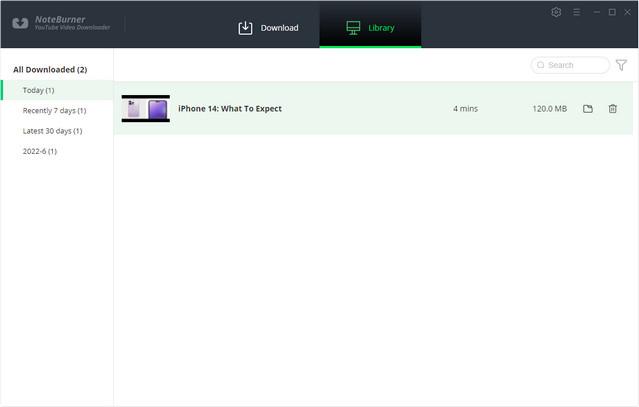
After downloading, you can click on the "Library" tab to find the well-downloaded YouTube videos or audios on your local drive.

If you enjoy movies, series and shows offline across Netflix, Amazon, Disney+, Hulu, and more, All-In-One Video Downloader is your perfect solution! Download your favoirte videos from over 1000 major streaming video sites in one place for a hassle-free viewing experience!
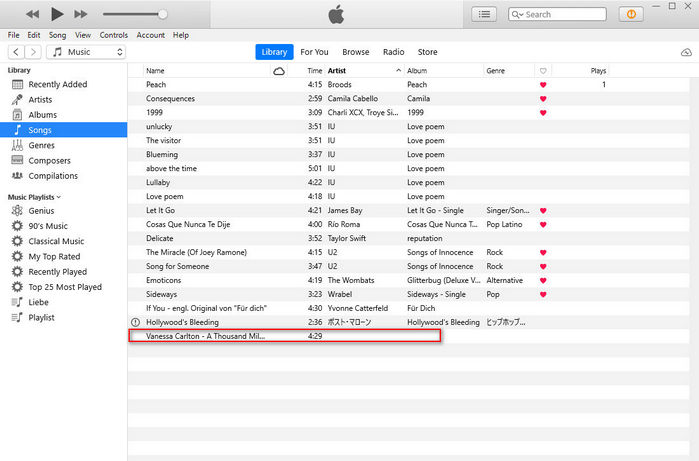
This part is going to be much easier than the steps above, all you need to do is adding the downloaded and converted mp3 file(s) to iTunes library.
Step 1Launch iTunes and login your Apple Music account.
Step 2 Go to File → Add File to Library , and select the mp3 file(s) that you have just converted in part 1.
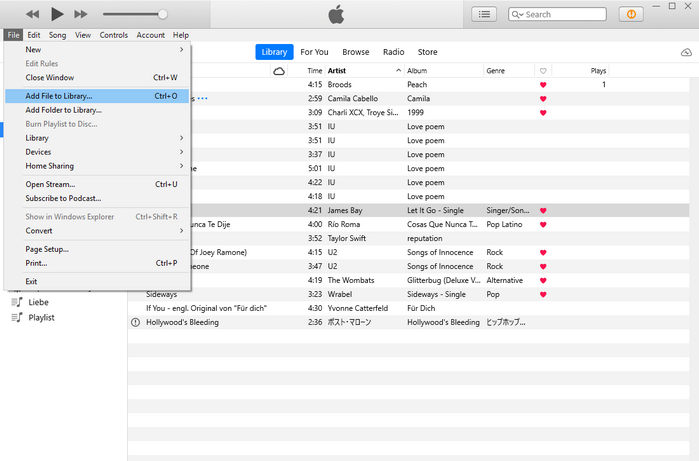
Step 3 Now you have successfully added the song(s) from YouTube Music to Apple Music, you can simply follow these steps to add as many songs as you want.
Syncios Manager has managed to download songs from YouTube Music, but have you ever wondered how to convert songs from Apple Music to mp3 files like you just did? Sidify Apple Music Converter will give you a hand for it. As a streaming music recorder and converter, Sidify Apple Music Converter (Windows | Mac) is capable of recording and converting Apple Music songs to normal audio formats including MP3, AAC, WAV, FLAC, AIFF or ALAC with lossless audio quality and ID3 tags kept. Start learning from the article How to Convert Apple Music to MP3 and explore more!
Key Features of Sidify Apple Music Converter
Sidify Apple Music Converter
 Convert Apple Music/iTunes M4P to MP3/AAC/FLAC/WAV/AIFF/ALAC. Preserve the quality of the original sound; Keep ID3 tags. Fast Conversion Speed; Simple and innovative user interface. Highly compatible with the latest Mac/ Windows OS and iTunes.
Note: The trial version of Sidify Apple Music converter has 1-minute conversion limit. If you want to unlock the time restriction, purchase the Sidify Pro now.
If you are looking for a tool to convert any streaming music (such as Spotify, Apple Music, Amazon Music, Tidal, Deezer, YouTube, YouTube Music, SoundCloud, DailyMotion …) to MP3, Sidify All-In-One is the go-to choice.


 850,000+ Downloads


