
Spotify sound quality depends on both streaming and download quality settings. By default, Spotify Premium songs stream in OGG 320Kbps, but higher-tier plans allow lossless sound quality for better listening. Adjusting Spotify’s download settings ensures offline tracks keep the best possible audio. This guide explains how to optimize Spotify sound quality for streaming and downloads.
>> Read More: How to Convert Spotify OGG Music Files to MP3 <<
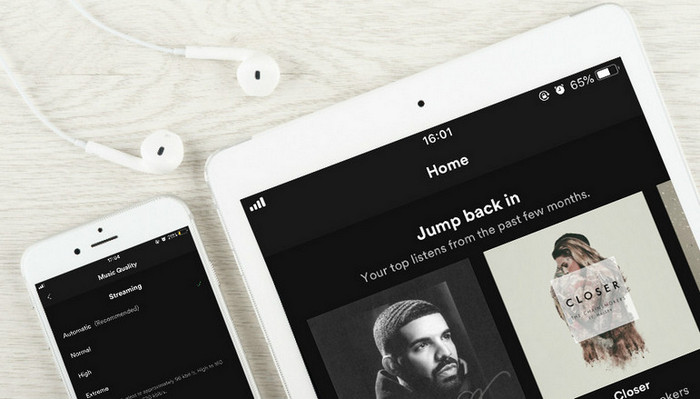
Before introducing the audio bitrate used by Spotify for streaming, it is necessary to simply define what audio bitrate is.
In the field of digital multimedia, bitrate often refers to the number of bits used per unit of playback time to represent a continuous medium such as audio or video after source coding (data compression). In audio, this usually means kilobits per second. For example, the music you downloaded on Spotify is 320 kilobits per second, meaning there are 320 kilobits of data stored in every second of a song. Generally, the higher the bitrate of a track, the better the quality of sound is, but the more space it will take up on disc.
Until now, Spotify offers low, high and extreme sound quality settings. The normal Spotify bitrate setting is 96 kbps, the high bitrate is 160 kbps and extreme is 320kbps. And in March, Spotify tested a new lossless audio version (Spotify Hi-Fi, similar to CD quality offered by Tidal) of its streaming service. Now, let’s see the different audio bitrate used by Spotify on multiple devices.
The desktop app's standard quality is Ogg Vorbis 160kbit/s.
Premium subscribers can choose to switch on High quality streaming, which uses 320kbit/s.
The web player's standard quality is AAC 128kbit/s, and 256kbit/s for Premium.
Note: It's not possible to adjust audio settings on the web player currently.
You can choose the following audio quality settings (all in the Ogg Vorbis format) on your iPhone and iPad.
Low - approximately 24kbit/s.
Normal - approximately 96kbit/s.
High - approximately 160kbit/s.
Very high - approximately 320kbit/s.
Automatic - depends on your network connection.
You can choose the following audio quality settings on Android phone or tablets.
Low - approximately 24 kbit/s (HE-AACv2 format).
Normal – approximately 96kbit/s (Ogg Vorbis format).
High – approximately 160kbit/s (Ogg Vorbis format).
Very high – approximately 320kbit/s (Ogg Vorbis format).
Automatic – depends on your network connection.
Spotify streaming sound quality used by Chromecast is standard AAC 128 kbit/s and Premium 256 kbit/s.
It is very easy to change the streaming audio quality of Spotify, and the operation is slightly different on different devices.
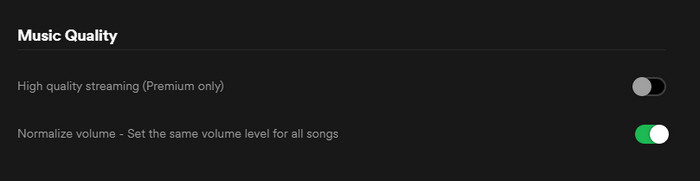
On desktop: Click the arrow  in the top-right corner and select Settings, under Music Quality, switch High quality streaming (Premium only) on or off.
On iPhone, iPad and Android: Tap Your Library > tap  tap > Music Quality to choose the streaming and downloading quality you prefer.
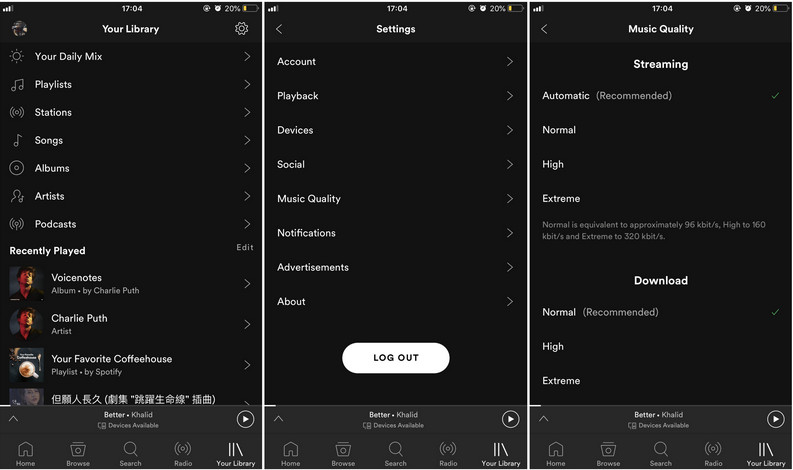
Spotify Free plan only offers 96 kbps and 160 kbps for choosing from to stream, but 320 kbps with Spotify Premium. To improve the streaming sound quality of Spotify, you can upgrade to Spotify Premium.
Depends on the different network connection status, the streaming audio bitrate also differs. That is to say, the higher bitrate when streaming, the more amount internet traffic increases accordingly. To enjoy or download the music with high sound quality, please make sure that you are on good Wi-Fi connection to save your data plan.
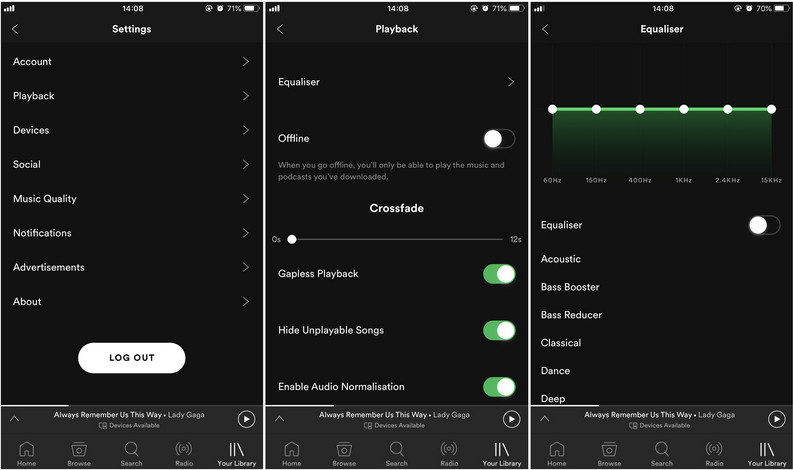
You can also use the built-in Equalizer tool on Spotify mobile phone app to improve the quality of music playback, which lets you adjust the levels of music you're listening to by choosing over 20 presets covering different types of music genres and frequency configurations.
Go to Your Library tab > tap on icon > tap the Playback option > tap Equalizer, then you can tap one of the more-than-20 equalizer presets which including Acoustic, Classical, Dance, Jazz, Hip-Hop, Rock, and more, or make a custom equalizer setting by using your finger on the graphic equalizer dots to adjust individual frequency bands up or down.
Listen to Spotify music on sound systems, stereos, headphones, and speakers, you will experience the ultimate in music streaming sound quality.
For people who want to get high quality 320kbps MP3 songs from Spotify, Sidify Music Converter is definitely the best choice. It does a truly great job to download and convert Spotify music to MP3, AAC, WAV, FLAC or AIFF with the best sound quality kept and without any other poor encoding issues. It records accurately and quickly, and adds the correct tags and album art correctly.
Spotify Apple Music Converter
 Download Spotify song or playlist to MP3/AAC/WAV/FLAC/AIFF/ALAC. Keep 100% original audio quality of Spotify after conversion. Keep ID3 tags and metadata to well organize music library.Burn Spotify music to CD.Fast conversion speed & highly compatibility.
In the following part, we will show you how to download and save tracks, playlists, and albums from Spotify with high sound quality (320kbps) kept by using Sidify Music Converter.

If you are looking for a tool to convert any streaming music (such as Spotify, Apple Music, Amazon Music, Tidal, Deezer, YouTube, YouTube Music, SoundCloud, DailyMotion …) to MP3, Sidify All-In-One is the go-to choice.
Step 1Launch Sidify Music Converter
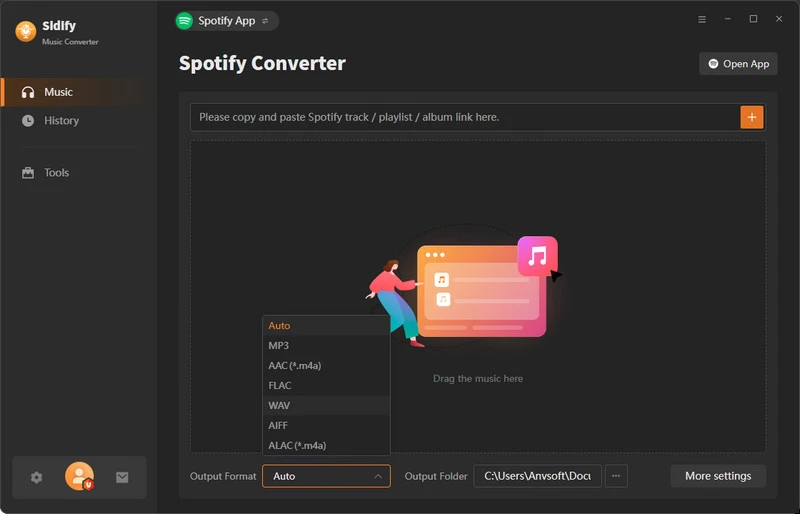
Run Sidify Music Converter, you will access the modern interface of the program.
Step 2 Add Spotify Song or Playlist
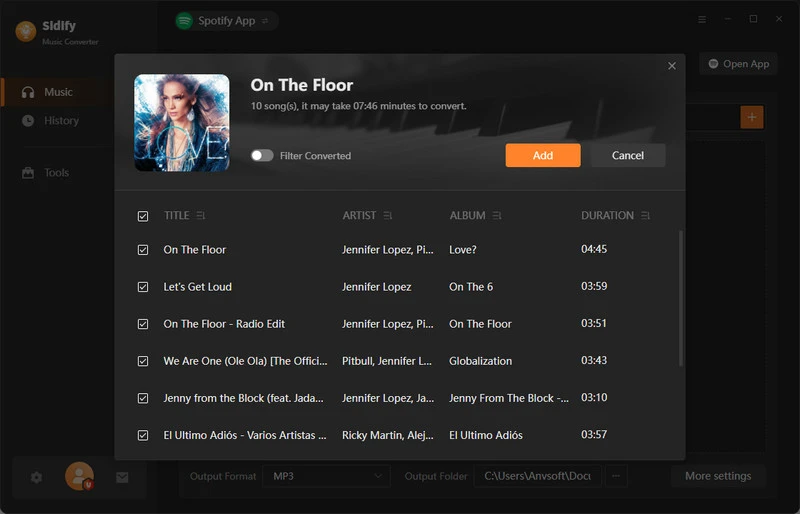
Drag & drop a song, playlist or album to the adding window directly. Select the Spotify music that you’d like to download to your local computer and then click Add.
Step 3 Customize the Output Setting
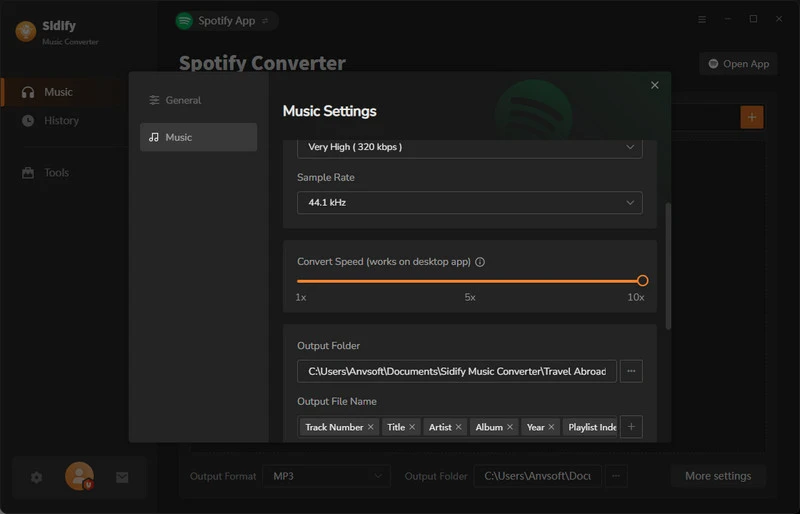
Click on Settings in the lower left corner, when a setting dialogue popup, you can choose the output format (MP3, AAC, WAV, FLAC, AIFF, ALAC), conversion mode, output path, and output quality to 320kbps.
Tips: To better organize the music library after conversion, you can choose to save the output music files into organized folder: Artist, Album, Artist/Album, Album/Artist, Playlist/Artist or Playlist/Album.
Step 4 Start Conversion
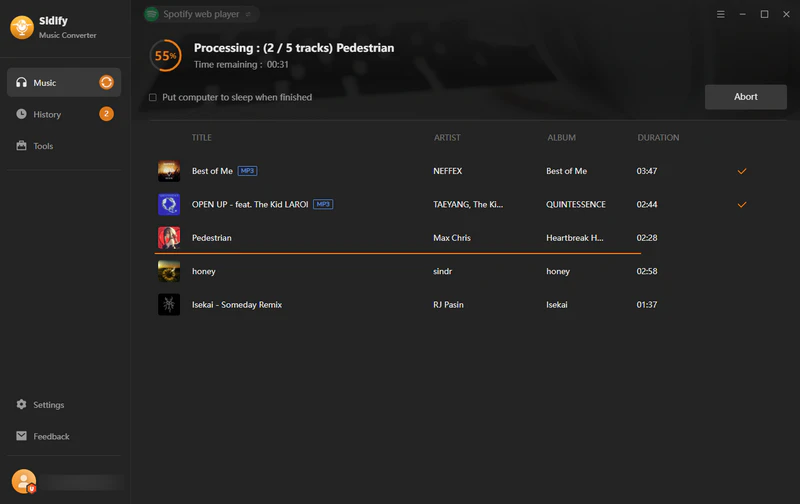
Click on Convert button to start converting Spotify song, playlist, or album to plain audio formats.
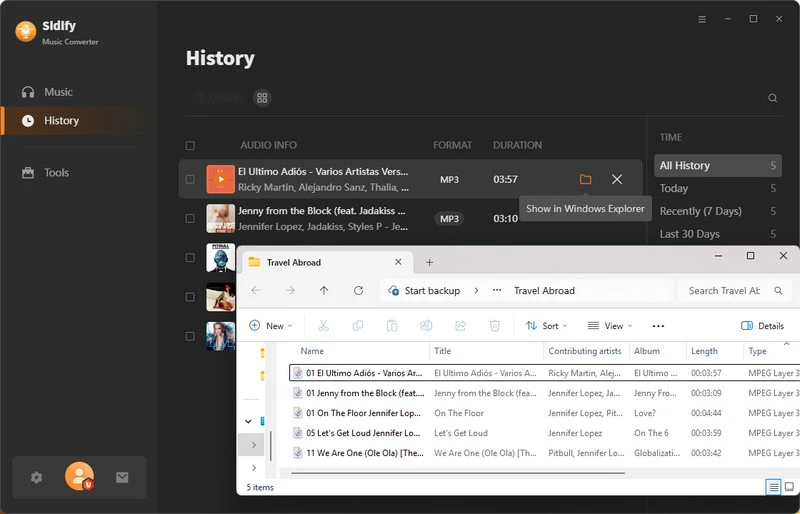
After the conversion is completed, you can click Converted to find the well-converted Spotify music with 320kbps high quality kept.
That’s all to illustrate how to change and improve Spotify streaming audio quality, and how to save Spotify music to MP3 with 320kbps high quality kept. You can download Sidify Music Converter to discover more extra ordinarily powerful feature sets.
Note: The trial version of Sidify Music Converter enables us to convert the first minute of each audio file for sample testing, you can purchase the full version to unlock the time limitation.


