
SanDisk Clip Sport offers a simple and lightweight way to enjoy music, but Apple Music tracks do not play directly on this type of MP3 player. A practical solution focuses on how to download Apple Music as MP3 for SanDisk Clip Sport and make songs usable across different devices. A clear workflow helps convert Apple Music to MP3 for MP3 player free, turning protected streaming tracks into standard audio files. With properly converted files, it becomes simple to play Apple Music on SanDisk Clip just like any regular MP3 collection.
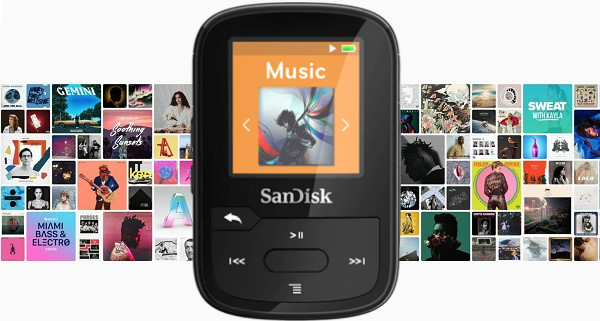
Apple Music adds a Digital Rights Management layer to its streaming music. That means all of Apple Music are encoded by encryption technology and can’t be transferred to other plain MP3 player or non-apple supported device for streaming. Generally Speaking, you can only stream Apple Music on iOS devices like iPhone, iPad, Mac/Windows computers or other devices supported by the official Apple Music app. If you have an MP3 player, it will be a breeze to enjoy Apple Music on it. Is there a way to transfer Apple Music files to your MP3 player?
Sure, you can use the third-party software to convert the Apple Music music into plain MP3 audio format and sync to MP3 player, like SanDisk Clip Sport. If you want to convert Apple Music without fiddling with any settings, using as few clicks as possible and also keep original audio quality, we recommend you try Sidify Apple Music Converter, which is especially suited to quickly setting up a conversion for Apple Music and any playable iTunes music.
Key Features of Sidify Apple Music Converter
Sidify Apple Music Converter
 Convert Apple Music or iTunes M4P music to MP3/AAC/FLAC/WAV/AIFF/ALAC; Unlock from iTunes M4A, M4B & Audible AA, AAX audiobooks; Keep original audio quality and ID3 tags; Highly compatible with the latest iTunes and Mac/ Windows OS.
If you are looking for a tool to convert any streaming music (such as Spotify, Apple Music, Amazon Music, Tidal, Deezer, YouTube, YouTube Music, SoundCloud, DailyMotion …) to MP3, Sidify All-In-One is the go-to choice.
The user interface of the Sidify Apple Music Converter is very user-friendly. To convert Apple Music tracks, just follow the below steps.
Step 1Launch Sidify Apple Music Converter
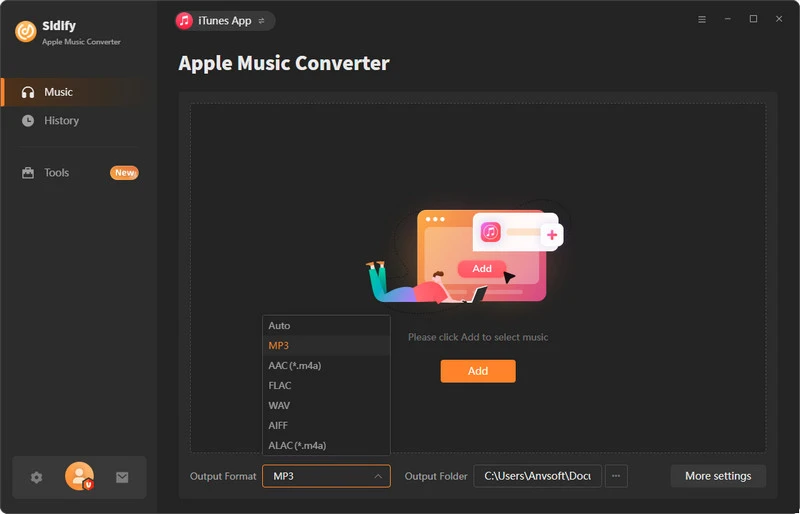
Run Sidify Apple Music Converter, you will access the modern interface of the program.
Step 2Add Apple Music Tracks to Sidify.
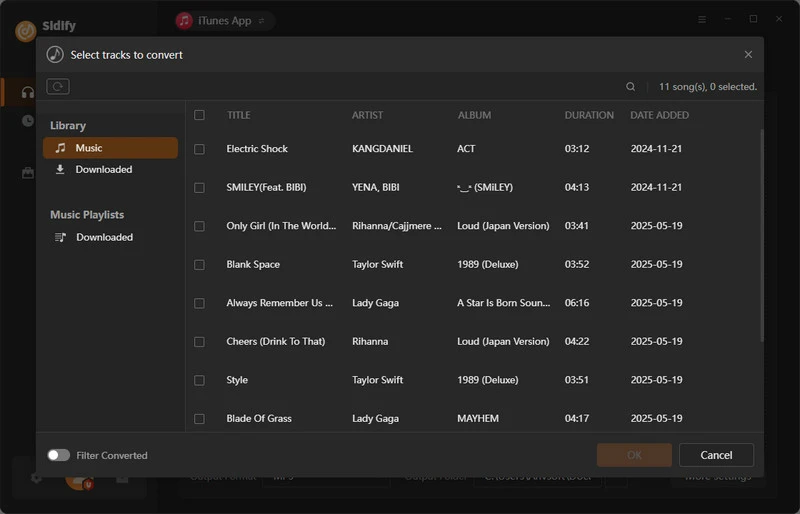
Drag and drop songs, an album or a playlist from Apple Muisc to Sidify. Or you can click the "Add" button on the interface and copy & paste the URL of your Apple Muisc to the program. Then click the "OK" button to import them to Sidify.
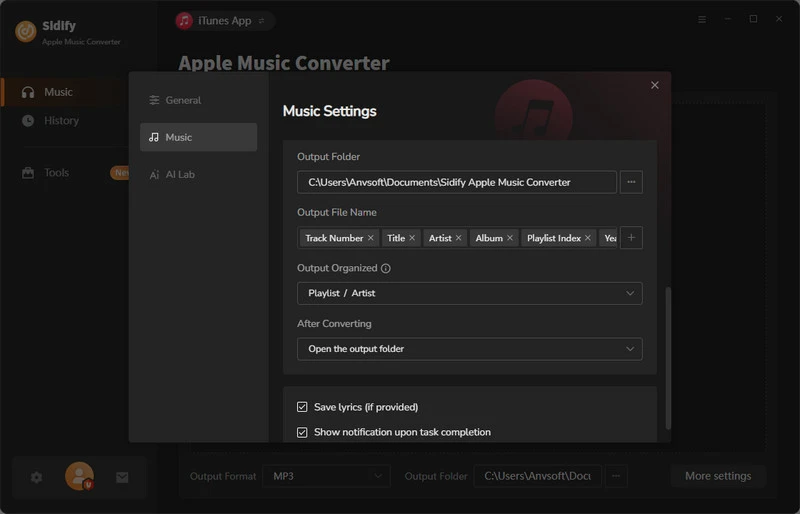
Step 3 Choose Output Format and Customize Output Path.
Click the "Settings" icon in the left panel. Here you can choose the output format (MP3/AAC/WAV/FLAC/AIFF/ALAC), the output quality and the output path as well. Besides, you can customize how you'd like to name and sort out the converted files.
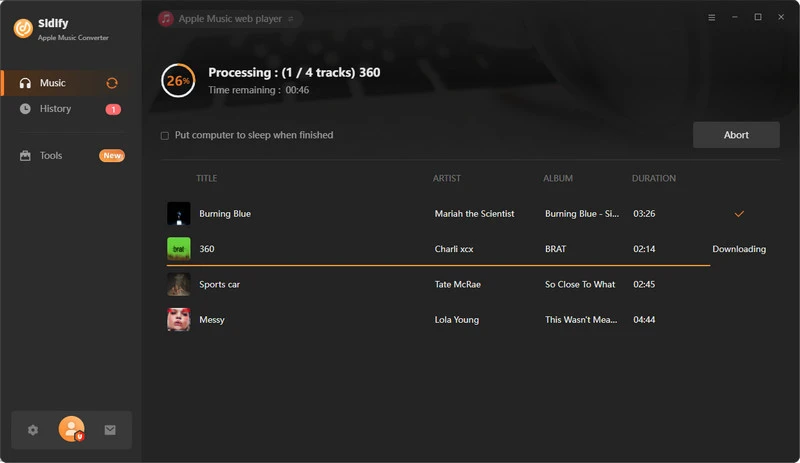
Step 4 Convert Apple Music to MP3.
Click the "Convert" button and Sidify would immediately start converting the Apple Music to MP3s.
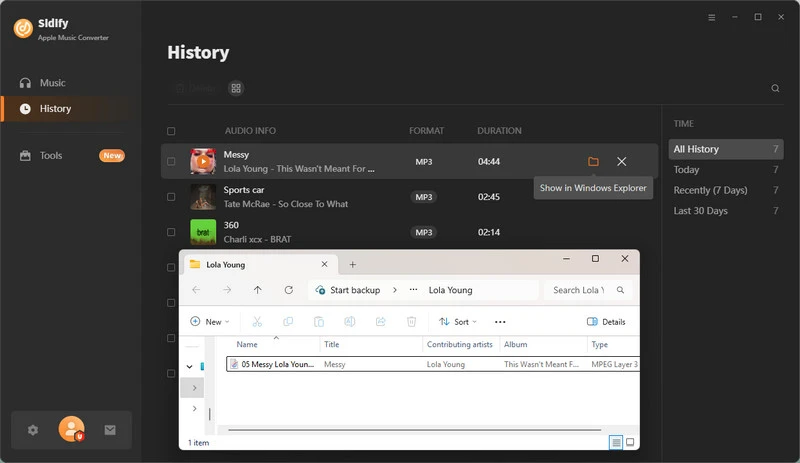
Step 5 Find the MP3 downloads on the Local Drive.
Once the conversion is done, click the "Converted" tab and you can check all the Apple Music that have been converted successfully. Go to the output folder set in the previous step, you'll find the downloaded MP3s.
Step 6 Sync Apple Music from Computer to SanDisk Clip Sport
Now, you may have a sizable amount of content stored locally on your computer, you can directly sync these music from computer to your SanDisk Clip Sport via a USB cable.
Note: The trial version of Sidify Apple Music converter has 1-minute conversion limit. You can unlock the time restriction by purchasing the full version.


 850,000+ Downloads


