
Even today, iPod Classic, iPod Nano, and iPod Shuffle are still valued for simple and pure offline music enjoyment: no smartphone ads, no recommendation algorithms, and no external distractions, but just music itself.
Nevertheless, old iPod models only function with standard local audio formats such as MP3, AAC, ALAC, WAV and AIFF. Apple Music downloads are protected cache files that just play inside the Apple Music app during an active subscription period. To solve this, we will show you how to convert Apple Music tracks into standard local audio formats and import Apple Music files to iPod Classic, iPod Nano, or iPod Shuffle for proper playback!
The first step is converting Apple Music into an iPod compatible local music format. Since old iPod models cannot directly play Apple Music streaming files, the tracks need to be saved as standard local audio files first. Sidify Apple Music Converter is designed for this purpose. The program can download and convert Apple Music songs, albums, playlists, podcasts, and audiobooks into MP3, AAC, ALAC, AIFF, WAV, and FLAC audio formats. After conversion, the Apple Music downloads are stored locally on the computer as standard music files, making transfer to iPod Classic, iPod Nano, and iPod Shuffle much easier.
Sidify also supports bulk playlist conversion, full Apple Music library downloads, and up to 10X conversion speed. Important metadata such as artwork, artist information, album names, ID3 tags, and lyrics can also be preserved after conversion.
Sidify Apple Music Converter
 Download and remove encrypted protection on Apple Music.Convert Apple Music to MP3, AAC, FLAC, WAV, AIFF, or ALAC.Preserve the lossless audio quality and retain ID3 tags.Burn Apple Music to CD and edit ID3 tags.Fully support Windows 11 & macOS Tahoe 26.
Step 1 Open Sidify Apple Music Converter
Install and launch Sidify Apple Music Converter on your computer. The program will open with the built-in Apple Music web player. Sign in with your Apple Music account to access songs, albums, and playlists from the music library.
Step 2 Add Apple Music Songs or Playlists
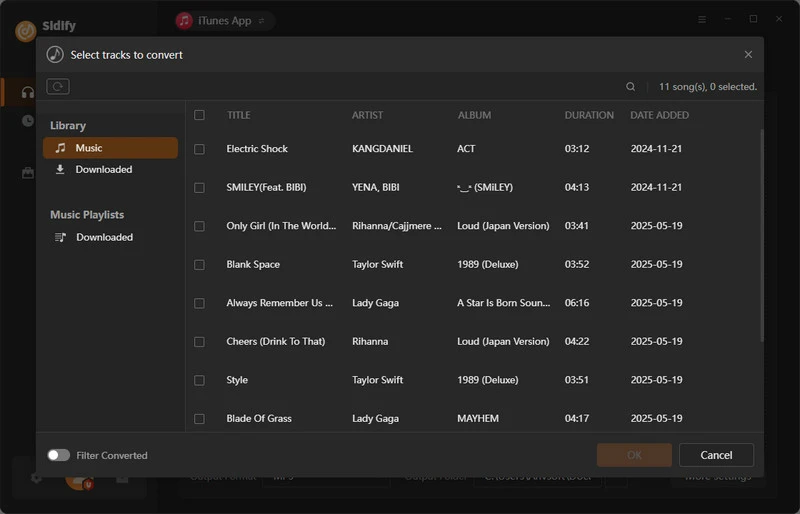
Browse the Apple Music library inside Sidify and open any track, album, or playlist you want to download. Click the Add button in the lower-right corner, then select the songs for conversion. Multiple playlists and albums can also be added at once for batch downloading.
Step 3 Customize Output Settings
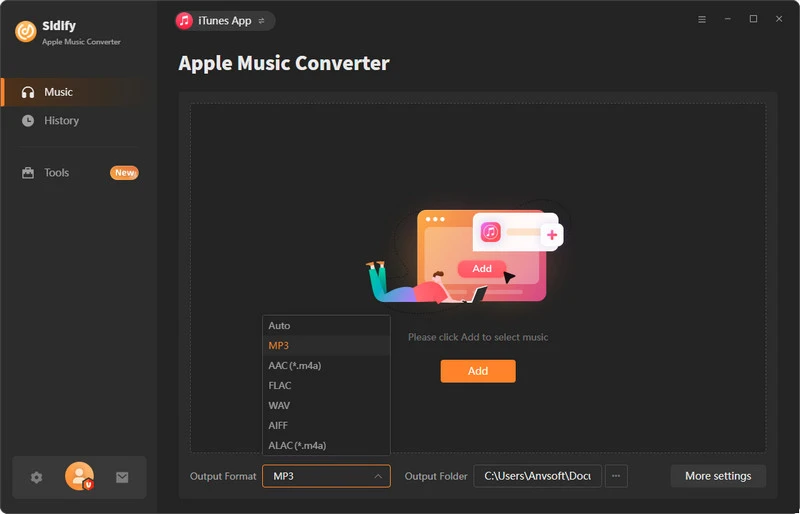
Go to the Settings section on the left side of the interface. Choose the output format for the downloads, such as MP3, AAC, WAV, FLAC, AIFF, or ALAC. You can also adjust audio quality, select an output folder, and customize how the downloaded files are sorted and named.
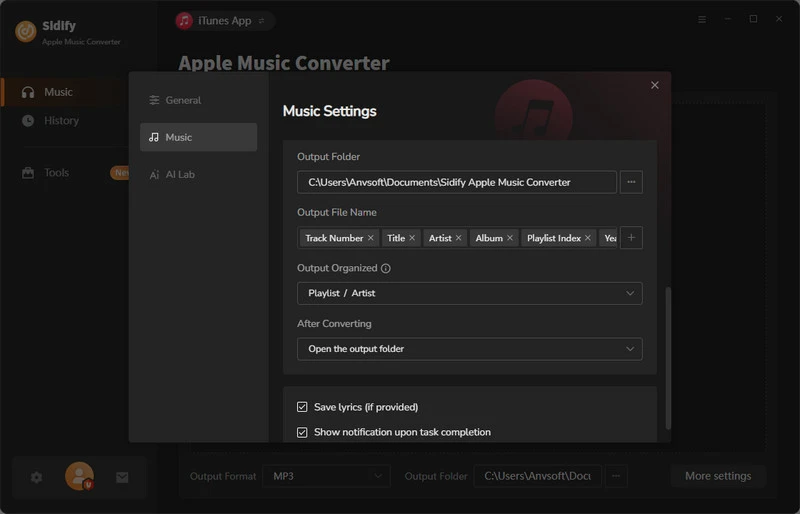
Step 4 Start Downloading Apple Music Tracks
After finishing the settings, click the Convert button. Sidify will begin converting and saving the selected Apple Music tracks into Sony Walkman compatible audio files on the local computer.
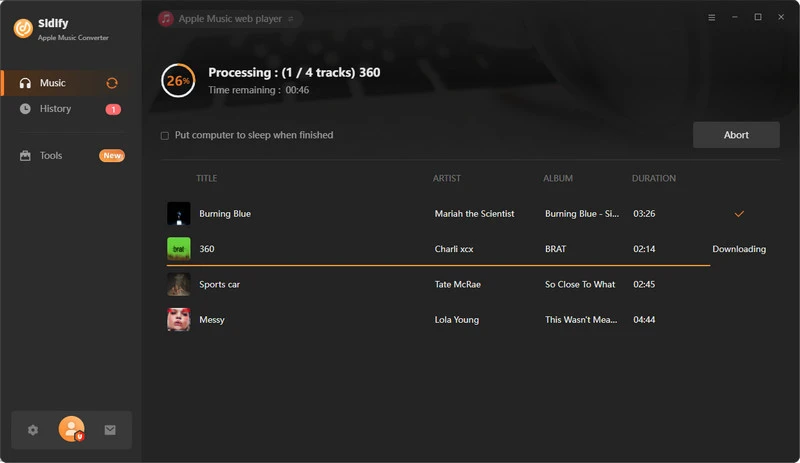
Step 5 Access the Downloaded Music Files
When the conversion is completed, open the History section to check all downloaded tracks. Then navigate to the output folder on the local drive to find the converted MP3 files ready for transfer to the Sony Walkman.
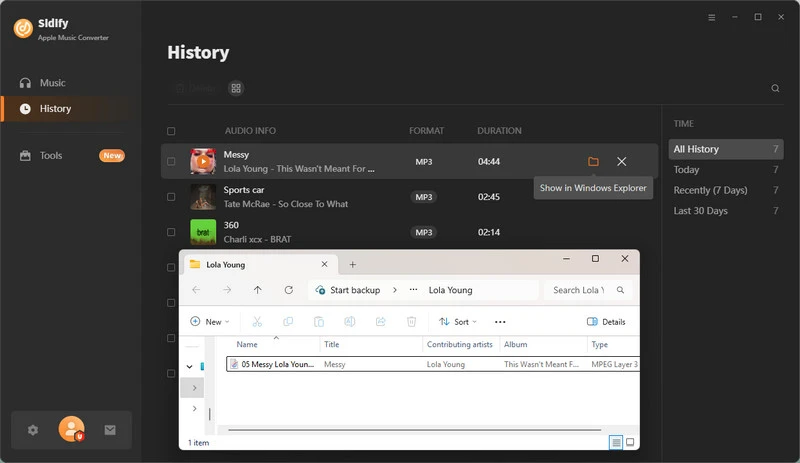
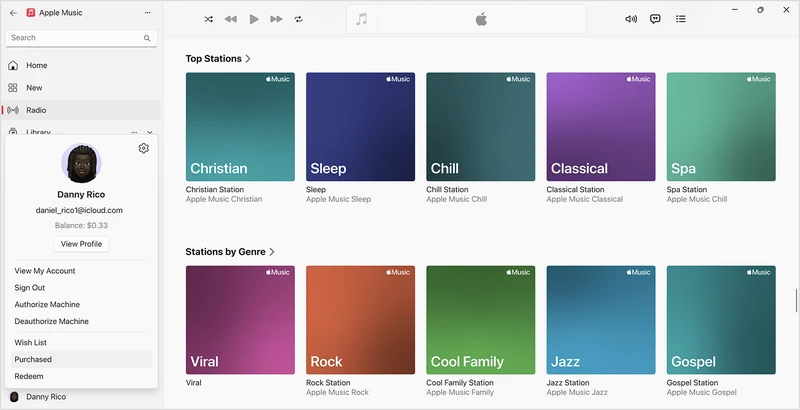
Purchased iTunes songs are standard AAC audio files with full local playback support, so the files work much more like regular MP3 music stored on a computer. After buying songs from the iTunes Store, the music is permanently downloadable to the local Music library on Windows or Mac. From there, the songs can be transferred to iPod Classic, iPod Nano, or iPod Shuffle through iTunes on Windows and older macOS versions. On newer macOS versions such as Catalina, Ventura, and Sonoma, Apple replaced iTunes with Finder for music to iPod syncing, but the overall transfer process remains largely the same.
Step 1Open iTunes on Windows or the Music app on Mac, then sign in with the Apple ID used for the music purchase.
Step 2 Access the purchased music library and locate the songs or albums bought from the iTunes Store.
Step 3 Click the download icon next to the purchased songs. The music will then be downloaded and stored locally on the computer.
Step 4 To locate the downloaded audio files, right-click a song and select "Show in Windows Explorer" on Windows or "Show in Finder" on Mac. The local folder containing the purchased music files will open directly.
Step 5 After the songs appear inside the local Music library, you can just drag and dropthe purchased music to connected iPod Classic, iPod Nano, or iPod Shuffle through iTunes or Finder.
| Feature | Sidify Apple Music Converter | Buy Songs from iTunes Store |
| Source of Music | Apple Music subscription library | Individually purchased songs and albums |
| File Status | Converted local music copies | Official purchased local files |
| Playback | Unprotected after conversion | Unrestricted AAC files |
| Apple Music Subscription | Required | Not required |
| Keep Music after Cancelling Apple Music | Yes | Yes |
| Output Formats | MP3, AAC, ALAC, WAV, FLAC, AIFF | AAC only |
| Batch Playlist Download | Yes | No |
| Transfer to iPod Classic/Nano/Shuffle | Yes | Yes |
| Compatible with MP3 Players | Yes | Yes |
| Works with DJ Software | Yes | NO |
| Suitable for Large Music Libraries | More practical | Expensive for large collections |
| Sync through iTunes/Finder | Yes | Yes |
| Backup to USB/NAS/SD Card | Yes | Yes |
| Cost Structure | Sidify annual plan ($44.95/year) + Apple Music subscription | Pay per song ($0.69, $0.99, or $1.29) or album ($0.99 *songs) |
When Apple Music downloads are available as local AAC audio files via Sidify Music Converter or iTunes purchases, the music is ready for iPod transfer.
Step 1 Connect the iPod Classic to the Windows computer using a USB cable. iTunes will detect the iPod automatically, and the iPod section will appear in the interface.
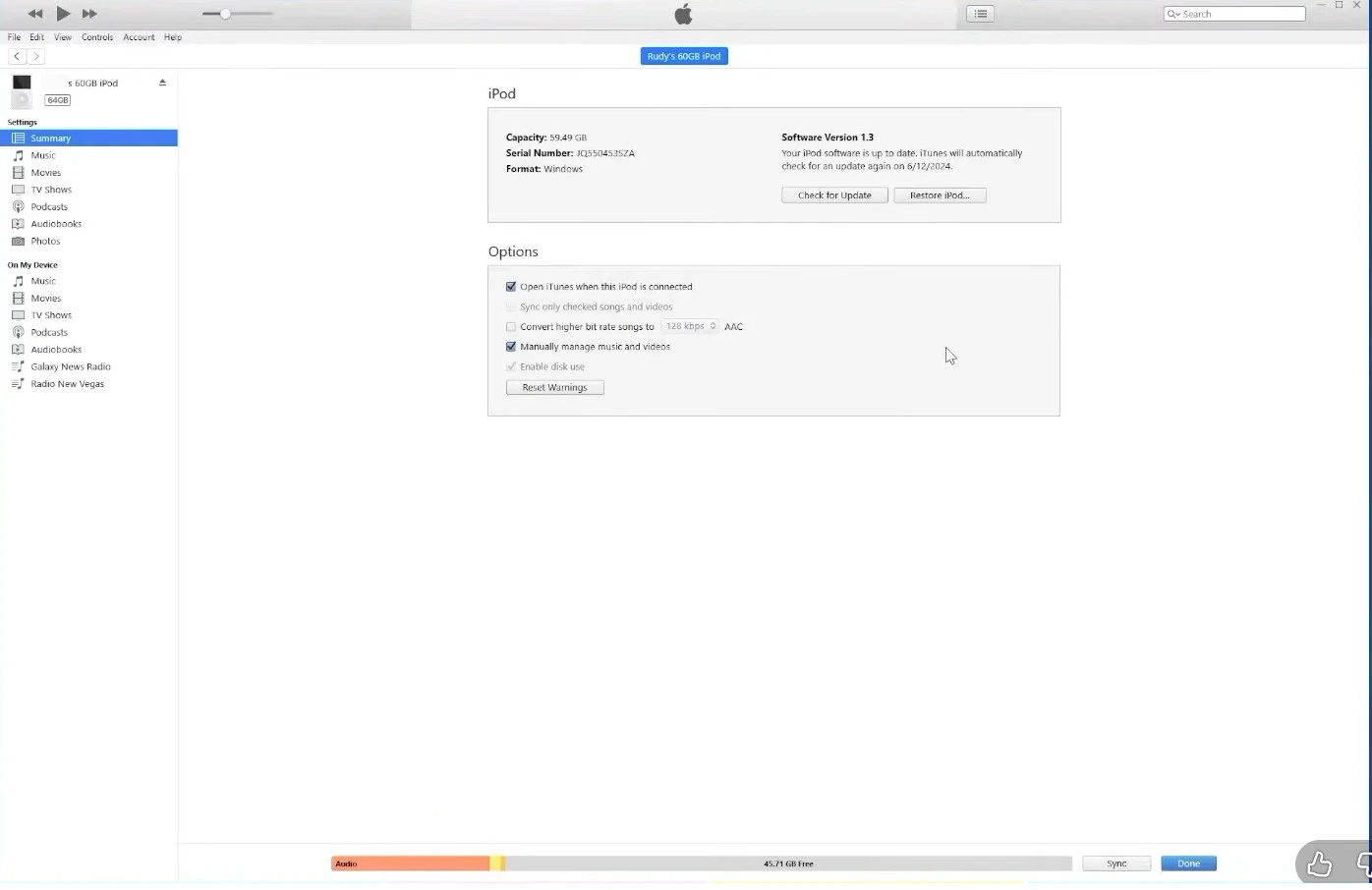
Step 2Open the output folder with the converted Apple Music downloads, drag and drop the local Apple Music files into the iPod library area.
Step 3Wait for the syncing process to finish. After the transfer is completed, safely eject the iPod from the computer and start playing the transferred Apple Music tracks on iPod.
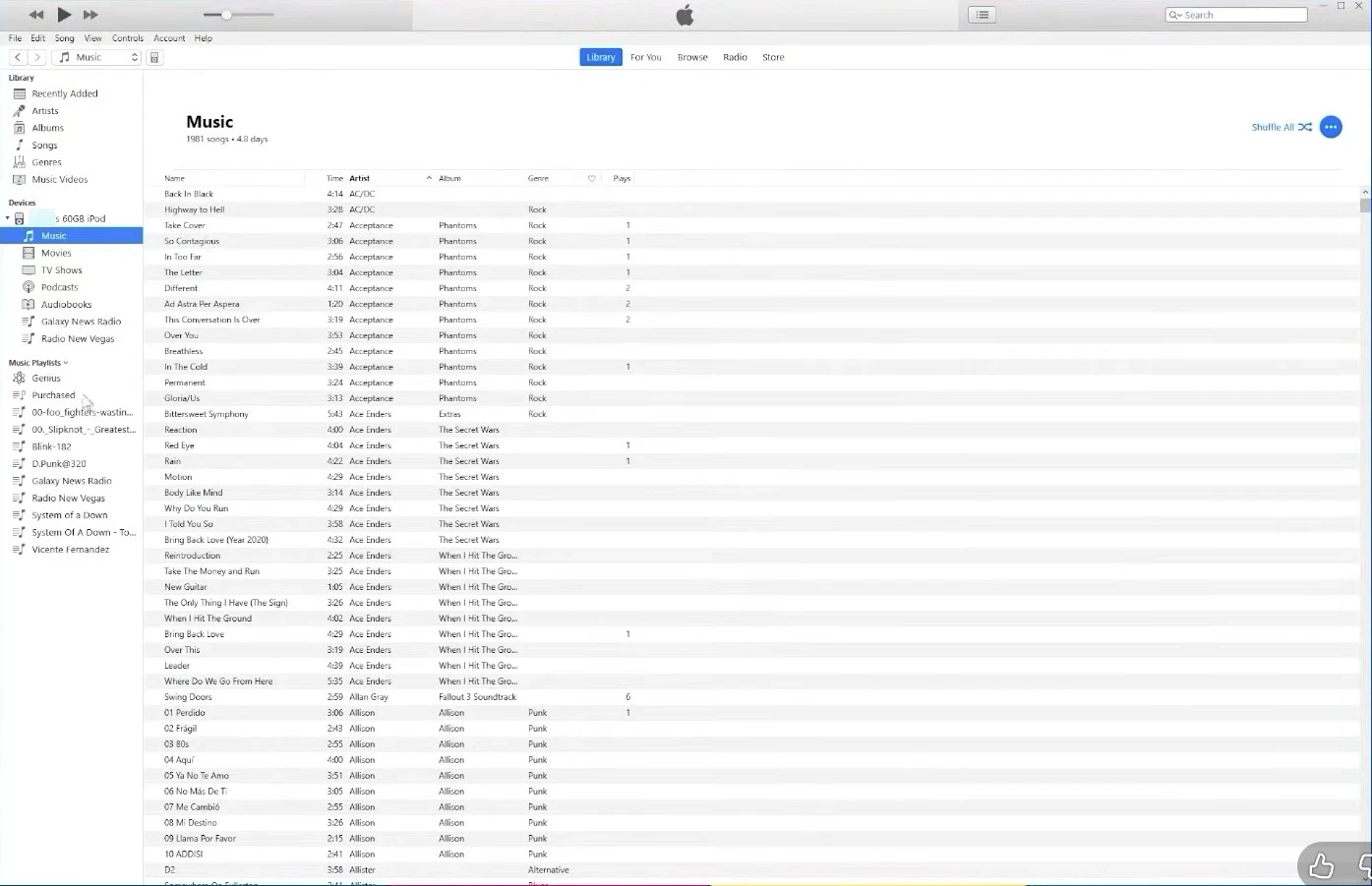
Step 1 Open the Apple music app on the computer, and connect the the iPod to Windows or Mac using an iPod Cable 30 pin (OEM version) that allows for data transfer between iPod and computers.
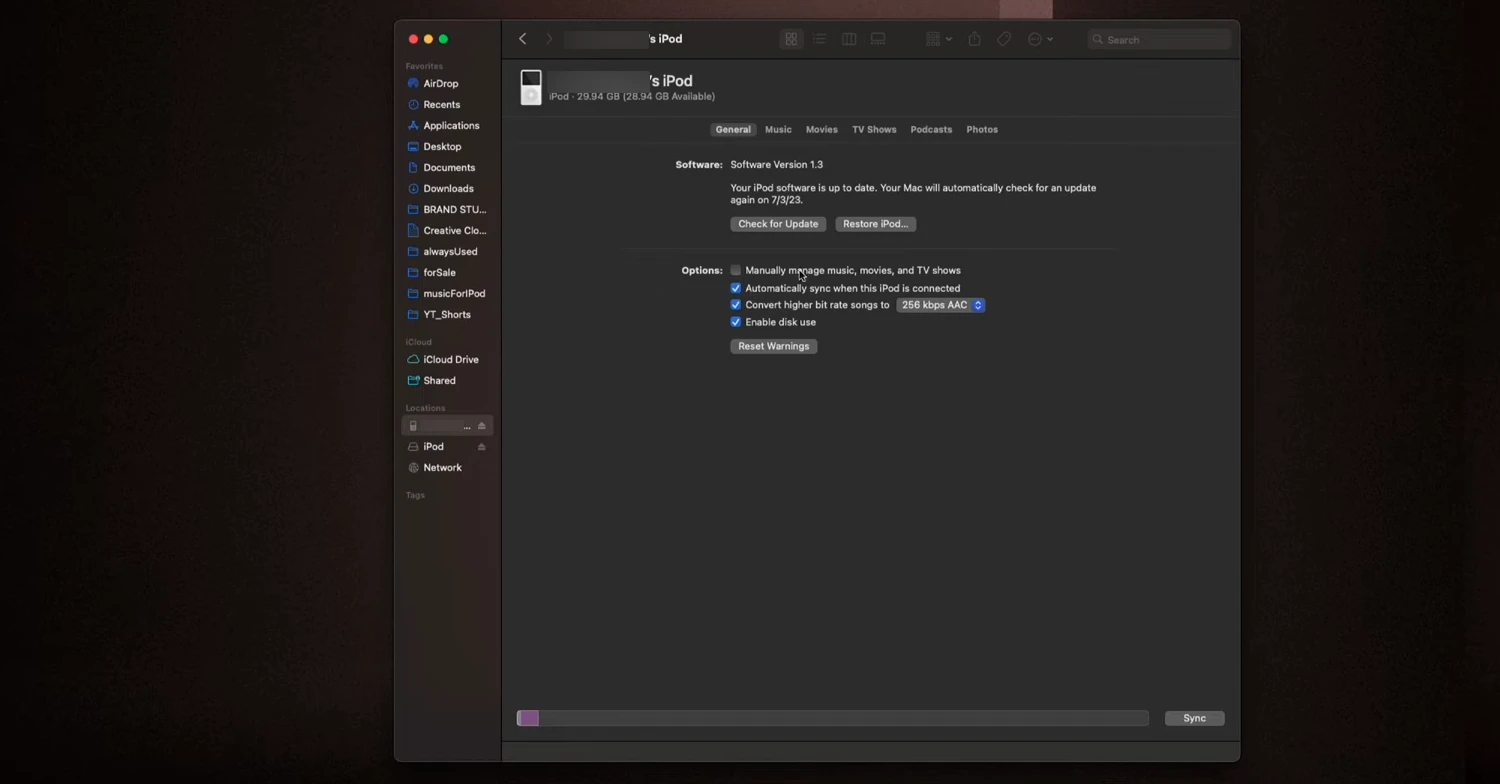
Step 2 As connected, the iPod will show up at the left-hand panel on the Apple Music app.
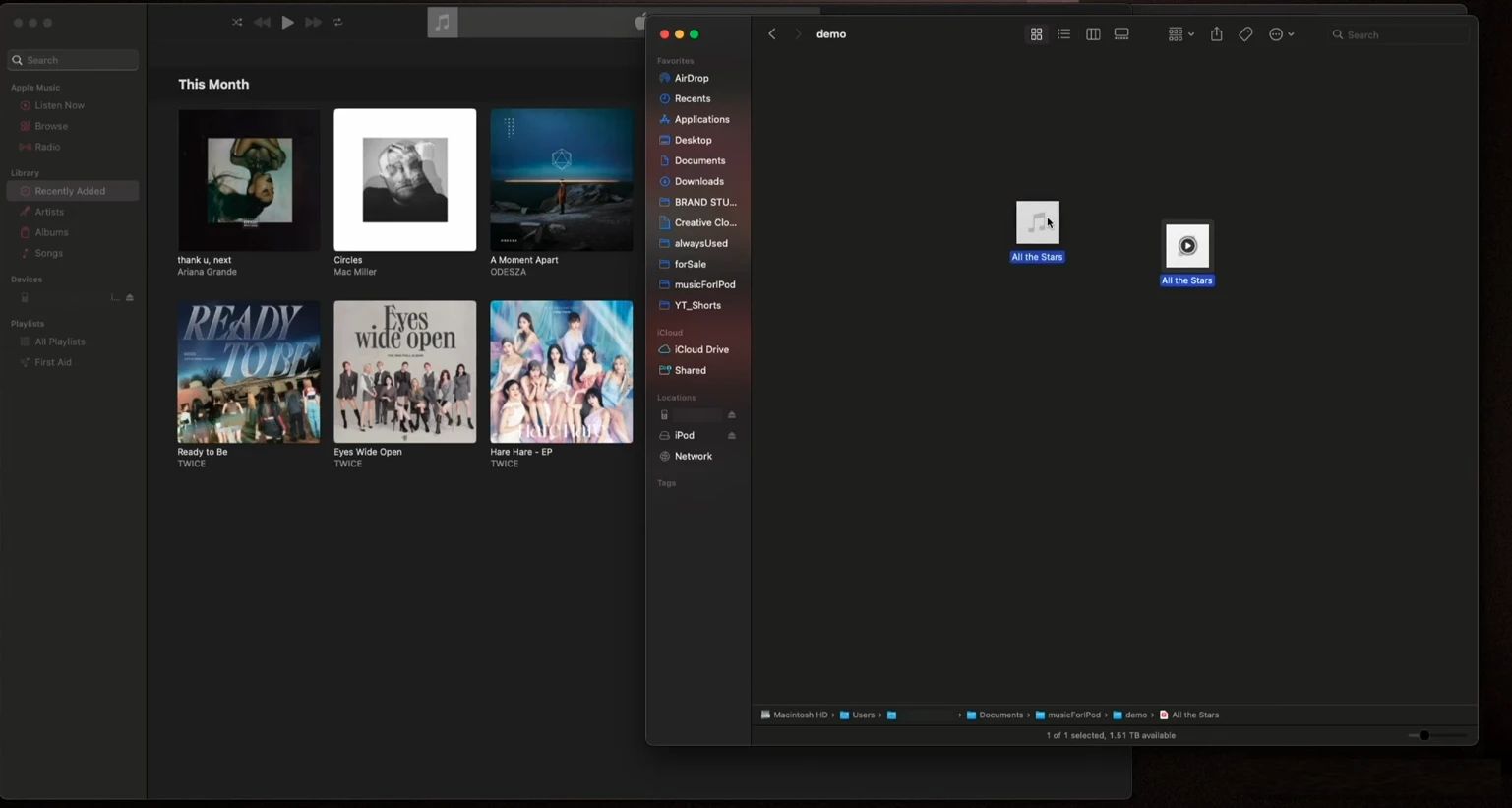
Step 3 Now simply drag and drop the music you purchased from the iTunes Store into the iPod folder library. Alternatively, open the output folder containing your downloaded Apple Music files (previously exported via Sidify), then drag and drop the songs directly into the into the iPod tab within the Apple Music interface.
Step 4 Wait the sync is complete and Eject the iPod and play the music now.
For users with a large Apple Music library, RockBox can be an intrest to you. Rockbox can be a more flexible alternative to iTunes. After installing Rockbox on the iPod Classic, music files can be transferred through simple drag-and-drop operation.
Step 1Download the Rockbox Utility ZIP file from the Rockbox website, then extract the folder and launch the program on the computer.
Step 2Connect the iPod Classic to the computer using a USB cable. If necessary, restore the iPod through iTunes first to return the iPod to factory settings before installing Rockbox. Existing music files should be backed up beforehand because restoring the iPod Classic will erase all content.
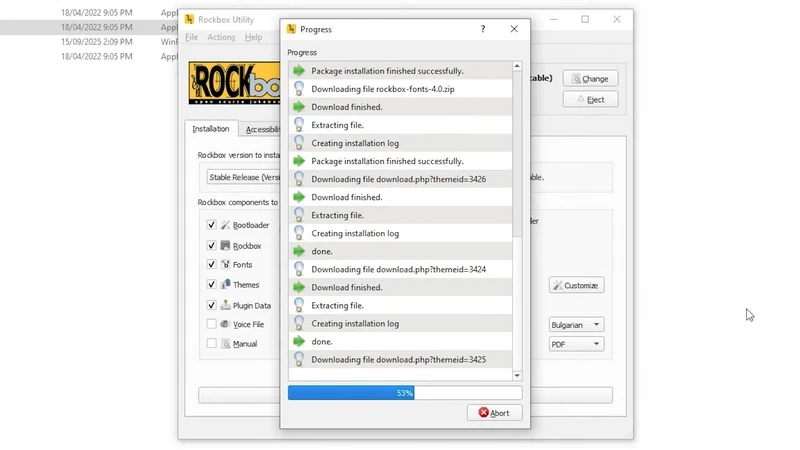
Step 3After the iPod is detected by Rockbox Utility, select the Stable Release version and install the required components, including Bootloader, Rockbox firmware, Fonts, Themes, etc.
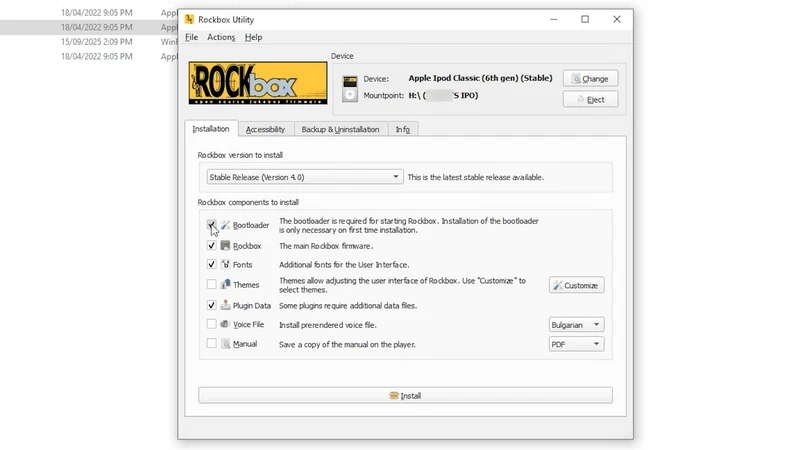
NOTE: Some iPod Classic 6th and 7th generation models require entering DFU mode during installation. The iPod will restart several times and display a black text screen, which is normal.
Step 4Once the installation is completed, restart the iPod again. The iPod should now boot directly into the Rockbox operating system.
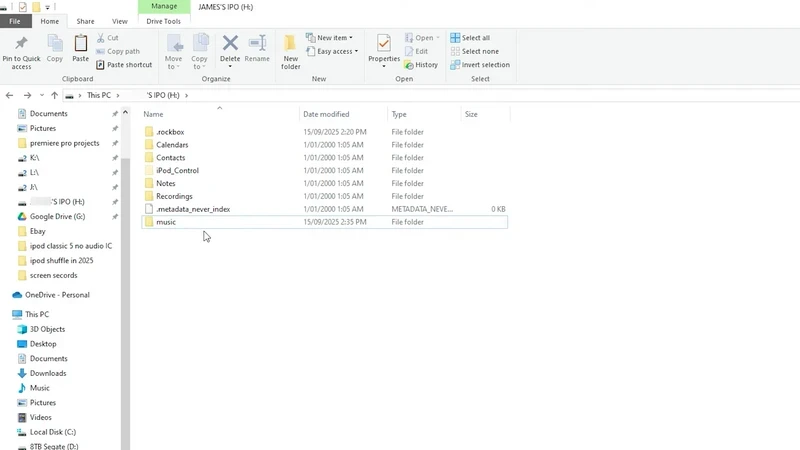
Step 5Reconnect the iPod to the computer when iPod will appear inside Windows File Explorer as a removable drive. Open the folder containing the converted Apple Music downloads, then directly copy and paste the music files into the iPod storage folder.
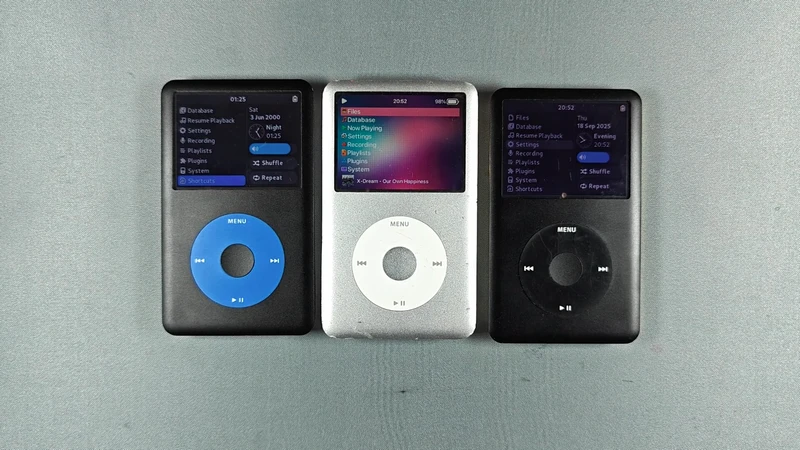
Step 6After the music transfer is completed, disconnect the iPod and open the Files section inside Rockbox. Navigate to the folder containing the transferred Apple Music tracks and start offline playback on the iPod Classic.
Apple Music tracks (copy-protected) need conversion to MP3, AAC, or ALAC first. Then transfer via iTunes to iPod Classic, Nano, Shuffle, which only play local files.
MP3, AAC, WAV, AIFF, ALAC. But not support direct copy-protected caches downloaded from Apple Music subscription.
Consider Sidify All-In-One. The program is able to download and convert songs from Spotify, Apple Music, YouTube Music and more 17 platforms into local MP3 files. And transfer the downloads to iPod with iTunes or Rockbox.
Yes, but only on iPod Touch series that support Apple Music app installation.
Use an older version of iTunes ( https://oldversion.com/software/itunes/) that has support for old iPods, not the version from the Windows Microsoft Store.
In the end, if the goal is getting Apple Music onto an iPod Classic, iPod Nano or iPod Shuffle, the solution is clear. Convert Apple Music tracks to MP3, AAC, or ALAC, and transfer via iTunes or a solid third-party tool like Rockbox. For anyone clinging to that retro click wheel, this is the only way to enjoy Apple Music on a Classic without compromise. Fast, practical, done.
Note: The trial version of Sidify Apple Music converter enables us to convert the first minute of each audio file. We need to purchase a license to unlock the time limitation.
Sidify Music Converter Free is a free tool used to convert Spotify music to MP3, AAC, WAV, FLAC, AIFF and ALAC. It works for both Spotify Free and Premium users, fully supporting the latest Windows 11 and macOS Tahoe 26.


 850,000+ Downloads


