
For Apple Music listeners on iOS, downloading entire Apple Music library one by one can be slow and frustrating. A smarter approach helps download all Apple Music at once, export playlists, and keep files offline. Some methods also backup Apple Music library for safety. This guide shows simple ways.
Sidify Apple Music Converter is a dedicated music downloder for iTunes and Apple Music library. It can rip music, playlists and albums from Apple Music with high quality. It can also extract music from Apple Music into common formats. Batch mode helps download the whole Apple music library in one process. Apple Music output formats includes MP3, AAC, WAV, FLAC and ALAC. Apple music lyrics can be saved together with the downloaded files. All the Apple Music downloads are locally stored onto the computer. Therefore, you can move and transfer the Apple Music to iPhone, Android or USB sticks as you prefer.
Pros: Rip the whole Apple Music library to the computer local path with original file organizational orders and complete ID3 tags.
Cons: one minute download limit for each song with free trial version.
Sidify Apple Music Converter
 Download and remove encrypted protection on Apple Music.Convert Apple Music to MP3, AAC, FLAC, WAV, AIFF, or ALAC.Preserve the lossless audio quality and retain ID3 tags.Burn Apple Music to CD and edit ID3 tags.Fully support Windows 11 & macOS Tahoe 26.
Step 1Launch Sidify Apple Music Converter
Open Sidify Apple Music Converter and enter the main interface as shown below.
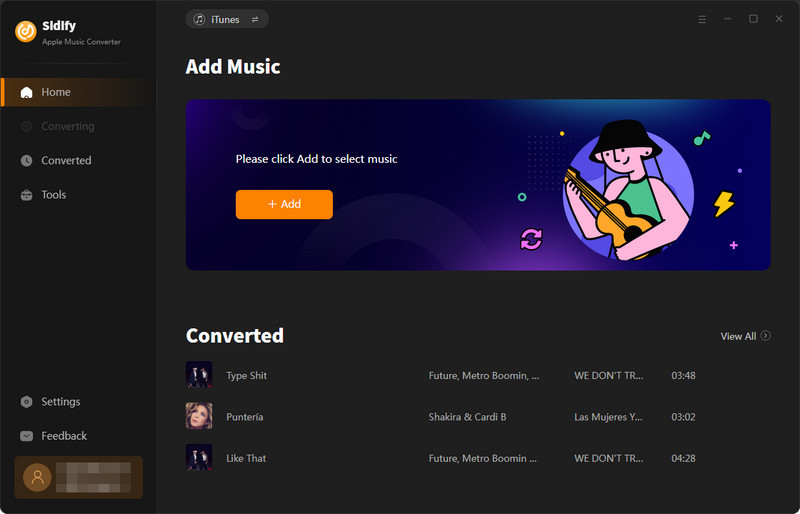
Step 2Add Apple Music Playlists to Sidify.
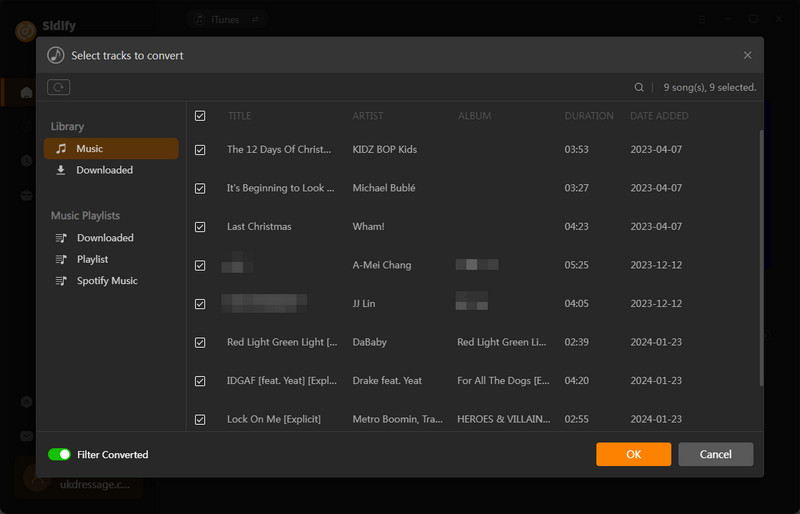
Open the Apple Music web player, select a playlist, and click the Add button to load the entire playlist into the converter. Repeat the process for each playlist until all library playlists are added.
Step 3 Choose Output Format and Customize Output Path.
Go to the Settings section on the left. Set output format, quality, and storage location. Apply file naming rules with tags including title, artist, track number, playlist order, or year, and arrange converted files by playlist or artist.
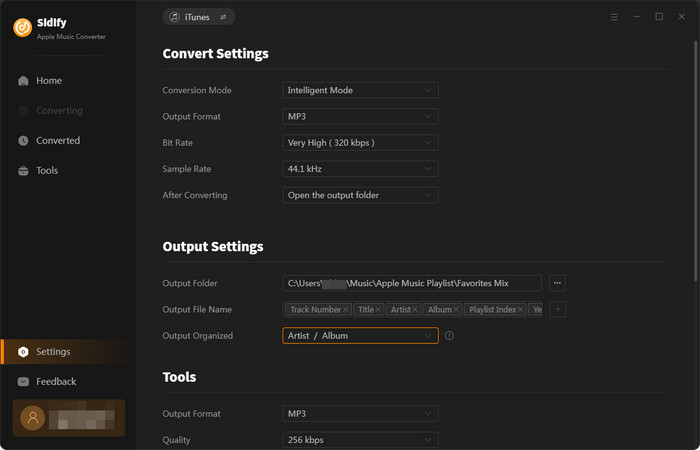
Step 4 Download All Apple Music Playlists at 10X Speed
Click the Convert button and Sidify will start converting the Apple Music to MP3s in no time.
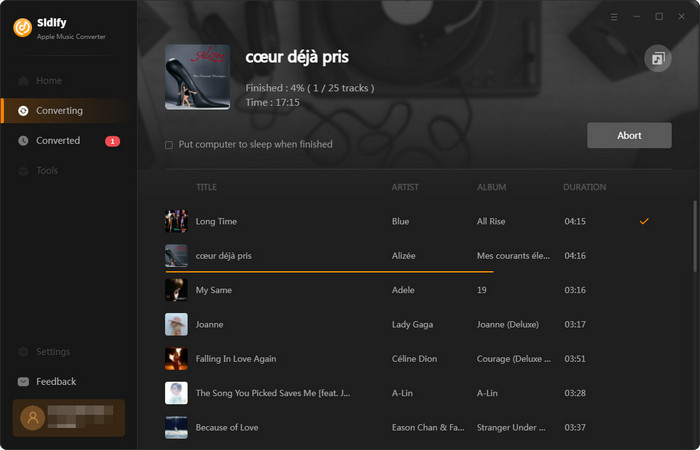
Step 5 Find the MP3 downloads on the Local Drive.
As the conversion is done, click the History tab and you can check all the Apple Music that have been converted successfully. Go to the output folder set in the previous step, and you'll find the downloaded MP3s.
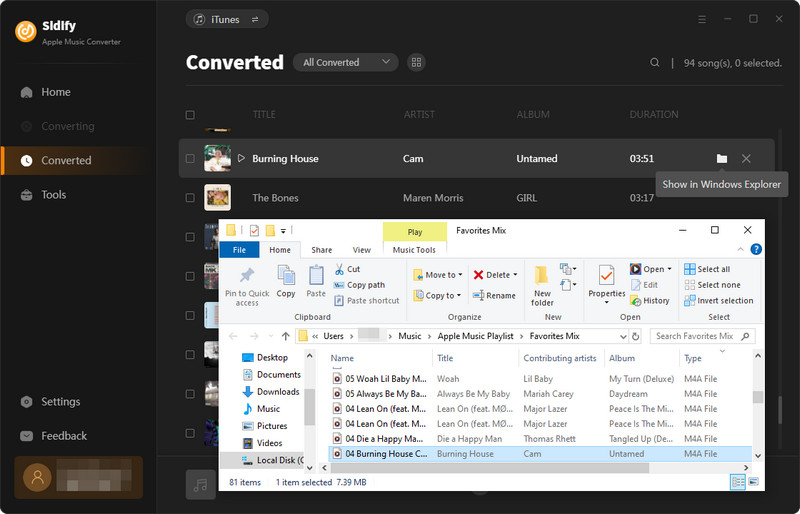
| Feature | Sidify Apple Music Converter | Apple Music Official Downloads |
| Pricing | $3.75/month, billed yearly at $44.95 | $10.99/month, $16.99/month for families |
| Compatibility | Windows 8 ~ 11 & Mac OS 11 and above | iOS/iPadOS, macOS, Android, Windows, Apple Watch, Apple TV |
| Download Mode | Download and convert Apple Music to real and useable music files | Encrypted cache data |
| Downloads | Songs, Playlists, Albums, Podcasts, and Radio | Songs, Playlists, Albums, and Podcasts |
| Download Formats | MP3, AAC, FLAC, WAV, ALAC, AIFF | Streams: no format but cache files, just app-only offline access Purchases: AAC format |
| Audio Quality | 256kbps | AAC 256 kbps, ALAC 16-bit / 24-bit, ALAC up to 192 kHz |
| Speed | Up to 10x | ~20–60 seconds to 1–2 minutes |
| Batch Playlists Download | Yes | No |
| Metadata Preservation | Yes (Title, Album, Artist, Track Number, Year tags etc.) | Yes |
| User Interface | Intuitive, no Ads | Clean Layout |
| Advances | CD Burner, Audio Editor, Tag Editor, AA/AAX Converter | Crossfade, EQ, Spatial Audio & Dolby Atmos |
| Customer Support | 24/7 Email Support | Chat & Call Support |
| A must-have for | High-speed batch downloads, transfer songs to non-Apple devices | Quick, simple downloads without extra software |
On iPhone and iPad, Apple Music doesn't have a "Download All" option but you can trigger a Download for all the songs in a go on the desktop version. There is no Apple music format conversion involved. Albums and playlists can not be saved locally because the download files are just encrypted inside the app system. This method fits simple offline Apple Music listening needs on Mac and Windows.
Pros: No need for any third-party apps.
Cons: Downloads are limited to Apple Music playback only.
Step 1 Open Apple Music on your Mac or PC, then go to Library > Songs to view all your saved tracks.
Step 2 Press Command + A (Mac) or Ctrl + A (Windows) to select all songs.
Step 3 Right-click and choose Download. The app will start downloading your entire music library.
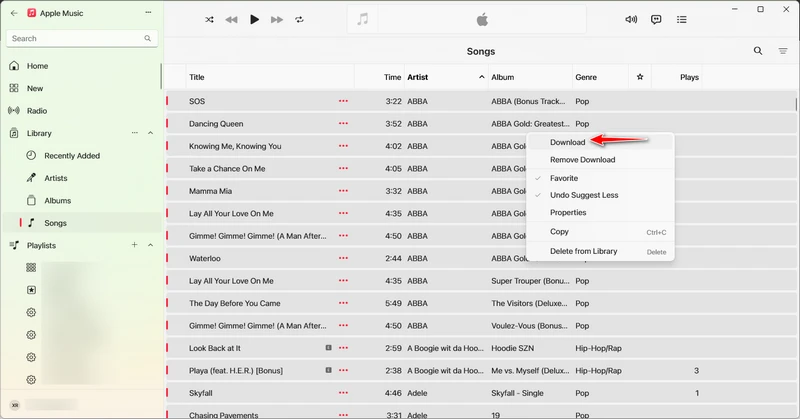
The built-in Music app lacks a Download All button, but you can download individual songs, albums, and playlists instead. This method can download full albums on Apple Music with one click per album. It can also download all songs on Apple Music inside a playlist. That said, downloading Apple Music tracks individually isn't realistic if your library has dozens of albums and playlists. There are two methods you can use to download all Apple Music playlists and songs at once.
By using "Find Music" and "Add to Playlist" filter action within Shortcuts, you can manage to pull all songs from the Music library and batch-add all matching songs to one playlist. This works because Apple Music allows full-playlist downloads, even though it doesn't support downloading entire library directly.
Pros: quick setup, no computer, runs on iPhone directly, automation possible, flexible
Cons: unstable with large libraries, requires multiple runs, playlists lack a clear structure
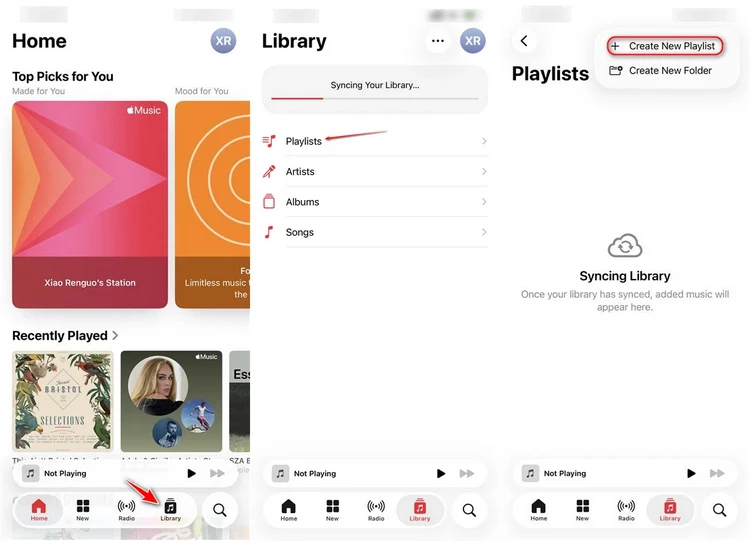
Step 1 On your iPhone or iPad, open the Music app. Go to the Library tab and tap Playlists. Tap the + button to create a new playlist, and name it "All Apple Music Songs".
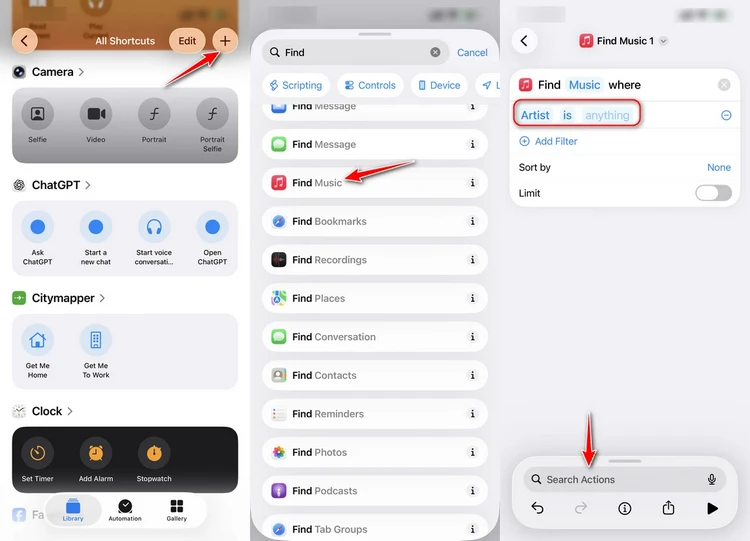
Step 2 Open the Shortcuts app and tap the + button to create a new shortcut. Tap Add Action, search for Find Music, and add it.
Step 3 Tap Add Filter, then set the condition to Artist is anything. This ensures the shortcut includes all songs in the Apple Music library.
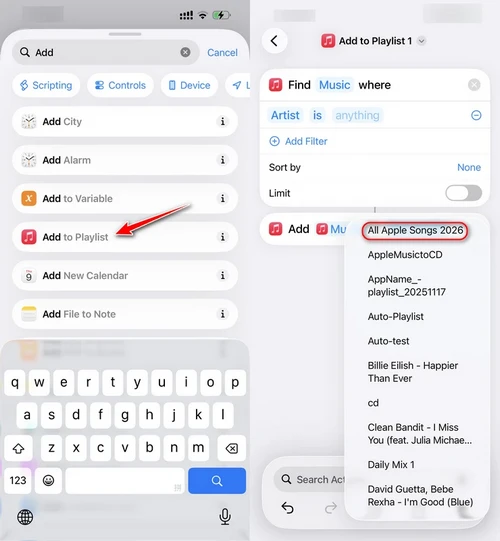
Step 4 Based on the added "Find Music" action, tap Search actions below to find and add one more "Add to Playlist" condition. Select it, and then choose the "All Apple Music Songs" playlist created in Step 1. This will make the shortcut automatically add almost all saved Apple Music songs that match the filter ("Artist is anything") into the playlist.
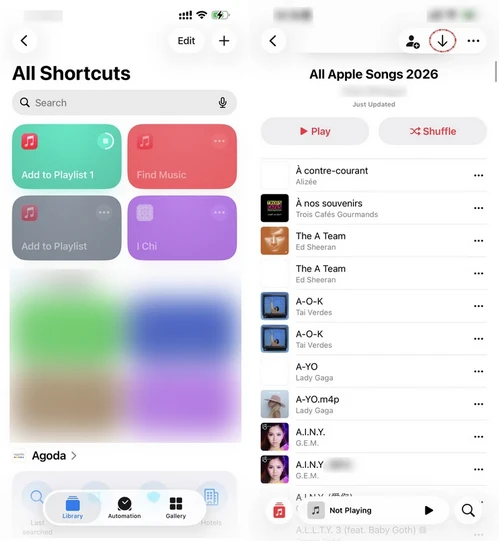
Step 5 Tap Done to save the shortcut, then run it. Once finished, go back to the Music app, open the "All Apple Music Songs" playlist, and tap the Download icon to download all songs at once.
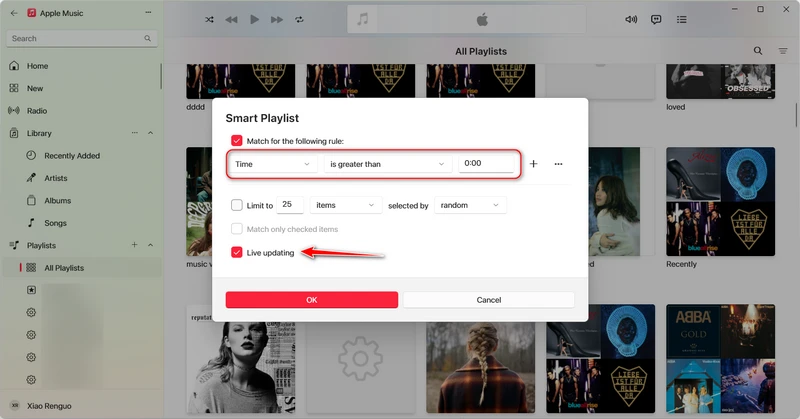
By the same logic, you can use the Smart Playlist feature in Apple Music to automatically gather songs based on conditions you set. For example, you can make a Smart Playlist containing all saved songs and then download all songs at once. It's essentially a dynamic playlist that updates itself whenever songs in your library meet the criteria you define. Note that creating a Smart Playlist must be done on the desktop version of Apple Music.
Pros: stable, reliable for full library, auto-updating, one-time setup, easy one-click download
Cons: require computer setup, not fully on-device, less flexible, depends on sync library
Step 1Open the Apple Music app on PC or Mac. On the left panel, click "+" button next to the Playlists, and choose "New Smart Playlist".
Step 2Set the following rule: choose "Time" as the key filter, and is greater than and enter the value to 00:00. This will essentially include all songs in the Apple music library. Tick Live updating and the smart playlist will always include any new songs you add later.
Step 3Click OK to finish creating the Smart Playlist and name it a suitable name, e.g., All Apple Music Songs.
Step 4Open Settings on your iPhone, go to Music, and turn on Sync Library. Then open the Music app on your iPhone, go to Library, select Playlists, and find the Smart Playlist you created.
Step 5On the playlist screen, tap the download arrow to download all songs in the playlist to your device for offline listening.
Refer to Method 4 to create the Smart Playlist on your computer, then sync it to your Apple Music library on your Android device. Alternatively, follow Method 1 to download Apple Music songs directly to your Android device's internal storage or SD card, allowing playback without tied to the Music app or an active subscription.
Step 1 Follow the steps in Method 1 to download the entire Apple Music library to the compute local directory.
Step 2 Connect the Android device to the computer, or insert an SD card and confirm SD card availability on the Android device.
Step 3 Open the device storage folder on the computer. And copy the converted Apple Music files to the SD card music folder.
Step 4Open a music player on the Android device. Scan local storage or SD card to load and play the imported Apple Music audio files.
Apple doesn't make it easy to download everything at once. There is no big ""Download All" button, no simple switch, just some workarounds depending on what device sits in front of you. On desktop, things are fast and efficient, especially with Sidify Apple Music Converter and official Apple Music app that can process entire library download in one go. On iPhone and iPad, it becomes a bit more creative, using Shortcuts or Smart Playlists to get the job done. And on Android, the process shifts again, consider file transfer and local playback to break free from app limitations.

How to Transfer Apple Music Playlists to Spotify, YouTube Music, Amazon Music, Tidal, Deezer and More? Playlist Transfer makes it quick and simple.

Harper North | Staff Writer


 850,000+ Downloads


