
Schools often shut down "entertainment" traffic and cut off access to sites like YouTube and Spotify. You might see a "No Internet Connection" error, or Spotify simply hangs on a loading screen forever. You can't stream Spotify music, download playlists, or even browse the music library. Students and school staff, if you're struggling to unblock Spotify music on campus Wi-Fi or school computers, this guide is for you. We have put together a list of proven methods to help you get around school network blocks and get Spotify working again.
The blockade of Spotify can be attributed to a variety of factors, including stringent regulations implemented by educational institutions and workplaces, regional restrictions imposed by countries, and the terms of license agreements. Understanding the reasons behind the blocked Spotify is crucial for you seeking to circumvent these limitations and enjoy uninterrupted access to your favorite tunes.
It’s said that streaming music platforms can potentially act as distractions for school students and interfere with productivity in certain work environments. In response, some educational institutions and workplaces implement restrictions on access to entertainment websites and apps like Spotify in an effort to enhance focus and concentration.
Despite amassing millions of users across over 200 countries, Spotify remains inaccessible in certain countries and regions due to country-specific policies and regulations. If the Spotify App is unavailable in your country or region, it's probably due to geo-restrictions that block access to the platform.

Record labels, managed by distinct countries, hold varying rights over musical content. Each country possesses the authority to determine the release and playback of songs within its jurisdiction. Consequently, a song that is accessible on Spotify in the United States may be blocked for playback in India due to license agreement.
School networks often use Deep Packet Inspection (DPI) to identify and block traffic specifically coming from the Spotify desktop or mobile app. However, many systems are less strict with web browsers. Because the Spotify Web Player runs through standard web traffic (HTTPS), it can sometimes slip through filters that the Spotify App cannot.
Step 1. Head to open.spotify.com in Chrome, Firefox or Safari browser.
Step 2. If the page doesn't load, try using Private Mode (Ctrl+Shift+N on Windows or ⌘+Shift+N on Mac) or switch to a different browser.
NOTE: 1).Some schools block the "Spotify Web Player" URL specifically. If the page is not open, try a different method. 2). The streaming quality is fairly lower, and you can't download Spotify music for offline play on the web version.
If possible, bring your own "private internet" into the classroom. By using mobile data or personal hotspot, you are no longer subject to the school’s proxy servers, DNS filters, or bandwidth limits.
Direct Mobile Use: Simply toggle off Wi-Fi on your phone and enable the cellular data to enable the internt.
The Hotspot Bypass: 1. Enable the Personal Hotspot on the mobile phone. 2. Connect the Chromebook or laptop to the hotspot. 3. Open Spotify App on the computer and listen to music.
Alternative Wi-Fi: Search "Guest" or "Public" Wi-Fi that come from common areas near campus (like cafes or libraries). These alternative connection do not use the same restrictive filtering as the main school network.
NOTE: 1). Streaming music at high quality (320kbps) uses about 150MB per hour. Ensure your data plan can handle the load to avoid overage charges. 2). Using mobile phone as a hotspot drains the battery significantly faster and can cause the device to run hot. 3). School buildings are often built with heavy materials that can block cellular signals. If you have a weak "bar" count, your music may buffer even if the school isn't blocking it.
The DNS server set by school will intercept or alter requests for www.spotify.com, such as returning an incorrect IP address. Therefore, Spotify is fail to load. Instead, public DNS like Google DNS or Cloudflare DNS provide unfiltered resolution services and manage to skip school block to use Spotify normally.
Step 1Open Settings, then tap the connected school Wi-Fi network.
Step 2Under Configure DNS, select Manual.
Step 3Tap "Add Server" and input these DNS addresses: Google DNS (8.8.8.8, 8.8.4.4) or Cloudflare DNS (1.1.1.1, 1.0.0.1).
Step 4After entering the DNS, go back and save the settings.
Step 1 Open Settings, then tap Network & Internet. Tap Wi-Fi, and then tap the network you're connected to.
Step 2Tap Advanced Settings, then select IP Settings to Static.
Step 3In the DNS 1 and DNS 2 fields, enter Google DNS (8.8.8.8, 8.8.4.4) or Cloudflare DNS (1.1.1.1, 1.0.0.1).
Note:Save the settings and reconnect to the network.
Step 1 Open Control Panel, click on Network and Sharing Center.
Step 2 Click on the connected network,then click Properties.
Step 3In the pop-up window, select Internet Protocol Version 4 (TCP/IPv4), then click Properties.
Step 4In the new window, select "Use the following DNS server addresses" and enter the DNS addresses: Preferred DNS server (8.8.8.8 or 1.1.1.1) and Alternate DNS server (8.8.4.4 or 1.0.0.1).
Step 5 Click OK to save the settings.
Step 1Open System Preferences, then click Network.
Step 2Select the network you're connected to (e.g., Wi-Fi), then click Advanced.
Step 3Click the DNS tab.
Step 4 Tap the + button at the bottom left to add the DNS addresses: Google DNS (8.8.8.8, 8.8.4.4) or Cloudflare DNS (1.1.1.1, 1.0.0.1).
Step 5 Press OK and confirm the settings.
Schools often block Spotify streaming ports. A proxy acts as an intermediary between your device and Spotify's servers. Instead of connecting to Spotify directly (which the school triggers a block on), your device sends the request to a "neutral" proxy server. The school's firewall only sees traffic going to an unknown IP address, not Spotify, allowing the data to pass through.
Free Proxy List (https://free-proxy-list.net/): HTTP / HTTPS / SOCKS5
SSLProxies.org (https://www.sslproxies.org/): HTTP / HTTPS
Proxysite.org (https://www.proxysite.org/): HTTP
Whoer.net Proxy (https://whoer.net/webproxy): HTTP
ProxySite.com (https://www.proxysite.com/): HTTP
KProxy (https://free-proxy-list.net/):HTTP
Hide.me Proxy(https://hide.me/en/proxy): HTTP / SOCKS5
Step 1 Open Settings > Network & Internet > Proxy.
Step 2 Turn on Manual proxy setup.
Step 3 Enter the proxy server's IP address and port.
Step 4 Save the settings. All network requests, including those from Spotify, will be forwarded through this proxy server.
Step 1 Open System Preferences > Network.
Step 2 Select the current network connection (Wi-Fi or Ethernet), then click Advanced.
Step 3 In the Proxies tab, select Web Proxy (HTTP) or Secure Web Proxy (HTTPS) and enter the proxy IP address and port.
Step 4 Save the settings. All traffic, including Spotify requests, will be forwarded through the proxy.
Step 1 Open the Spotify client and go to the Spotify Settings menu, scroll down to Advanced Settings and find the Proxy section.
Step 2In the Proxy section, select the type of proxy you are using: HTTP or SOCKS5 (e.g., Shadowsocks).
Step 3 Enter the IP address and port of the proxy server. If the proxy requires a username and password, enter the corresponding credentials.
Step 4Save the settings. Spotify will now connect through the proxy server you configured.
A VPN encrypts network traffic and hides the real IP address, making it appear as if the connection is originating from another location, thus bypassing restrictions. Essentially, it disguises online activities, preventing the school from detecting access to services like Spotify.
Most VPN providers support multiple platforms (Windows, Mac, iOS, and Android). Generally, it is recommended to choose a plan that supports multiple devices. however, please note that VPN providers typically limit the specific number of devices that can be used simultaneously.
Recommend VPN providers: Clash/V2rayNG/V2rayBox/Shadowrocket
Step 1 Visit the VPN provider's official website, select the appropriate client for the device type, and download the installation file.
Step 2 After installing the VPN, open the client and log in using the account information registered during the purchase process.
Step 3 In the client, select a server location that can bypass the school's restrictions. Choose a server that is geographically closer and offers better network speed.
Step 4 After selecting the server, click the “Connect” button. The VPN will establish an encrypted tunnel and route traffic through the VPN server.
Step 5 Once the connection is successful, the device’s real IP address will be replaced with the VPN server's IP address. Spotify can now be accessed through the client or web version, bypassing previous school restrictions.
Rather than always trying to bypass the school's network blocks, a one-off solution involves downloading Spotify songs as offline MP3 files. Sidify Music Converter enables direct conversion of Spotify songs to MP3s, saving Spotify music as real offline files (not cached data). This makes it possible to import music from Spotify to school Chromebook or any computer that doesn't have Spotify. Even if Spotify is unavailable at school, the music can still be enjoyed.
Sidify Music Converter
 Download Spotify songs, albums, playlists, podcasts, audiobooks as MP3, AAC, FLAC, WAV, ALAC, or AIFF files.Keep the original audio quality.Preserve ID3 tags after conversion.10X faster conversion speed.Free updates and technical support.
If you want a tool to convert any streaming music (including Spotify, Apple Music, Amazon Music, Tidal, Deezer, YouTube, YouTube Music, SoundCloud, DailyMotion …) to MP3, Sidify All-In-One is the go-to choice.
Step 1Launch Sidify Music Converter
Run Sidify Music Converter, you will access the modern interface of the program.
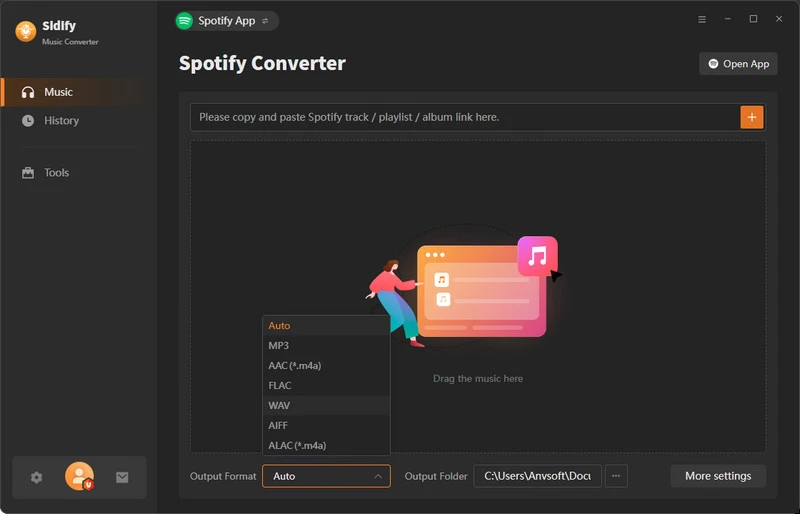
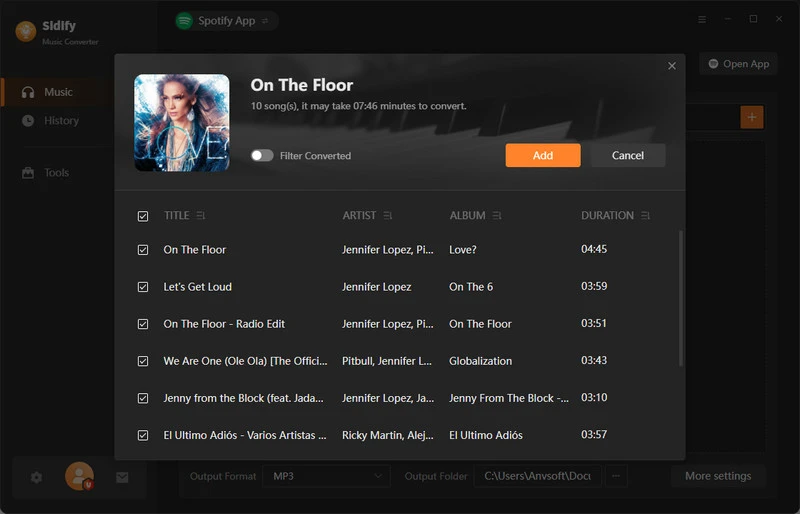
Step 2 Add Spotify Songs to Sidify
Drag & drop a playlist from Spotify to Sidify, select the songs that you want to listen to at school or elsewhere, and click the Add button.
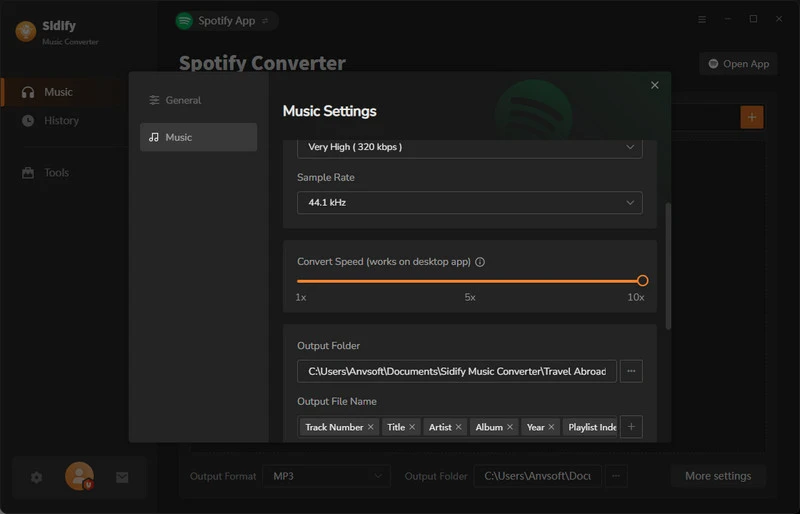
Step 3Customize Output Settings
Click the Settings icon on the left-hand panel, from which you can select the output format (MP3/AAC/WAV/FLAC/AIFF/ALAC), output quality and specify the output folder as well.
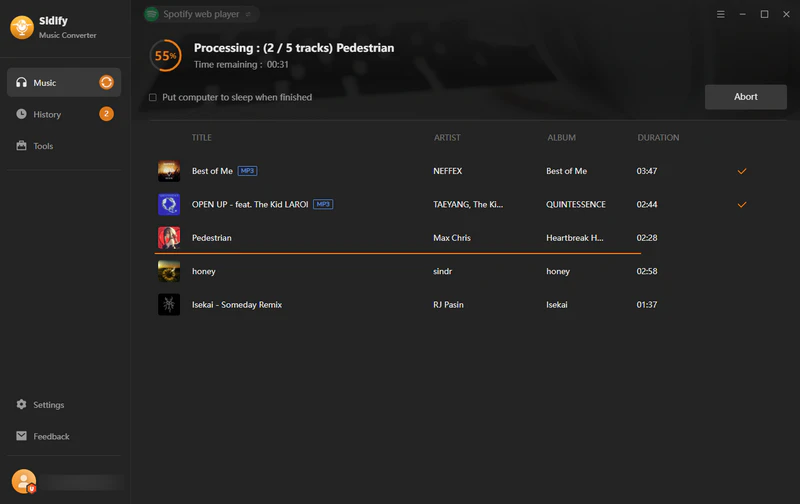
Step 4Get Spotify Music Downloaded to Computer
Click the Convert button to start exporting the Spotify song to the output folder.
Step 5Find the Spotify Downloads on PC/Mac
Once the conversion is done, click the History tab, and you can find & locate all the downloaded Spotify songs. Just transfer the downloaded songs to your smart phone or other devices for normal playback at school, work or elsewhere.
For people who are not good at computers, using a VPN or changing proxy or DNS may be challenging. Additionally, each method varies in terms of security. Below is a comparative table of these approaches for your reference when making a selection.
| Proxy/DNS | VPN | Sidify | |
| Safety | X | X | ✔ |
| Stability | ✔ | Unstable | ✔ |
| Provide Free Option | ✔ | ✔ | ✔ |
| Spotify Output Formats | OGG Vorbis | OGG Vorbis | MP3/AAC/WAV/FLAC/AIFF/ALAC |
| Multiple Device Playback | X | X | ✔ |
| Recommends | ⭐⭐⭐⭐ | ⭐⭐⭐ | ⭐⭐⭐⭐⭐ |

Read this article to find out the best 11 free unblocked movie sites for school and enjoy movies unblocked at school.
If you're uncertain about whether Spotify is blocked in your region, one way to check is by attempting to get the Spotify App or access the Spotify web player. If you encounter difficulties or receive an error message, it's possible that Spotify is indeed blocked at your location.
Yes, but free VPNs usually have restricted server choices and reduced speeds, impacting your Spotify streaming quality. It's recommended to consider a dependable paid VPN service for an improved experience.
It is regrettable that employing a VPN might result in a deceleration of your internet connection when using Spotify. This could be attributed to the VPN encrypting your internet traffic and directing it through a remote server. Exploring alternative VPN options could help address this issue.
Using a VPN or proxy server to reach restricted content is typically within legal boundaries. However, it's crucial to verify the reliability and security of the chosen VPN or proxy service.
Sidify offers both free & paid options. Sidify Music Converter Free enables you to convert Spotify to MP3 with zero cost while Sidify Music Converter Pro is developed with enhanced features at a small fee.
Above we discussed the reasons behind Spotify being blocked and provided four approaches to get Spotify unblocked - via Proxy Server, DNS Server, VPN and Sidify Music Converter. For enhanced safety and security, it's advisable to use Sidify Music Converter to unblock Spotify. This tool allows you to download Spotify songs to MP3 and free transfer between devices. You can then enjoy the downloaded Spotify songs, whether you're at school, at work, or anywhere else.
Note: The trial version of Sidify Music Converter enables you to convert the first minute of each audio track. You can unlock the time limitation by purchasing the full version.


