
Do you want to download Apple Music songs to your computer for offline listening when there is no internet connection available? In this guide, we will show you how to download Apple Music songs on Windows and Mac using official methods and converters to save them as MP3s for easier management and playback on your computer.
Before starting, make sure you have an active Apple Music subscription or free trial. The Apple Music app offers a built-in download feature that allows subscribers to download songs, albums, and playlists for offline listening on Windows or Mac computers.
However, the downloaded content is DRM-protected AAC audio files (typically .m4p / .m4a) and can only be played within the Apple Music or iTunes app. In addition, once the subscription expires, downloaded songs will no longer be accessible. If you want to export them as MP3 files or transfer them to other devices, Sidify Apple Music Converter is recommended.
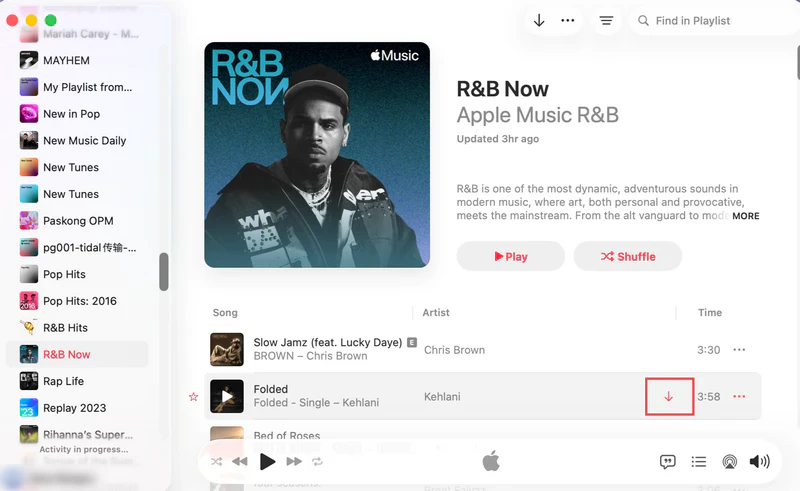
Step 1 Open Apple Music and sign in with your Apple ID.
Apple Music is available on Mac (macOS Catalina 10.15 and later) and Windows 11, while earlier versions use iTunes instead.
Step 2 Search for or browse the song, album, or playlist you want to download.
Step 3 Click "+" to add the song to your library.
Step 4 Click the "↓" download button to start downloading the music locally.
Step 5 Once the download is complete, you can find it in your library and play it offline.
In addition to your Apple Music subscription content, if you have previously purchased songs from the iTunes Store, you can also directly redownload them to your computer for local playback. Songs downloaded from the iTunes Store are usually DRM-free AAC audio files (.m4a), which can be transferred to other devices and converted to MP3 if needed.
Step 1 Open the Apple Music app(Mac) or iTunes(Windows) and sign in with your Apple ID.
Step 2 Navigate to the Purchased section in your account to view all previously bought songs and albums.
Step 3 Click the Download icon next to the songs or albums you want to save to your computer.
If you wish to permanently keep Apple Music after canceling the subscription, or to enjoy it offline on various devices and players, converting Apple Music to MP3 offers a more flexible solution. This part will introduce several popular Apple Music to MP3 converters.
Sidify Apple Music Converter is designed to download and convert songs, albums, and playlists from Apple Music to 320kbps MP3 and lossless formats like WAV, ALAC, FLAC. It supports downloading the Apple Music library all at once at up to 10× speed while preserving complete ID3 tag information, including song titles, albums, artists, cover art, and more. The converted music files can be kept permanently and played offline, and managed locally on Windows, Mac, and other devices.
Sidify Apple Music Converter
 Download music from Apple Music to the computer.Convert Apple Music to MP3, AAC, FLAC, WAV, AIFF, or ALAC.Preserve the original audio quality and retain ID3 tags.Batch downloads Apple Music at 10× speed.Fully support Windows 11 & macOS Tahoe 26.
Step 1 Download and install Sidify Apple Music Converter on your PC or Mac.
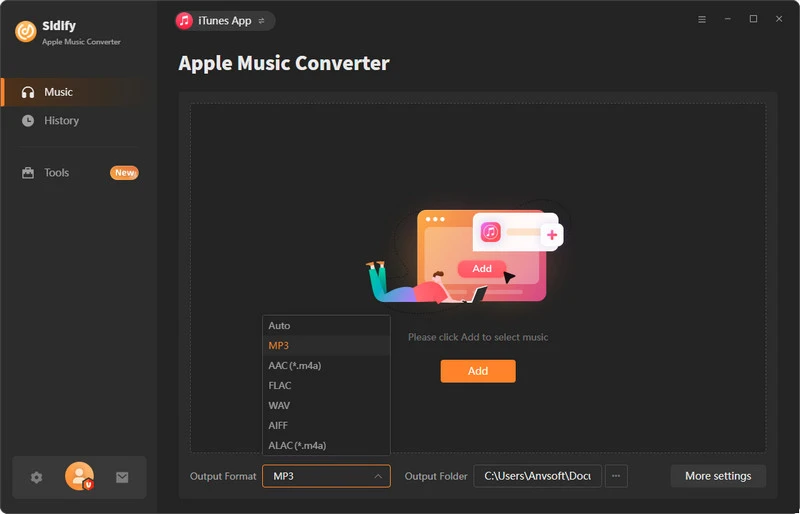
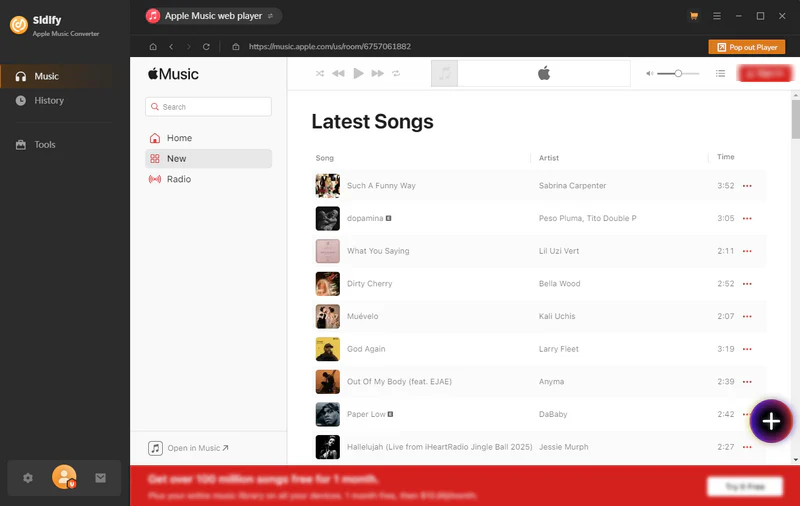
Step 2Log in to your Apple Music account and click the "+" button to add music you want to download to Sidify.
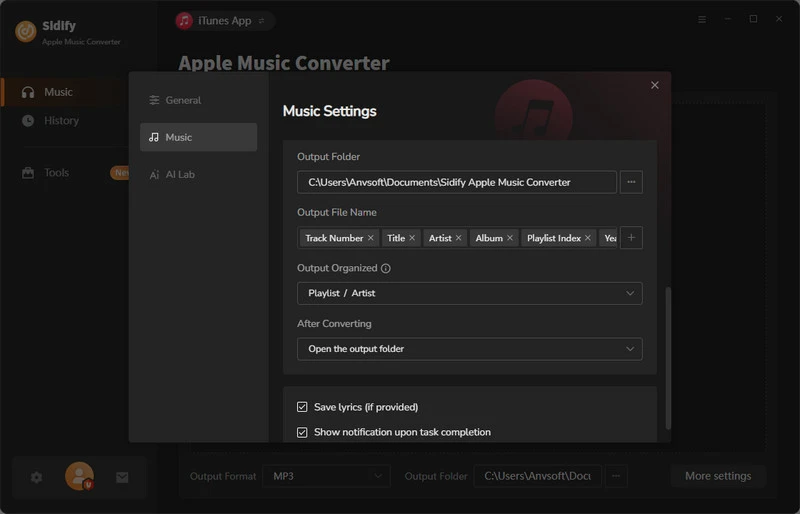
Step 3 Go to the "Settings" page, set the output format to MP3, and select the output quality, output file name, and other options as needed.
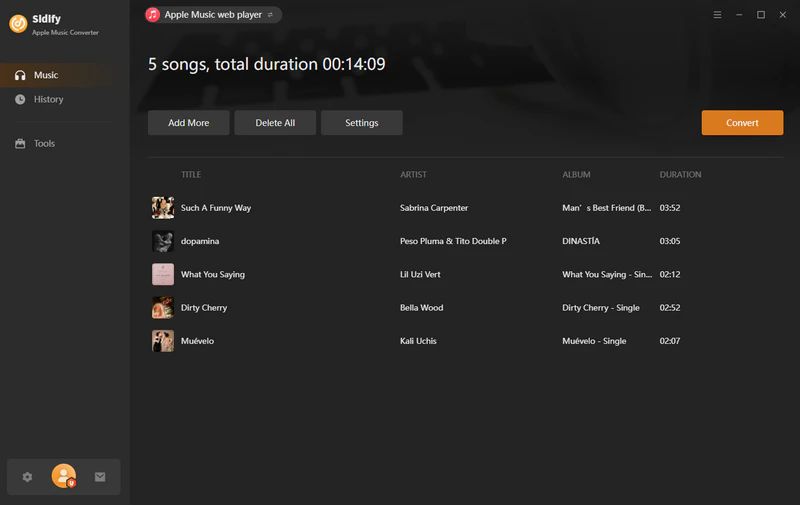
Step 4 Click the "Convert" button to start downloading and converting Apple Music songs.
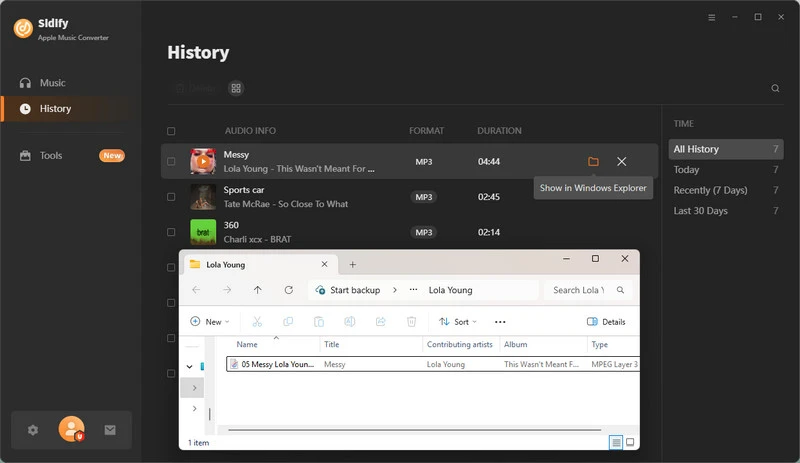
Step 5 Once the conversion is complete, go to the "History" section to view the downloaded MP3 files.
Sidify All-in-One is a multi-platform music converter that supports downloading and converting songs from major streaming services, including Apple Music, Spotify, YouTube, and Amazon Music, into formats such as MP3, AAC, WAV, FLAC, AIFF, and ALAC. It also supports saving Apple Music directly to your PC or Mac while preserving the original audio quality and full ID3 tags. This tool is better suited for users who manage multiple music platforms at the same time, offering an all-in-one solution for music downloading and conversion.
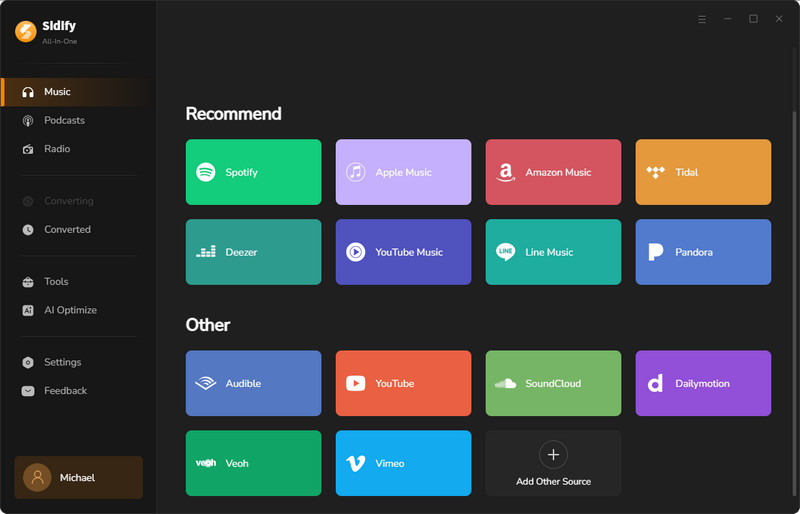
Step 1 Install and launch Sidify All-in-One on your computer and select Apple Music from the list of supported services.
Step 2 Search for the tracks you want to download, and click the "+" button to add them to Sidify.
Step 3 Go to the Apple Music settings page and select MP3 as the output format.
Step 4 Click the "Convert" button to start downloading Apple Music to your computer.
Step 5 After the conversion is finished, open the “History” section to access your downloaded MP3 files.
AAPLmusicDownloader is a free online Apple Music downloader that allows users to download songs, albums, and playlists from Apple Music without needing to install any software. It supports converting Apple Music songs into MP3 and M4A formats, and also enables batch downloading as ZIP files for easier offline management across different devices.
Website: https://aaplmusicdownloader.com/
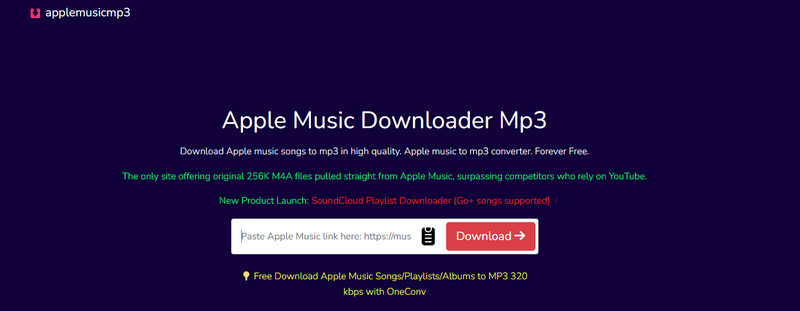
Step 1 Visit https://aaplmusicdownloader.com/ in your browser.
Step 2 Find the song, album, or playlist you want to download on Apple Music, and copy its link.
Step 3 Paste the copied link into the input box on the website and click the download button.
Step 4 Click the "Generate Download Link" button next to the song you wish to download, and select an output format (M4A or 64–320kbps MP3).
APLMate is a web-based Apple Music to MP3 downloader that supports downloading and converting Apple Music songs, albums, and playlists into MP3s. It is compatible with all browsers and devices, including phones, computers, and tablets. However, it does not support batch downloads, making it more suitable for users who prefer a fast and lightweight download experience.
Website: https://aplmate.com/
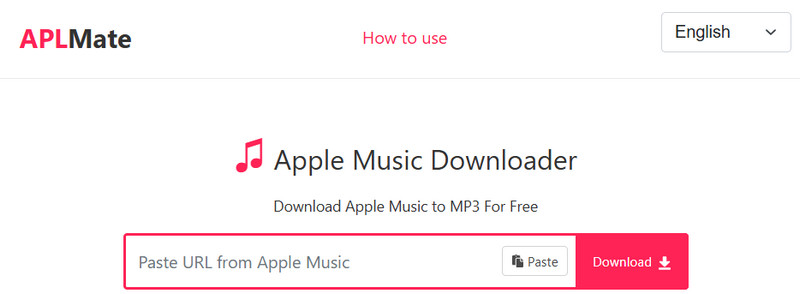
Step 1 Visit APLMate in your browser.
Step 2 Copy the Apple Music link and paste it into the input box on APLMate.
Step 3 Click the download button and wait for the download link to be generated.
Step 4 Press the download button next to the song again to download the MP3 file to your local device.
Apple-music-downloader.com is a free online tool. It is simple to use and does not require login or installation. Users only need to paste an Apple Music link to download tracks directly as MP3 or M4A files. However, it does not support batch downloading of songs, making it unsuitable for users who wish to download the entire Apple Music library at once.
Website: https://apple-music-downloader.com/
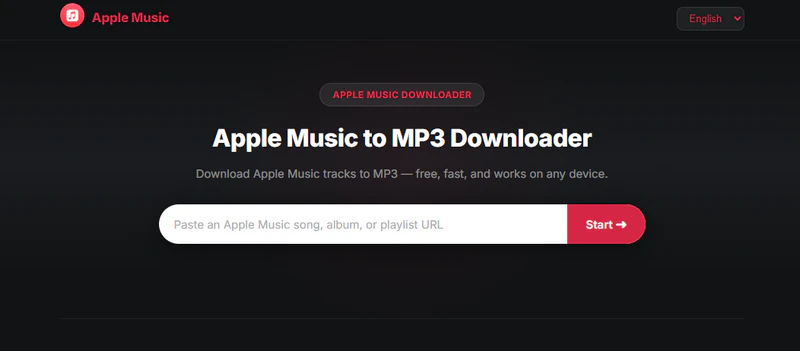
Step 1 Visit https://apple-music-downloader.com/.
Step 2 Open Apple Music and copy the song URL.
Step 3 Paste the URL into the input field and click the "Start" button.
Step 4 Click the "Get Started" button and select "Download MP3" or "Download M4A".
To help you quickly compare different methods, here is a clear overview of their features and differences:
| Methods | Output Sound quality | DRM Removal | Output Format | Batch Download | Download speed | ID3 Tags | Platform Support |
| Apple Music | 256kbps | ❌ | AAC | ❌ | fast | ✅ | Windows / macOS |
| iTunes Store | 256kbps | ✅ | AAC | ❌ | fast | ✅ | Windows / macOS |
| Sidify Apple Music Converter | 320kbps | ✅ | MP3/AAC/FLAC/WAV/AIFF/ALAC | ✅ | 10× | ✅ | Windows / macOS |
| Sidify All-in-one | 320kbps | ✅ | MP3/AAC/FLAC/WAV/AIFF/ALAC | ✅ | 10× | ✅ | Windows / macOS |
| AAPLmusicDownloader | 320kbps | ✅ | MP3 & M4A | ✅(limit 100 songs for free) | 5× | ✅ | Web |
| APLMate | 320kbps | ✅ | MP3 | ❌ | Fast | ✅ | Web |
| Apple-music-downloader.com | 256kbps | ✅ | MP3 & M4A | ❌ | fast | ❌ | Web |
Depends on your needs. The official Apple Music app allows subscribers to download songs for offline playback on Windows and Mac, but the files can only be played within the app. If you want more flexibility, a professional converter like Sidify that supports batch downloading is the best choice.
Yes. You just need to use a converter like Sidify Apple Music Converter that supports batch downloading, allowing you to process multiple songs, albums, or playlists at the same time and save them locally for offline use.
Songs downloaded through the official Apple Music app require an active subscription. If your subscription expires, the downloaded songs will no longer be playable. However, if you use an Apple Music converter to save songs as local MP3 files, they can be kept permanently on your computer.
The above covers several common methods for downloading Apple Music songs on Windows and Mac. Official methods are suitable for basic offline listening, while tools like Sidify Apple Music Converter provide more flexible options for batch downloading and saving songs as MP3 files for local use.
 850,000+ Downloads
850,000+ Downloads
850,000+ Downloads


