

Hey, is it you? Spent hours compiling a shared playlist for gatherings, road trips or dates, only to realize it cannot balance every participant's distinct music preferences?
If you have ever struggled to craft a satisfying shared playlist for friends, partners or family gatherings, you know manual curation wastes plenty of spare time. While Spotify Blend solves this. You can make a Blend with your social circle or even official artists. This complete guide covers everything about Spotify Blend to help you enjoy music. How to use it, how to make it, why it's not working and more. Whether you are new or not, join us for more Spotify music tips.
Part 1. What Is Spotify Blend
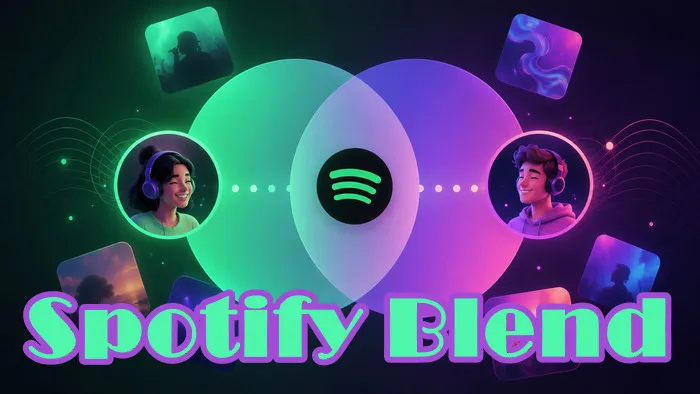
Blend is a social shared playlist on Spotify to combine your music taste with your friends, family or artists. Unlike standard playlists that rely on adding songs manually, Spotify Blend automatically creates the playlist based on what each person listens to once they join the same playlist session.
The playlist updates automatically every day to reflect the group taste, and it supports up to 10 people to join at maximum. Any existing member inside the playlist can send new invitations to expand the group whenever they want.
- Shared Music Taste
- Updated Daily
- Up to 10 Friends
- Taste Match
For people who love music, Spotify Blend is far more than an ordinary playlist storage space. It is like a music bridge that lets you walk through the taste overlaps and explore new tracks you would never find on your own.
- Groups of friends: Discover hidden favorite music.
- Couples: See how closely your music tastes match.
- Families: Create a universal playlist everyone can enjoy.
- Travel and party groups: Find music that fits the occasion.
- Casual listeners: Compare music tastes with people around.
Part 2. How Does Spotify Blend Work
Once you accept invitation links and join a Blend, Spotify will analyze every detail of your streaming behavior, including frequent artists, favored genres, repeated singles, daily playback length and more. Then the algorithm picks a mix of songs that caters to the whole group, and the playlist refreshes daily as your listening habits change over time.
What Does Spotify Blend Percentage Mean
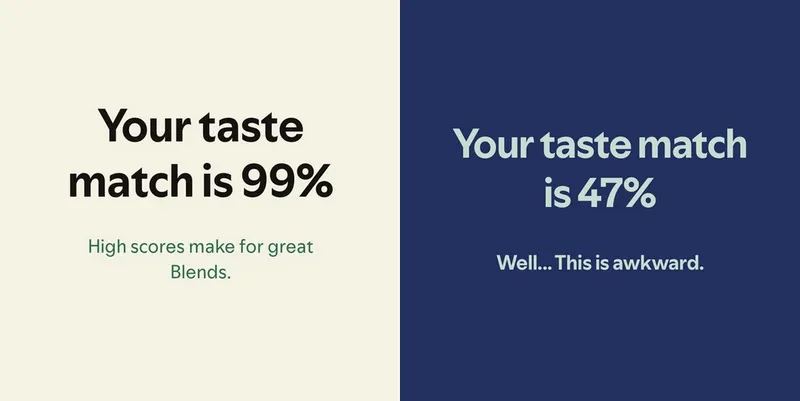
The match percentage displayed on the Spotify Blend page indicates your compatibility.
This number is the comprehensive assessment of your long-term streaming tendencies with your friends, family or partners. Spotify does not say how the percentage is calculated, but if you consistently enjoy overlapping genres, matching tonal styles or connected artists, you probably receive a high score.
You can treat this percentage as a lighthearted and entertaining reference, seeing how similar your music preferences and playlist harmony are.
Can You Listen to Spotify Blend Offline
Yes. You can download a Spotify Blend and listen to its songs offline, just like other Spotify playlists. But it's only for Spotify Premium.
For Premium users, you can open your Blend playlist and click the Download button to cache all tracks locally within the Spotify App. If you simply wish to listen to your Blend without an internet connection, that's fine. What if you want to preserve Blend playlist tracks permanently or transfer shared music to external devices such as MP3 players, car audio systems or other offline portable speakers?
That's where Sidify Music Converter helps. For those who want permanent and unrestricted access to every song in your Blend playlist outside Spotify, this converter is your best choice. No Premium? Premium expired? It helps anyway.
Sidify Music Converter can save your Spotify playlist as MP3, AAC, WAV, FLAC, AIFF, or ALAC formats. Keep original quality and ID3 tags. They will be locally stored on your computer permanently, so you can enjoy Spotify music the way you like.
Sidify Music Converter
- Convert Spotify music to MP3, AAC, WAV, FLAC, AIFF, or ALAC.
- Preserve original audio quality and metadata.
- Download Spotify songs, albums, playlists, podcasts, music videos, audiobooks.
- Batch convert multiple tracks at high speed.
- Support Spotify Free and Premium.

 Security verified. 2,568,912 people have downloaded it.
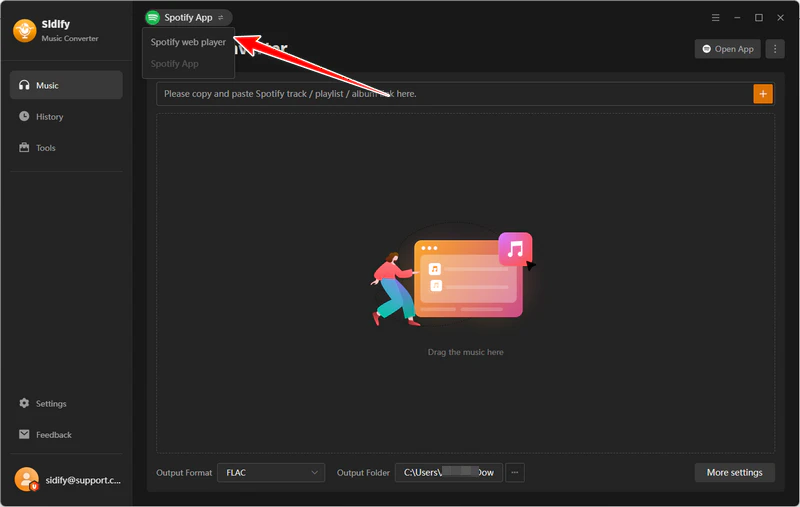
Step 1 Launch Sidify Music Converter
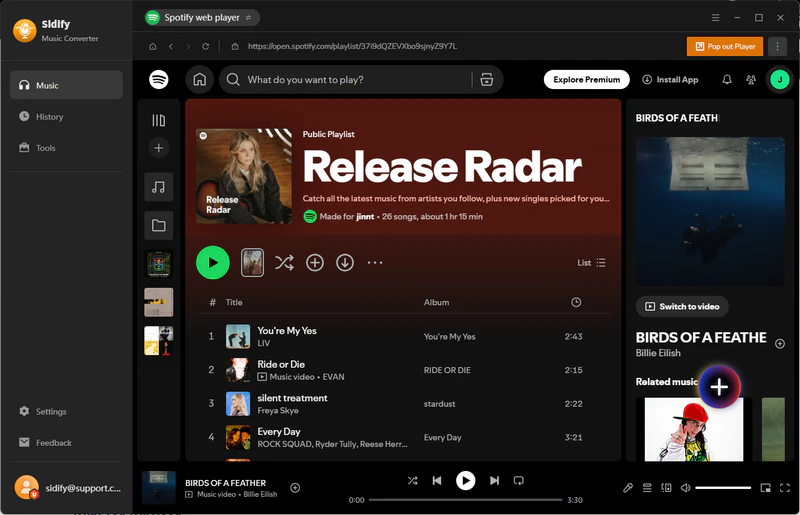
Whether you are Spotify Premium or not, to listen to Blend offline, first you need to download and install Sidify Music Converter. Then launch it and select the "Spotify Web Player" mode in the upper left corner.
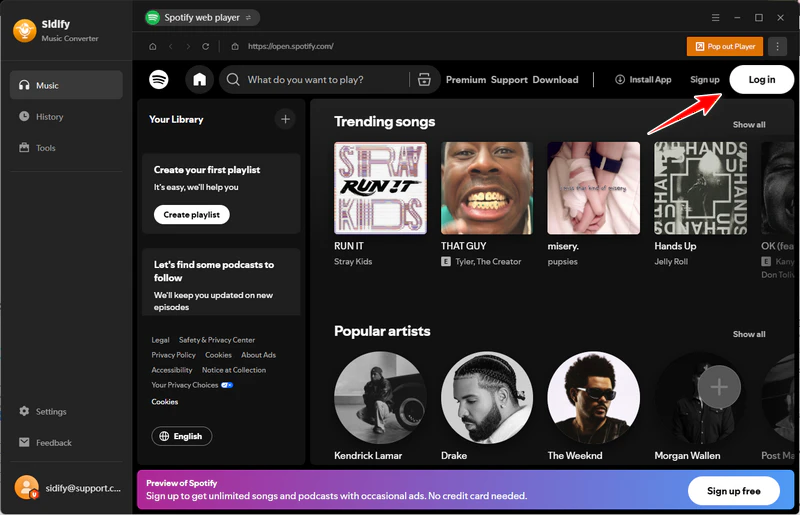
Step 2 Sign in to Spotify
Log in with your Spotify account, choose your Blend playlist or any playlist to download.
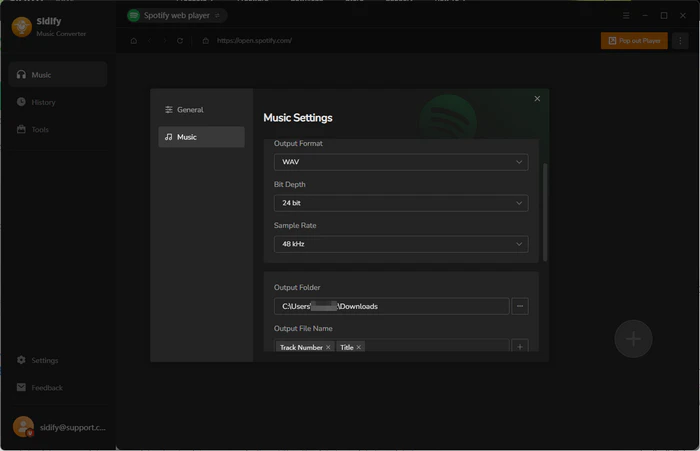
Step 3 Choose output format
Go to "Settings" to set the output format (MP3, WAV, FLAC, etc.), audio quality (256kbps, 320kbps, etc.), and the output path.
Step 4 Add Spotify playlists
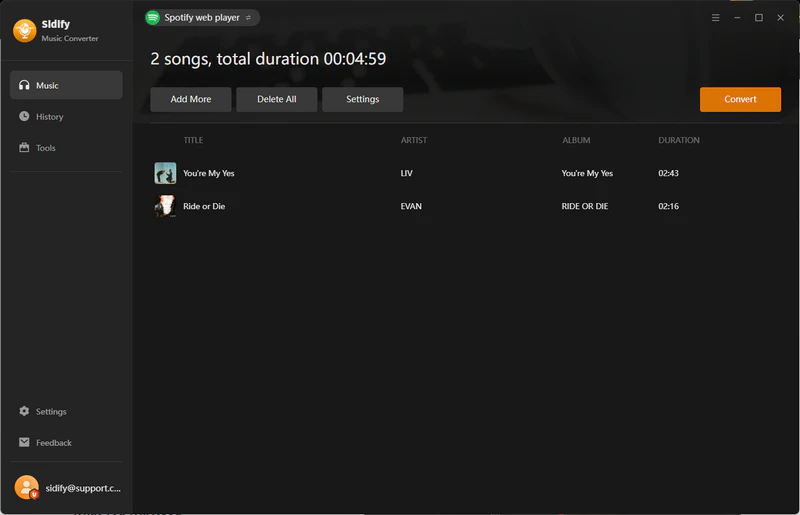
Click the "Add" button to add your Blend songs or more playlists to the conversion list.
Step 5 Start conversion
Then you can click the "Convert" button to start. It won't take too long.
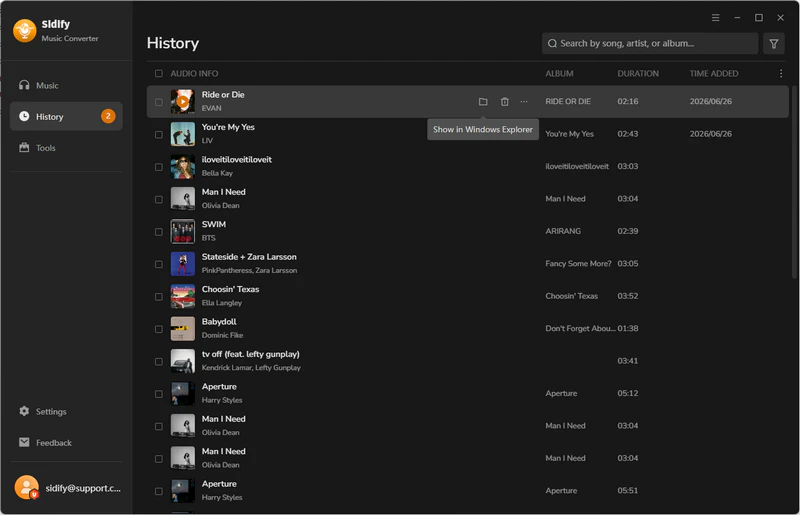
Step 6 Find your Blend files
Once it finishes, you can go to "History" or your local path to access the permanent music files.
Spotify Blend vs. Playlist, Jam, and Collaborative Playlist
Spotify Blend, Collaborative Playlists, Jam and regular playlists all support group music playback in different ways. You can check the quick comparison to pick the right music sharing feature for your exact needs.
| Feature | Spotify Blend | Regular Playlist | Collaborative Playlist | Spotify Jam |
|---|---|---|---|---|
| Purpose | Combine music tastes | Organize songs | Build a playlist together | Listen together |
| Who selects songs | Spotify | Playlist owner | Every participant | Every participant |
| Automatically updates | ✅ | ❌ | ❌ | ❌ |
| Unique benefits | Displays compatibility percentage | Full private customization | Collective editing control for all joined users | Simultaneous playback across multiple devices |
| Best for | Discovering shared taste | Personal collections | Group playlists | Real-time listening |
Part 3. How to Create a Spotify Blend Playlist With Friends and Family
If you want to know how to make a Spotify Blend with your friends or family, here is what you can do. Spotify offers full Blend creation on both mobile and desktop, though the navigation paths differ.
On Mobile
Step 1 Open your Spotify App on your phone.
Step 2 Tap "Your Library" on the bottom navigation bar.
Step 3 Click the "+" creation icon at the top right of the page.
Step 4 Select "Blend" from the pop-up creation menu.
Step 5 Tap "Invite" to generate a unique shareable invitation link.
Step 6 Send the link to friends or family via chat apps.
Step 7 The Blend playlist generates instantly once recipients accept your invitation.
Save Spotify music, playlists, podcasts, and audiobooks to MP3, AAC, ALAC, AIFF, WAV, and FLAC formats on your mobile phone.
View Guide →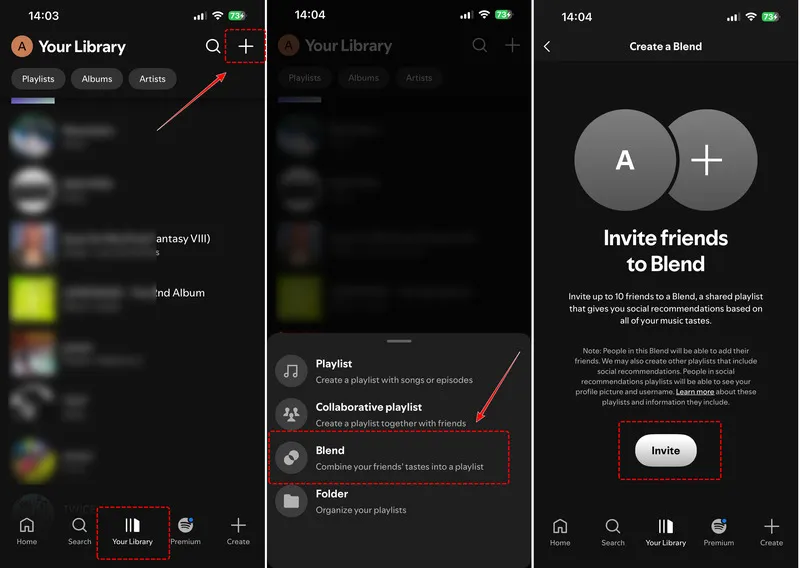
 Tips:
Tips:Each Blend supports a maximum of 10 participants. After everyone joins, you can locate the finished Blend in your personal playlist library, and its track list updates daily based on all users' new streaming activity.
On Desktop
Step 1 Launch Spotify software on your Windows or Mac.
Step 2 Click the "+ Create" button in the upper-left corner. Then select "Blend".
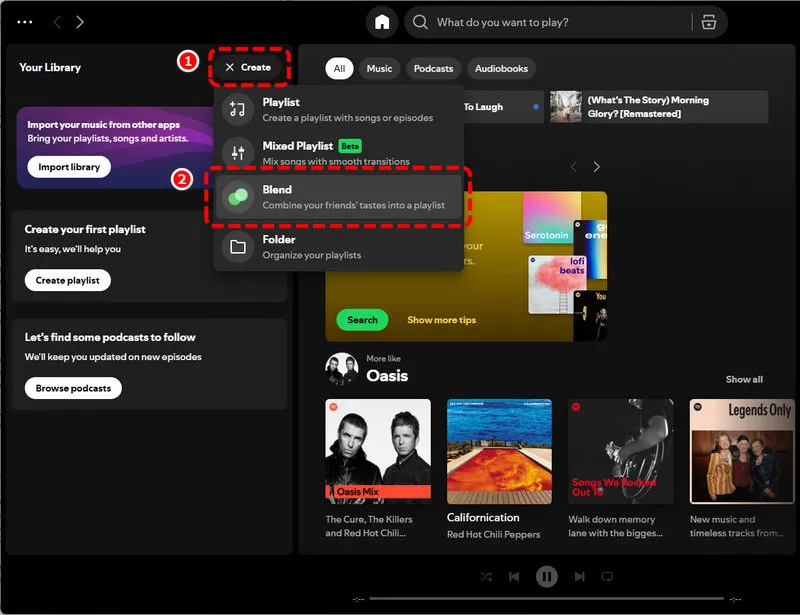
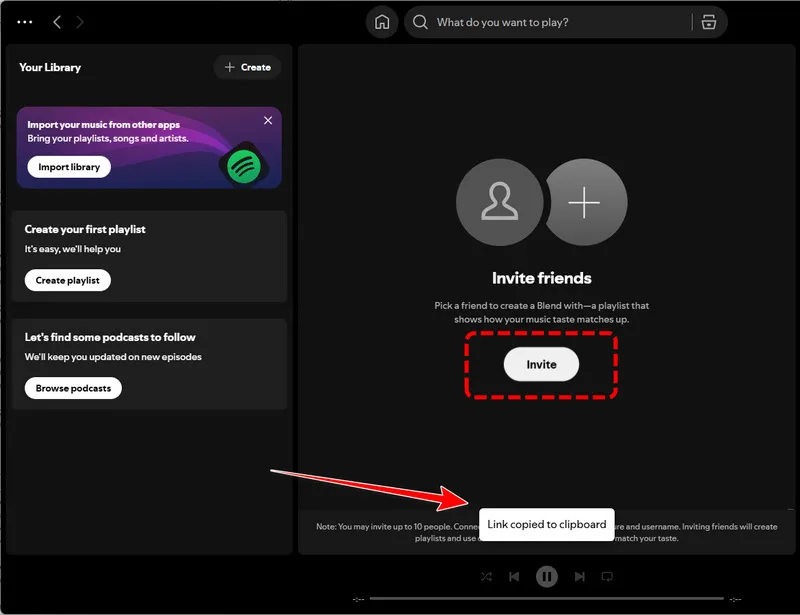
Step 3 Click "Invite" to generate a shareable hyperlink.
Step 4 You can distribute the link to contacts through email or messaging.
Step 5 Once invited users accept the link, the new Blend will be saved under the Made For You channel.
Part 4. How to Create a Spotify Blend With Artists
Artist Blend is a special variant of standard Blend playlists, designed for fans to compare their music taste with official musicians. Unlike regular Blend you start with friends, you cannot initiate an Artist Blend with any artist at will. Artists themselves release valid invitation links through official channels.
Musicians typically share Artist Blend links on their Instagram, TikTok or X social media accounts, or attach the link inside the Artist Pick playlist pinned to their Spotify artist profile.
You cannot Blend with artists on desktop. Artist Blend invites must be opened and joined through the Spotify Mobile App. After that, you can listen to this Blend on desktop.
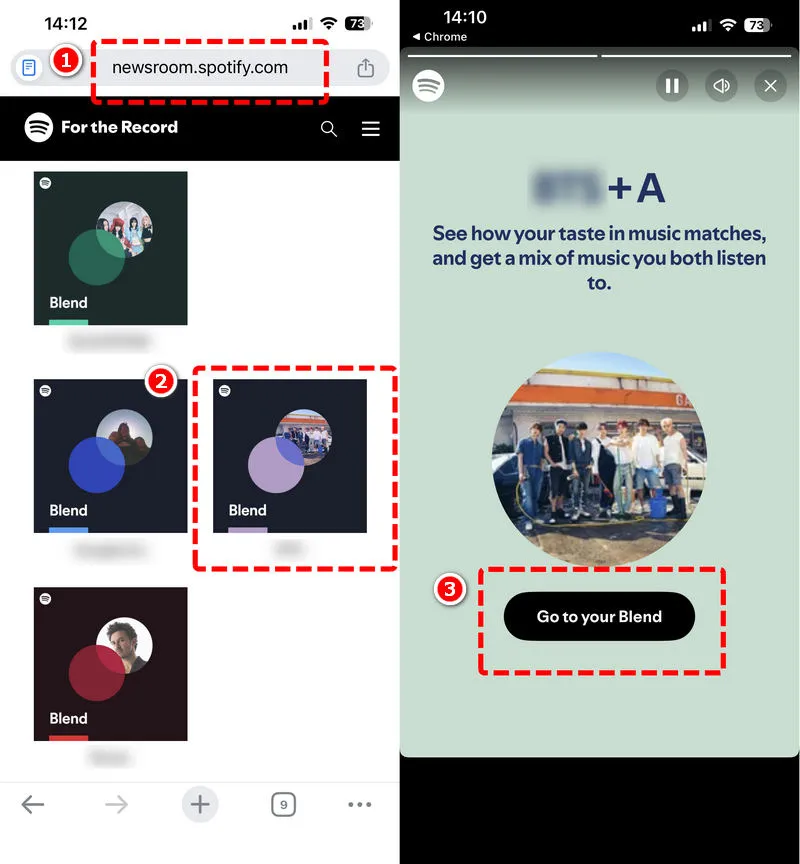
Step 1 Find the official Artist Blend hyperlink released by your favorite artists.
Not all artists run active Artist Blend campaigns year-round, so access is limited to artists who voluntarily launch this feature. Here is a list of all artists that you can blend with on Spotify.
Step 2 Click the link to trigger automatic redirection to Spotify.
Step 3 Tap "Go to Blend" on the landing page.
Step 4 Then Spotify generates a dedicated playlist matching your streaming habits against the artist's discography.
Part 5. How to Manage or Leave a Spotify Blend
After creating or joining a Blend playlist, you may need to invite more people or exit the session entirely. In this part, we cover all core management tricks.
Manage or Leave Your Blend
Open your target Blend playlist and tap the three-dot menu icon at the top right corner. Here in the drop-down menu, you can "View Blend Story" (only for mobile), "Add members", "Leave Blend", "Edit name", "Download" and more.
"Add members": To add extra participants to an active Blend, you can also locate the "Invite" button on the page, generate a new link and send it to new contacts. Every member inside the Blend holds equal invitation rights, and the 10-person participant cap always remains in effect.
Tips:If you want an entirely new taste comparison with different contacts, creating a fresh Blend with a new invitation link delivers far more accurate matching results than modifying an outdated existing playlist.
More About Spotify Blend
Here are a few details about Spotify Blend that you may not want to miss.
Member Avatars on Songs
You may see a member's profile picture next to a song, showing his listening activity or music taste is reflected in the recommendation. It doesn't necessarily mean that person manually added the song.
Blend Cover & Colors
Spotify generates a cover for your Blend, giving the shared playlist its own visual identity. The colors are custom and have no specific meaning.
Blend Story
Blend Story gives you a personalized, shareable summary of your Blend, including information about your music match and shared listening experience. You can open it from the Blend and choose View Blend Story to see and share your results.
Frequently Asked Questions About Spotify Blend
1. How do you do Spotify blend?
To create a Blend on mobile, go to Your Library > plus icon > select Blend > share the generated invitation link with others. On desktop, head to Search > Made For You > Create Blend > send out the invite link for friends to join. For detailed steps, you can refer to How to Create a Spotify Blend Playlist With Friends and Family.
2. Is making a Spotify blend flirting?
Sharing a Blend invitation is not inherently flirty on its own. Many users send Blend links to large friend groups and family purely for casual music discovery. However, it can also carry playful romantic undertones within dating or budding romantic connections. Anyway, it depends on your relationships.
3. Can you tell if someone listens to Spotify Blend?
No. All participants in a Blend can view each other's usernames and profile pictures on the playlist page, but you can't get notified when they listen to this Blend, nor do you know their daily streaming history.
4. Do you need Spotify Premium to blend?
No. Creating and joining Spotify Blend is completely free for all users, no Premium subscription required. You can build and share Blend without any core feature restrictions, while Premium subscribers can download tracks inside the Spotify App. If you don't have a Premium account and also want to listen to Spotify playlists offline, try Sidify Music Converter to save them forever locally.
5. How does Spotify blend choose songs?
As we mentioned earlier, Spotify Blend will combine the listening activity of every participant in the session to recommend balanced tracks, and the playlist refreshes its full track list every day to reflect newly updated streaming habits. And if you start regularly listening to a new artist over a period of weeks, this new playback data will gradually shift the track selection within your active Blend playlists.
6. Is a 100% Spotify blend possible?
A perfect 100% match is very rare but may be possible. There are few users posted their 100% match on TikTok, Reddit and other platforms.
7. Does someone get notified when you leave a Spotify blend?
No. Spotify confirms there is no dedicated push notification sent to other participants when you leave a Blend. Remaining users will not receive an immediate alert about your exit, though they may notice your avatar missing from the participant list the next time they open the playlist.
8. How to fix Spotify blend not working?
You can follow this ordered troubleshooting checklist to resolve most Blend issues: 1. Update your Spotify mobile or desktop app to the newest official version. 2. Fully close and restart Spotify to clear temporary cache files. 3. Double-check your login account and ensure you open the invitation link with the correct Spotify profile. 4. Create a brand-new Blend session with a fresh link to rule out errors tied to your old playlist. 5. Confirm you have a stable internet connection. 6. If you are new Spotify users, you need several weeks of consistent listening history to generate accurate Blend recommendations. If these steps fail to resolve persistent issues, visit Spotify's official support page or submit a support ticket.
Final Words
Whether you want to compare taste with your partner, friends, family or artists, Spotify Blend delivers a unique music experience. For Premium users, you can download the Blend playlist for offline listening. But if you want to listen to them on any device, it is recommended to use Sidify Music Converter to save Spotify music as MP3 files, without platform limitations. Make a blend on Spotify and enjoy now.
 Sidify Music Converter
Download Spotify music in MP3, AAC, WAV, FLAC, AIFF, or ALAC for offline playback on any device.