Choosing the best Spotify ad blocker depends on how you listen to Spotify.
Browser ad blockers mainly work with the Spotify Web Player, while some Android tools can only mute ads. If you want to stream Spotify music offline and without ads across different devices, Sidify lets you save Spotify songs as local files with the ads removed. Keep reading to compare the options and find the best Spotify ad blocker for you.
Which is the Best Spotify Ad Blocker?
| Tool | Still working? | Works on | Spotify ad blocking | Price | Safety |
|---|---|---|---|---|---|
| Sidify Recommended | 🟢 Available | Windows, macOS & Android | Download Spotify music first, then play it ad-free | Free + Paid | 100% Safe |
| Blockify | 🟢 Available | Chrome, Edge, Brave & Opera | Skips some Spotify ads; mutes others | Free | Use with care |
| SpotiAds | 🟢 Available | Chrome on desktop | Skips Spotify ads when working | Free | Use with care |
| BlockTheSpot | 🟡 Unstable | Windows | Skips Spotify ads when compatible | Free | Higher risk |
| Mutify | 🟢 Available | Android | Mutes Spotify ads; does not skip them | Free | Use with care |
| Spotify Adblock | 🟢 Available | Firefox desktop & Android | May block Spotify audio and banner ads | Free | Use with care |
| spotify-adblock | 🟢 Available | Linux | Skips Spotify ads when supported | Free | Use with care |
| Brave + Spotify Web Player | 🟢 Available | Windows, macOS, Linux, Android & iOS | May block some Spotify ads | Free | Lower risk |
| Firefox + uBlock Origin | 🟢 Available | Firefox desktop & Android | May block some Spotify ads | Free | Lower risk |
| Myspoti | 🟢 Available | Android | Skips Spotify ads when working | Free | Use with care |
Best Spotify Ad Blockers in 2026: What You Get and What to Expect
1. Sidify: Download Spotify Music Offline without Ads
- Compatibility: Spotify Music converter for Windows, macOS and Android
- Official website: https://www.sidify.com
- Spotify converter: https://www.sidify.com/sp-win/music-converter.html
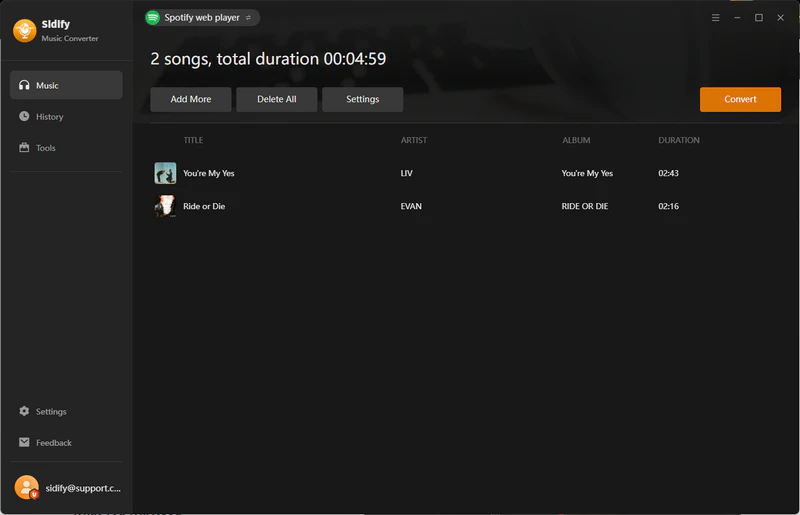
Sidify doesn't block Spotify ads in real time. Instead, it removes the Spotify ads when saving the audio files.
Its main advantage is that you can save Spotify songs, playlists, albums, podcasts, and audiobooks as local audio files without music ads. Once the Spotify files are saved, you can play them without keeping Spotify open or staying connected to the internet. You can also transfer the Spotify files to your phone, car audio system, or other music players.
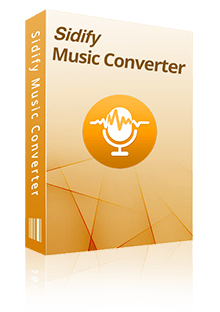
Sidify Spotify Music Converter
- Download Spotify songs, albums, playlists, podcasts, music videos, audiobooks
- Download and convert Spotify tracks in WAV, MP3, AAC, FLAC, AIFF, or ALAC
- Save Spotify Lossless quality, and ID3 tags automatically
- 40X faster speed, batch download Spotify playlists all at once
- Works with both Spotify Free and Premium account


- Saved files play without Spotify streaming ads.
- Works with Spotify Free and Premium accounts.
- Supports downloading Spotify to local files such as MP3 and FLAC.
- Can convert Spotify playlists, podcasts and audiobooks in batches.
- Keeps song information, covers and lyrics when supported.
- Works on Windows, macOS and Android.
- The free trial only converts the first minute of each Spotify song.
- Large Spotify playlists may take time.
How to Use Sidify for Ad-Free Spotify Offline Listening
Step 1 Download the Sidify software.
Step 2 Open Sidify and sign in with your Spotify Free or Premium account.
Step 3 Drag a song, playlist or album into Sidify, or paste its Spotify link.
Step 4 Select a format such as MP3 320 kbps or FLAC, then choose where to save the Spotify ad-free files.
Step 5 Start the conversion. When it finishes, open the saved files in a music player for offline listening without streaming ads.
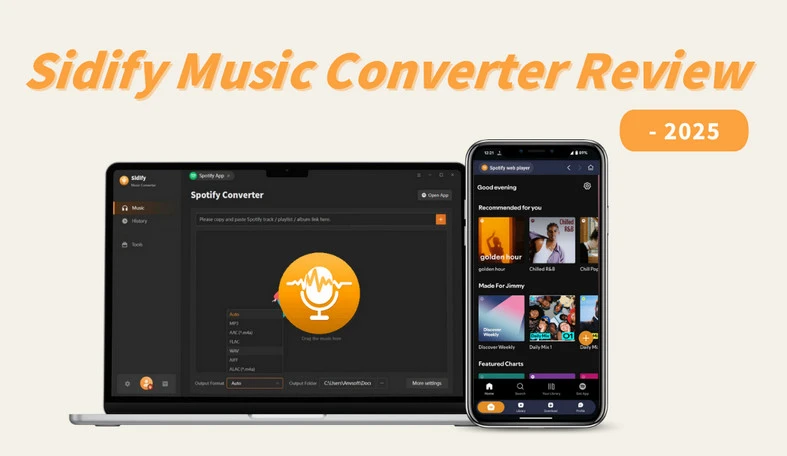
Want to know more about Sidify? Read this review to check its features, safety and overall experience.
View Review →2. Blockify: Block or Mute Ads in Spotify Web Player
- Compatibility: Browser extension on Chrome, Edge, Brave or Opera
- Official website: https://getblockify.com/
- Chrome Web Store: https://chromewebstore.google.com/detail/blockify-ad-blocker-for-s/nfmlkliedggdodlbgghmmchhgckjoaml
- 300K-400K Users | 4.7-4.8 Rating
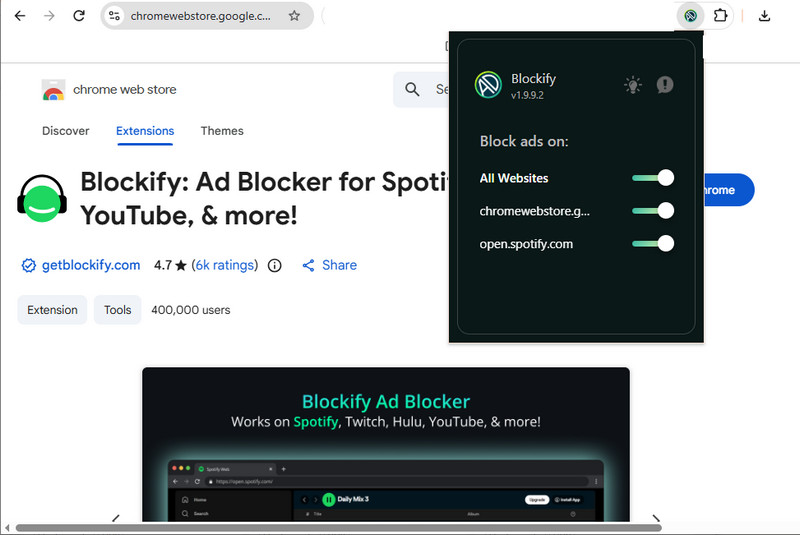
If you want a free Spotify ad blocker extension for Chrome, Edge, Brave and Opera, you can try Blockify. It uses two ways to handle ads. First, it tries to block the Spotify ad before it loads. If that does not work, it uses a backup method and mutes the ad for a short time, then Spotify music will continue after the ad.
After testing, we found that sometimes Spotify ads are skipped entirely and the next song starts immediately, while other times the audio goes silent for about 30 seconds before the next song begins.
- Free to block ads from Spotify, YouTube, Twitch and Hulu.
- You can add certain titles to whitelist if needed.
- Easy to use & updated regularly.
- Does not work with Spotify desktop or mobile apps.
- May cause playback stuck issue.
- May receive Chrome security warnings.
- May put your Spotify account at risk.
How to Use Blockify Spotify Ads Blocker
Step 1 Open the Blockify Chrome Web Store page in Chrome. Click Add to Chrome, or your browser's install button, and confirm.
Step 2 Visit open.spotify.com play your Spotify music normally. Blockify will block or mute supported ads in the background.
3. SpotiAds: A Chrome Extension Spotify Ads Blocker
- Compatibility: Chrome extension
- Chrome Web Store: https://chromewebstore.google.com/detail/spotiads-ads-remover-for/mghhlojofjipigjobacbjdngmjafdeim
- GitHub source code: https://github.com/tomer8007/spotify-web-ads-remover
- About 100K Users | 3.8-4.1 Rating
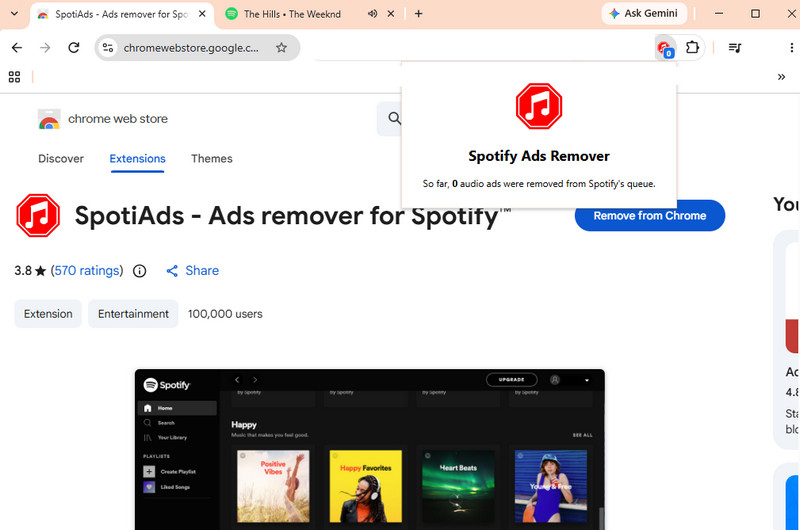
SpotiAds specifically works for Spotify Web Player to skip ads instead of muting them. Officially, its developer says it does not collect your data.
In our testing, SpotiAds works well, and Spotify ads are skipped entirely, then the next song starts immediately. But sometimes playback freezes and we need to refresh the page.
- Skips Spotify ads instead of only muting them.
- Free to use.
- Only works in the Spotify Web Player.
- Spotify playback may freeze or need a page refresh.
- May put your Spotify account at risk.
How to Use SpotiAds to Block Spotify Ads
Step 1 Open the SpotiAds Chrome URL above, click Add to Chrome and confirm the installation.
Step 2 Visit https://open.spotify.com in your browser and play your music. When an ad appears, SpotiAds should skip it and start the next song.
4. BlockTheSpot: Spotify Ads Blocker on Windows
- Compatibility: Windows
- Official GitHub: https://github.com/mrpond/BlockTheSpot
- Independent guide: https://blockthespot.com/
To block ads from Spotify desktop app on Windows, you can use BlockTheSpot. It can block banner ads and audio ads directly.
However, since October 2026, BlockTheSpot has been archived and is no longer updated. Newer versions of Spotify may not work with it. If you have this problem, you need to downgrade Spotify to the older version.
After testing BlockTheSpot, we found that Spotify audio ads are skipped. But we took time to find the Spotify app version that is still compatible with BlockTheSpot.
- Blocks Spotify audio and banner ads.
- Works with the Spotify Windows desktop app.
- It hasn't been updated for a long time.
- Only works with lower Spotify version.
5. Mutify: Mute Spotify Ads on Android
- Compatibility: Android
- Google Play free version: https://play.google.com/store/apps/details?id=live.teekamsuthar.mutify
- GitHub source code: https://github.com/teekamsuthar/Mutify
- Pro version: https://play.google.com/store/apps/details?id=com.teekamsuthar.mutifypro
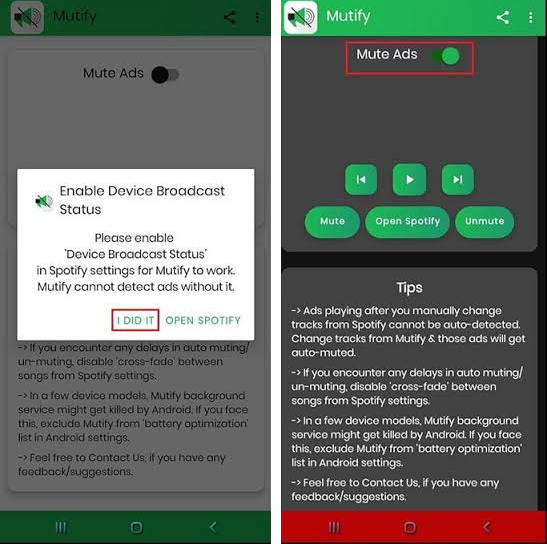
If you use an Android phone and don't want Spotify ads to bother you, you can try Mutify. When a Spotify ad starts playing, Mutify automatically turns down your phone's volume. When the music starts again, it turns the volume back up to where it was, so the Spotify ads won’t interrupt you.
In our testing, we found Mutify doesn't skip Spotify ads. Instead, it mutes them and waits for them to finish. Once the ad ends, we can hear the next Spotify song as usual. And, Mutify doesn't always detect ads correctly, so sometimes we need to tap the mute button. It may also stop working occasionally when the phone is locked or the screen is off.
 Mutify Alternative: Block Ads on Both Spotify Webplayer & Spotify App
If you want to truly remove ads from both the Spotify Webplayer and the Spotify App, while downloading songs as local audio files, we recommend using the Sidify Music Converter below.
- Mute ads on Spotify Android app.
- Free and easy to use.
- It does not block or skip Spotify ads, it only mutes them.
- It may sometimes mute the start of a song by mistake.
How to Use Mutify to Mute Spotify Ads
Step 1 Install the free version of Mutify on your Android phone.
Step 2 Open Spotify, tap the gear icon, open Settings, and turn on Device Broadcast Status.
Step 3 Open Mutify and enable the Mute Ads switch.
Step 4 Play music in the official Spotify app. Mutify should lower or mute the ad volume.
6. Spotify Adblock: A Firefox Extension for Spotify Web Player
- Compatibility: Browser extension on Firefox desktop and Firefox for Android
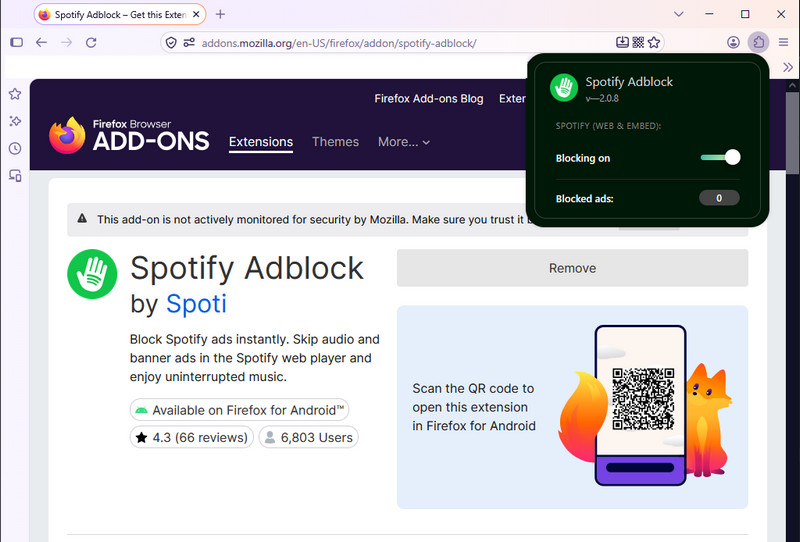
- Firefox Add-ons: https://addons.mozilla.org/en-US/firefox/addon/spotify-adblock/
You can also try this Spotify Adblock. It supports Firefox natively, so it works better with the Firefox browser. You can use it with Firefox on your computer or Android phone to block ads on the Spotify Web Player.
In our testing, we found this tool can easily block Spotify ads on Firefox, and it’s simple to use. However, it may sometimes skip about 30 seconds of a song by mistake. After skipping an ad, the audio may also get stuck.
- Works on desktop Firefox and Firefox for Android.
- Blocks Spotify audio and banner ads in the Web Player.
- It does not collect your data.
- It shows pop-ups asking for a review.
- It only works in the Spotify Web Player.
How to Use Spotify Adblock
Step 1 Open the Firefox Add-ons URL above in Firefox. Click Add to Firefox and confirm the installation.
Step 2 Visit https://open.spotify.com in Firefox and start a song and let Spotify Adblock try to mute or skip supported audio and banner ads.
7. Spotify-adblock: Block Spotify Ads on Linux
- Compatibility: Linux
- GitHub: https://github.com/abba23/spotify-adblock
If you use the Spotify desktop app on Linux, you can try spotify-adblock. Like Spotify Adblock, it blocks Spotify ad requests before the ads can load, so you don't have to wait through any silent gaps. The project is still being updated in 2026.
- Blocks Spotify ads directly and freely.
- Supports custom denylist and allowlist rules.
- Only works on Linux.
- Does not support the Snap version of Spotify.
- Flatpak support may be unstable.
- You need some command-line and build skills.
8. Brave + Spotify Web Player: Built-In Browser Ad Blocking
- Compatibility: Built-in browser feature on Windows, macOS, Linux, Android and iOS
- Brave website: https://brave.com
- Spotify Web Player: https://open.spotify.com
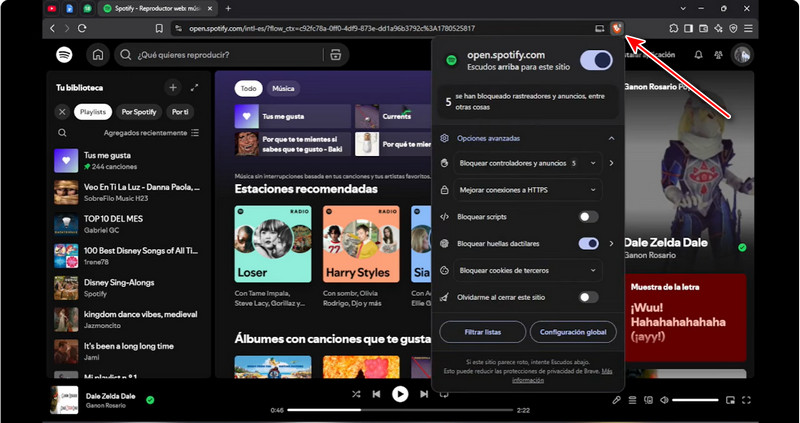
This is one of the easiest options in 2026 if you don't want to install any extra ad-blocking tools. Simply open the official Spotify Web Player (open.spotify.com) in Brave - it has a built-in feature called Shields that blocks many ads and trackers in the browser.
In our testing, we found Brave's built-in Shields can block Spotify music ads, and we only need to install the Brave browser. However, on Android, Spotify may occasionally stop playing after we lock phone.
- Easy to use Brave's built-in ad blocking for Spotify.
- Works across desktop and mobile platforms.
- You must use the Spotify Web Player instead of the official app.
- Background or lock-screen playback may be unstable on mobile.
- iOS ad blocking may sometimes stop working.
How to Use Brave Ad Blocker with Spotify Web Player
Step 1 Download Brave on your computer or phone.
Step 2 Visit https://open.spotify.com in Brave and sign in to your Spotify account.
Step 3 Click the Shields icon beside the address bar. Keep Shields on and use the Aggressive setting if you need stronger blocking.
Step 4 Play your Spotify music in the Web Player. Brave will try to block supported audio and banner ads in the background.
9. Firefox + uBlock Origin: Skip Spotify Ads Free
- Compatibility: Browser extension on Firefox desktop and Firefox for Android
- Firefox: https://www.mozilla.org/firefox/
- uBlock Origin: https://addons.mozilla.org/en-US/firefox/addon/ublock-origin/
Firefox still fully supports Manifest V2 extensions, so you can use the full version of uBlock Origin instead of the more limited Lite version. Its default filter lists can already block most Spotify ads.
Unlike other tools, uBlock Origin is highly customizable. If something doesn't work, you can add your own filter rules to fix it.
In our testing, uBlock Origin worked well for blocking ads in the Spotify Web Player. However, we occasionally need to update the filter lists or adjust the rules, which can be a little inconvenient.
- Able to use the full uBlock Origin extension.
- You can add your own rules when needed.
- Works on desktop Firefox and Firefox for Android.
- Only block ads in the Spotify Web Player.
- You need to install both Firefox and the extension.
How to Use Firefox and uBlock Origin
Step 1 Download and install the latest Firefox and uBlock Origin.
Step 2 Open the uBlock Origin dashboard and confirm that the default lists are enabled, including uBlock filters, EasyList, EasyPrivacy and Quick fixes.
Step 3 Visit https://open.spotify.com and start listening, uBlock Origin will skip ads by itself.
10. Myspoti: Spotify Ads Blocker on Android with Native App
- Compatibility: Android app on Android 12 or newer
- GitHub: https://github.com/kota-zo/myspoti
Myspoti is an open-source app made for Spotify Free users. It uses the Spotify Web Player in the background to play music and can quickly skip Spotify ads. It also gives you a native Android interface, so it feels more like a standalone app.
You also get features such as lock-screen controls, notification controls, Bluetooth and Android Auto support, synced lyrics, official music videos, and offline downloads.
Myspoti Alternative: Download and Play Ad-Free Spotify Songs At Once
Besides blocking Spotify ads, this Myspoti Alternative - Sidify Spotify Downloader also allows you to download and play ad-free Spotify songs all in one tool.
- Feels closer to a native Android Spotify app.
- Can skip Spotify ads quickly.
- Supports features such as lyrics, videos, Bluetooth and Android Auto.
- Only supports Android 12 and newer.
- It is still in beta and may crash or miss features.
How to Use Myspoti
Step 1 Download the latest Myspoti APK for Android 12 or newer.
Step 2 Open Myspoti and use its official Spotify login page.
Step 3 Choose a Spotify song and use Myspoti like an Android music app. You will find the Spotify ads should be rejected and the next song should start quickly.
FAQs About Spotify Ad Blockers
Is there a Spotify ad blocker extension for Chrome?
Yes. You can find Blockify and SpotiAds in the Chrome Web Store, but both target only the Spotify Web Player. If you want to listen without streaming ads from your desktop app, Android listening setup or another device, Sidify saves the songs as local files instead. Check the tool and account limits before you install or use it.
What is the best Spotify ad blocker for Android?
If you only want to mute ads inside the official Spotify Android app, you can consider Mutify. If you want a separate Android client, Myspoti is an open-source option. If you want to play saved music without streaming ads on Android or other devices, Sidify is the offline alternative.
Are Spotify ad blockers safe?
Under Spotify's terms, tools that actually block or skip ads may put your account at some risk. However, this does not mean your account will be automatically banned just because you use one.
You should also consider whether the Spotify ad blocker itself is safe. Check what permissions it asks for and whether you can trust the developer or project. If the developer is unknown, the tool has very few users, and it asks for powerful permissions such as access to data on all websites, you should avoid using it on your main browser or everyday device.
How does Sidify remove Spotify ads?
Sidify does not modify a live Spotify Web Player or Spotify app session. It saves the songs as local audio files first. When you play those files on your computer, Android phone or another device, Spotify does not insert streaming ads. You can also organize the files by artist, album or playlist.
What should you do if your Spotify ad blocker is not working?
- Check where your music is playing. If you use a browser extension, play Spotify in that browser. It will not control ads in the desktop app or on your phone.
- Check that your extension is on. Allow it to run on the Spotify website, then reload the tab.
- Try one blocker at a time. Turn off other blockers so you can tell which one is causing a problem.
- Look for updates. Check the developer's page for new versions and known problems. An old setup guide may not match your current Spotify app.
- Check whether the ad is just muted. If you get a silent break before your music returns, your blocker may be muting the ad rather than skipping it.
- Turn the blocker off if Spotify freezes. Try playing music again. If you changed Spotify’s app files, follow the tool’s removal guide before installing something else.
If you still have trouble, tell the developer which versions you use and what goes wrong. Explain whether you hear an ad, get a silent gap or see the player freeze.
Choose the Right Option for You
If you listen in your browser, compare the Chrome or Firefox options and try one with your account. If you use the official Spotify app or want to listen on Android without streaming ads, remember that browser blockers cannot change the app. Sidify can save the songs as local files, which you can organize and play without Spotify ads on your computer, Android phone or other device.
If you want to listen to Spotify offline, look at tools that save music as files. You can follow the guide to download Spotify playlists. Try a sample in your music player before you pay.
Want to Listen Offline?Try Sidify on Windows, Mac or Android to save Spotify music as organized local files. Play those files on your computer, Android phone, car or other device without Spotify streaming ads. You can check the first minute of each track with the trial before you buy.