

Looking for the best DJ controller for Spotify? I bet most modern DJs want to integrate Spotify, the king in the streaming world, into a DJ set for mixing tracks. However, since Spotify removed official DJ software support, no controllers work with it directly. In this guide, we'll explore the most recommended DJ controllers as well as the proven workarounds to DJ with Spotify via your DJ Controller.
Best DJ Controllers for Spotify
When mixing with Spotify through workarounds, these top controllers offer the best compatibility and performance: The Pioneer DDJ-200, Pioneer DDJ-FLX4, Numark Mixtrack Pro FX, Hercules DJControl Inpulse 500, and Reloop Beatpad 2. Each controller works with Spotify through popular DJ software like Virtual DJ, djay pro, Rekordbox, Serato DJ, or DJUCED, etc.
1. Pioneer DDJ-200 (Budget-Friendly & Mobile-Friendly)
A lightweight, entry-level controller designed for smartphone/tablet DJing (iOS/Android) with Bluetooth support. Works best with djay Pro for Spotify integration.
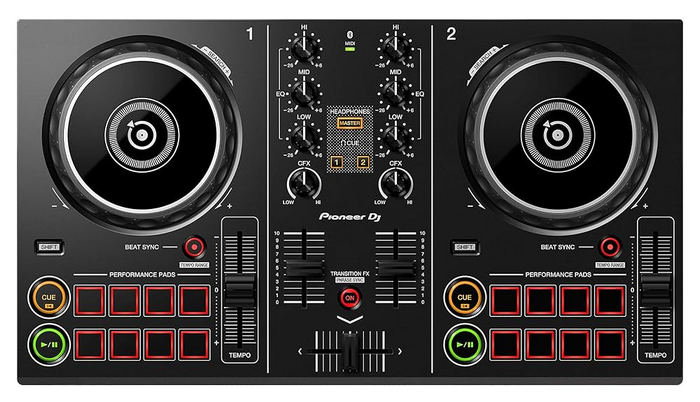
- Ultra-portable, battery-powered option
- Affordable beginner choice
- Bluetooth wireless mixing
- Limited features (no onboard soundcard)
- Feels plasticky, not club-ready
2. Pioneer DDJ-FLX4 (Rekordbox & Serato Compatible)
Pioneer's newest entry-level 2-channel controller with USB-C, built-in soundcard, and Smart Fader for easy transitions. Works with Rekordbox, Serato, and Virtual DJ.
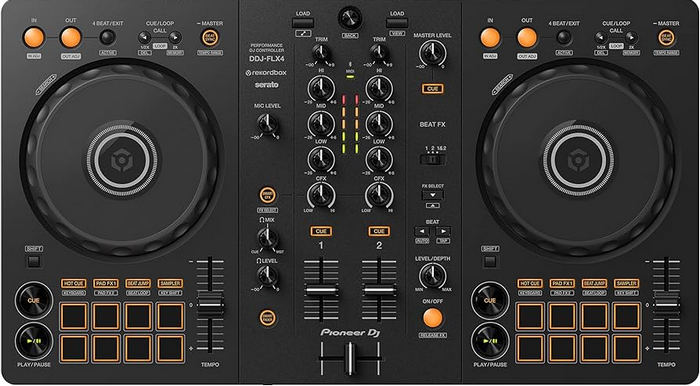
- Plug-and-play with major DJ software
- Portable yet sturdy build
- Great for learning modern mixing tools
- Small jog wheels
- No XLR outputs
3. Numark Mixtrack Pro FX (Great for Beginners)
A feature-packed 2-deck controller with large pads, FX controls, and Serato DJ Lite compatibility. Ideal for first-time DJs.
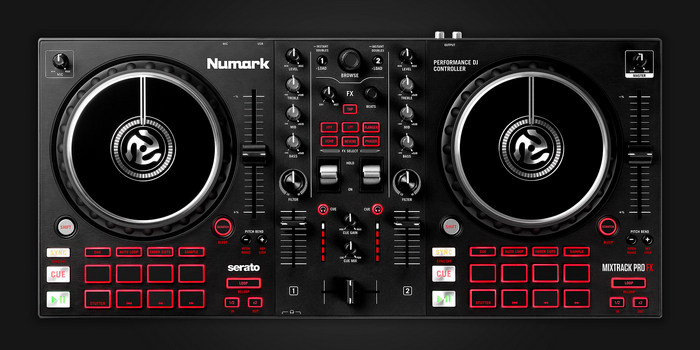
- Excellent pad controls for cues/loops
- Affordable with pro-style layout
- Includes software (Serato Lite)
- Plastic build feels cheap
- Limited software upgrade path
4. Hercules DJControl Inpulse 500 (Smart Features for Beginners)
Designed with guided mixing (LED beat-matching cues) and 8 performance pads per deck. Works with DJUCED software (free license included).
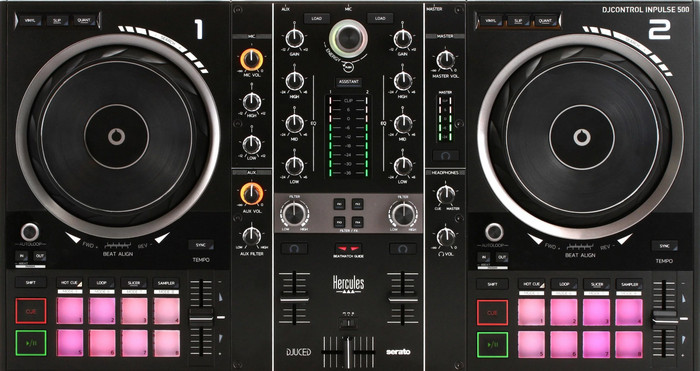
- Beginner-friendly training tools
- Sturdy metal chassis
- Great value for money
- Software less popular than Serato/Rekordbox
- No XLR outputs
5. Reloop Beatpad 2 (Touchscreen Controls)
A unique standalone/media-controller hybrid with a 4.3" touchscreen for browsing tracks. Supports Virtual DJ and Algoriddim djay Pro.
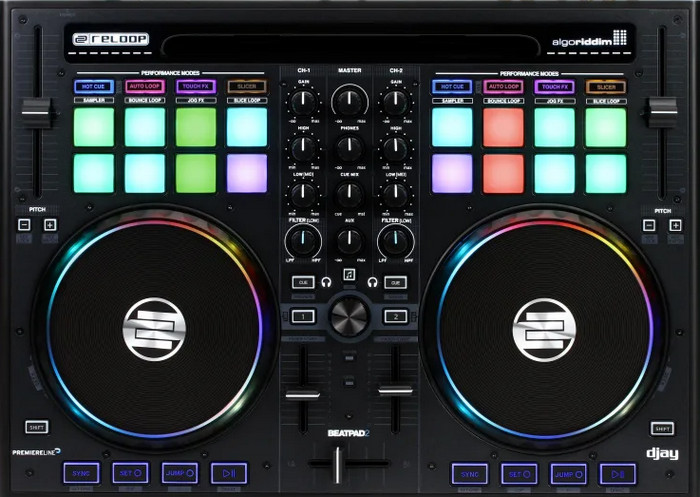
- Touchscreen for quick track selection
- Standalone mixer mode (no laptop)
- Great for mobile/streaming DJs
- Expensive for beginners
- Not ideal for club setups
How to Mix Spotify Tracks with Your DJ Controller
Since Spotify no longer supports direct DJ software integration, you'll need to download the tracks first and then use compatible DJ software. Here's the process:
DJ with Spotify
- Downloading Spotify music to your local computer.
- Importing them into Virtual DJ or djay Pro.
- Connecting your controller to the DJ software.
Download Music from Spotify to Your Local Computer
Sidify Music Converter can help save Spotify songs, albums, playlists, radios, podcasts and audiobooks as MP3, AAC, WAV, FLAC, AIFF, or ALAC files to your local computer. You can then upload them to a DJ softwarer for mixing.
Sidify Music Converter
- Download Music from Spotify to Computer
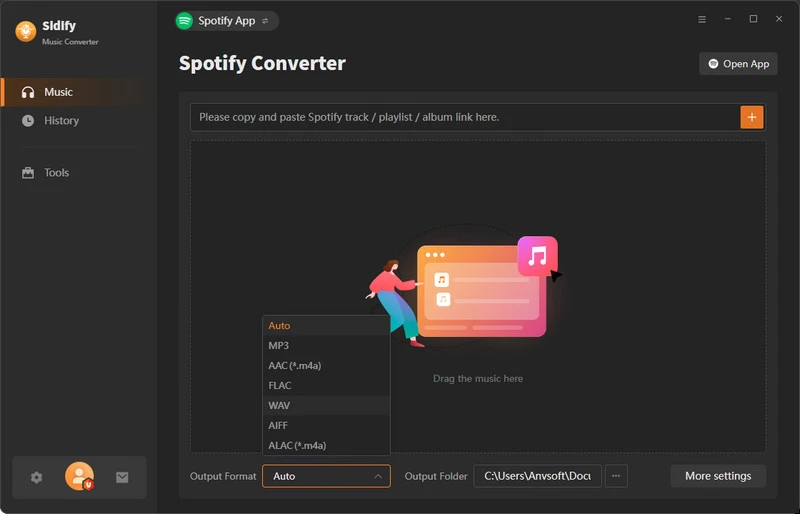
- Convert Spotify music to MP3, AAC, WAV, FLAC, AIFF or ALAC.
- Keep original audio quality and ID3 tags.
- Support up to 10X faster speed.
- Free updates and technical support.


Below are the detailed steps to use Sidify Music Converter to download music from Spotify to your local computer:
Step 1 Open Sidify Music Converter
Download, install and launch Sidify Music Converter, you'll see a concise interface as below.
Step 2 Customize Output Settings
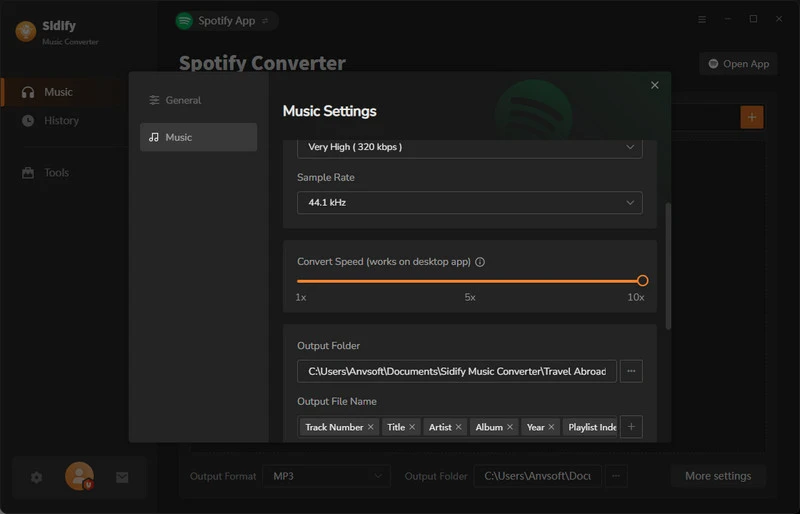
Click the gear icon in Sidify, in which you can choose the output format (MP3/AAC/WAV/FLAC/AIFF/ALAC), select bitrate quality, set the output folder, etc.
Step 3 Add Spotify Music to Sidify
Head to a Spotify playlist, album or track. Just drag and drop the songs directly into Sidify.
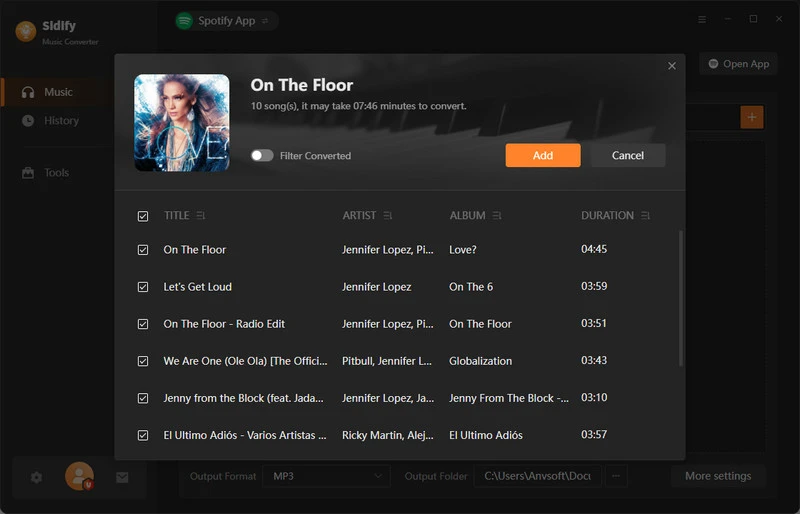
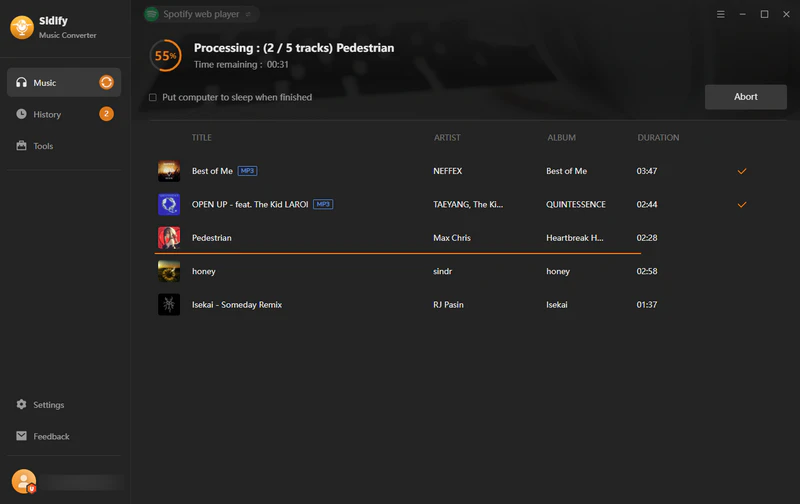
Step 4 Start Downloading Spotify Music
Click the Convert button to begin the downloading, and wait for the conversion to finish.
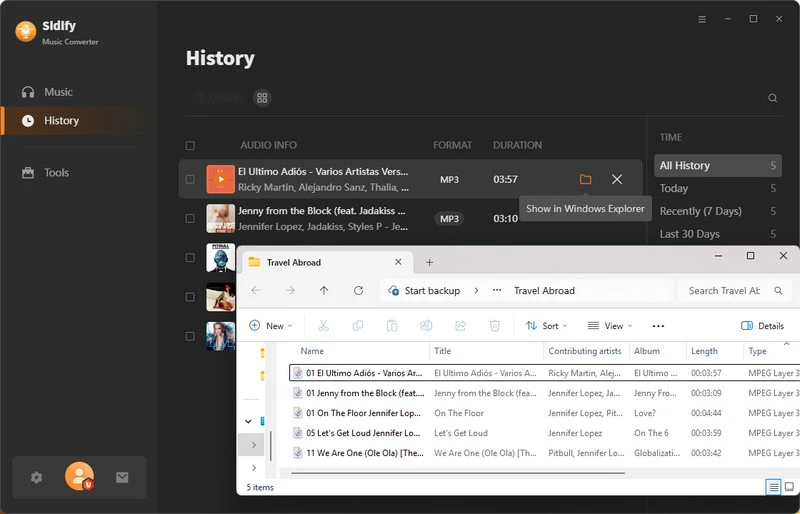
Step 5 Locate the Downloaded Music Files
Go to the output folder you set in Step 2, and you'll find all the Spotify downloads there.
Import Spotify Downloads into a DJ Software
Now that you've got Spotify downloads on your local drive. You can import them into any DJ software for further mixing.
For this demonstration, we'll be using Virtual DJ as our example. However, you can follow these same steps to integrate your Spotify downloads with any other DJ software.
Related Articles:
How to Add Spotify Music to Virtual DJ | How to Add Spotify Music to Rekordbox DJ | How to Add Spotify Music to djay Pro
How to Add Spotify Music to Serato DJ | How to Add Spotify Music to Traktor DJ | How to Add Spotify Music to DJUCED
Step 1 Open Virtual DJ
Launch the Virtual DJ software on your computer.

Step 2 Locate the Spotify Downloads
Locate the "Browser" section on the left side of the interface. Click the "Computer" or "Files" tab to navigate your system folders. Browse to the folder where the Spotify downloads are stored.
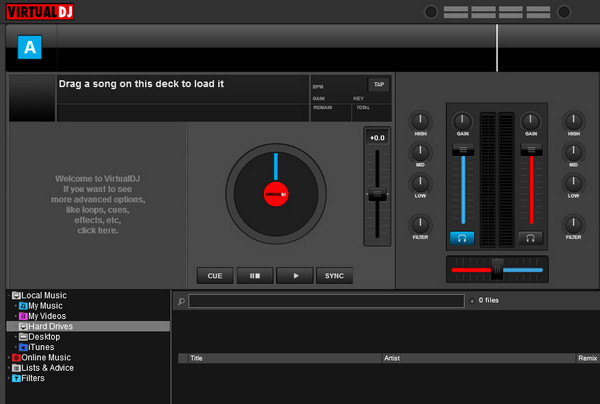
Step 3 Import Tracks
Double-click a file to load it onto an empty deck, or simply drag and drop the Spotify tracks onto the deck.
Connecting Your Controller to the DJ Software
In the following guide, we'll walk through the complete setup process for connecting Pioneer's DDJ-FLX4 controller to Virtual DJ. While we're using this specific hardware as our example, the fundamental connection principles apply to most DJ controllers.
Step 1 Install Required Software
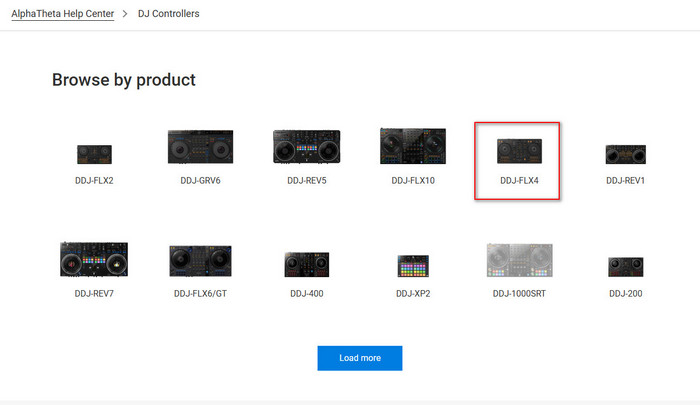
Download Pioneer Driver from Pioneer DJ Support.
macOS usually works plug-and-play (no driver needed).
Step 2 Connect the DJ Controller to Your Computer
Power on your DDJ-FLX4, connect the controller to your computer via USB, and wait for your OS to recognize the device (check system notifications).
Step 3 Configure Virtual DJ
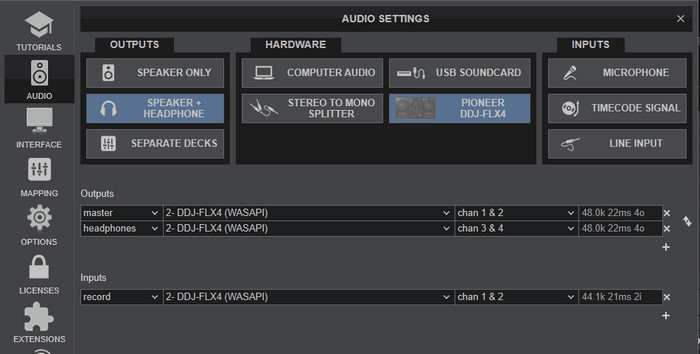
In Virtual DJ, go to Settings > Config and set both Sound Device and Controller to "DDJ-FLX4" (use ASIO on Windows).
Step 4 Set Audio Output (For Monitoring)
In Virtual DJ's Audio Settings, set "Output Master" to FLX4 Master (main output) and "Output Headphones" to FLX4 Headphones (for cueing). This routes audio properly through your controller.
Step 5 Test the Connection
Load a Spotify track and check: Jog wheels, pitch fader, and FX pads respond. Audio plays through both master output and headphones.
Wrapping Up:
Above we've recommended the best 5 DJ controllers for Spotify as well as the detailed steps to make it. What's the key to mixing Spotify tracks with your DJ controller? Downloading songs as local MP3 files — since Spotify no longer supports direct DJ software integration. That's where tools like Sidify Music Converter come in, letting you save lossless-quality tracks for importing into Virtual DJ, Serato, Rekordbox, or any other DJ software. Download it and take a try now!
 Note:
Note:If you want a tool to convert any streaming music (including Spotify, Apple Music, Amazon Music, Tidal, Deezer, YouTube, YouTube Music, SoundCloud, DailyMotion …) to MP3, Sidify All-In-One is the go-to choice.
 Sidify Spotify Music Converter