

Spotify Free does not include official offline downloads for music. If you need a local copy of a playlist, you can use a Spotify music converter on computer, web browser, phone, a Telegram bot, etc. Below, you will learn 7 practical ways to download Spotify playlists without Premium.
Best Ways to Download a Spotify Playlist Without Premium
The right method depends on whether you need a full playlist, a ZIP file, a particular audio format, or a phone-only workflow.
| If you want... | Try this first | Recommendation |
|---|---|---|
| Download a full Spotify playlist with lossless quality kept | Sidify Spotify Music Converter | ⭐⭐⭐⭐⭐ |
| Download a Spotify playlist online without extra apps | Online Spotify downloader | ⭐⭐⭐⭐ |
| Prefer a free open-source Spotify downloader | spotDL Spotify downloader | ⭐⭐⭐⭐ |
| Download Spotify playlists on Android or iPhone | Spotify Music Converter for Phone | ⭐⭐⭐⭐ |
| Prefer downloading Spotify songs with Telegram | Spotify Telegram bot | ⭐⭐⭐ |
| Record a Spotify song or short playlist | Audacity Spotify Recorder | ⭐⭐ |
| Need a desktop free Spotify playlist converter | Free Spotify Music Converter Desktop | ⭐⭐⭐⭐ |
Method 1: Use Sidify Spotify Playlist Downloader for Spotify Free
Sidify Spotify Music Converter is a practical choice when you want to download a full Spotify playlist in one batch. It can read a playlist from a Spotify Free or Premium account, lets you choose MP3, AAC, WAV, FLAC, AIFF, or ALAC, and can keep details such as the title, artist, album, artwork, and track number.
Sidify Music Converter
- Download music from Spotify to computer.
- Convert Spotify music to MP3/AAC/WAV/FLAC/AIFF/ALAC.
- Keep Spotify Lossless quality and ID3 tags after conversion.
- Built-in Spotify to CD Burner, Format Converter and Tags Editor tools.
- Fully support the latest Windows 11 & macOS 27.


 Note:
Note:If you want a tool to convert any streaming music (including Spotify, Apple Music, Amazon Music, Tidal, Deezer, YouTube, YouTube Music, SoundCloud, DailyMotion …) to MP3, Sidify All-In-One is the go-to choice.
Follow these steps to download a Spotify playlist on Windows or macOS:
How to Download a Full Spotify Playlist with Sidify
Step 1 Launch Sidify Music Converter
Install and open Sidify Spotify Music Converter on your computer.
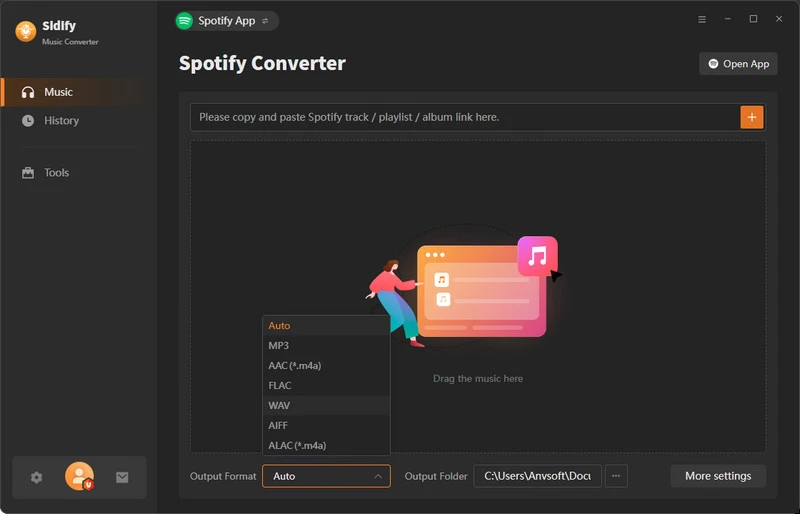
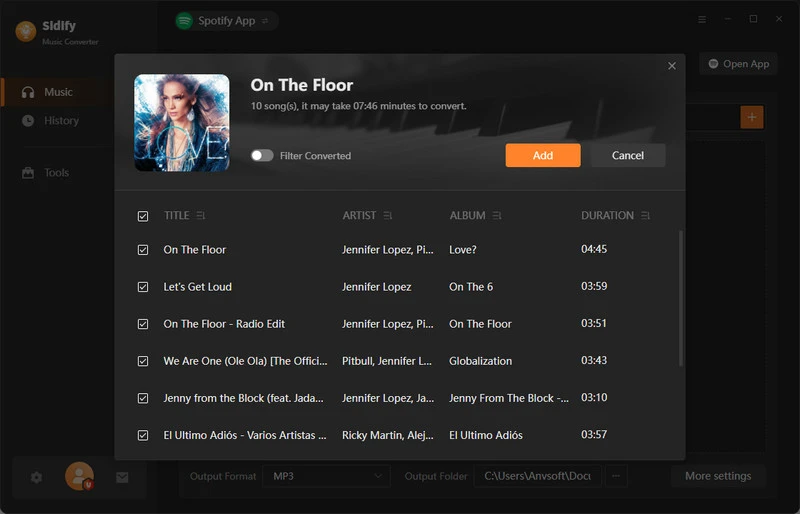
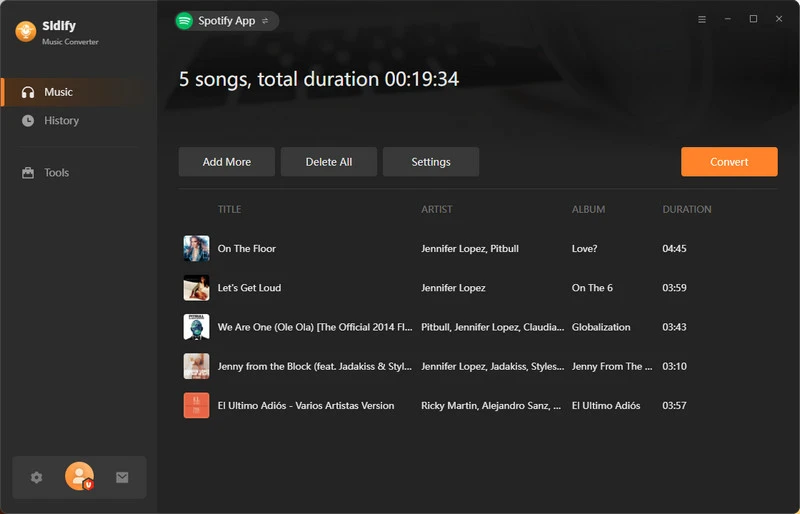
Step 2 Add Spotify Music to Sidify
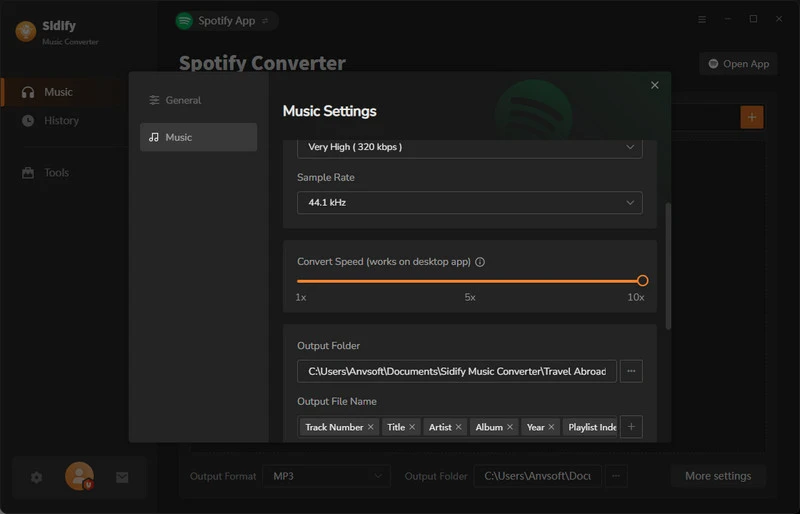
Step 3 Choose the Output Format and Customize the Output Path
Open Settings. Choose MP3, AAC, WAV, FLAC, AIFF, or ALAC, set the output folder, and choose how you want to name and organize the files.
Step 4 Download & Export the Spotify Playlist to the Computer
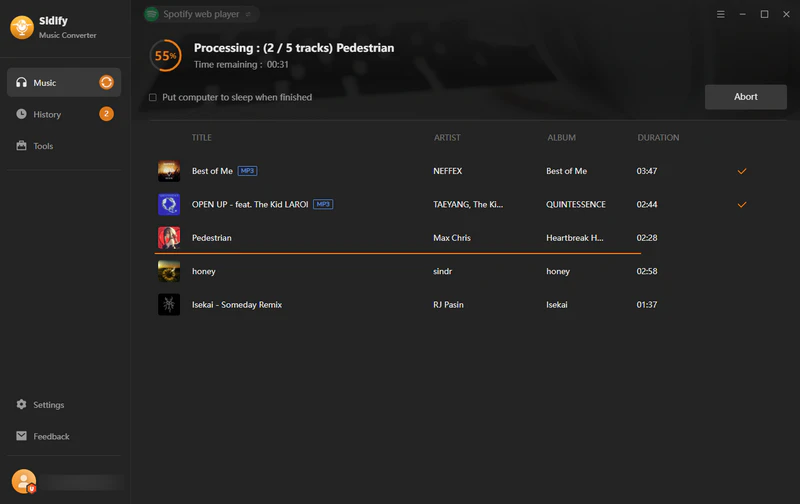
Click Convert. Sidify will start downloading and exporting the selected Spotify music to your local drive.
Conversion speed depends on the playlist, connection, and output settings. Keep the app open until the whole playlist finishes, then check the completed track count in History.
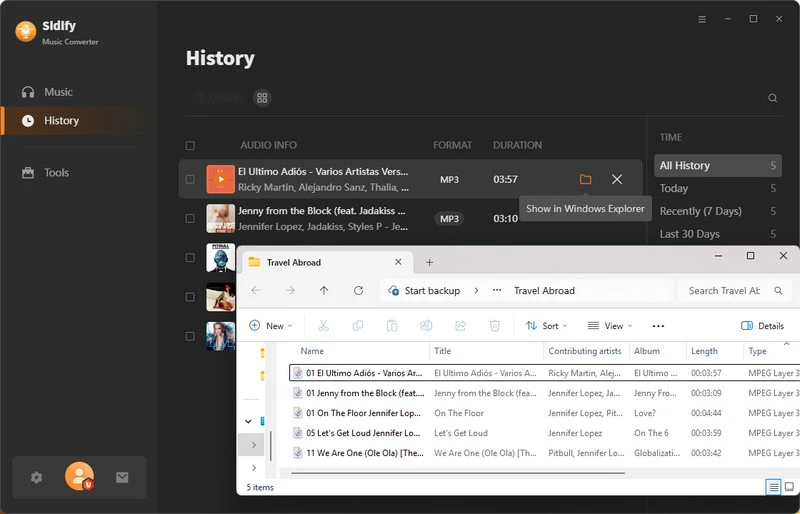
Step 5 Find Spotify Downloads on the Local Drive
Open the History tab to see the completed downloads. You can also open the output folder chosen in Step 3 to find the local audio files.
Method 2: Download Spotify Playlists Online Without Premium
If you do not want to install any software, a web-based Spotify playlist converter is the easiest option. You can usually paste a playlist link without signing in to a Spotify Free or Premium account. The trade-off is audio quality: these services commonly find the matching audio on YouTube, so the output may be limited to around 128 kbps and will not match the quality of a desktop converter.
| Online Spotify Playlist Downloader | Spotify Playlist support | Spotify account login | Time required to download a 50-song playlist |
|---|---|---|---|
| SpotiDown | Parses and downloads a full Spotify playlist for free | ❌ | About 15 minutes |
| SpotiDownloader | Parses and downloads a full Spotify playlist for free | ❌ | About 12 minutes |
| SpotiSaver | Parses a Spotify playlist; playlist download requires about $5 | ❌ | About 9 minutes |
How to Use an Online Spotify Playlist Downloader
Step 1 Open Spotify, find the playlist you want, and choose Share > Copy link.
Step 2 Open an online Spotify playlist downloader in your browser and paste the playlist link.
Step 3 Start the download, wait for the playlist to finish, and check that the number of downloaded files matches the original playlist.
Compare more web-based Spotify downloaders, their supported links, audio quality, playlist limits, and download experience.
Learn More →Method 3: Download a Spotify Playlist with spotDL - No Premium Required
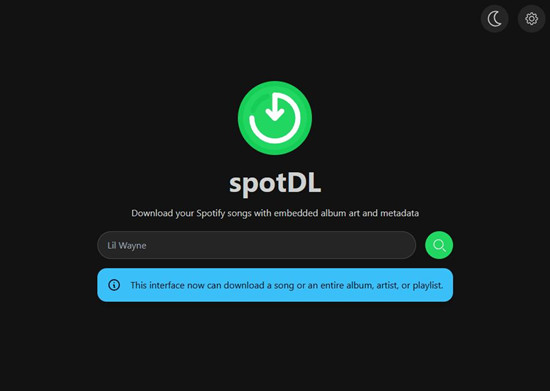
spotDL is a free, open-source downloader that runs in the command line. You give it a playlist URL, and it searches for matching audio, adds song info, and saves a sync file so you can update the playlist later. It's a good pick if you want full control and don't mind some technical setup.
First, install Python, spotDL, and FFmpeg. Then run a command like this in Terminal or PowerShell:
spotdl download "https://open.spotify.com/playlist/your-playlist-id"But spotDL's official docs note a 128 kbps limit in the standard workflow, and current GitHub issues show that source matching, API responses, and failed lookups can all affect playlist downloads.
Method 4: Download a Spotify Playlist on Android or iPhone
If you use Android, Sidify Spotify Music Converter for Android can process Spotify playlists directly on your phone. It supports Spotify Free accounts and saves audio in MP3, AAC, WAV, FLAC, AIFF, or ALAC with ID3 tags.
iPhone note: Sidify does not offer a direct iOS converter. You can convert the music on Windows or Mac first, then transfer the downloaded music to your iPhone.
Step 1 Download and install the Sidify APK on your Android phone, then open it and sign in to Spotify.
 Download
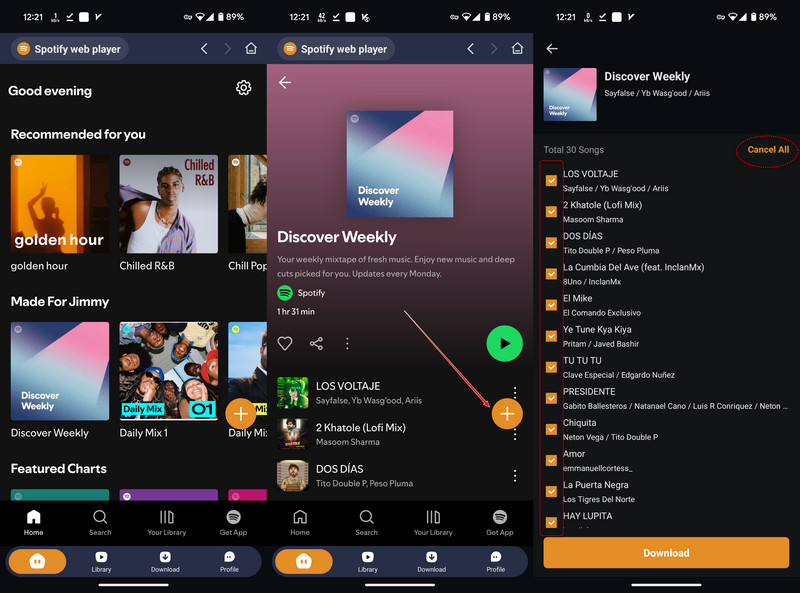
Step 2 Open a song or playlist, tap the floating Add button, and select the tracks you want.
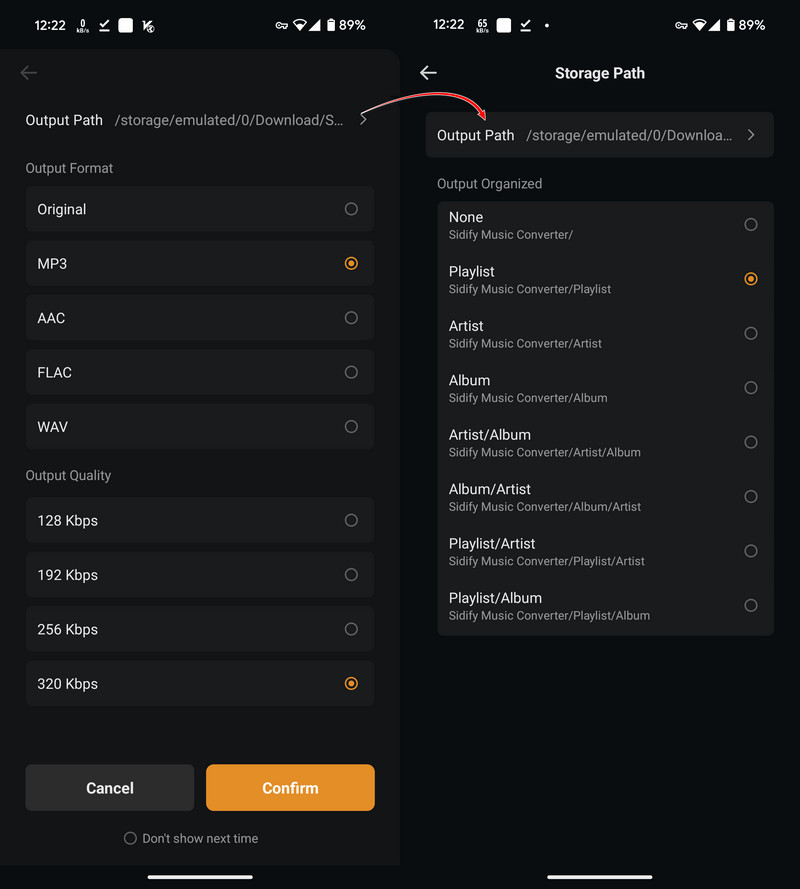
Step 3 Choose an output format such as MP3 or FLAC, select a download folder, and start the conversion.
Step 4 Open the Library tab when the download finishes. You can now play the local files with a music player on your phone.
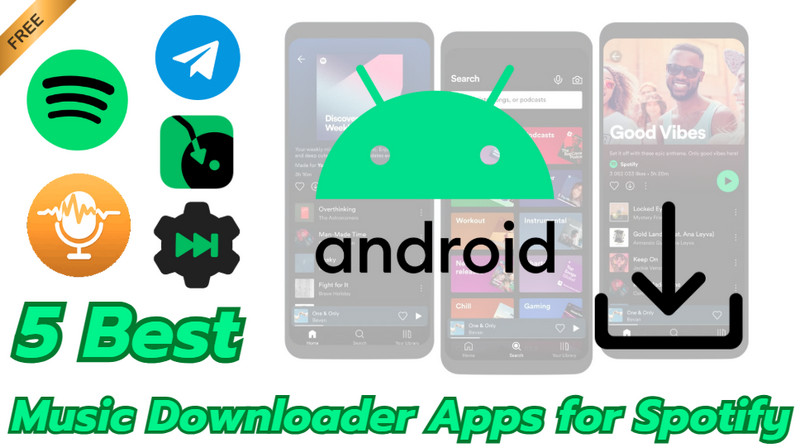
Looking for an Android app to download Spotify music and playlists? Compare four practical Android apps and find the right option for your phone.
Learn More →Method 5: Download a Spotify Playlist with a Telegram Bot
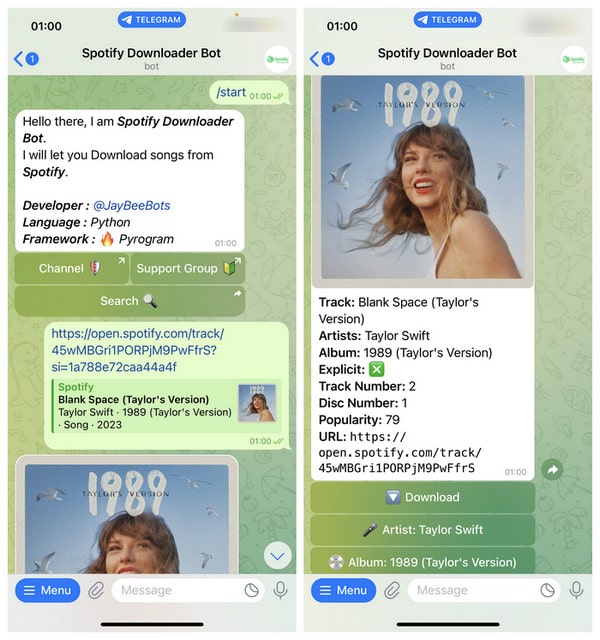
A Telegram Spotify downloader bot can be useful when you only need a few songs and do not want to install desktop software. A bot normally reads a Spotify link, searches for a matching audio file, and sends that file to you. It may not download audio directly from Spotify, so the version and quality can be different.
Step 1 Install Telegram and search for an active Spotify downloader bot. You can check our updated list of Telegram Spotify bots.
Step 2 In Spotify, open the song or playlist, select Share, and copy its link.
Step 3 Start the bot, paste the Spotify link into the chat, and follow its prompts.
Step 4 Download the audio file sent by the bot and save it to your phone or computer.
- Easy to use on Android, iPhone, and desktop.
- Many bots are free for a small number of downloads.
- No Spotify Premium account is required.
- Bots can stop working, add daily limits, or disappear without notice.
- Audio quality, track matching, and metadata are not consistent.
- You should not send login details or private information to an unknown bot.
Method 6: Record a Spotify Playlist with Audacity
Audacity is a free, open-source audio recorder for Windows, macOS, and Linux. It records Spotify in real time, so it is better for one song or a short playlist than for a large library.
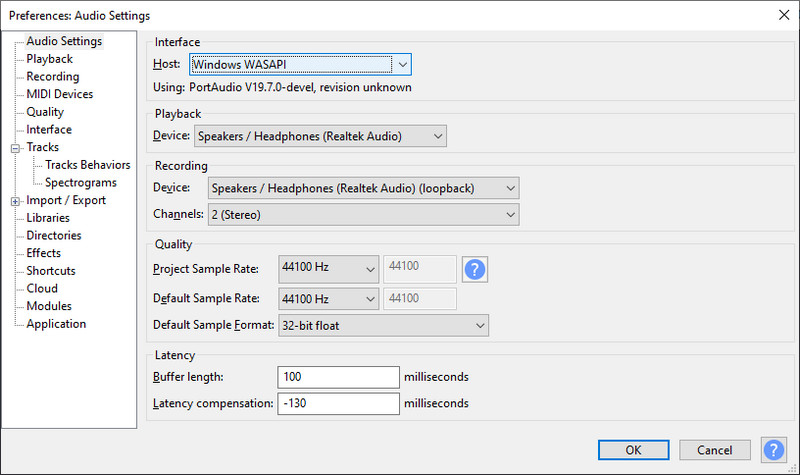
Step 1 Install Audacity. On Windows, open Audio Setup, choose Windows WASAPI as the host, and select your playback device marked (loopback) as the recording device.
Step 2 Turn off notification sounds, start the song in Spotify, and click Record in Audacity.
Step 3 Stop recording when the song ends. Trim any silence, then use File > Export Audio to save it as MP3, WAV, FLAC, or another supported format.
Mac note: macOS cannot record desktop audio by itself. You need to install and configure a compatible loopback audio device before Audacity can capture Spotify playback.
- Free and open source.
- Lets you trim, edit, and export the recording.
- Works for audio that you can play on your computer.
- Recording takes as long as the song or playlist.
- You need to split Spotify tracks and add metadata manually.
- System sounds may be recorded, and Mac setup takes extra steps.
Method 7: Download Spotify Playlists with Spotify Converter Free
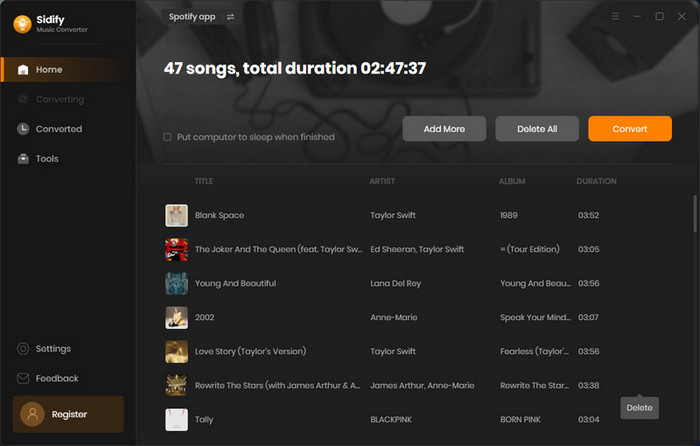
If you want a desktop tool with no purchase required, try Spotify Music Converter Free. It is an ad-free Windows program that works with Spotify Free and Premium accounts. You can export music as MP3, AAC, WAV, FLAC, AIFF, or ALAC and keep essential ID3 tags.
Step 1 Install and open Sidify Music Converter Free on your Windows computer.
Step 2 Add a Spotify song, album, or playlist, then choose the output format and folder.
Step 3 Click Convert. When it finishes, open the output folder to find your local audio files.
- Free, ad-free, and supports batch Spotify downloads.
- Offers MP3, FLAC, and several other output formats.
- Keeps essential song metadata.
- Available for Windows only.
- Sidify Free downloads Spotify songs from YouTube.
Looking for a free way to save Spotify music as MP3? Compare popular Spotify to MP3 converters, their features, audio quality, and limitations.
Learn More →You May Also Ask About Spotify Playlist Downloads
Can you download an entire Spotify playlist without Premium?
Yes, you can use Spotify converter, spotDL, or a Spotify recorder. All of these options allow you to get what you need.
Does Spotify Free allow offline playlist listening?
Spotify Free users cannot officially listen to downloaded music offline. The only way to achieve this is by using third-party Spotify converters like Sidify.
Can you download a Spotify playlist to MP3 for free?
Sometimes. Online tools and spotDL may offer free downloads, but they can set playlist, bitrate, or daily limits. A Spotify playlist downloader such as Sidify is more convenient when you want batch processing, multiple output formats, and organized metadata.
Can you download a Spotify playlist on iPhone without Premium?
You can use a browser-based online Spotify converter tool for a small playlist on your Mac, then transfer the local files to your iPhone.
Why are some tracks missing after downloading a playlist?
Many third-party tools use the Spotify link for metadata and search another source for audio. So a song may be unavailable, blocked, or matched to a different version. To save ID3 tags completely, choose to use a dedicated Spotify converter like Sidify.
Conclusion
You need Premium for Spotify's official offline playlist feature. If you want local files instead, choose an online downloader for a small playlist, Sidify Spotify Music Converter for a larger batch, or spotDL if you prefer a free open-source tool. Telegram bots and Audacity are better for a few tracks, while Android users can use the Sidify APK directly. Always check track names, versions, and download rights before you use the files.
 Sidify Spotify Music Converter
Download and convert Spotify playlists to MP3/AAC/WAV/FLAC/AIFF/ALAC with original quality kept.