

Looking for the best YouTube audio ripper to rip audio from YouTube without broken links, fake download buttons, or unnecessary re-encoding? We tested more than 10 desktop apps, online tools, Android apps, and alternative methods to see how well they convert a YouTube video to audio in real-world use.
We compared download speed, audio quality, MP3/WAV/M4A support, playlist downloads, ID3 tags, ads, and ease of use. Whether you want a free YouTube audio ripper online, a YouTube to MP3 ripper for Windows or Mac, or simply need to save YouTube audio for offline listening, the picks below cover the main options.
Quick Comparison of the Top YouTube Audio Rippers
A YouTube audio ripper extracts audio from YouTube videos or YouTube Music and saves it in formats such as MP3, FLAC, WAV, or M4A. The table includes free YouTube audio rippers, desktop apps, and YouTube audio ripper online services, so you can quickly decide whether an app or a browser-based YouTube audio ripper website fits you better.
| Tool | Platform | Formats | Tested Audio Quality | Ads | Playlist/Batch | Price |
|---|---|---|---|---|---|---|
| Sidify All-In-One | Windows, Mac | MP3, AAC, FLAC, WAV, AIFF, ALAC | Up to 320 kbps | No | ✅ | Free trial / Paid |
| 4K YouTube to MP3 | Windows, Mac, Linux | MP3, M4A, OGG | Up to 320 kbps | No | ✅ | Free / Paid |
| yt-dlp | Windows, Mac, Linux | Multiple formats | Original audio stream | No | ✅ | Free |
| Stacher | Windows, Mac, Linux | Multiple formats | Original stream / converted output | No | ✅ | Free |
| MediaHuman | Windows, Mac, Linux | MP3, M4A, OGG | Up to 320 kbps | No | ✅ | Free |
| EzConv | Browser | MP3, M4A | Up to 320 kbps | No | ❌ | Free |
| TubeRipper | Browser | MP3, M4A, etc. | Varies by format | Varies | No | Free |
| YTMP3 | Browser | MP3 | Up to 192 kbps | Varies | ❌ | Free |
| OnlyMP3 | Browser | MP3 | Around 128–192 kbps | Varies | ❌ | Free |
| NewPipe | Android | M4A, Opus, OGG, FLAC | Original available stream | No | ❌ | Free |
Which YouTube Audio Ripper Should You Choose?
| Best Overall: Sidify All-In-One — playlists, metadata and batch downloads |
||
| Best for Windows & Mac: 4K YouTube to MP3 |
Best Free / Open Source: yt-dlp |
Best Easy yt-dlp App: Stacher |
| Best Free Online: EzConv |
Best Online for WAV / FLAC: TubeRipper |
Best Android App: NewPipe |
| Best for ID3 Tags: MediaHuman / OnlyMP3 |
Avoid for YouTube Right Now: Cobalt Audio Converter |
|
| Best Overall: Sidify All-In-One — playlists, metadata and batch downloads |
| Best for Windows & Mac: 4K YouTube to MP3 |
| Best Free / Open Source: yt-dlp |
| Best Easy yt-dlp App: Stacher |
| Best Free Online: EzConv |
| Best Online for WAV / FLAC: TubeRipper |
| Best Android App: NewPipe |
| Best for ID3 Tags: MediaHuman / OnlyMP3 |
| Avoid for YouTube Right Now: Cobalt Audio Converter |
How We Tested These YouTube Audio Rippers
| Test Environment | Devices: Windows, macOS, Android, mobile Browser: Chrome Internet connection: 12.97 Mbps |
Test Files | Same 5-minute video Same 60-minute video Same 10-video playlist |
| Measurements | Parsing time, download time, resulting file size, codec/bitrate, and metadata | Safety Check | Redirects, pop-ups, fake download buttons, and login requests |
| Repeat Tests | 3 attempts per tool | Last Tested | August 2026 |
| Test Environment Devices: Windows, macOS, Android, mobile Browser: Chrome Internet connection: 12.97 Mbps |
| Test Files Same 5-minute video Same 60-minute video Same 10-video playlist |
| Measurements Parsing time, download time, resulting file size, codec/bitrate, and metadata |
| Safety Check Redirects, pop-ups, fake download buttons, and login requests |
| Repeat Tests 3 attempts per tool |
| Last Tested August 2026 |
1. Overall Best & Safest YouTube Audio Ripper: Sidify All-In-One
| 🌐 URL: https://www.sidify.com/all-in-one-windows.html | ||||||
| OS | Tested Quality | Parsing Speed | Download Speed | Batch Download (10-video test) | ID3 Tags | Ease of Use |
| Windows, macOS | Up to 320 kbps; MP3, AAC, WAV, FLAC, AIFF, ALAC available | 2 sec | 15 sec | 142 sec | Title, Artist, Album, Artwork/Cover, Track Number, Year, Lyrics | ★★★★★ |
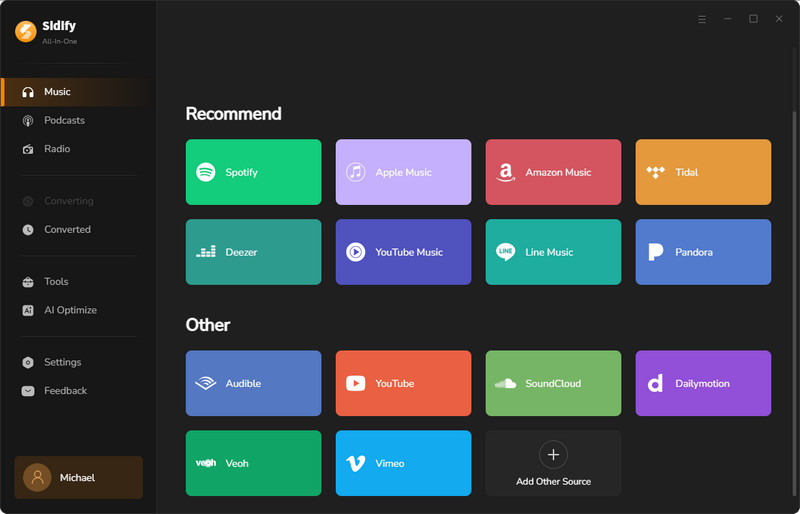
If you’re looking for a reliable YouTube audio ripper for Windows and Mac that’s free of ads and complicated settings, Sidify All-In-One is a great choice. It works with both YouTube Free and Premium accounts and lets you download multiple files at once. That way, you can easily listen to your music offline on MP3 players, phones, tablets, SD card or home speakers. In our testing, Sidify was simple to use and preserved all the key ID3 tags like title, artist, album, and cover art.
With Sidify, you’re not limited to YouTube. It also supports YouTube Music, Spotify, Amazon Music, Apple Music, Tidal, and more.
- Clean, ad-free desktop experience
- Supports YouTube videos, playlists, channels, and batch downloads
- Keep original audio quality
- Multiple format options and advanced settings.
- Preserves and edits ID3 tags
- Beginner-friendly interface
- Useful built-in audio tools
- Comes with free technical support and regular updates
- Desktop installation required
- No mobile version
How to rip audio from YouTube via Sidify All-In-One
Step 1 Add the YouTube Video. Find the YT video you want and add it to Sidify.
Step 2 Choose MP3 as the Output Format. Select MP3 and adjust the output quality or other settings if needed.
Step 3 Start Downloading. Click Convert to start. Once finished, you can find the downloaded MP3 files under History or in your selected output folder.
See also: How to download YouTube Music to a computer.
 Also Consider: Sidify YouTube Music Converter — Best YouTube Music Ripper for Playlists
If you mainly want to save songs, albums, or playlists from YouTube Music, Sidify YouTube Music Converter is the more focused option. As a dedicated YouTube Music ripper, it is designed around music downloads, output formats, playlists, and metadata rather than general YouTube videos.
 Note:
Note:Sidify All-In-One remains our top pick for the best overall experience, audio quality, and batch support. But if you only need a basic no-cost option, the free YouTube audio rippers below are also worth a look.
Before using any free tool:
- ⚠️ Avoid fake download buttons and aggressive ads.
- ⚠️ Never enter personal information on suspicious sites.
- ⚠️ Skip unknown software or browser extensions.
- ⚠️ Keep your browser and security software updated.
2. 4K YouTube to MP3 — Best YouTube Audio Ripper for Windows and Mac
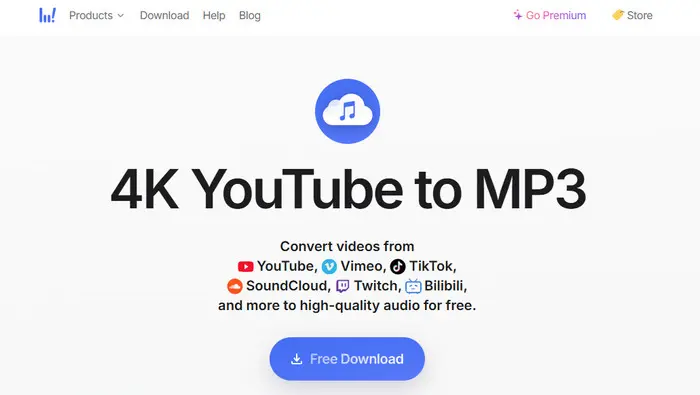
| 🌐 URL: https://www.4kdownload.com/products/youtubetomp3-73 | ||||||
| OS | Tested Quality | Parsing Speed | Download Speed | Batch Download (10-video test) | ID3 Tags | Ease of Use |
| Windows, macOS, Linux (Ubuntu) | High-quality audio; MP3 / OGG / M4A; | 3 sec | 18 sec | 186 sec | No | ★★★★★ |
4K YouTube to MP3 is more than a basic YouTube audio downloader. Its biggest advantage over an online YouTube audio ripper is playlist and channel support, so you don't need to convert videos one by one. It also works with sites such as Vimeo, TikTok, SoundCloud, and Twitch, while the built-in audio tools give you a few extra options for working with downloaded sound.
- Fast link parsing and downloads
- Easy to save and reuse download settings
- Clean, simple interface
- Handles multiple downloads smoothly
- Free version has download limits
- Limited metadata editing
- No built-in music library
- Large playlists can take longer to finish
- Requires desktop installation
How to rip audio from YouTube via 4K YouTube to MP3
Step 1 Open Tools > Preferences and choose MP3, audio quality, and the output folder.
Step 2 Copy the YouTube video, playlist, or channel URL you want to download.
Step 3 Click Paste Link. 4K YouTube to MP3 will parse the link and start downloading automatically.
Want to download music from YouTube for free? Discover the best apps to save YouTube music for offline listening quickly and easily.
Learn More →
3. yt-dlp — Best Free YouTube Audio Ripper for Advanced Users
| 🌐 URL: https://github.com/yt-dlp/yt-dlp | ||||||
| OS | Tested Quality | Parsing Speed | Download Speed | Batch Download (10-video test) | ID3 Tags | Ease of Use |
| Windows, macOS, Linux | High-quality audio; MP3 / AAC / FLAC / OGG / WAV / Opus (with FFmpeg) | 5 sec | 14 sec | 147 sec | Yes, metadata and cover art supported | ★★★☆☆ |
yt-dlp is the most mentioned YouTube audio and video downloader on Reddit. It can save the best available audio stream directly or use FFmpeg to convert it to MP3, FLAC, WAV, AAC, Opus, and other formats. Playlists, channels, filenames, metadata, cover art, codecs, and quality settings can all be customized. The trade-off is straightforward: it is powerful and completely free, but the command-line workflow takes some learning.
- Supports hundreds of video and audio platforms
- Completely free and open source
- Can keep the original available audio stream
- Highly customizable download settings
- Excellent playlist and channel support
- Can embed metadata and cover art
- No ads or download limits
- Command-line interface has a learning curve
- FFmpeg is required for MP3 conversion and some advanced features
- No official graphical interface
- Commands can feel complicated for beginners
- Needs regular updates when YouTube changes
How to rip audio from YouTube via yt-dlp
Step 1 Install yt-dlp and FFmpeg on your computer.
Step 2 Open Terminal or Command Prompt and enter:
yt-dlp -x --audio-format mp3 "YouTube URL"
Step 3 Press Enter. yt-dlp will download the best available audio and convert it to MP3 automatically.
4. Stacher — Best yt-dlp GUI for Easy YouTube Audio Extraction
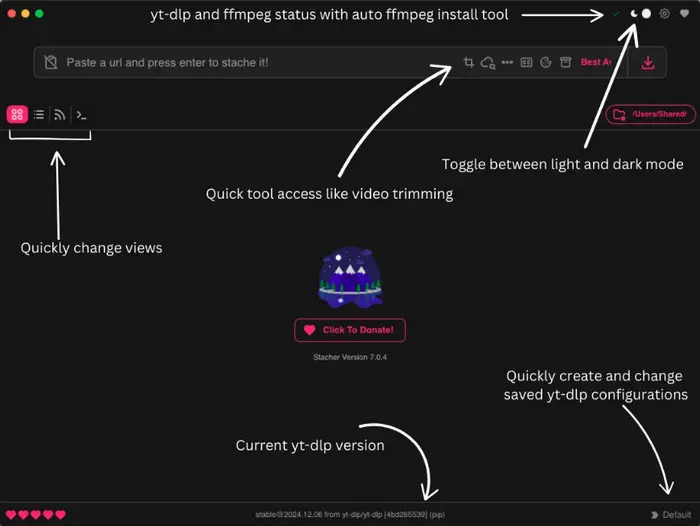
| 🌐 URL: https://stacher.io/ | ||||||
| OS | Tested Quality | Parsing Speed | Download Speed | Batch Download (10-video test) | ID3 Tags | Ease of Use |
| Windows, macOS, Linux (Debian-based) | Original available audio; MP3, M4A, Opus, FLAC, WAV, OGG | 5 sec | 18 sec | 172 sec | Title, Artist/Uploader, Date, Cover Art (Supported via yt-dlp/FFmpeg settings) | ★★★★☆ |
Stacher is a good middle ground for people who like what yt-dlp can do but don't want to work in Terminal or Command Prompt. You paste a YouTube link, choose an audio format, and adjust the settings through a graphical interface. It keeps much of yt-dlp's flexibility while making playlists and repeated downloads easier to manage, although some of the more advanced conversion features still depend on FFmpeg.
- Download YouTube playlists for free
- Easier to use than yt-dlp commands
- Keeps much of yt-dlp’s format and quality control
- Save different download configurations for repeated tasks
- Built-in Library makes downloaded files easier to manage
- Free to use on Windows, macOS, and Linux
- More settings than beginners may need
- Some audio conversion features depend on FFmpeg
- Occasional YouTube changes may require yt-dlp updates
- Less polished than Sidify
How to rip audio from YouTube via Stacher
Step 1 Paste the YouTube video or playlist URL into Stacher.
Step 2 Choose an audio format such as MP3 and adjust the quality or other download settings.
Step 3 Start the download. Stacher will use yt-dlp to fetch and process the audio.
Want something easier? Sidify All-In-One offers a graphical workflow with batch downloads and metadata support, without command-line setup.
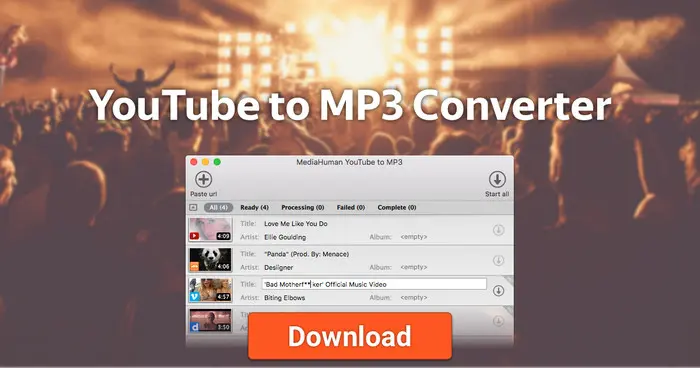
5. MediaHuman — Best YouTube to MP3 Ripper for ID3 Tags
| 🌐 URL: https://www.mediahuman.com/youtube-to-mp3-converter/ | ||||||
| OS | Tested Quality | Parsing Speed | Download Speed | Batch Download (10-video test) | ID3 Tags | Ease of Use |
| Windows, macOS, Linux (Ubuntu 20.04+) | Up to 320kbps MP3; AAC / OGG | 3 sec | 16 sec | 145 sec | Title, Artist, Album, Genre, Year, Cover Art | ★★★★☆ |
MediaHuman feels less like a throwaway downloader and more like a tool for organizing downloaded music. Its built-in tag editor lets you fix titles, artists, albums, genres, years, and cover art before the files end up in your library. It can also monitor playlists or channels for new uploads and automatically add completed tracks to iTunes or Music.app. If metadata matters as much as download speed, it has an advantage over most free YouTube audio rippers.
- Save audio from YouTube, SoundCloud, Vimeo, Bandcamp, and other sites.
- Edit ID3 tags and cover art before downloading
- Automatically add downloads to iTunes/Music.app
- Track playlists and channels for new uploads
- Supports simultaneous downloads
- Interface looks a little dated
- Genre and year may need to be added manually
- Fewer output formats
- Requires desktop installation
How to rip audio from YouTube via MediaHuman
Step 1 Copy the YouTube video or playlist URL.
Step 2 Paste the link into MediaHuman and choose MP3 or another audio format in Preferences.
Step 3 Click the Download button, or Start All to download multiple tracks at once.
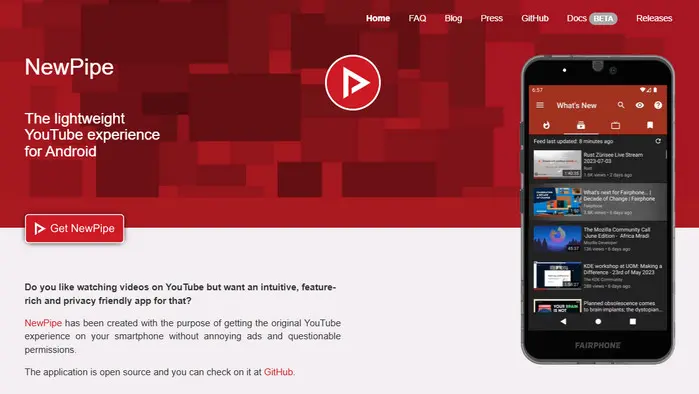
6. NewPipe — Best YouTube Audio Ripper App for Android
| 🌐 URL: https://newpipe.net/ | ||||||
| OS | Tested Quality | Parsing Speed | Download Speed | Batch Download (10-video test) | ID3 Tags | Ease of Use |
| Android 6+ | High-quality audio; M4A / Opus / OGG / FLAC; | 2 sec | 14 sec | No | Artist/Uploader, Title, Genre, Date (Opus) | ★★★★☆ |
For Android users, NewPipe is one of the best apps to rip YouTube audio without relying on a browser-based downloader. It runs without a Google account or Google Play Services, has no ads, and can save available audio streams such as M4A or WebM/Opus directly instead of forcing everything through MP3 conversion. It's lightweight and privacy-focused, but there is no native MP3 output, tag editor, or full playlist batch download.
- Works with YouTube Music, SoundCloud, Bandcamp, and PeerTube.
- No ads or Google account required
- Simple mobile interface
- Downloads YouTube to M4A
- Lightweight and privacy-focused
- Background audio playback
- Completely free and open source
- Android only
- No MP3 output
- No ID3 tag editing
- No full playlist batch download
- No cover art
How to rip audio from YouTube via NewPipe
Step 1 Open NewPipe and find the YouTube video you want to save.
Step 2 Tap Download, choose Audio, then select an available M4A or WebM/Opus quality.
Step 3 Choose the download folder and tap Download to save the YT audio directly to your Android device.
Note:If you need the same type of batch workflow on Windows or Mac, Sidify All-In-One is a stronger desktop alternative.
Online YouTube audio rippers can be less reliable than desktop tools because sites may go offline or stop working after YouTube updates, so we only included options that were accessible, parsed YouTube links correctly, and completed downloads successfully.
| Service | URL Status | Analysis | Download | Last Tested |
|---|---|---|---|---|
| EzConv | ✅ Active | ✅ Working | ✅ Working | Aug. 2026 |
| TubeRipper | ✅ Active | ✅ Working | ✅ Working | Aug. 2026 |
| YTMP3 | ✅ Active | ⚠️ / ✅ | ⚠️ / ✅ | Aug. 2026 |
| OnlyMP3 | ✅ Active | ✅ Working | ✅ Working | Aug. 2026 |
Need playlists or better metadata? Free online YouTube audio rippers are convenient for one-off downloads, but Sidify All-In-One is more practical for batch downloads and organized music libraries.
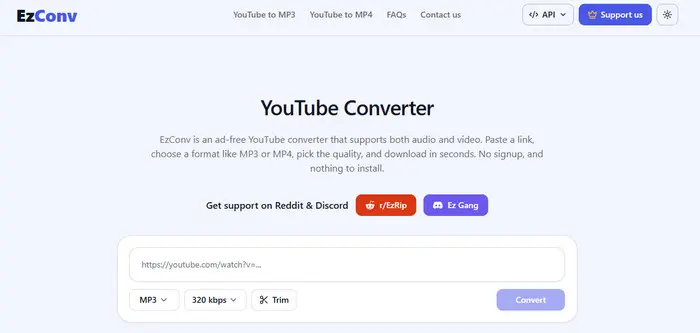
7. EzConv (formerly EzMP3) — Best Free YouTube Audio to MP3 Ripper Online
| 🌐 URL: https://ezconv.cc/ | ||||||
| OS | Tested Quality | Parsing Speed | Download Speed | Batch Download (10-video test) | ID3 Tags | Ease of Use |
| Web-based (Windows, macOS, Linux, Android, iOS) | MP3/M4A, 64–320kbps; lossy, not Hi-Fi. | 2 sec | 22 sec | No | Only Filename; no built-in tag editor | ★★★★★ |
EzConv (formerly EzMP3) works well when you just want to convert YouTube videos to MP3 without installing anything. Paste the link, choose a bitrate, and download the finished file; there's also a simple trimmer if you only need part of the audio. It is quick and easy for occasional use, but there are no playlist downloads or proper ID3 tools. Selecting 320 kbps also won't improve audio that came from a lower-quality YouTube source.
- No installation or account required
- Built-in audio trimming
- Multiple MP3 bitrate options
- Simple enough for occasional downloads
- Download YouTube audio & video to MP3/MP4 for free
- Ad-free
- No batch downloads
- No ID3 tags or cover art
- The free version has limitations.
- Website availability can change
- Lossy audio
How to rip audio from YouTube via EzConv
Step 1 Open EzConv and copy the YouTube video URL.
Step 2 Paste the URL and choose an MP3 quality from 64 to 320kbps.
Step 3 Click Convert, then click Download MP3 when processing is complete.
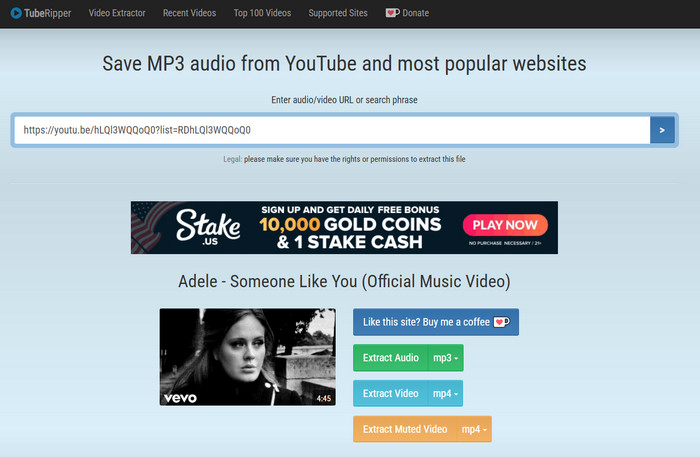
8. TubeRipper — Best Online YouTube Audio Extractor for WAV, FLAC & More
| 🌐 URL: https://tuberipper.net/ | ||||||
| OS | Tested Quality | Parsing Speed | Download Speed | Batch Download (10-video test) | ID3 Tags | Ease of Use |
| Web-based (Windows, macOS, Android, iOS) | Lossy quality; MP3 / FLAC / OGG / WAV / OPUS / M4A / Webm | 9 sec | 26 sec | No | Only song name. may include “[TubeRipper.net]”. | ★★★★☆ |
TubeRipper is useful when format choice matters more than extras. Unlike many browser-based YouTube to MP3 converters, it offers options including MP3, FLAC, WAV, Opus, M4A, OGG, and WebM. It also accepts links from platforms such as SoundCloud, TikTok, Vimeo, Facebook, and X.
- No installation required
- Multiple audio formats
- Supports many websites
- Simple paste-and-download workflow
- FREE Download YouTube video to MP3 or MP4
- No batch downloading
- No ID3 Tag
- Interface feels dated and ads included
- Online availability and performance may vary
- Long videos can be less reliable
How to rip audio from YouTube via TubeRipper
Step 1 Open TubeRipper.net and copy the YouTube video URL.
Step 2 Paste the URL into the input box and start parsing the video.
Step 3 Choose MP3 or another available audio format, then click Download to save the file.
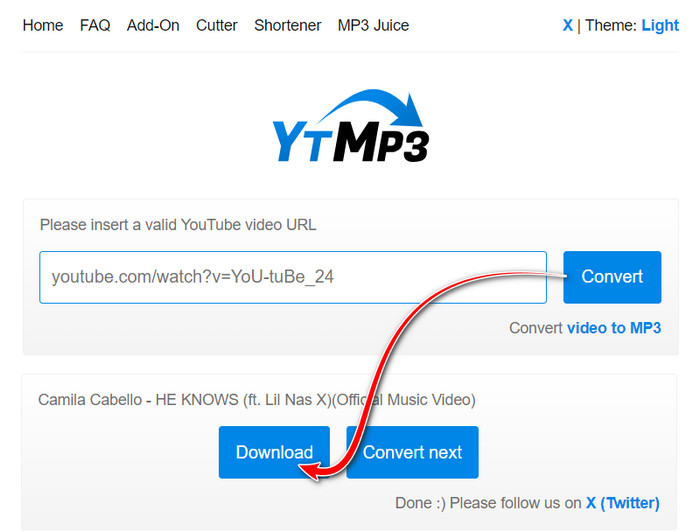
9. YTMP3 — Simple YouTube to MP3 Converter for One-Off Downloads
| 🌐 URL: https://ytmp3.gl/ | ||||||
| OS | Tested Quality | Parsing Speed | Download Speed | Batch Download (10-video test) | ID3 Tags | Ease of Use |
| Web-based (Windows, macOS, Linux, Android, iOS) | MP3 up to 192kbps; lossy output. | 18 sec | 24 sec | No | No | ★★★★☆ |
YTMP3 is one of the oldest and most widely recognized free online YouTube converters. Designed with absolute simplicity in mind, it allows users to convert and download individual YouTube videos to MP3 audio files or MP4 video files directly within a browser window.
- No software installation required
- No account needed
- Simple for occasional MP3 downloads
- Works across desktop and mobile
- No playlist batch downloads
- MP3-focused with limited format control
- Pop-up ads during downloads
- Many unrelated or cloned sites use the YTMP3 name
How to rip audio from YouTube via YTMP3
Step 1 Open YTMP3 and copy the YouTube video URL.
Step 2 Paste the URL into the input box and select MP3.
Step 3 Click Download, then choose a save location to save the MP3 file.
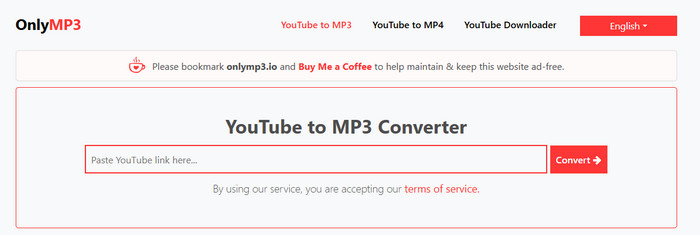
10. OnlyMP3 — Best Website to Rip YouTube Audio with ID3 Tags
| 🌐 URL: https://en.onlymp3.cx/converter-v4 | ||||||
| OS | Tested Quality | Parsing Speed | Download Speed | Batch Download (10-video test) | ID3 Tags | Ease of Use |
| Web-based (Windows, macOS, Linux, Android, iOS) | MP3 only; around 128–192kbps depending on the current version/mirror. It does not offer detailed bitrate controls. | 13 sec | 7 sec | No | Title/Artist/Album/Year/genre/Cover art | ★★★★★ |
If you want to save YouTube audio as MP3 while keeping more metadata, OnlyMP3 did better than most of the free online tools we tested. A useful bonus is support for videos up to 4 hours long, plus the option to save finished MP3 files directly to Dropbox.
- Fast conversion with good ID3 tag retention
- No registration required
- Supports videos up to 4 hours long
- Save MP3 files directly to Dropbox
- Works on desktop and mobile browsers
- No ads on the current site
- No batch playlist downloads
- MP3 output only
- Limited audio quality controls
- Adds “OnlyMP3.cx” to the beginning of song titles
How to rip audio from YouTube via OnlyMP3
Step 1 Open OnlyMP3 and copy the YouTube video URL.
Step 2 Paste the URL into the search box and click Convert.
Step 3 Once processing is complete, click Download MP3 to save the audio, or save it to Dropbox when available.
Other Ways to Rip YouTube Audio
Besides YouTube to MP3 apps and websites, you can also save YouTube audio using Apple Shortcuts, Telegram bots, browser extensions, or recording tools (Audacity). Each method works differently and is better suited to a different type of user.
Apple Shortcuts — Best Way to Rip YouTube Audio on iPhone and Mac
| Recommended Shortcuts: YouTube Music Downloader / YouTube Playlist Downloader | ||||||||
| OS | Tested Quality | Shortcut tested | Parsing Speed | Download Speed | Batch Download (10-video test) | ID3 Tags | Ease of Use | |
| iPhone, iPad, macOS | Depends on the shortcut; commonly M4A / MP3 | YouTube Playlist Downloader | 4 sec | 16 sec | 128 sec | Varies | ★★★★☆ | |
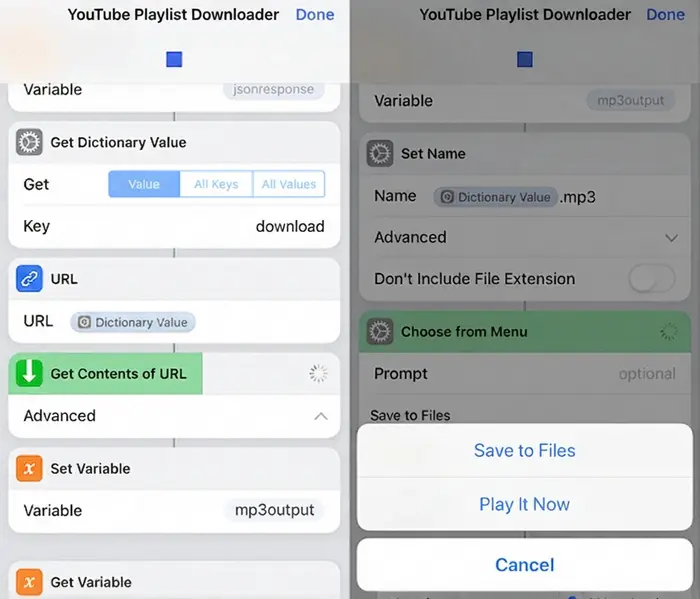
If you're looking for a YouTube audio ripper for iPhone, Apple Shortcuts offers a convenient alternative to installing a dedicated downloader. With a compatible third-party shortcut, you can copy a YouTube URL, run the shortcut, and save the extracted audio to your device or iCloud Drive. Some shortcuts can also process YouTube playlists for multiple downloads.
Safety note: YouTube downloader shortcuts are usually community-made rather than official Apple tools. Check the shortcut's source and review its actions and permissions before running it.
- Works directly on iPhone, iPad, and Mac
- No dedicated downloader app required
- Can save audio to Files or iCloud Drive
- Some shortcuts support YouTube playlists
- Convenient for occasional mobile downloads
- Third-party shortcuts may stop working after YouTube changes
- Setup is less straightforward than a regular downloader
- Audio formats and quality vary by shortcut
- Playlist support depends on the shortcut
- Untrusted shortcuts may create privacy or security risks
How to rip audio from YouTube via Apple Shortcuts
Step 1 Install a trusted YouTube audio downloader shortcut and copy the YouTube video URL.
Step 2 Run the shortcut and choose the available audio format or download option.
Step 3 Save the extracted audio to Files, your device, or iCloud Drive.
See also: How to download YouTube Music on iPhone.
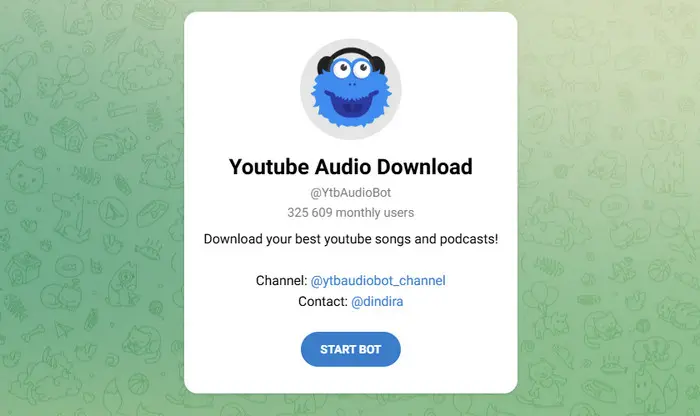
Telegram Bot —— Best Quick Way to Save YouTube Audio on Mobile
| Recommended YouTube Bot: YtbAudioBo/scdlbot/Youtube_dwnldr_bot/videotoaudiookbot | ||||||||
| OS | Bot tested | Tested Quality | Parsing Speed | Download Speed | Batch Download (10-video test) | ID3 Tags | Ease of Use | |
| Cross-platform (iOS, Android, Windows, macOS, Linux via Telegram) | YtbAudioBo | Standard audio quality; MP3 / M4A | ~3 sec | ~10 sec | No | No | ★★★★★ | |
Telegram bots offer a surprisingly convenient way to extract audio from YouTube when you're already using the app. Supported content and processing speeds vary depending on the bot you use.
Safety note: Use reputable bots and avoid sending private or sensitive links. Third-party bot operators may be able to log submitted URLs or usage data.
- No browser pop-up ads or redirects
- Very convenient on mobile devices
- Simple for users who already use Telegram
- Fast for short, single-file downloads
- Bots may disappear or stop working
- File size and duration limits vary by bot
- Little control over bitrate or output settings
- Quality varies between bots
- Usually no playlist batch downloads
How to rip audio from YouTube via Telegram Bot
Step 1 Open a trusted YouTube downloader bot in Telegram.
Step 2 Send the YouTube video URL and choose MP3 or another audio option.
Step 3 Download the returned audio file to your device.
Browser Extension— Best for One-Click YouTube Audio Extraction
| Recommended Extension: Easy YouTube Video Downloader Express | |||||||
| OS | Tested Quality | Parsing Speed | Download Speed | Batch Download (10-video test) | ID3 Tags | Ease of Use | |
| Cross-platform | Varies by extension; MP3 / WebM / M4A | 2 sec | 8 sec | Varies; mostly single-file or page-specific downloads | Usually No | ★★★☆☆ | |
A browser extension saves you from copying YouTube links into a separate converter every time. Compatible extensions can add a download option near the video page or detect available media through the browser toolbar, making repeated downloads faster. If you're looking for a YouTube audio ripper Chrome extension, check the extension's current browser compatibility and store availability before installing it.
- Quick one-click access from the browser
- Lightweight and convenient for frequent use
- Fast once the media stream is detected
- Availability on official extension stores can change
- Unverified extensions may pose privacy or security risks
- YouTube updates can temporarily break compatibility
- Playlist downloading is inconsistent
- Limited format conversion and metadata controls
Safety note: Check extension permissions carefully before installation. Avoid tools that request unnecessary access to browsing history, passwords, or unrelated websites.
How to rip audio from YouTube via Browser Extension
Step 1 Install a compatible and trusted media download extension in your browser.
Step 2 Open the YouTube video you want to save.
Step 3 Click the extension's download button, choose the available audio format or quality, and save the file.
Recording Tools — Best Way to Record and Extract YouTube Audio to WAV
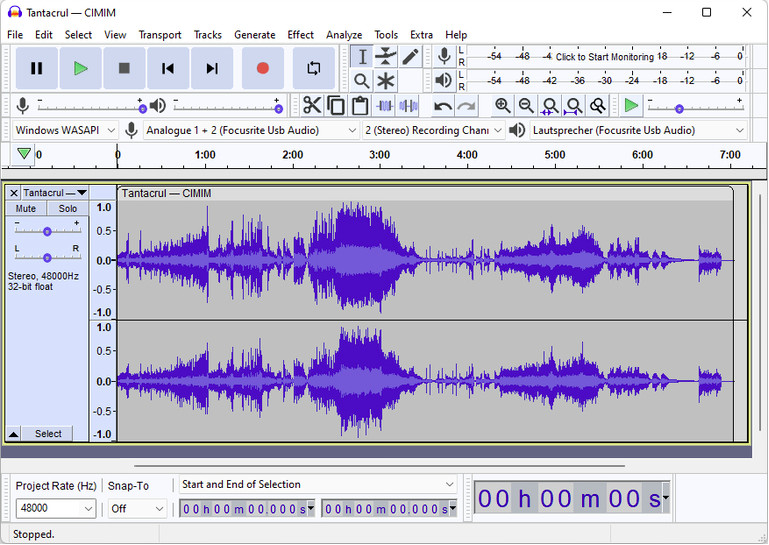
| Recommended Recorder: Audacity | |||||||
| OS | Tested Quality | Parsing Speed | Download Speed | Batch Download (10-video test) | ID3 Tags | Ease of Use | |
| Windows, macOS, Linux | High-quality recording/export; MP3 / WAV / FLAC / OGG; actual quality depends on the source and recording settings | N/A (Manual recording/import) | Real-time recording | No | No | ★★☆☆☆ | |
Audacity takes a completely different approach from a normal YouTube audio ripper. Instead of parsing a video URL, it records the sound playing through your computer in real time and then lets you trim, clean up, normalize, or edit the recording before exporting it as MP3, WAV, FLAC, OGG, and other formats. It's much slower than downloading because a 60-minute video takes roughly 60 minutes to record, but it's the most flexible option here if editing matters as much as extraction.
- Powerful audio editing and cleanup tools
- Free and open-source
- Multiple export formats
- Full control over recording and export settings
- Supports manual metadata editing
- Does not parse YouTube URLs directly
- Recording takes the full duration of the video
- No playlist or batch downloading
- More complicated than one-click converters
- System-audio recording may require initial setup
How to rip audio from YouTube via Recording Tools
Step 1 Open Audacity and configure the recording input to capture your computer's system audio, such as Windows WASAPI loopback on Windows.
Step 2 Click Record in Audacity, then play the YouTube video from the beginning and let it record in real time.
Step 3 Stop recording when the video finishes, trim or edit the audio if needed, then go to File > Export Audio and save it as MP3, WAV, FLAC, or another supported format.
Cobalt Audio Converter — Avoid for YouTube Right Now
When we checked the public Cobalt instance in August 2026, it wasn't a dependable option for YouTube downloads.
Cobalt has one of the cleaner interfaces among browser-based media downloaders, but it isn't a dependable choice for YouTube at the moment. The public Cobalt website may fail to process YouTube links, so someone looking for a working YouTube audio ripper can easily end up wasting time before discovering the limitation. The project itself is still worth knowing about, but for YouTube specifically, one of the working alternatives above is a safer recommendation.
Are YouTube Audio Rippers Safe and Legal?
YouTube audio rippers can be safe if you use reputable tools, but some websites, bots, and extensions may contain misleading ads, redirects, or unsafe downloads. Avoid tools that ask for your Google password or unnecessary browser permissions.
Legality depends on what you download. Saving your own content, public-domain media, or material you have permission to use is generally safer. Downloading copyrighted music without permission may violate copyright law and YouTube's Terms of Service.
Bottom line: Use trusted tools and only download audio you have the right to save.
FAQs About YouTube Audio Rippers
1. What is a YouTube audio ripper?
A YouTube audio ripper extracts the audio track from a YouTube video and saves it as MP3, M4A, WAV, or another audio format.
2. What is the best format for YouTube audio?
MP3 is best for compatibility, while M4A or Opus can offer better quality at similar file sizes.
3. Can YouTube audio rippers download playlists?
Some desktop tools and command-line apps support full YouTube playlists, while most online converters only handle one video at a time.
For detailed instructions, see how to download a YouTube playlist as MP3.
4. Is an online YouTube audio ripper better than an app?
Neither is always better. Online tools are convenient for quick, occasional downloads, while desktop apps usually offer more control over audio quality, output formats, metadata, and batch processing.
5. Can I Rip Audio from YouTube in High Quality?
Yes, but the final quality cannot exceed YouTube’s original audio stream. Choosing 320kbps MP3 may create a higher-bitrate file, but it won’t improve a lower-quality source. For the best results, use tools that preserve the original M4A or Opus audio without unnecessary re-encoding.
Learn more about YouTube Music audio quality before selecting an output bitrate.
6. Can I Rip Audio from YouTube Shorts?
Yes. You can use tools like Sidify All-In-One, 4K YouTube to MP3, or yt-dlp to extract audio from YouTube Shorts and save it as MP3, M4A, or other supported formats.
7. Can I Save YouTube Audio to an MP3 Player?
Yes. Once the audio is saved as MP3, you can transfer YouTube audio to most MP3 players by USB or through the device's file-management software.
Final Verdict: Which Is the Best YouTube Audio Ripper?
There’s no single best YouTube audio ripper for every user. EzConv is a convenient free option for quick online conversions, yt-dlp is better for advanced users who want more control, 4K YouTube to MP3 is easier for Windows and Mac, and NewPipe is the best fit for Android.
For users who regularly download playlists or want to keep their music library organized, Sidify All-In-One is our overall pick. It performed well in our batch download tests, supports multiple output formats, and preserved more useful ID3 metadata than most of the simpler tools we tested.
Note:Sidify All-In-One supports YouTube and other major streaming platforms. The trial version lets you convert the first minute of each audio file for sample testing. You can purchase the full version to remove the time limitation.