

Looking for the best MP3 downloader for Mac or MacBook in 2026? We tested 10 options to find the best ways to download MP3 songs for free, save streaming music, or convert videos to MP3. We compared audio quality, batch downloads, free limits, metadata preservation, Mac compatibility, and potential safety concerns to help you choose the right tool. You'll also learn how to download music on macOS with step-by-step instructions for each tool.
Quick Answers About MP3 Downloading on Mac
| Question | Quick Answer |
|---|---|
| What is the best MP3 downloader for Mac? | Sidify |
| What is the best free MP3 downloader for Mac? | ClipGrab |
| What is the best free option for advanced users? | yt-dlp |
| What is the best online MP3 downloader for Mac? | MP3ify |
10 Best MP3 Downloaders for Mac Compared
| MP3 Downloader | Best For | Music Sources | MP3 Output Quality | Batch Download | Free Version / Limits |
|---|---|---|---|---|---|
| Sidify | Best Overall | Spotify, Apple Music, TIDAL, etc. | Up to 320 kbps tested | ✅ | First 1 min/song |
| Downie | Native Mac Experience | YouTube, Vimeo, SoundCloud, etc. | 320 kbps CBR tested | ✅ | 14-day trial |
| PullTube | Downie Alternative | YouTube, Vimeo, SoundCloud, etc. | 128 kbps tested | ✅ | 7-day trial |
| ClipGrab | Free MP3 Downloads | YouTube, Vimeo, Dailymotion, etc. | 256 kbps tested | ❌ No playlist support verified | Free |
| MP3ify | Online MP3 Downloads | Supported online videos | 192 kbps tested | ❌ | 2 conversions/day in our test |
| yt-dlp | Advanced Users | YouTube and thousands of supported sites | MP3 conversion available with FFmpeg; final MP3 quality not verified | ✅ | Free |
| Stacher | yt-dlp GUI | yt-dlp-supported sites | Not verified; conversion failed | ✅ Supported through yt-dlp | Free |
| 4K YouTube to MP3 | Simple Desktop Interface | YouTube, SoundCloud, Vimeo, TikTok, etc. | Not verified; test downloads failed | ✅ | 5 daily downloads observed |
| MediaHuman YouTube to MP3 | Multi-Site Downloads | YouTube, SoundCloud, Bandcamp, etc. | Not verified; test downloads failed | ✅ | Free version available |
| Jamendo | Free & Legal Music | Jamendo catalog | 192 kbps tested | Not verified | Free eligible tracks |
Note: MP3 bitrate values refer to supported output settings, not the original audio quality. Converting a 128 kbps audio source to 320 kbps MP3 won't improve its sound quality.
How We Tested These MP3 Downloaders for Mac
We tested each MP3 downloader based on whether it could produce a complete, playable MP3 file on Mac, along with its output quality, metadata, batch capabilities, free limits, and overall download experience.
For most tools, we tested one sample track and a 5-song playlist where supported. Sidify was also given a separate 50-track batch test to evaluate its performance with larger music libraries.
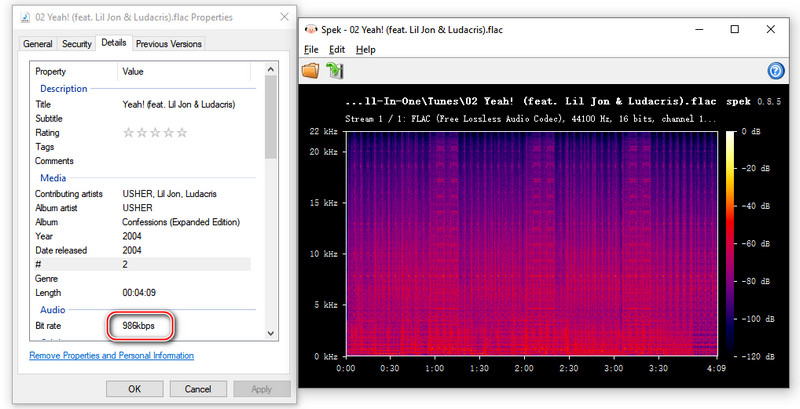
We checked MP3 bitrate and file information with MediaInfo, examined audio frequency response with Spek, and checked whether metadata such as the title, artist, album artwork, and genre was preserved.
All tests were conducted on a Mac mini (2023, Apple M2, 8 GB RAM) running macOS Golden Gate 27.0.1 in October 2026.
1. Sidify – Best Overall MP3 Downloader for Mac
Website: https://www.sidify.com/all-in-one-mac.html
Best For: Downloading streaming music to MP3
Sidify All-In-One Music Converter is our overall pick for Mac users who want to download streaming music to MP3 from multiple services in one desktop app. It's especially suited to users who regularly save full albums, playlists, or larger music libraries.
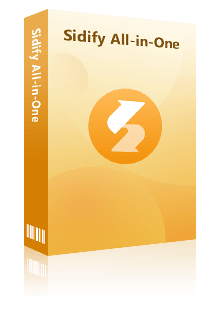
Sidify All MP3 Downloader App for Mac
- Supports music downloads from Spotify, Apple Music, Amazon Music, TIDAL, YouTube Music, and other supported platforms.
- Converts music to MP3 at up to 320 kbps, with conversion speeds of up to 10X.
- Batch downloads songs, albums, playlists, podcasts, and audiobooks.
- Preserves ID3 tags, album artwork, playlist order, and lyrics when available.
- Includes additional tools for free downloading podcasts and radio to MP3, plus a built-in vocal remover.
- Simple, beginner-friendly interface
- Supports multiple major streaming services in one app
- Downloads entire playlists to MP3 in one go, with fast batch conversion.
- Customizable output settings and file organization.
- No ads, no pop-ups, no redirects.
- Preserves ID3 tags and supports both Intel and Apple Silicon Macs
- Offers software updates and customer support
- Free trial converts only the first minute of each song
How to Download MP3 from Any Music Site on Mac?
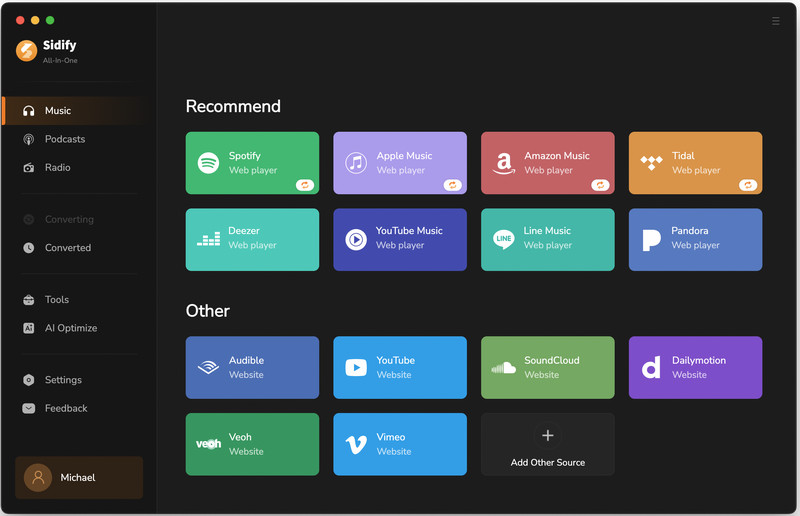
Step 1 Select a Music Platform
Download and launch Sidify All-In-One Music Converter for Mac. Select the music platform you want to download from, such as Spotify, Apple Music, or YouTube Music. Here, we'll use Spotify as an example.
Step 2 Choose MP3 as the Output Format
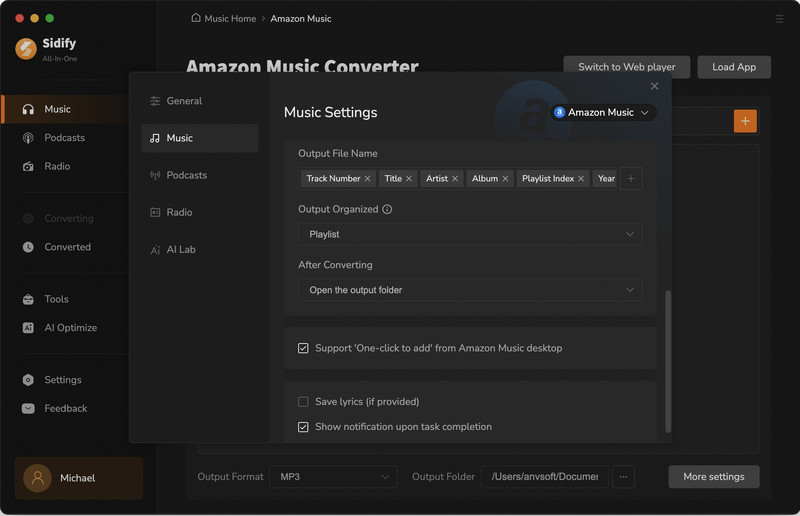
Open Settings, select MP3 as the output format, and choose your preferred audio quality (128–320 kbps). You can also customize the output folder and file organization.
Step 3 Add Songs or Playlists
Browse Spotify in Sidify, select a song, album, or playlist, and add the tracks you want to download to the conversion list.

Step 4 Download MP3 Music to Mac
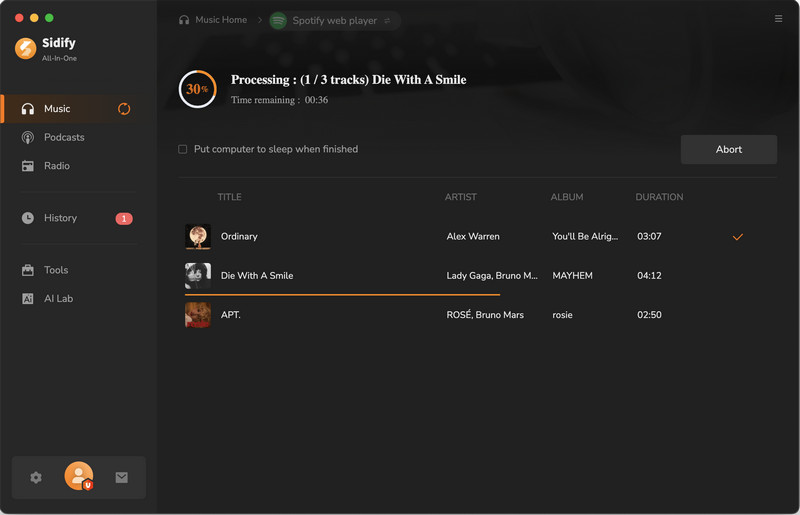
Click Convert to start downloading the selected songs as MP3 files. Sidify will process the tracks and save them to your chosen output folder.
Step 5 Find Downloaded MP3 Files
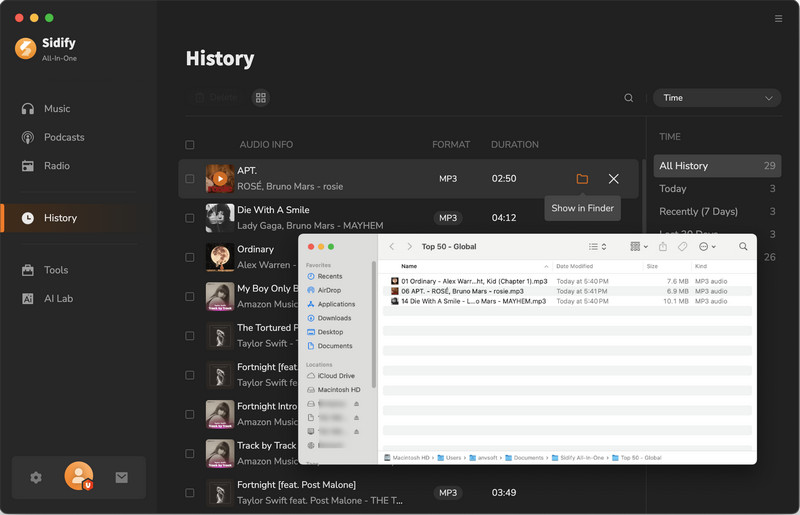
Once the conversion is complete, open History and click the folder icon to locate your downloaded MP3 songs on your Mac.
Our Sidify Test Results (October 2026)
Sidify delivered fast batch conversions, 320 kbps MP3 output, and well-preserved song metadata in the reported tests.
| Test Item | Result |
|---|---|
| Download Speed | 50 Spotify tracks in ~5 minutes (40×); 50 YouTube tracks in ~20 minutes (10×). |
| Audio Quality | MP3 output up to 320 kbps, with high-frequency content extending toward 22 kHz in the spectrum analysis. |
| Metadata Preservation | ID3 tags retained, including title, artist, album, cover art, and genre. |
| Batch Downloads | Successful in reported tests |
2. Downie – Best MP3 Downloader for a Native Mac Experience
Website: https://software.charliemonroe.net/downie/
Best For: Mac users who prefer a native desktop experience
Downie is our pick for Mac users who want to download audio from YouTube, Vimeo, and other supported websites without using Terminal. We like its clean macOS interface, browser extensions, and convenient Finder integration.
What sets Downie apart from basic video-to-MP3 converters is its User-Guided Extraction feature. When a website isn't directly supported, its built-in browser can help with media extraction.
| Feature | Details |
|---|---|
| Type | Mac Desktop app |
| Music Sources | YouTube, Vimeo, SoundCloud, Dailymotion, Facebook, Instagram, TikTok, Bilibili, Youku, and 1,000+ other websites. |
| MP3 Quality | Up to 320 kbps output (tested output) |
| Batch Downloads | ✅ Multiple URLs & concurrent downloads |
| Free Version | 14-day full-feature trial; no stated daily download limit |
| Pricing | $19.99 (one-time) |
| macOS | macOS 13+ |
| Apple Silicon | ✅ M1–M-series and Intel Macs |
- Clean, beginner-friendly Mac interface
- Browser extensions for supported browsers
- Multiple URLs and concurrent downloads
- Convenient Finder integration
- Paid license required after the trial
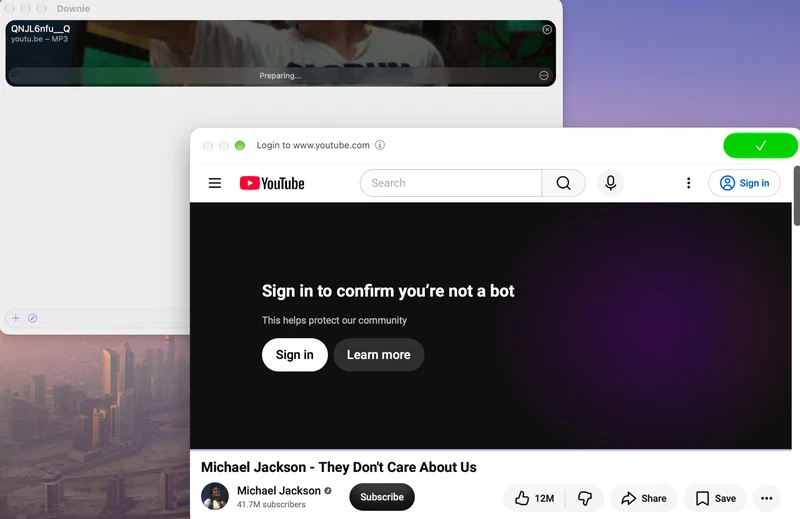
- Some YouTube downloads may require sign-in verification
- Not designed for direct Spotify or Apple Music downloads
- Output quality depends on the source audio
How to Download MP3s on Mac with Downie
Step 1 Download and open Downie on your Mac.
Step 2 Open Downie's settings, enable audio-only postprocessing, and select MP3 as the output format.
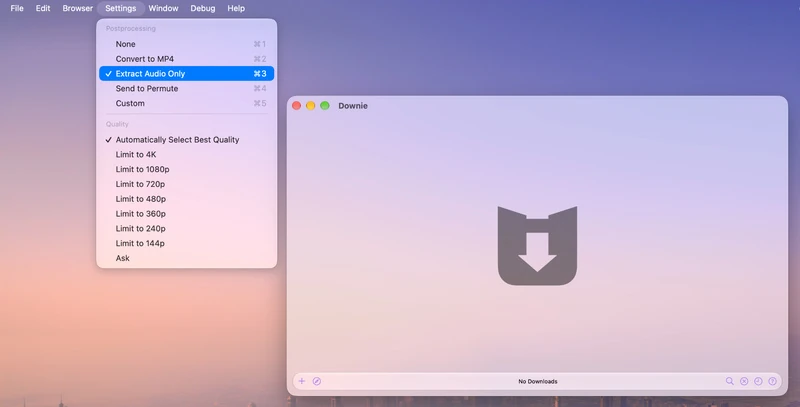
Step 3 Copy a video URL from YouTube or another supported website.
Step 4 Paste or drag the URL into Downie. Add more URLs if you want to download multiple files.
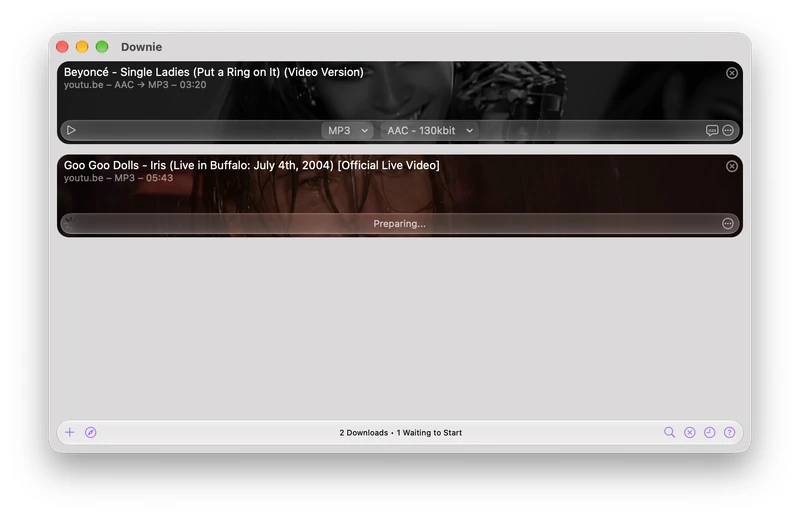
Step 5 Wait for the download to finish, then click Reveal in Finder to locate the MP3 file.
Our Downie Test Results (October 2026)
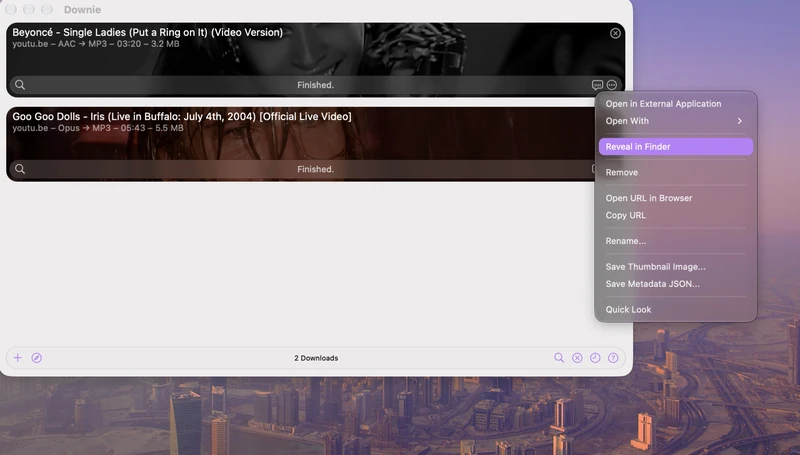
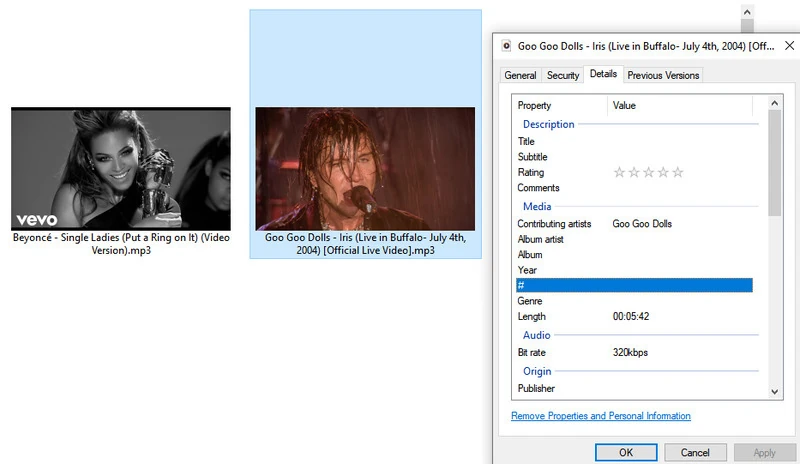
Downie successfully downloaded both tested YouTube videos as playable MP3 files. Both output files were encoded at 320 kbps, although we also encountered a YouTube sign-in verification prompt.
| Test Item | Result |
|---|---|
| MP3 Bitrate | 320 kbps CBR |
| Sample Rate | 44.1 kHz and 48 kHz |
| Metadata | Embedded artwork detected; complete ID3 preservation not confirmed |
| Issues Encountered | YouTube sign-in verification prompt |
3. PullTube – Best Downie Alternative for Mac
Website: https://setapp.com/apps/pulltube
Best For: Mac users who want to trim videos or audio before downloading
PullTube is a good Downie alternative for Mac if you want to trim audio or video before downloading. Its built-in trimming tool lets you select part of a video or audio track before downloading, while MP3, M4A, playlist, and multi-URL support make it useful for everyday media downloads on Mac.
Quick Facts
| Feature | Details |
|---|---|
| Type | Mac desktop app |
| Music Sources | YouTube, Vimeo, SoundCloud, TikTok, Twitch, Facebook, Instagram, Bilibili, and 1,000+ websites |
| MP3 Quality | 128 kbps in our test |
| Batch Downloads | Multiple URLs and playlist support |
| Free Version / Limits | 7-day free trial |
| Pricing | $19.99 (one-time) |
| macOS | macOS 11+ |
| Apple Silicon | Supports Apple Silicon and Intel Macs |
- Built-in video and audio trimming
- Extracts audio as MP3 or M4A
- Supports playlists and multiple downloads
- Browser extensions and drag-and-drop input
- Paid software after the trial
- Website compatibility can vary
- Not designed for direct Spotify or Apple Music downloads
- Some advanced features may require extra setup
How to Download MP3s on Mac with PullTube
Step 1 Download and open PullTube on your Mac.
Step 2 Copy the URL of a video from YouTube or another supported website.
Step 3 Paste or drag the link into PullTube.
Step 4 Select the audio-only option and choose MP3 as the output format.
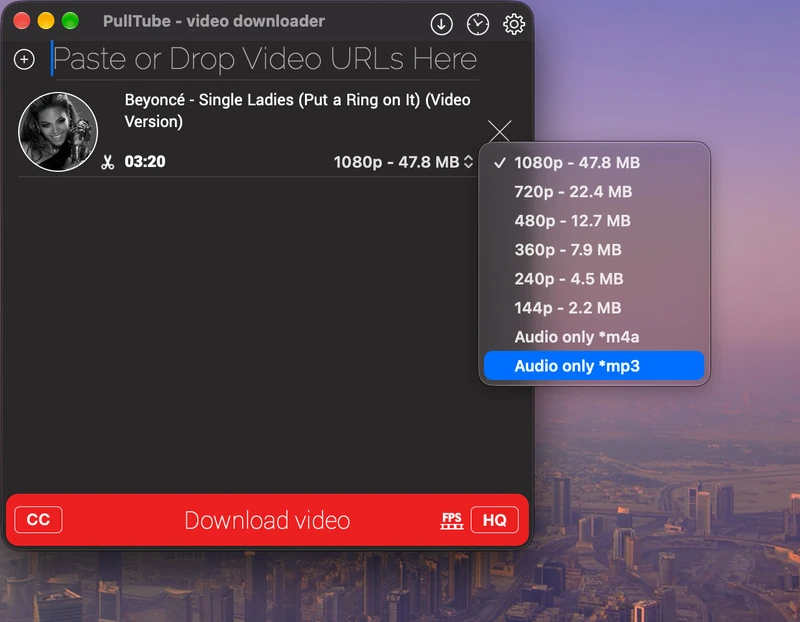
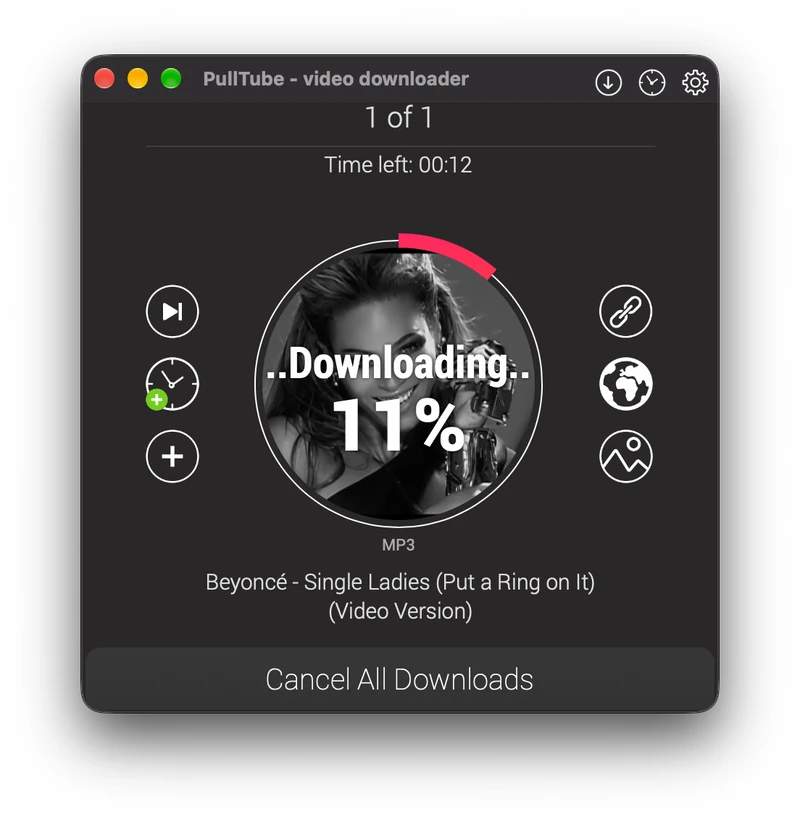
Step 5 If you only need part of the audio, use the trimming tool to select the desired segment. Start the download and locate the saved file when it finishes.
Our PullTube Test Results (October 2026)
PullTube successfully downloaded our test YouTube video as a 128 kbps MP3. Its MP3/M4A bitrate setting was set to Keep original, so output bitrate can depend on the source.
| Test Item | Result |
|---|---|
| Output Format | MP3 |
| Bitrate | 128 kbps |
| Sample Rate | 44.1 kHz |
| Metadata | Title, artist, and embedded artwork detected |
| Issues Encountered | No download failure recorded in the supplied screenshots |
4. ClipGrab – Best Free MP3 Downloader for Mac
Website: https://clipgrab.org/
Best For: Mac users who want a free and simple YouTube to MP3 downloader
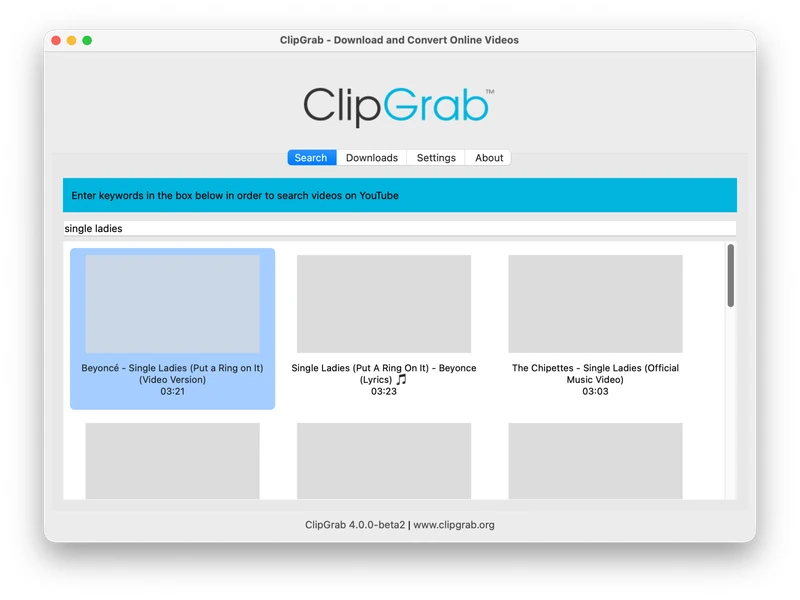
ClipGrab is a free, open-source MP3 downloader for Mac that can download and convert videos from YouTube, Vimeo, Facebook, Dailymotion, and other sites. It also includes a built-in YouTube search, so you can find a video without first opening your browser.
Quick Facts
| Feature | Details |
|---|---|
| Type | Free desktop app |
| Music Sources | YouTube, Vimeo, Facebook, Dailymotion, and other sites |
| MP3 Quality | 256 kbps in our test |
| Batch Downloads | No playlist support verified in our tested build |
| Free Version / Limits | Free |
| Pricing | Free |
| macOS | macOS 10.12+ |
| Apple Silicon | Supports M1 Macs; native Apple Silicon support is still being developed |
| Tested Version | ClipGrab 4.0.0-beta2 |
- Free and open source
- Built-in YouTube search
- Simple MP3 conversion
- No batch or playlist downloads in the tested version
- MP3 metadata was limited in our test
- Downloads yt-dlp separately during setup
- Interface feels dated
How to Download MP3s on Mac with ClipGrab
Step 1 Download and open ClipGrab on your Mac.
Step 2 Paste a YouTube video URL into the Downloads tab, or use the built-in search.
Step 3 Select MP3 (audio only) as the output format.
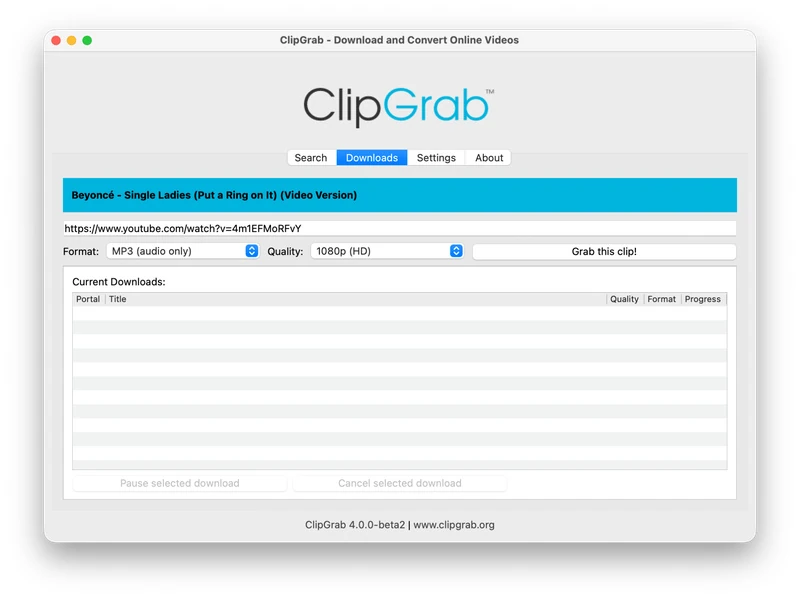
Step 4 Choose the available quality and click Grab this clip!
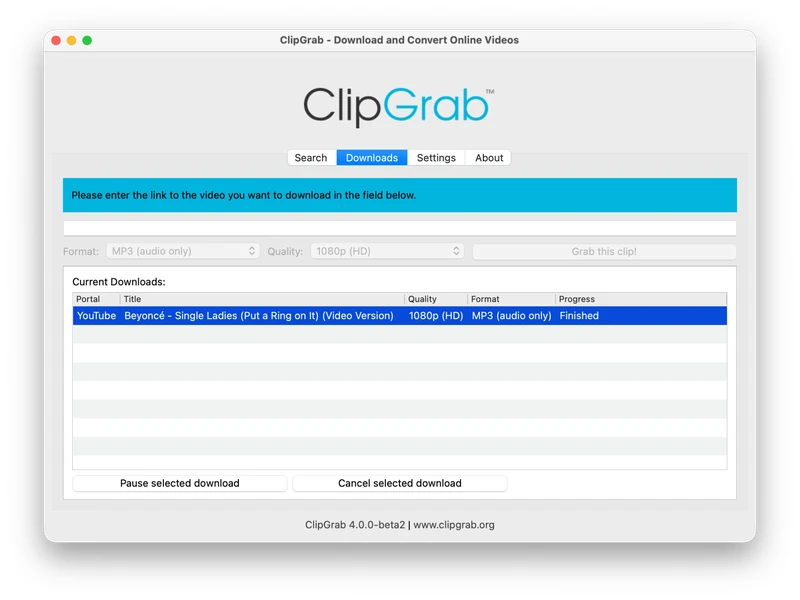
Step 5 Select where to save the file and wait for the download to finish.
Our ClipGrab Test Results (October 2026)
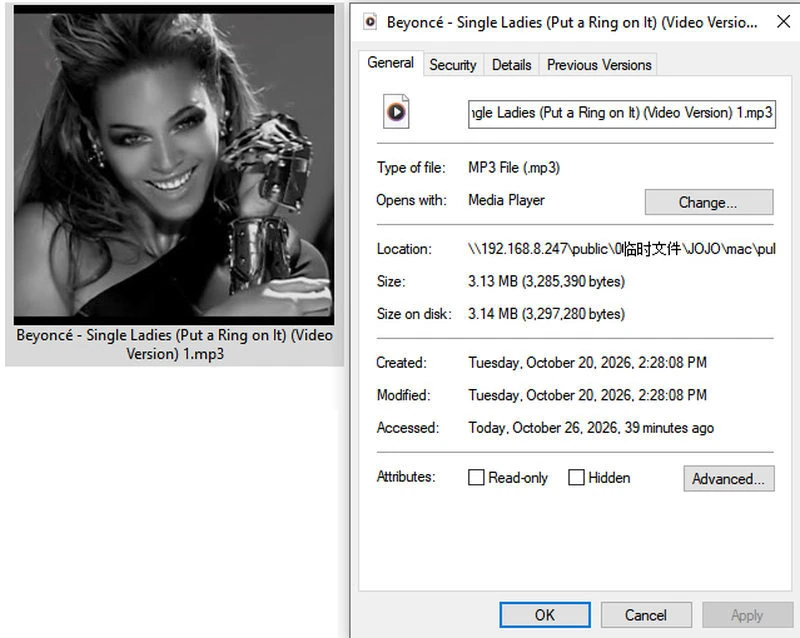
ClipGrab successfully downloaded our YouTube test track as an MP3. The finished file was a 256 kbps stereo MP3 at 44.1 kHz, although we did not detect embedded title, artist, or artwork metadata.
| Test Item | Result |
|---|---|
| Test Version | ClipGrab 4.0.0-beta2 |
| Output Format | MP3 |
| Bitrate | 256 kbps |
| Sample Rate | 44.1 kHz |
| Channels | Stereo |
| Metadata | No title, artist, or artwork tags detected |
| Download Result | Successful |
| Issues Encountered | yt-dlp had to be downloaded during setup |
5. MP3ify – Best Online MP3 Downloader for Mac
Website: https://www.mp3ify.io/
Best For: Mac users who want to convert online videos to MP3 without installing software
MP3ify is an online MP3 downloader for Mac that lets you search for videos or paste a URL and convert supported content directly in your browser. With no desktop app to install, it's best suited to Mac users who only need occasional MP3 downloads.
Quick Facts
| Feature | Details |
|---|---|
| Type | Online MP3 / MP4 converter |
| Music Sources | Supported online videos; |
| Output Format | 64-128kbps MP3 for Free/up to 320kbps for Premium |
| Installation | Not required |
| Batch Downloads | No |
| Free Version / Limits | 2 conversions/day, videos up to 120 minutes. |
| Pricing | $9.99/month/$59.95/year |
| macOS | Browser-based; no dedicated Mac app required |
- No software installation required
- Video search and conversion in one interface
- Supports MP3 and MP4 output options
- Straightforward download workflow
- Works through a Mac browser
- Higher bitrate options require an upgrade
- Limited daily conversions
- Embedded metadata was missing from our test files
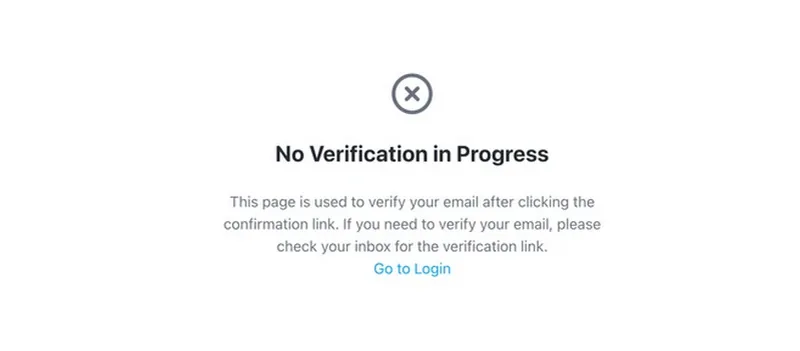
- Email verification initially returned an expired OTP error
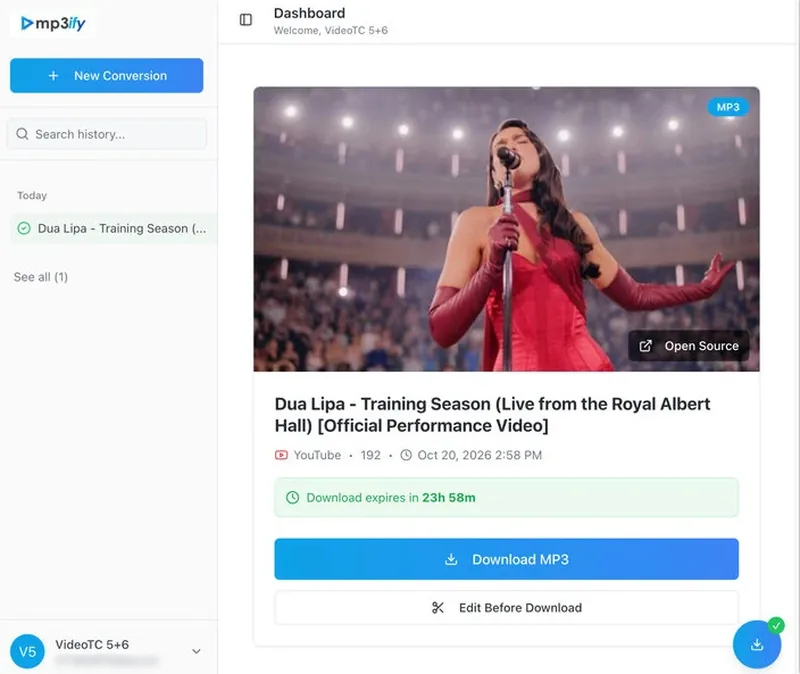
- Download availability may be time-limited
How to Download MP3s on Mac with MP3ify
Step 1 Open MP3ify in your browser.
Step 2 Search for a supported video or paste its URL into the search field.
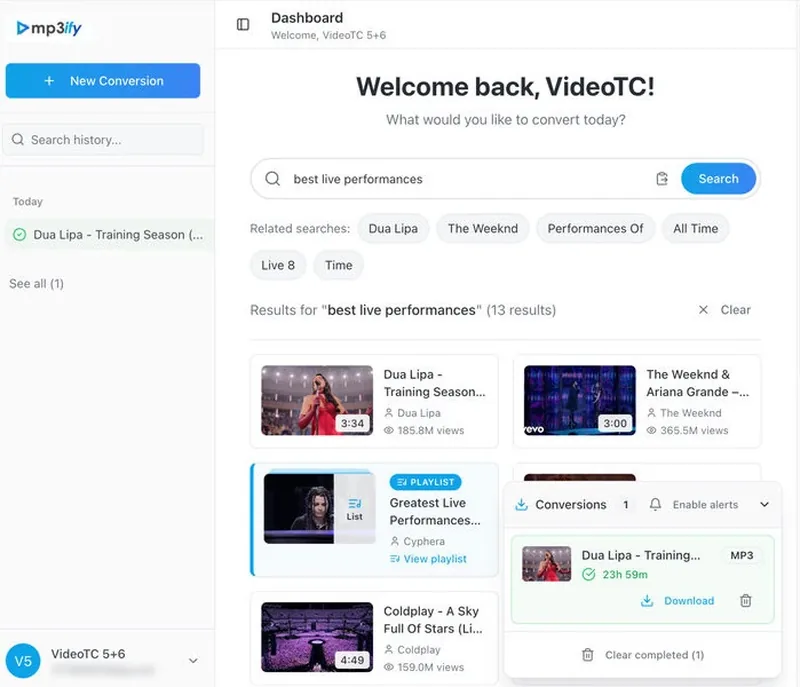
Step 3 Select the video and choose Audio (MP3).
Step 4 Select an available bitrate. In our test, 192 kbps was selectable, while 256 and 320 kbps required an upgrade.
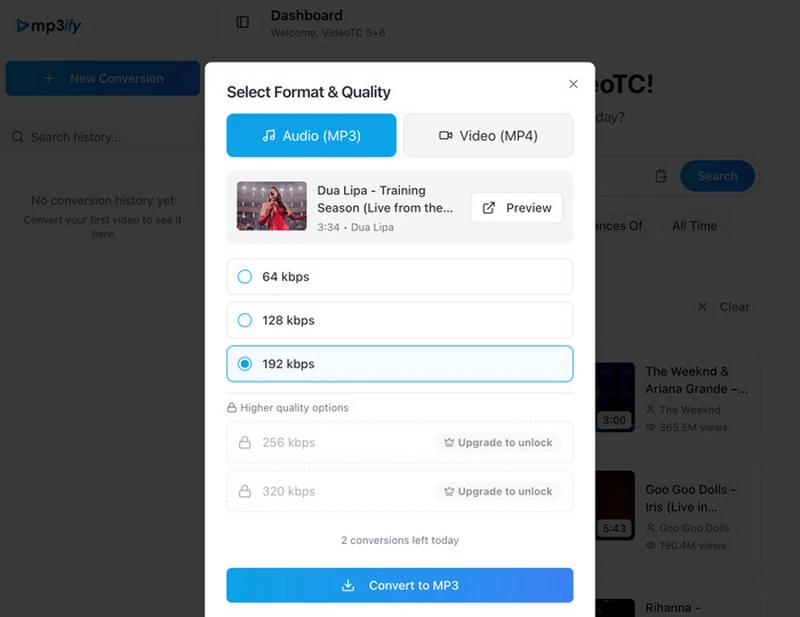
Step 5 Click Convert to MP3 and wait for the conversion to finish.
Step 6 Open the completed conversion and click Download MP3. Check the saved file in your Mac's Downloads folder and verify its audio properties.
Our MP3ify Test Results (October 2026)
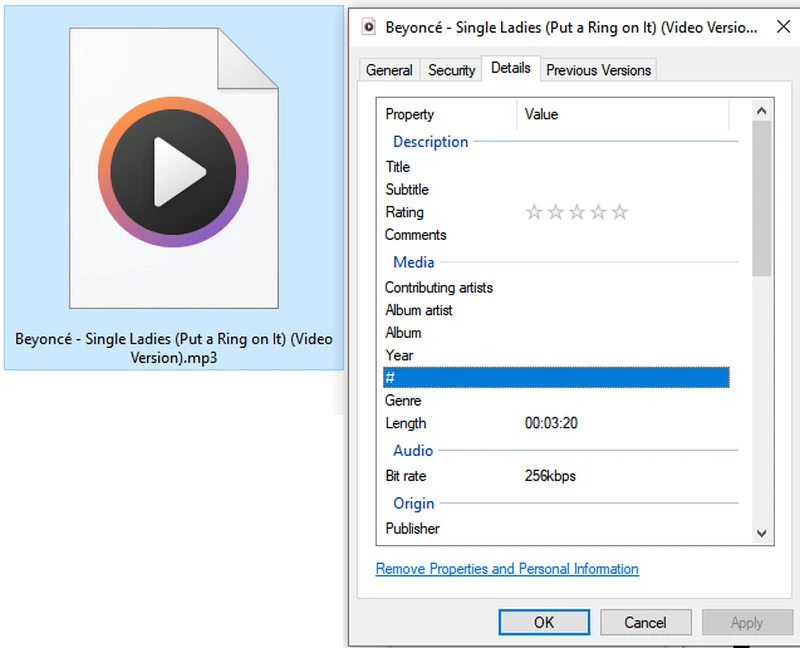
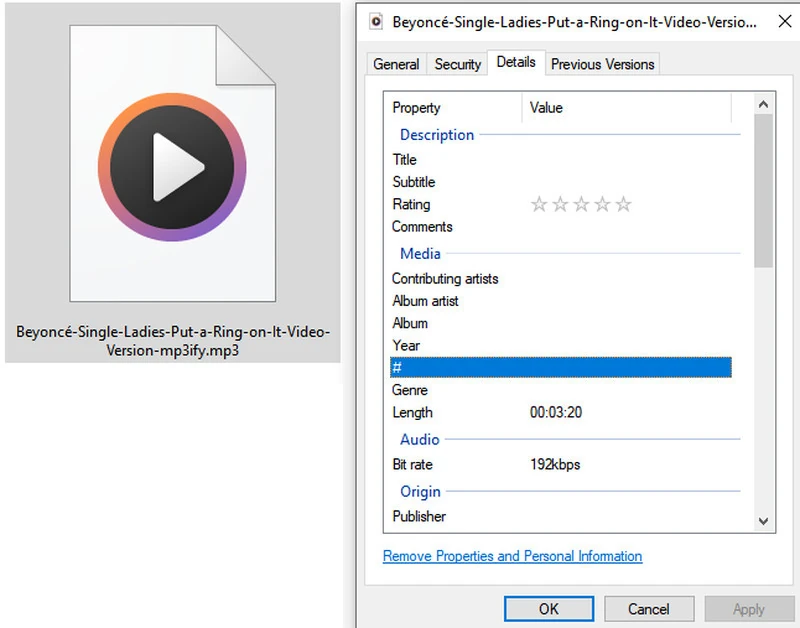
MP3ify successfully converted both supplied YouTube test samples to MP3. Both downloaded files were stereo MP3 audio at 192 kbps, but neither contained embedded title, artist, or artwork tags.
| Test Item | Result |
|---|---|
| Output Format | MP3 |
| Bitrate | 192 kbps |
| Sample Rate | 44.1 kHz and 48 kHz, respectively |
| Metadata | No embedded title, artist, or artwork tags detected |
| Issues Encountered | Initial email verification showed an expired OTP error; both supplied MP3 files were readable |
 Want a More Stable Desktop MP3 Downloader for Mac?
For regular downloads, full playlists, and music from multiple streaming platforms, try Sidify All-in-One Music Converter for Mac. It supports batch conversion to MP3, output quality up to 320 kbps, and metadata preservation without relying on a browser-based converter.
Explore practical ways and tested tools for downloading music from YouTube to a Mac, including desktop apps, free online tools, and command-line options.
Learn More →6. yt-dlp – Best Free Open-Source MP3 Downloader for Advanced Mac Users
Website: https://github.com/yt-dlp/yt-dlp
Best For: Mac users who want a free, customizable MP3 downloader and don't mind using Terminal
yt-dlp is a powerful free MP3 downloader for Mac that gives you more control than most browser-based tools. It supports thousands of websites and lets you customize audio extraction, output quality, filenames, and metadata. The trade-off is usability. You'll need Terminal, and FFmpeg is required when you want yt-dlp to convert downloaded audio into MP3.
Quick Facts
| Feature | Details |
|---|---|
| Type | Free, open-source command-line tool |
| Music Sources | YouTube and thousands of supported websites |
| MP3 Quality | Adjustable VBR quality or fixed bitrates such as 128, 192, or 320 kbps |
| Batch Downloads | Supports multiple URLs and playlists |
| Free Version / Limits | Free; no built-in daily conversion quota |
| Pricing | Free |
| macOS | macOS 10.15+ (standalone build) |
- Free and open-source
- Supports thousands of websites
- Customizable audio quality and output settings
- Supports playlists and multiple URLs
- Can embed metadata and thumbnails when supported
- Requires Terminal commands
- FFmpeg is needed for MP3 conversion
- Website changes can temporarily break downloads
- Troubleshooting can be difficult for beginners
- Initial setup takes more effort than an online tool
How to Download MP3s on Mac with yt-dlp
Step 1 Install Homebrew if you don't already have it. Open Terminal and install yt-dlp and FFmpeg:
brew install yt-dlp ffmpegStep 2 Copy the URL of a video you have permission to download.
Step 3 Run the following command, replacing the example URL with your own:
yt-dlp -x --audio-format mp3 --audio-quality 192K "VIDEO_URL"This extracts the audio and converts it to MP3 at a target quality of 192 kbps. The final encoding and available source quality can affect the resulting audio; conversion cannot restore quality that is missing from the original.
Step 4 Wait for the command to finish. By default, yt-dlp saves the resulting file in the current working directory, unless you configure a different output path.
Step 5 Open the MP3 in your preferred audio player and check its duration, bitrate, and playback quality.
Optional: If you want to embed available metadata and artwork, try:
yt-dlp -x --audio-format mp3 --audio-quality 192K --embed-metadata --embed-thumbnail "VIDEO_URL"Metadata and thumbnail embedding depend on the source information and available post-processing support. Check the resulting file rather than assuming every tag was added successfully.
Our yt-dlp Test Results (October 2026)
yt-dlp successfully downloaded our YouTube test samples and handled the 10-video playlist without issues. In our test, parsing took about 5 seconds, an individual download took about 14 seconds, and the 10-video batch finished in 147 seconds. It also supports metadata and cover art.
| Test Item | Result |
|---|---|
| Output Format | Original audio; MP3 and other formats available with FFmpeg |
| Download Speed | About 14 seconds |
| Batch / Playlist | 10 videos completed in 147 seconds |
| Metadata | Metadata and cover art supported |
| Issues Encountered | Requires command-line setup; FFmpeg needed for MP3 conversion |
7. Stacher – Best yt-dlp GUI for Mac
Website: https://stacher.io/
Best For: Mac users who want a graphical interface for yt-dlp
Stacher gives you a graphical interface for yt-dlp, so you can paste a URL, choose audio-only downloads, and change formats without writing Terminal commands. It's a more approachable option for Mac users who want yt-dlp's capabilities without working directly in the command line.
Quick Facts
| Feature | Details |
|---|---|
| Type | Desktop GUI for yt-dlp |
| Music Sources | YouTube and other sites supported by yt-dlp |
| Audio Options | Audio-only and Best Audio options |
| Batch / Playlist | Supported through yt-dlp |
| Free Version / Limits | Free to use; donations supported |
| Dependencies | yt-dlp and FFmpeg |
| Tested Version | Stacher 7.1.12 |
- Easier than using yt-dlp in Terminal
- Simple URL-based interface
- Audio-only and format controls
- Access to many yt-dlp features
- Still depends on yt-dlp and FFmpeg
- FFmpeg setup failed in our Mac test
- Dependency errors can stop audio processing
- Troubleshooting may still require technical knowledge
How to Download MP3s on Mac with Stacher
Step 1 Install and open Stacher on your Mac.
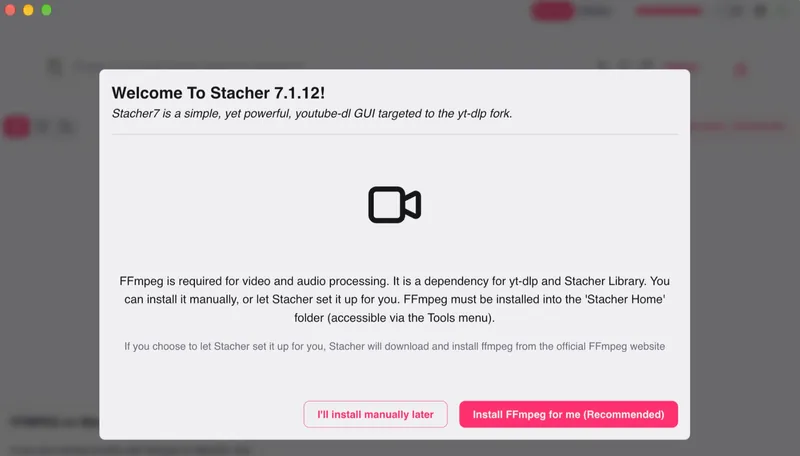
Step 2 Let Stacher install yt-dlp and FFmpeg when prompted.
Step 3 Paste the URL of the video you want to download.
Step 4 Enable Download Audio Only and select your preferred audio format.
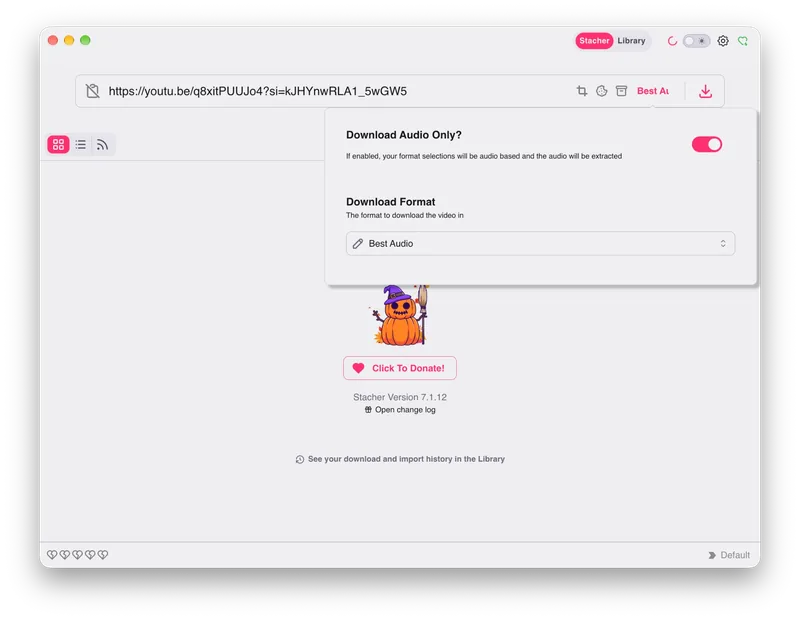
Step 5 Start the download and check the output in your Downloads folder. If Stacher shows FFMPEG NOT FOUND, you may need to install or configure FFmpeg manually before audio conversion can finish.
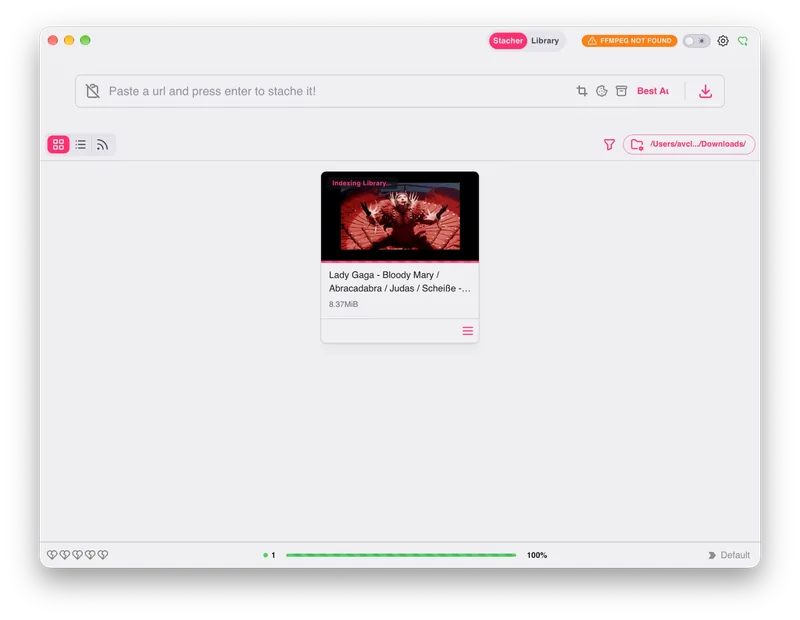
Our Stacher Test Results (October 2026)
Stacher downloaded the source audio data in our test, but it failed during post-processing because FFmpeg and ffprobe were not available. We also tried Stacher's recommended automatic FFmpeg installation, which failed with an unsupported ZIP format error. As a result, we could not verify a finished MP3.
| Test Item | Result |
|---|---|
| Tested Version | Stacher 7.1.12 |
| Source Download | Completed; 8.37 MiB WebM downloaded |
| MP3 Output | Not completed |
| Bitrate / Sample Rate | Not verified |
| Metadata | Not verified |
| Issues Encountered | FFmpeg/ffprobe not found; automatic FFmpeg installation failed |
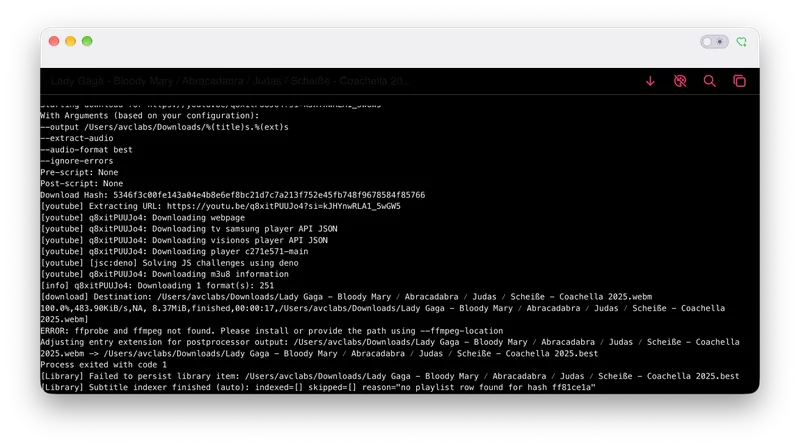
We couldn't verify MP3 quality because the FFmpeg error prevented conversion from completing.
8. 4K YouTube to MP3 – Easy-to-Use MP3 Downloader for Mac
Website: https://www.4kdownload.com/products/youtubetomp3-72
Best For: Mac users who want a simple desktop interface for video-to-MP3 downloads
4K YouTube to MP3 is a desktop downloader built around a simple paste-and-download workflow. It supports multiple audio formats and includes controls for audio quality, playlists, channels, and simultaneous downloads.
Quick Facts
| Feature | Details |
|---|---|
| Type | Mac desktop app |
| Music Sources | YouTube, SoundCloud, Facebook, Vimeo, TikTok, Twitch, Bilibili, and others shown in-app |
| Audio Formats | MP3, M4A, OGG |
| MP3 Quality | 128, 192, and 256 kbps options shown; availability depends on plan |
| Batch Downloads | Playlists, channels, and simultaneous downloads supported |
| Free Version / Limits | 5 daily downloads observed |
| Metadata | Audio-tag search option available |
- Simple paste-and-download interface
- MP3, M4A, and OGG output options
- Playlist and channel tools
- Built-in audio-tag search
- Failed to parse our YouTube test links
- Higher MP3 quality options were restricted in our unactivated version
- Free use is limited
- YouTube changes can affect link parsing
How to Download MP3s on Mac with 4K YouTube to MP3
Step 1 Install and open 4K YouTube to MP3 on your Mac.
Step 2 Open Settings and choose MP3 as the audio format.
Step 3 Select an available quality level. In our unactivated version, 128 kbps was available while higher settings were restricted.
Step 4 Copy a supported video URL and click Paste Link.
Step 5 Wait for the app to retrieve the video information and download the MP3. If you see “can't parse this link,” the download cannot proceed.
Our 4K YouTube to MP3 Test Results (October 2026)
4K YouTube to MP3 failed to parse the YouTube links we supplied during testing. The app remained at “retrieving information” before returning “can't parse this link,” so we did not receive an MP3 file to inspect.
| Test Item | Result |
|---|---|
| Download Success | Failed |
| Output Format | MP3 selected, but no file produced |
| Bitrate / Sample Rate | Not verified |
| Metadata | Not verified |
| Free Limit Observed | 5 daily downloads |
| Issues Encountered | “can't parse this link” / “check video availability” |
We couldn't verify MP3 quality because neither test link produced a completed audio file.
9. MediaHuman YouTube to MP3 – Multi-Site MP3 Downloader for Mac
Website: https://www.mediahuman.com/youtube-to-mp3/32/
Best For: Mac users who want one MP3 downloader for YouTube, SoundCloud, Bandcamp, and other music sites
MediaHuman YouTube to MP3 stands out for source variety. Its Mac app lists YouTube, SoundCloud, Bandcamp, Mixcloud, TikTok, Twitch, Apple Podcasts, and many other supported services. We also like that it combines link pasting, download tracking, and TurboBoost in a fairly simple desktop interface.
Quick Facts
| Feature | Details |
|---|---|
| Type | Mac desktop app |
| Music Sources | YouTube, SoundCloud, Bandcamp, Mixcloud, TikTok, Twitch, Vimeo, and more |
| MP3 Quality | Up to 320 kbps advertised |
| Batch Downloads | Playlist and simultaneous download support |
| Metadata | Tag and cover-art features available |
| Free Version / Limits | Free version available; paid activation offered |
| macOS | Apple Silicon and Intel versions available |
| Tested Version | 3.9.24 |
- Supports many music and video sites
- Dedicated Apple Silicon build
- Playlist and batch features
- Metadata and cover-art tools
- Multiple source-retrieval errors in our test
- We couldn't produce an MP3 for quality testing
- Website changes can interrupt downloads
- Error messages may require troubleshooting
How to Download MP3s on Mac with MediaHuman
Step 1 Install MediaHuman YouTube to MP3 for your Mac.
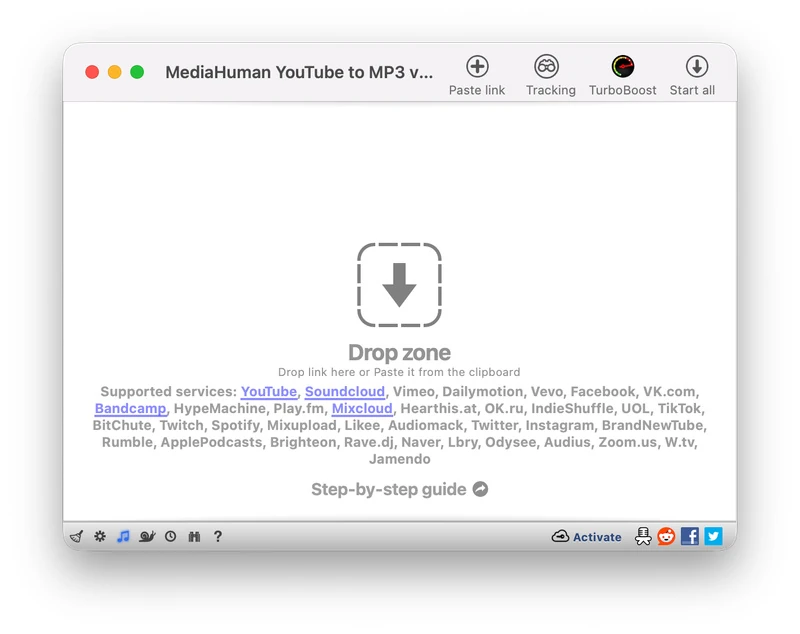
Step 2 Copy a track or video URL from a supported site.
Step 3 Click Paste link or drag the link into the app.
Step 4 Choose your MP3 and quality preferences, then start the download.
Step 5 Check the completed file and its metadata. If MediaHuman cannot retrieve the source information, retrying or updating the app may be necessary.
Our MediaHuman Test Results (October 2026)
We tested MediaHuman 3.9.24 but couldn't complete the supplied downloads. YouTube returned video-information and connection errors, while our SoundCloud attempt returned a source-information error.
| Test Item | Result |
|---|---|
| Tested Version | 3.9.24 |
| YouTube | Failed in our test |
| SoundCloud | Failed in our test |
| Output MP3 | Not produced |
| Bitrate / Sample Rate | Not verified |
| Metadata | Not verified |
| Issues Encountered | “Failed to get video information,” “Failed to get information,” connection refused, and iframe API error |
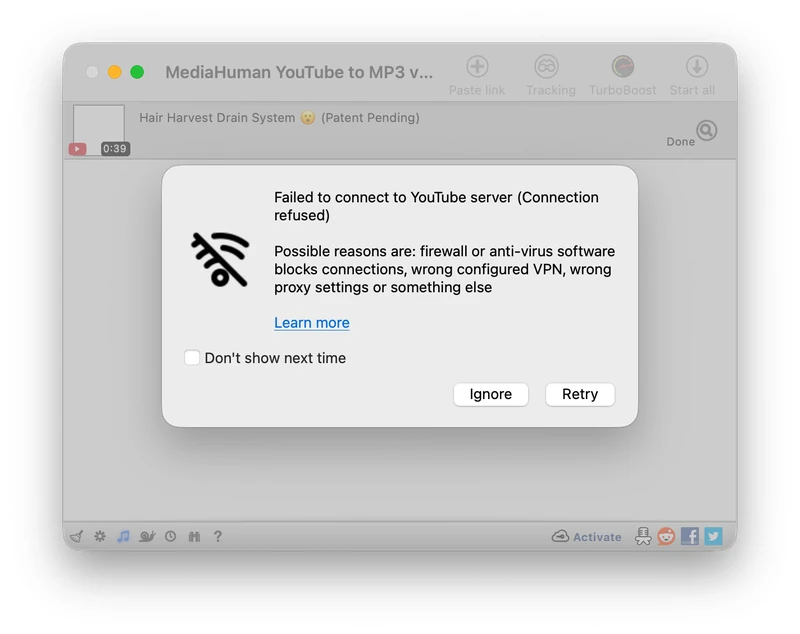
We couldn't verify MP3 quality because none of our test sources produced a completed audio file.
10. Jamendo – Best for Free & Legal Music Downloads on Mac
Website: https://www.jamendo.com/start
Best For: Mac users who want free music that artists have made available for legal download
Jamendo is different from the other MP3 downloaders we tested. Instead of extracting audio from YouTube or other sites, you download music directly from independent artists who distribute their work under Creative Commons licenses.
This makes it useful if your priority is finding music that artists have explicitly made available for download rather than converting online videos.
Quick Facts
| Feature | Details |
|---|---|
| Type | Online music platform |
| Music Source | Jamendo's independent music catalog |
| MP3 Quality | 192 kbps in our test |
| Batch Downloads | Not verified |
| Free Version / Limits | Free downloads where enabled |
| Account Required | Yes for downloads |
| Installation | None; works in your browser |
| License | Varies by track; check the Creative Commons terms |
- Free MP3 downloads for eligible tracks
- 192 kbps MP3 in our test
- Excellent embedded metadata
- Clear Creative Commons licensing
- Requires an account to download
- Not a YouTube-to-MP3 downloader
- Download availability varies by track
- Commercial use may require a separate license
How to Download MP3 Music on Mac with Jamendo
Step 1 Open Jamendo Music in your browser.
Step 2 Find a track with the download icon.
Step 3 Click Download and log in or create an account when prompted.
Step 4 Choose Free Download for Personal Use – MP3 Quality.
Step 5 Save the MP3 to your Mac and check the track's Creative Commons license before using it elsewhere.
Our Jamendo Test Results (October 2026)
We successfully downloaded “Broken Heart” by Kirill Kharchenko as a playable MP3. The file was 192 kbps at 44.1 kHz and included detailed metadata and embedded artwork.
| Test Item | Result |
|---|---|
| Track Tested | Broken Heart – Kirill Kharchenko |
| Download Result | Successful |
| Output Format | MP3 |
| Bitrate | 192 kbps |
| Sample Rate | 44.1 kHz |
| Channels | Stereo |
| Metadata | Title, artist, composer, genre, publisher, license, and artwork |
| Account Required | Yes |
| Issues Encountered | Login required before downloading |
MP3 Downloaders for Mac We Don’t Recommend
We also checked several popular MP3 download sites that we wouldn't recommend because of failed downloads, intrusive ads, or redirects.
| Downloader | Why We Don’t Recommend It |
|---|---|
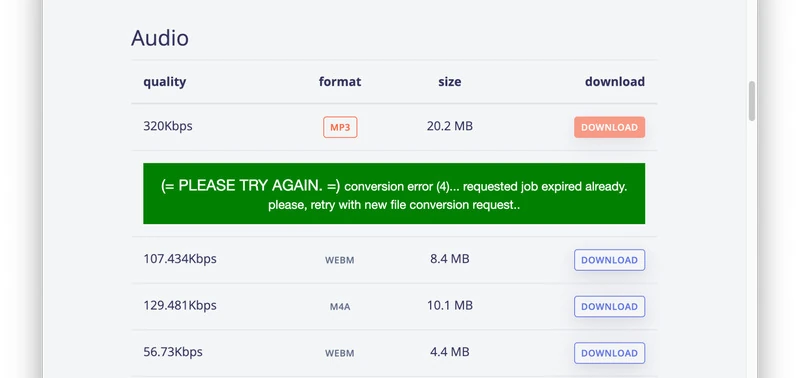
| KeepVid | It showed a 320 kbps MP3 option, but our test ended with a conversion error and a third-party redirect. |
| Y2Mate | Popular, but users frequently report aggressive ads, pop-ups, and redirects. |
| SaveFrom.net | Users have reported intrusive pop-ups and unwanted browser-helper behavior. |
| YT1s | Too many similarly named sites and user complaints about ads and redirects make it difficult to recommend confidently. |
Our Take: KeepVid actually reached the conversion stage in our test, but the failed download and redirect were enough for us to leave it out of the top 10. For ad-heavy online converters such as Y2Mate, SaveFrom.net, and YT1s, we'd choose a cleaner alternative instead.
How to Choose an MP3 Downloader for Mac
The best MP3 downloader depends on what you want to download and how much setup you're comfortable with. Based on our tests, we recommend checking these five things:
Music source: Choose a downloader that supports the streaming service or website you actually use.
MP3 quality: 192–320 kbps is common, but a higher output bitrate cannot improve a low-quality source.
Batch and playlist downloads: If you regularly save albums or playlists, look for tools that can process multiple tracks at once.
Free limits: Some tools are completely free, while others limit track length, daily downloads, output quality, or trial duration.
Download experience: Avoid tools with frequent failures, pop-ups, fake download buttons, or redirects.
Use the comparison table above to see how each downloader performs across these five areas.
Are Free MP3 Downloaders for Mac Safe?
Some are safe to use, but free MP3 downloaders vary widely. The biggest warning signs are fake download buttons, excessive pop-ups, redirects, unexpected browser extensions, and downloads you didn't request.
To reduce risk:
Download Mac apps from the official website.
Avoid sites that open multiple ads or redirect you after clicking Download.
Don't install unknown extensions or extra software just to download an MP3.
Keep macOS and your browser updated.
In our tests, we preferred tools with a clear download flow and no aggressive redirects. This was one reason we ranked desktop tools such as Sidify higher than ad-heavy online converters.
FAQs About MP3 Downloaders for Mac
1. How can I download MP3 music to my Mac for free?
Use a free tool such as ClipGrab or yt-dlp, add a supported URL, choose MP3 as the output format, and download the file to your Mac. For freely downloadable music, Jamendo is another option.
2. Can I download MP3s on Mac for offline listening?
Yes. A downloaded MP3 is a local file that you can play offline. This is different from offline downloads inside streaming apps, which are usually stored as app-managed files rather than standard MP3s.
3. Can I use an MP3 downloader on a MacBook Air or MacBook Pro?
Yes. The downloaders in this guide can work on compatible MacBook Air and MacBook Pro models, but check the tool's macOS and Apple Silicon requirements before installing it.
4. Where are downloaded MP3 files saved on Mac?
Most browser downloads go to the Downloads folder by default. Desktop MP3 downloaders may let you choose a custom output folder. You can locate downloaded files using Finder.
5. Is there a built-in MP3 downloader on Mac?
No. macOS doesn't include a general-purpose MP3 downloader for downloading music from websites or streaming services. You'll need a compatible third-party tool for that purpose.
Conclusion
Here is our list of the best MP3 downloaders for Mac in 2026. Each tool has its own strengths, and which one to choose depends on where you download music from, whether you need batch downloads, and how much control you want over MP3 output.
Our go-to choice is Sidify. It supports major music streaming services, batch downloads, up to 320 kbps MP3 output, and metadata preservation, making it a well-rounded option for most Mac users. Still, we recommend comparing the tools above and choosing the MP3 downloader that best fits your needs.
 Note:
Note:Sidify works for both Spotify Premium and free users. The trial version of Sidify Music Converter enables you to convert the first minute of each audio file for sample testing. You can purchase the full version to unlock the time limitation.