You found the perfect remix on SoundCloud and want to use it in your next DJ set. But how do you get it into Rekordbox? You need to connect your SoundCloud account first, and the subscription you choose determines whether you can stream tracks online or save them for offline playback.
In this complete guide, we will show you how to connect SoundCloud to Rekordbox 7, compare SoundCloud Go+ and SoundCloud DJ, explain how to download your favorite SoundCloud tracks as MP3 to Rekordbox, and walk you through your options for using local music files with a USB drive.
📍 Also Read: 7 Best SoundCloud Alternatives in 2026
Can You Add SoundCloud to Rekordbox?
Yes. Rekordbox officially supports SoundCloud integration, allowing you to browse your SoundCloud library and load tracks directly into its decks without downloading them as separate audio files. However, SoundCloud integration does not work like importing regular local music files. Streaming tracks cannot be exported directly to a USB drive or SD card, and offline playback is only available with SoundCloud DJ.
Before adding SoundCloud to Rekordbox, you need to check a few things.
- Use Performance mode. SoundCloud is available in Performance mode, not Export mode.
- Choose a compatible subscription. SoundCloud Go+ and SoundCloud DJ both let you access the full catalog in Rekordbox. Go+ supports online streaming, while SoundCloud DJ also allows offline playback. SoundCloud Go+ V.S. SoundCloud DJ >>>
- Update Rekordbox. Make sure you're using the latest version of Rekordbox.
Whether you want to stream SoundCloud tracks directly in Rekordbox, import free music that artists make available for download, or download any SoundCloud tracks as MP3 for Rekordbox, we will cover all three options below.
| Method | Subscription Required | Offline Playback | USB Export | Best For |
|---|---|---|---|---|
| SoundCloud Integration | Go+ or DJ | Only with SoundCloud DJ | No | Streaming SoundCloud tracks directly in Rekordbox |
| Artist-Provided Downloads | No | Yes | Yes | Downloading individual free tracks |
| Sidify SoundCloud Music Converter | Free Trial / Paid | Yes | Yes | Batch downloading all tracks in multiple formats (MP3, AAC, WAV, FLAC, AIFF and ALAC) |
Method 1. Connect SoundCloud to Rekordbox Directly
Connecting SoundCloud directly to Rekordbox is the official way to stream tracks from your SoundCloud library. Once connected, you can browse playlists and search for tracks. Here we have a detailed step-by-step guide.
Step 1 Update Rekordbox. Open Rekordbox and check for updates, or download the latest installer Rekordbox ver. 7.2.19. from the official Rekordbox website.
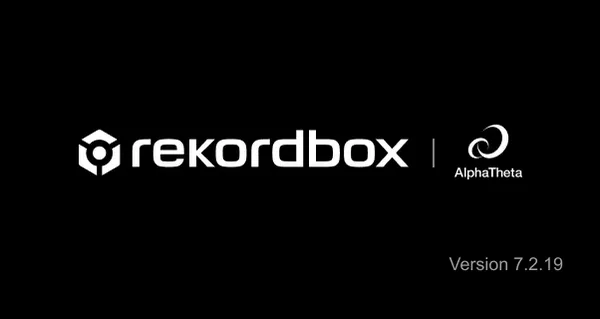
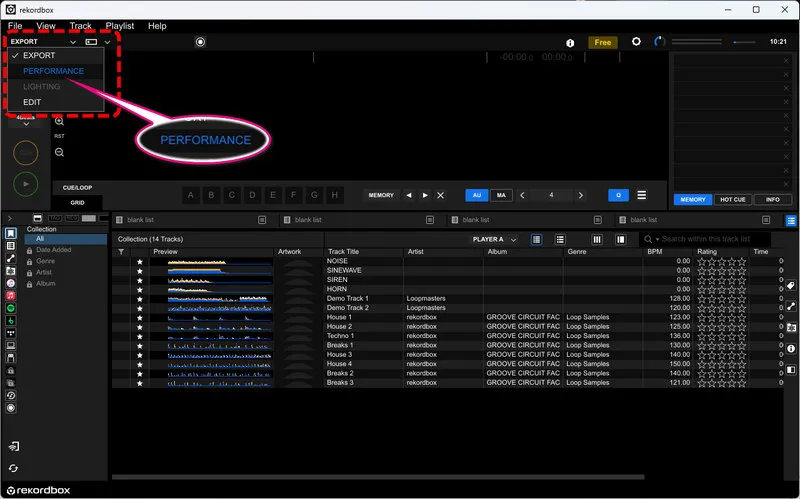
Step 2 Select Performance mode. Launch Rekordbox and check the mode selector in the upper-left corner. Make sure [PERFORMANCE] is selected. If the software is in [EXPORT] mode, switch to Performance mode first, as SoundCloud is not available in Export mode.
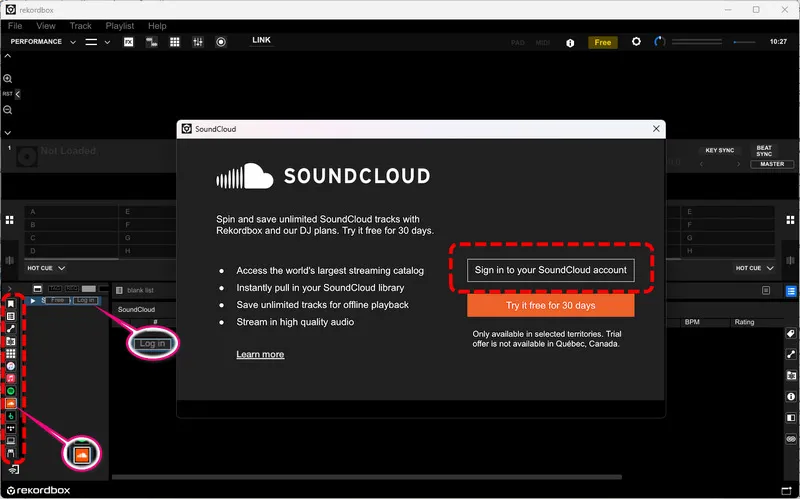
Step 3 Open SoundCloud in the Media Browser. Find the SoundCloud icon in the browser panel on the left and click it. Then select [Log in].
Step 4 Start the SoundCloud sign-in process. Click [Sign in to your SoundCloud account]. Your default web browser will open the SoundCloud login page.
Step 5 Sign in with your SoundCloud account. Use an account with SoundCloud Go+ or SoundCloud DJ to access the full SoundCloud catalog. A free account alone cannot load the full library, although you can access the limited Free DJ Playlists through the separate [Free] option in Rekordbox.
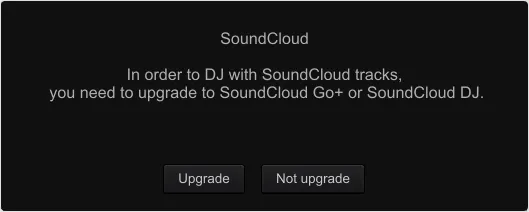
Step 6 Complete the login and authorization. Follow the prompts in your browser to finish signing in and grant Rekordbox access to your SoundCloud account. Once connected, return to Rekordbox.
Step 7 Browse your SoundCloud library. Your SoundCloud content will appear in the browser tree. You can search for tracks, browse your Likes and Playlists, and explore other available categories. Some tracks may not appear or play because of restrictions set by rights holders or uploaders.
Step 8 Load and import tracks. To play a track, load it onto a deck. You can also right-click a track and select [Import To Collection] to add it to your Rekordbox Collection. Tracks are imported one at a time, and Rekordbox automatically imports a track before loading it if it hasn't been imported yet. Keep in mind that this does not turn a streaming track into a regular MP3 or WAV file that you can freely export.
Step 9 Save tracks for offline playback. If you have a SoundCloud DJ subscription, select a track and click the download icon, or right-click it and choose [Store Offline]. You can select multiple tracks to save them at once. Once stored, the tracks appear in the [Downloads] section of the SoundCloud tree.
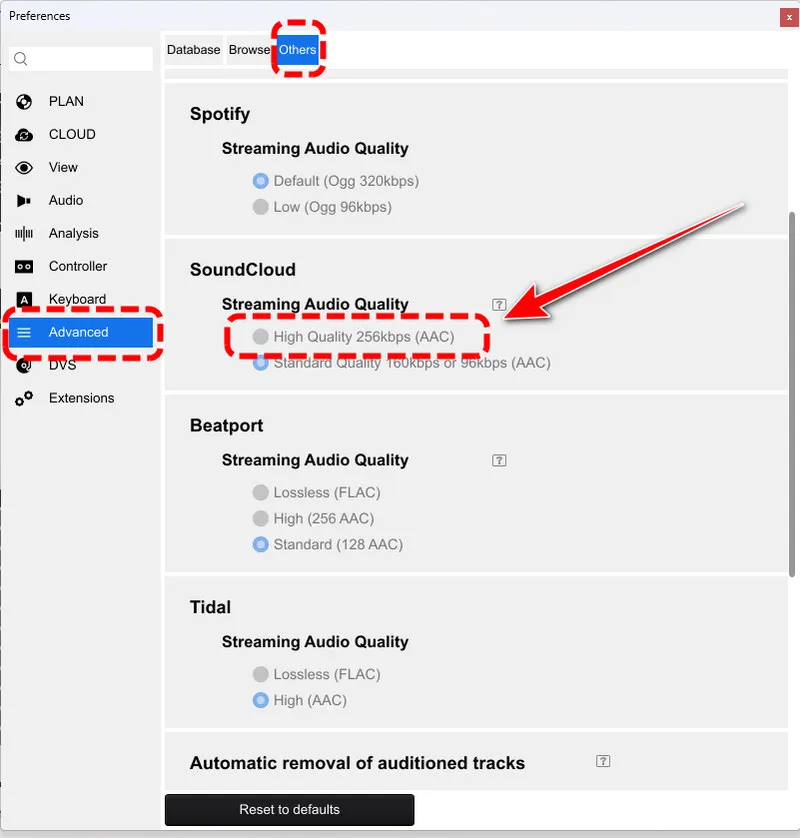
Step 10 Choose your streaming audio quality. Open [File] > [Preferences] > [Advanced] > [Others] and find the SoundCloud settings. Under [Streaming Audio Quality], select [High Quality 256kbps (AAC)] for the higher-quality option. If a track does not support the selected quality, Rekordbox uses the other available quality for playback and analysis.
 Tips:
Changing the streaming quality can shift existing BeatGrid and CUE points, so set it before you prepare tracks, not after. And to sign out later, right-click SoundCloud in the tree and choose [Log out].
Which SoundCloud Plan Do You Need: Go+ or DJ?
If you want to use your own SoundCloud library in Rekordbox, choosing the right subscription is important.
| Plan | US Price (Monthly) | What It Unlocks in Rekordbox | Offline Playback | USB Export |
|---|---|---|---|---|
| Free | $0 | Limited Free DJ Playlists only | No | No |
| Go | $4.99 | No DJ software integration | No | No |
| Go+ | $11.99 | Full SoundCloud catalog, online streaming | No | No |
| DJ | $19.99 | Full SoundCloud catalog plus offline storage | Yes | No |
- Free: works only with the Free DJ Playlists. Your own library will not load.
- Go: removes ads and allows offline listening in the SoundCloud mobile app, but it does not unlock Rekordbox.
- Go+: unlocks your full library in Rekordbox, but only while you are online. No offline playback.
- DJ: everything in Go+, plus offline storage inside Rekordbox. This is the plan for clubs with weak WiFi, basements, festivals and anywhere the internet cannot be trusted.
If you have a reliable internet connection and only need to stream tracks in Rekordbox for private practice, Go+ is enough. If you want to prepare tracks for offline practice sessions, DJ is the better option.
Can You Export SoundCloud Tracks to USB?
Yes. But you cannot export SoundCloud streaming tracks to a USB drive or SD card from Rekordbox, even with a SoundCloud DJ subscription.
If you need music you can actually transfer to a USB drive, you will need local audio files instead. You can get them from tracks that artists make available for download, or use a professional tool like Sidify SoundCloud Music Converter to save any SoundCloud tracks as MP3, WAV or more formats.
Method 2. Import Free SoundCloud Music into Rekordbox
Some SoundCloud artists allow listeners to download their tracks directly. So you can add those downloads to Rekordbox as local music, play them offline and transfer them to a USB drive. This is a good option if you want free edits, remixes, bootlegs or promotional tracks for your DJ sets.
Step 1 Sign in to SoundCloud. Open SoundCloud in a desktop browser and log in to your account.
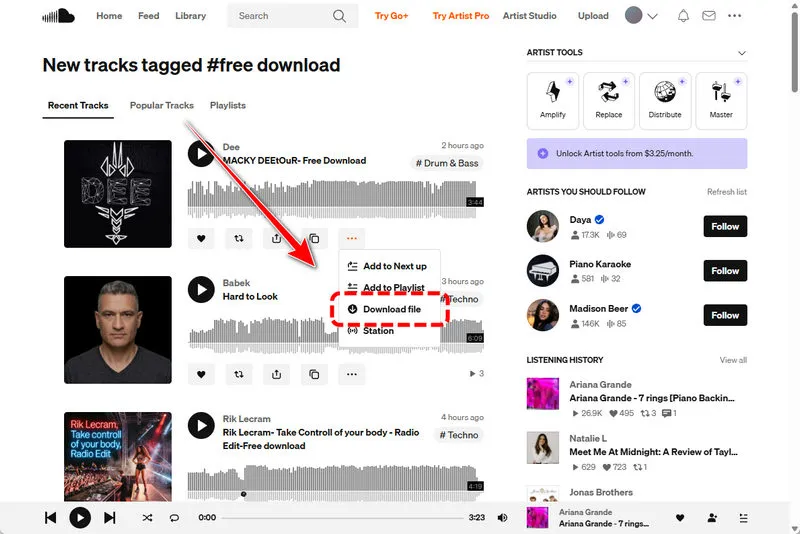
Step 2 Find tracks available for download. Search for the music you want. Adding terms like "free download" or "free DL" can help you find tracks shared for free.
Step 3 Download the track. Click the Download file button and save the audio file to your computer.
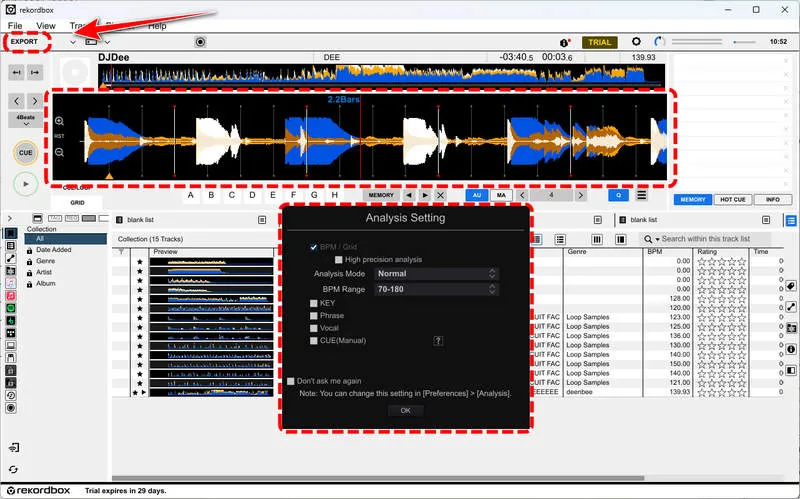
Step 4 Import the file into Rekordbox. Open Rekordbox in Export mode and drag your downloaded audio files into the playlist. If Auto Analysis is enabled under Preferences > Analysis > Track Analysis, Rekordbox will analyze the files automatically and generate information such as BPM, key and waveform.
Step 5 Check the audio quality. Check the actual file format and bitrate, and listen to the tracks before using them in a DJ set.
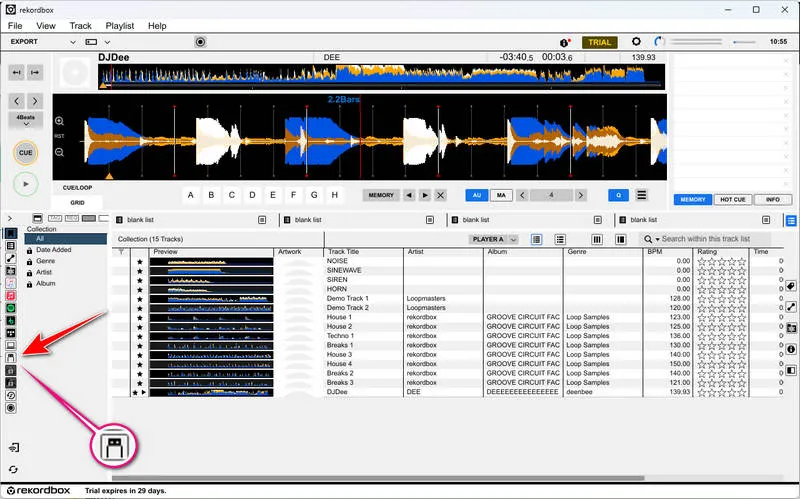
Step 6 Export to USB. If you want to move it to a USB drive, connect a USB drive to your computer, find it under the Devices panel in Rekordbox, and drag your playlist to the USB device's Playlists folder. Wait for the transfer to finish before safely ejecting the drive.
 Note:
This method has an obvious drawback. Not every SoundCloud track has a download button, and downloading tracks one by one can take time when you are building a complete DJ set.
Method 3. Download All SoundCloud MP3 to Rekordbox
As we mentioned before, what if most of the tracks you want don't have a Download button? If you are preparing a large playlist, searching for individual download links and saving tracks one by one can quickly become tedious.
This is where Sidify SoundCloud Music Converter helps. Even if you don't have the SoundCloud Go, Go+ or DJ plan, it is convenient to download SoundCloud tracks in batches for Rekordbox.
You can choose MP3 output at up to 320kbps or use other formats, including AAC, WAV, FLAC, AIFF, and ALAC. Sidify also retains ID3 tags such as track title, artist, album and more, making it easier to organize your music after importing it into Rekordbox.
Sidify SoundCloud Music Converter
- Convert SoundCloud Music to MP3, AAC, ALAC, AIFF, WAV, and FLAC.
- Convert MP3 songs, playlists, albums, and podcasts from SoundCloud Music.
- Download SoundCloud Music 320kbps MP3 and LOSSLESS ALAC files.
- Keep SoundCloud Music HD artworks, lyrics and ID3 tags.
- Compatible with Windows and macOS.

How to Download SoundCloud Tracks as MP3 for Rekordbox
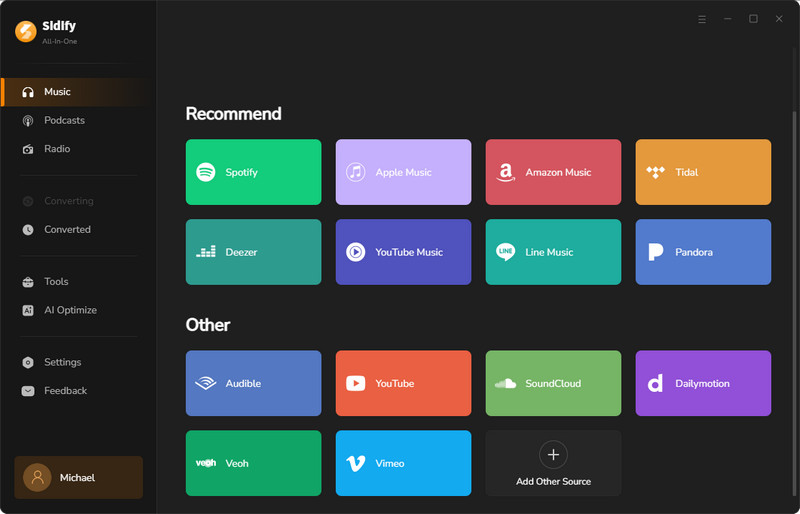
Step 1 Select SoundCloud.
Install and launch Sidify SoundCloud Music Converter, choose SoundCloud from the main platform list. The built-in SoundCloud web player will open. Next, log in with your account.
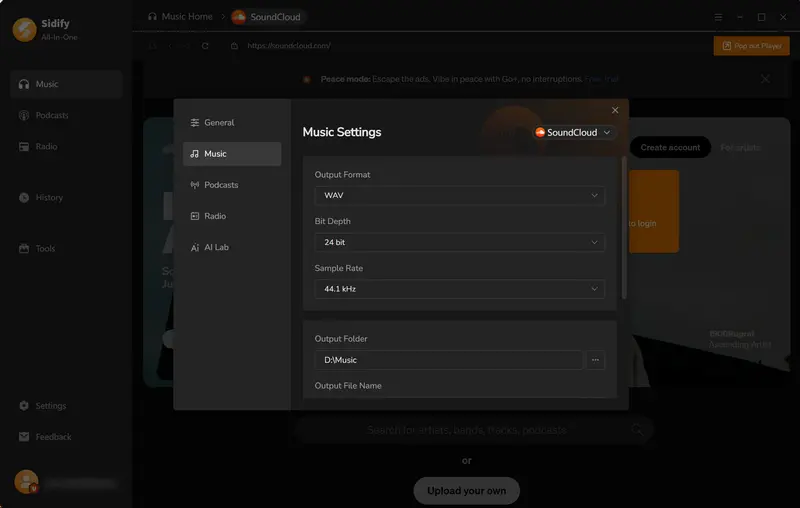
Step 2 Set the output preferences.
Open Settings and choose MP3 as the output format. You can select a bitrate of up to 320kbps and specify where to save the converted files.
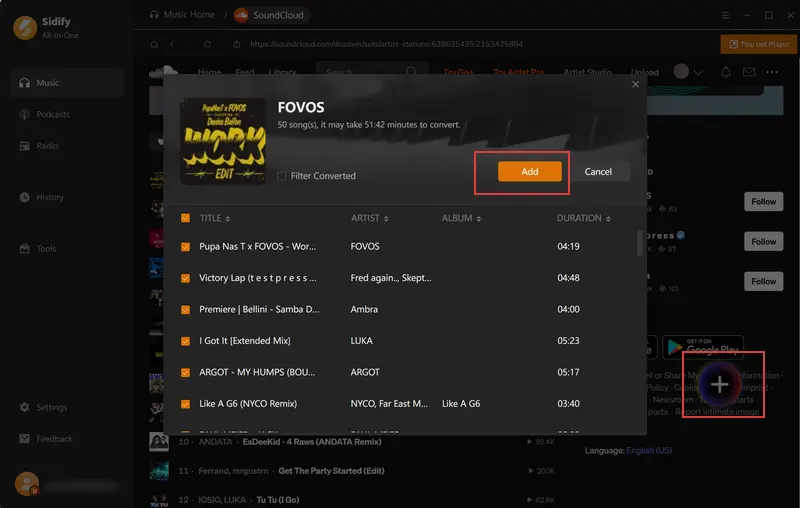
Step 3 Find and add your tracks.
Now you can browse the tracks or playlists you want to process. Use the Add button to add SoundCloud tracks to the conversion list.
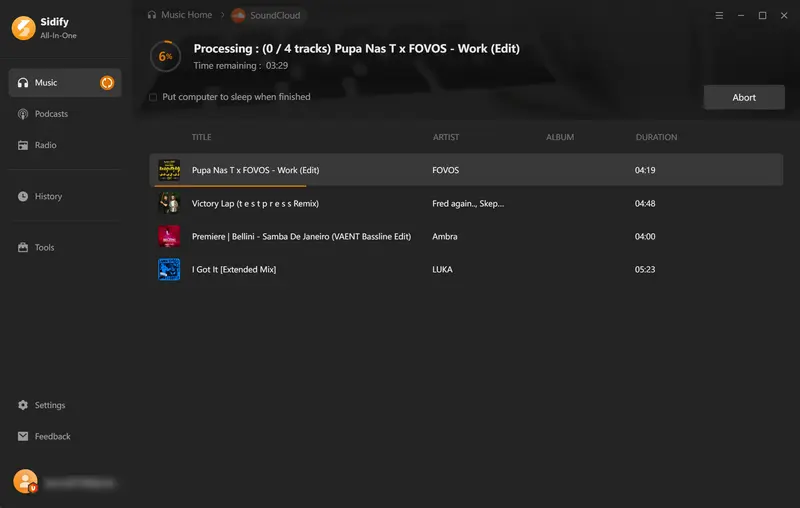
Step 4 Check the converted files.
Click Convert to begin processing the selected tracks.
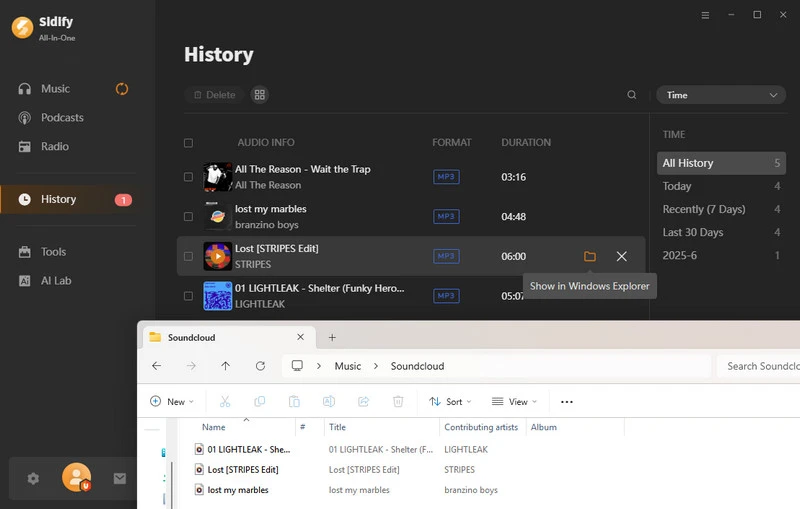
Step 5 Locate downloaded music files.
The converted files can be accessed through the "History" tab. Or you can open the output folder and check the audio files and their metadata.
Step 6 Import the files into Rekordbox.
Open Rekordbox in Export mode and drag your converted local audio files into the playlist to add SoundCloud to Rekordbox.
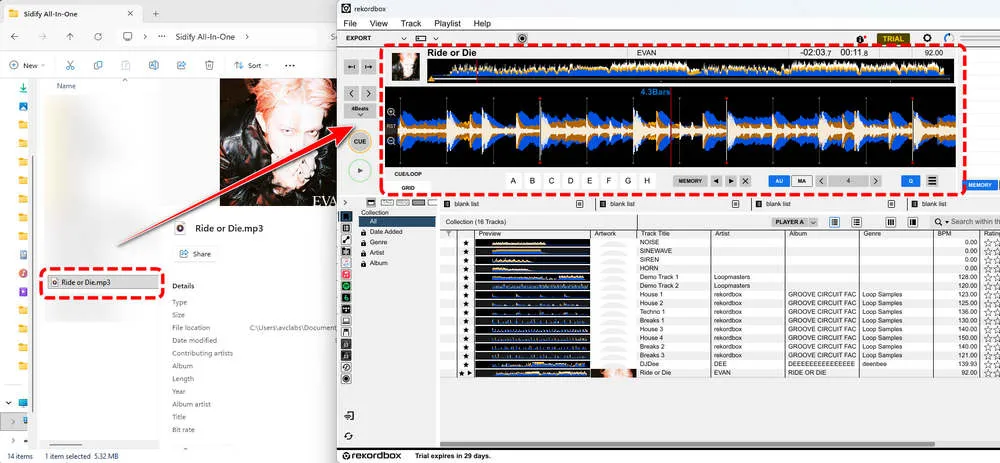
Step 7 Analyze the tracks.
You can let Rekordbox analyze the imported files to generate BPM, key, waveform, and beatgrid information.
How to Fix SoundCloud Not Working in Rekordbox
Even when you add SoundCloud to Rekordbox, you may run into problems such as a missing SoundCloud section, login errors, tracks that won't load, or offline playback issues. You can try these fixes for the most common problems.
1. SoundCloud Does Not Appear in the Browser Panel
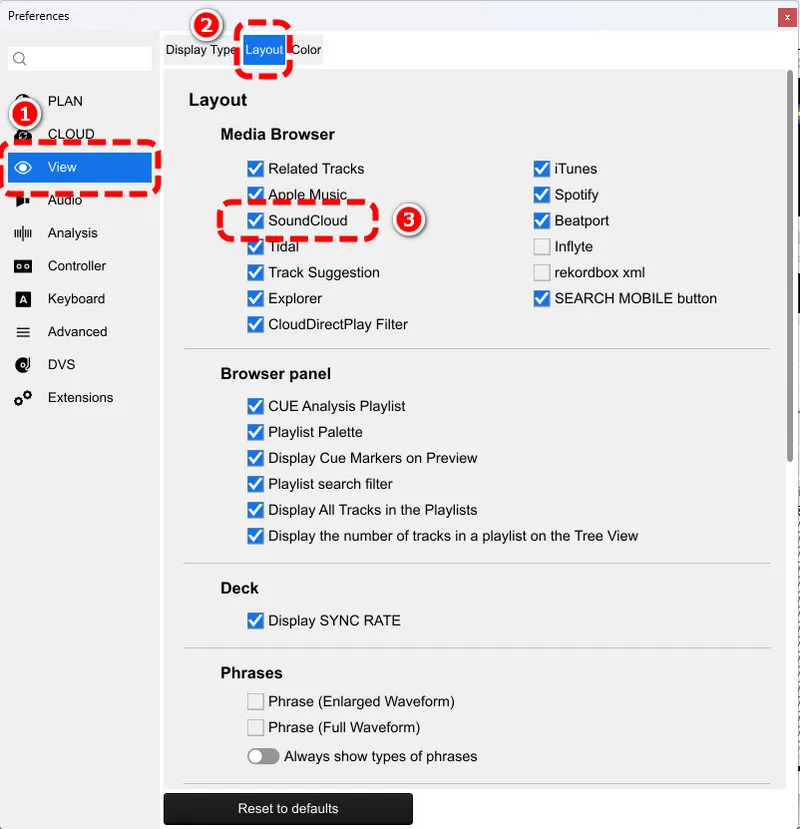
If you can't find SoundCloud in Rekordbox, first check that you are using the latest version and update the software if needed. Next, make sure you are in Performance mode, not Export mode. Then open File > Preferences > View > Layout and enable SoundCloud under the Media Browser options. Restart Rekordbox if it still doesn't appear.
2. Cannot Sign In to SoundCloud in Rekordbox
If the SoundCloud login page won't open or authorization fails, start by checking your internet connection and updating Rekordbox. You can also temporarily disable VPNs or browser extensions that may interfere with the login process.
3. SoundCloud Tracks Will Not Load or Play
The library appears but tracks stay grey or refuse to load. The most common cause is a free account. Rekordbox requires Go+ or DJ, and without it, the tracks cannot load at all. If your plan is active, check whether the track still exists on SoundCloud, because removed tracks and region-locked tracks disappear from the library. Also make sure no import or recording is running. Rekordbox imports tracks one at a time, and loading is blocked while recording, so wait for the current job to finish.
4. SoundCloud Offline Storage Stops Working
If tracks you previously stored offline suddenly need an internet connection, check your SoundCloud plan and offline storage period. First, remember that SoundCloud Go+ does not support offline playback in Rekordbox. You need a SoundCloud DJ subscription to store tracks for offline use. Second, offline storage has a time limit. If 30 or more days pass without the device connecting to the internet, stored tracks are deleted. To reset the limit, connect your computer to the internet and log in to SoundCloud in Rekordbox after 20 days have passed since storing the tracks.
5. BeatGrids and CUE Points Shift After Changing Audio Quality
If your BeatGrids or CUE points no longer line up with the music, the problem may be related to a change in SoundCloud's streaming audio quality. To fix this:
- Open Preferences > Advanced > Others > SoundCloud.
- Check your current Streaming Audio Quality setting.
- Select the SoundCloud tracks that need fixing and choose Analyze Track from the context menu.
6. Cannot Export SoundCloud Tracks to USB
There is no setting that unlocks this restriction. If you need tracks for a USB-based DJ setup, you can download free tracks, or use Sidify to convert them to MP3. Once you have local audio files, you can import them into Rekordbox and export them to USB as usual.
FAQs About Adding SoundCloud to Rekordbox
1. Can I use SoundCloud with Rekordbox for free?
Yes, with limitations. You can play curated Free DJ Playlists without a subscription, but the tracks disappear when you close Rekordbox and need to be loaded again. To access your full SoundCloud library, you need a Go+ or DJ subscription. If you want to build a free local music library, you can download tracks that artists have made available for download. Alternatively, Sidify offers a free trial, but it only converts the first minute of each track.
2. Can I use SoundCloud offline in Rekordbox?
Yes, but you need a SoundCloud DJ subscription and must store tracks offline in advance. Offline-stored tracks also have a time limit. If your device doesn't connect to the internet for 30 days or more, the stored tracks will be deleted. You will need to reconnect and log in to SoundCloud in Rekordbox before the offline period expires.
Conclusion
SoundCloud is a great place to discover new music and build playlists. How to add SoundCloud to Rekordbox depends on how you access and store that music.
For online mixing, Go+ gives you access to your SoundCloud library, while DJ adds offline storage. But if you want batch conversion, use Sidify SoundCloud Music Converter to convert SoundCloud tracks into MP3 and other formats. Once imported into Rekordbox, these files become part of your local music collection, ready for analysis, playlist organization, and USB export.
 Sidify SoundCloud Music Converter
Download and convert music from SoundCloud and other major streaming services in one place. Get MP3 or other popular formats in source audio quality, save songs offline on Windows or Mac, and enjoy up to 10X faster downloads with ID3 tags and lyrics preserved.