Music ecosystems differ, but playlists define listening habits. Transfer Spotify playlists to Amazon Music to avoid rebuilding libraries from scratch. This guide breaks down steps for migrating music from Spotify to Amazon, turning a potentially stressful task into clear actions.

Because the streamed audio files are limited to be used, modified, and distributed on Spotify or Amazon, firstly you will need a third party tool to record Spotify music to normal audio files. Sidify Music Converter is here specially designed for offering users an easy way to record and convert Spotify music to plain audio formats including MP3, AAC, WAV. FLAC, or AIFF. After the record is completed, you can manually import your Spotify songs or playlist to Amazon Music.

If you are looking for a tool to convert any streaming music (such as Spotify, Apple Music, Amazon Music, Tidal, Deezer, YouTube, YouTube Music, SoundCloud, DailyMotion …) to MP3, Sidify All-In-One is the go-to choice.

Migrate Spotify playlists to Amazon Music with zero effort. Music Playlist Transfer delivers one-click, service-to-service migration with 99% song-match accuracy. Works with Spotify, Apple Music, Amazon Music, Tidal, Deezer, YouTube Music, and more.
Step 1Launch Sidify Music Converter
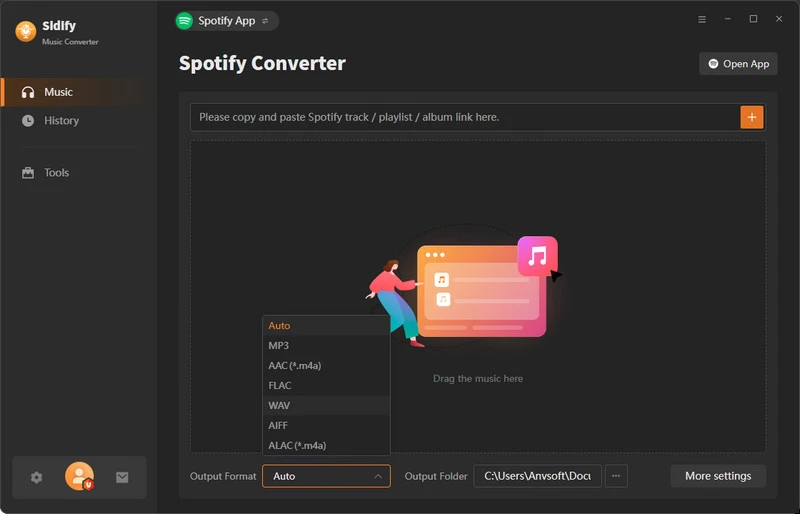
Run Sidify Music Converter, you will access the modern interface of the program.
Step 2 Add Spotify Song or Playlist
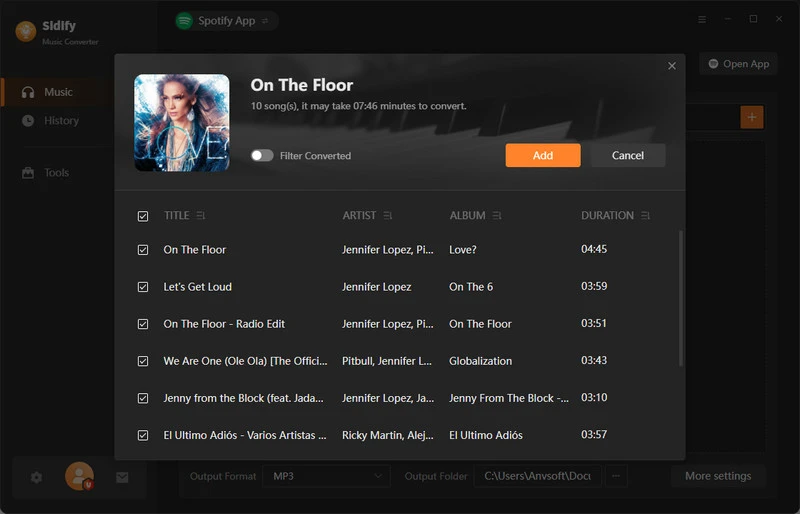
Click  icon to add Spotify track, playlist, artist or album to Sidify by drag & drop.
Step 3 Choose the Output Format
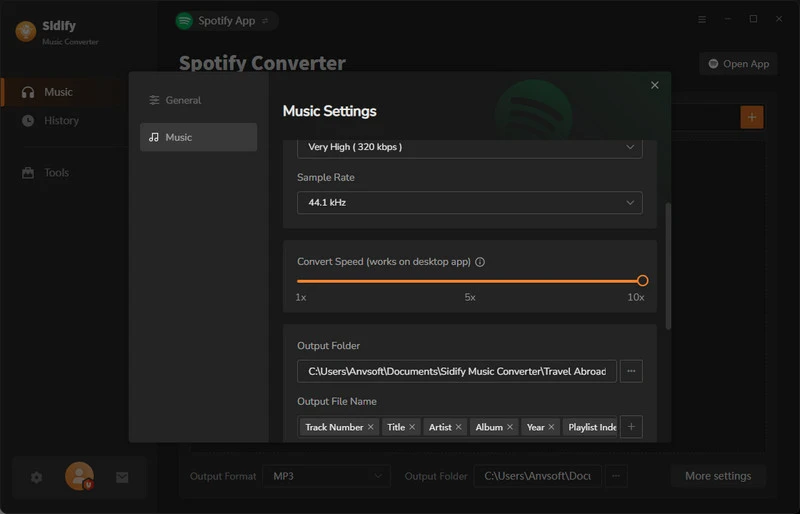
Click on  button in the top left corner to change the output settings: Sidify supports you output Spotify as MP3, AAC, WAV, FLAC, AIFF, or ALAC with the best sound quality kept.
Step 4 Start Downloading Songs from Spotify
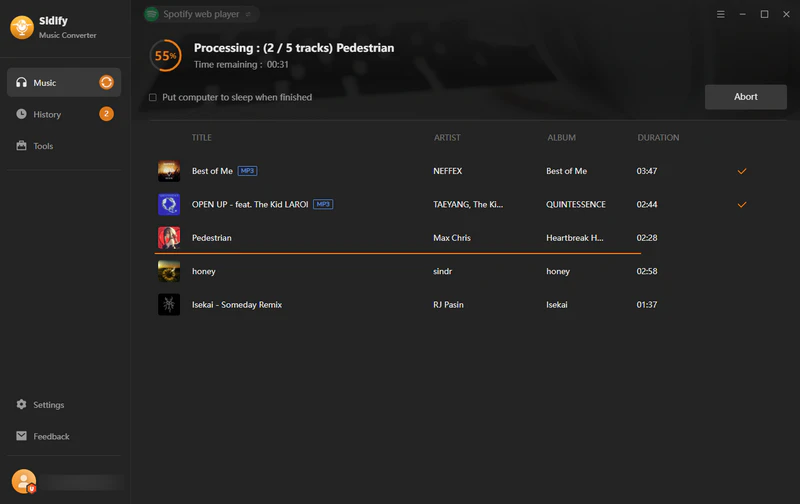
Now you can start downloading songs from Spotify by clicking Convert button on the bottom of Sidify. After the downloading process completed, you can click on "Converted" button to check the well downloaded Spotify music.
The Amazon Music Storage Subscription plan was retired but the paid subscribers are still allowed to upload and store up to 250,000 music to Amazon Music if the subscription is active. Otherwise, you can follow the method below to upload your music:
Step 1 Open Amazon Music app on PC or Mac.
Step 2 Click on your name in the upper right corner and choose Preferences.
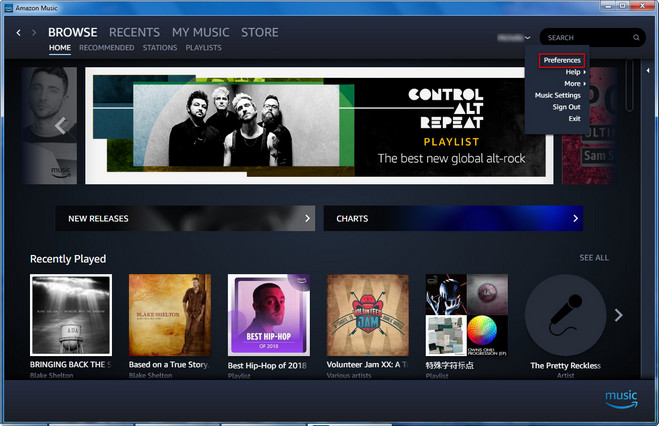
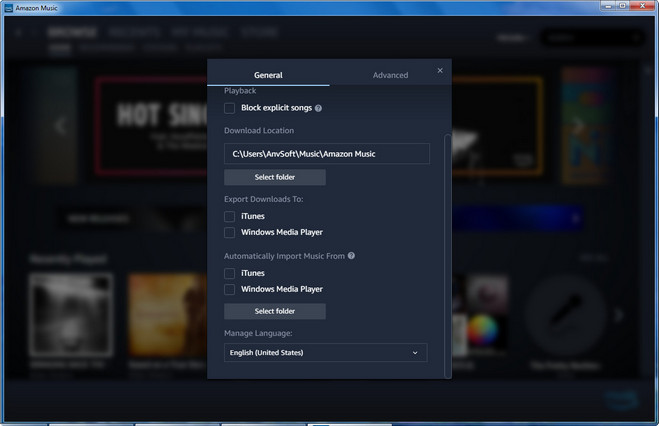
Step 3 In the General tab, choose your preferred folder or location under the Automatically Import Music From option. Or click on the Select Folder button to select the folder to upload.
Note: The trial version of Sidify Music Converter enables us to convert the first minute of each audio file for sample testing, you can purchase the full version to unlock the time limitation.
What You Will Need
They're Also Downloading

You May Be Interested In


Hot Tutorials
Topics
Tips and Tricks
What We Guarantee

Money Back Guarantee
We offer money back guarantee on all products

Secure Shopping
Personal information protected by SSL Technology

100% Clean and Safe
100% clean programs - All softwares are virus & plugin free